
Bonuses accrual and spending log
Bonuses accrual and spending log
Bonus accruals and spending for users can be viewed in the corresponding log. It can be accessed in two ways:
- Go to the menu: Information - Gift shop - Accrual of bonuses to users:
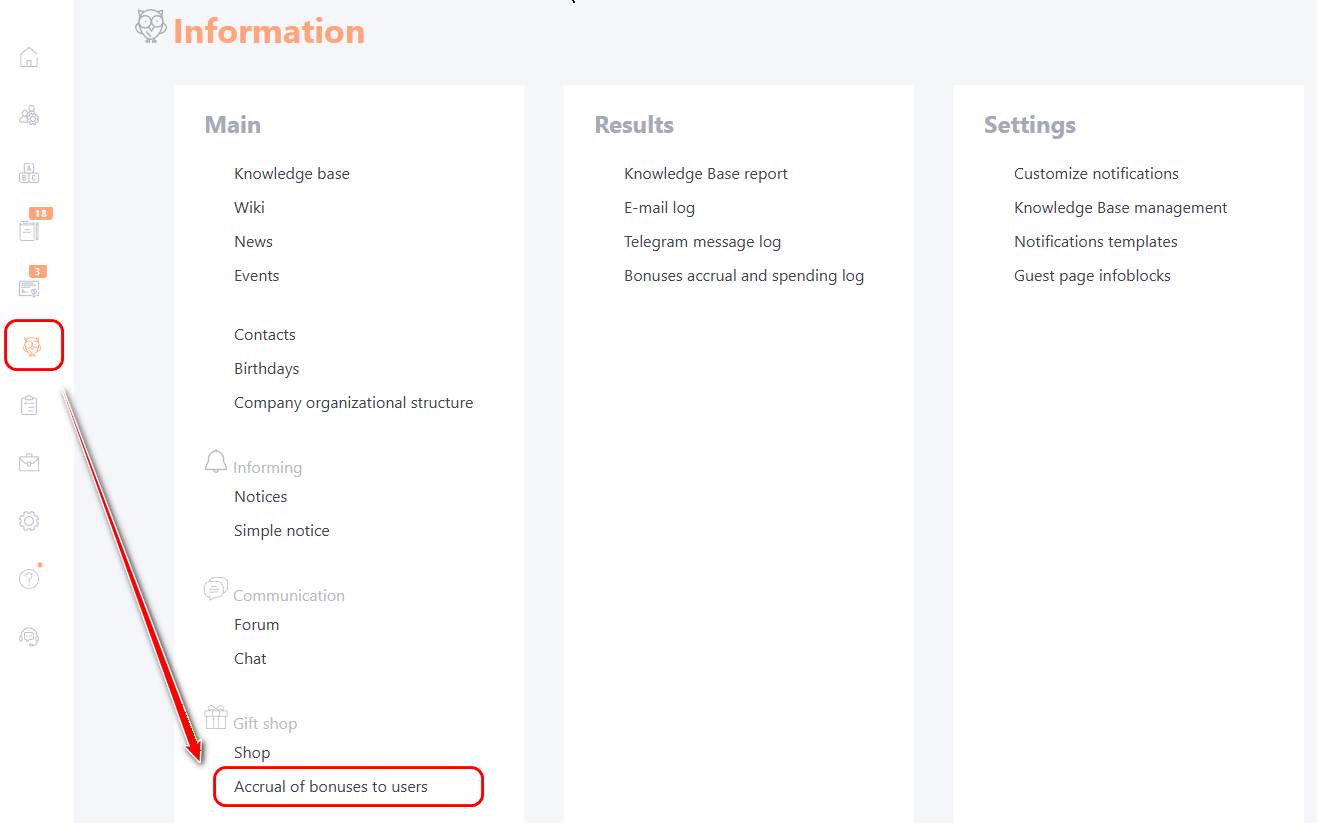
On the Accrual of bonuses to users page, click the Bonuses accrual and spending log button.

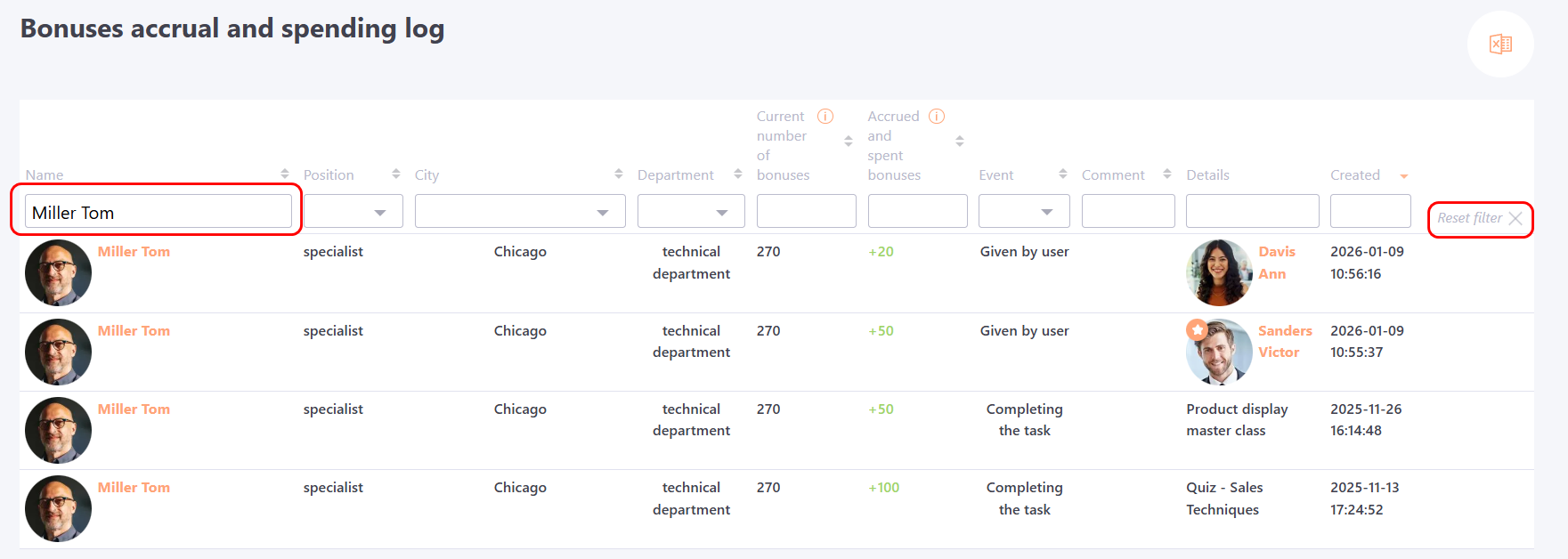
After that, the Bonuses accrual and spending log page opens, displaying all bonus-related events (accruals and deductions) for the selected user.
- Go to the menu: Information - Results - Bonus Accrual and Spending Log:

The Bonuses accrual and spending log page displays the following information:

(1) - User’s full name and their attributes;
(2) - Current number of bonuses of the user;
(3) - Accrued and spent bonuses - the number of bonuses added or write-off for the given event. Accrued bonuses are shown in green with a “+” sign, write-off bonuses are shown in red ith a “–” sign;
(4) - Event – the type of event for which the user received or lost bonuses. The following event types are currently available:
• Completing the task
• Added manually
• Written-off by the administrator
• Given by user
(5) - Comment – when bonuses are manually added or written-off, the Administrator can leave a comment, which appears in the log. This helps track changes in users’ bonus balances more easily.
(6) - Details – if bonuses were awarded for completing a task, this field shows the task title. If bonuses were added or written-off manually, it shows the Administrator who performed the action.
(7) - Created – the date and time when the event occurred.
Search and sorting are available for all these fields.
By default, events in the log are sorted by creation date (newest to oldest).
Examples of filtering by bonus amount:
- 10 - shows entries equal to 10;
- >= 10 - shows entries greater than or equal to 10;
- <= 10 - shows entries less than or equal to 10;
- 10-100 - shows entries between 10 and 100 (inclusive).
The table from the Bonus Accrual and Spending Log can be exported to Excel using button (8).
