Giving bonuses
The system provides the ability for users to give bonuses to each other. This feature is configured by the portal administrator.
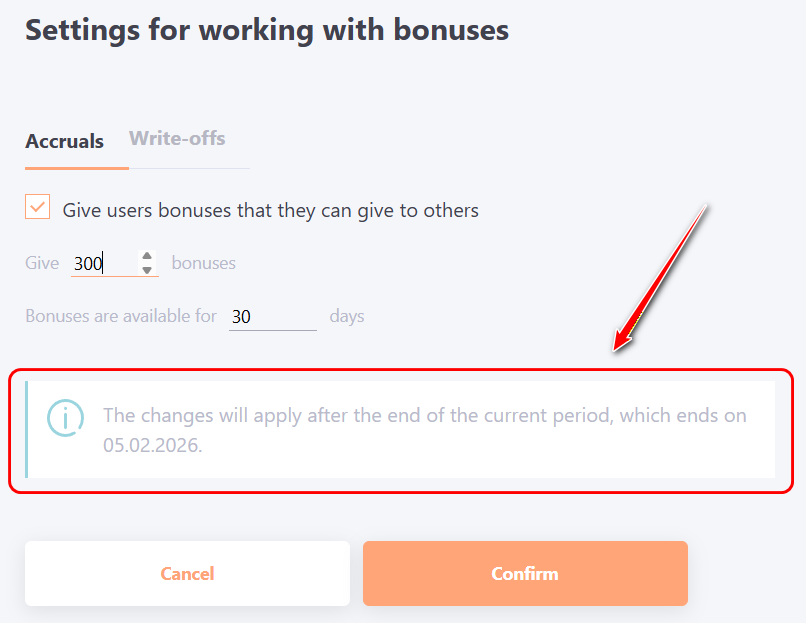
The portal administrator defines the number of giving bonuses allocated to a user and the period during which these bonuses are available for giving.
Users can use the allocated bonuses only within the period set by the administrator.
After this period ends, all unused give bonuses in the user’s balance are automatically canceled (expired).
At the beginning of a new period, the give bonus limit is automatically refreshed: users are granted a new available amount of bonuses defined by the administrator.
Giving Bonus Settings
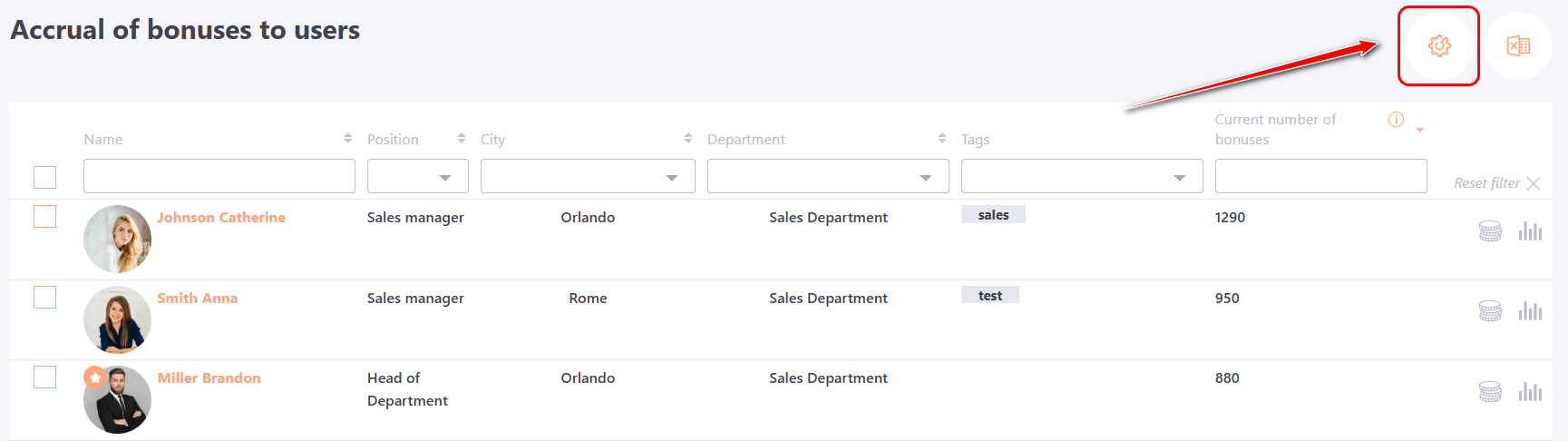
To configure this, click the corresponding button on the Accrual of bonuses to users page:
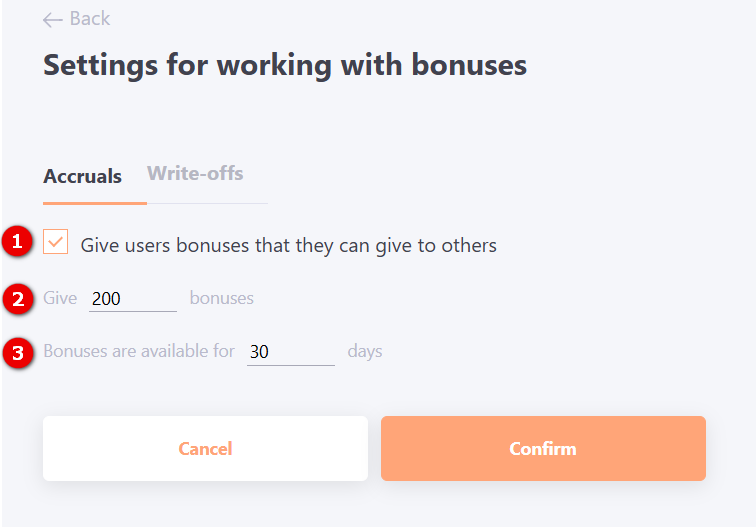
Next, select the Accruals tab and make the following settings:
- Check the box “Give users bonuses that they can give to others” (1) to enable the giving feature;
- Enter the bonus limit (2) allocated to the user for giving;
- Set the period (3) during which these bonuses are available (e.g., month, quarter);
- Click the Confirm button.
Giving bonuses to another user
To give bonuses to another user, you need to:
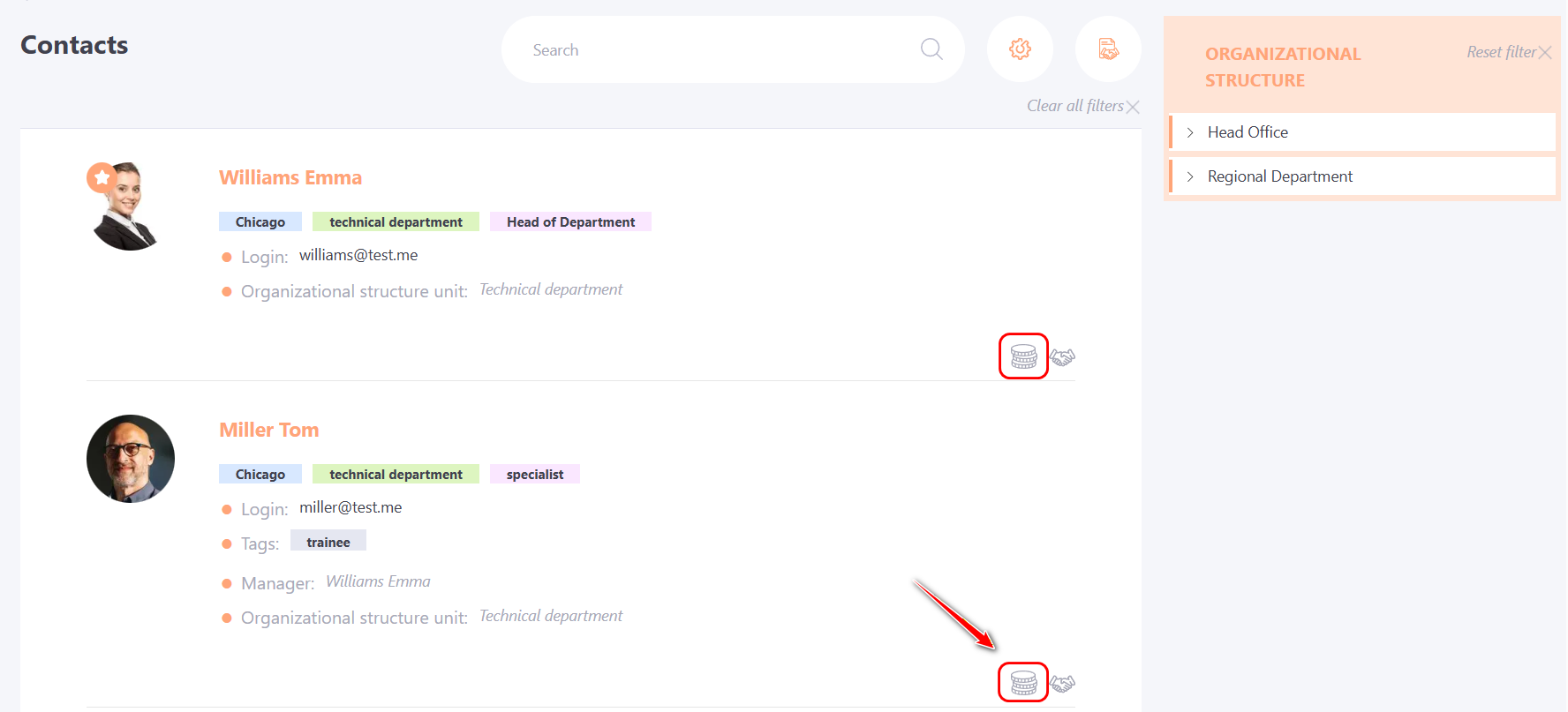
- Open the menu Information - Main - Contacts, on the Contacts page you can search for colleagues or any company employee.
- Select the desired employee and click the Give Bonuses button;
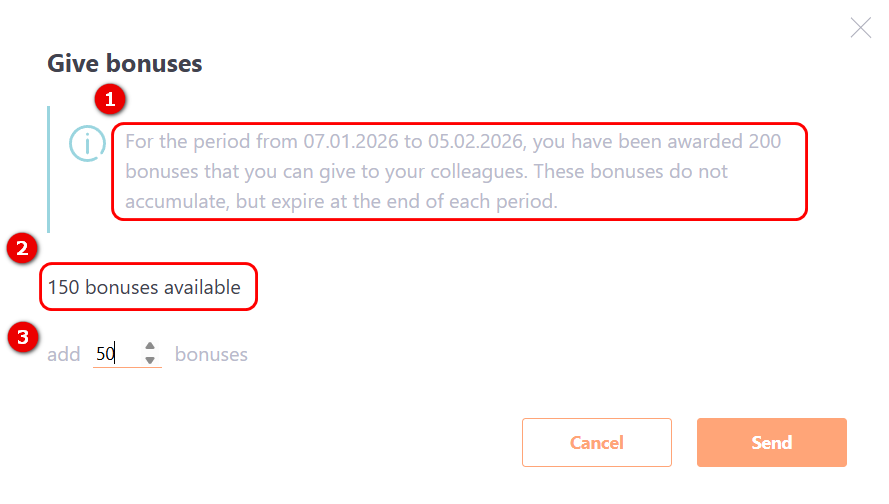
- In the modal window that appears, the following information is displayed:
(1) – the validity period and the total number of give bonuses allocated to the user;
(2) – the number of bonuses available for giving;
(3) – a field to enter the number of bonuses to give.
-
Enter the desired number of bonuses in field (3) and click the Send button.
After that, the system will automatically reduce the available balance of give bonuses by the amount sent.
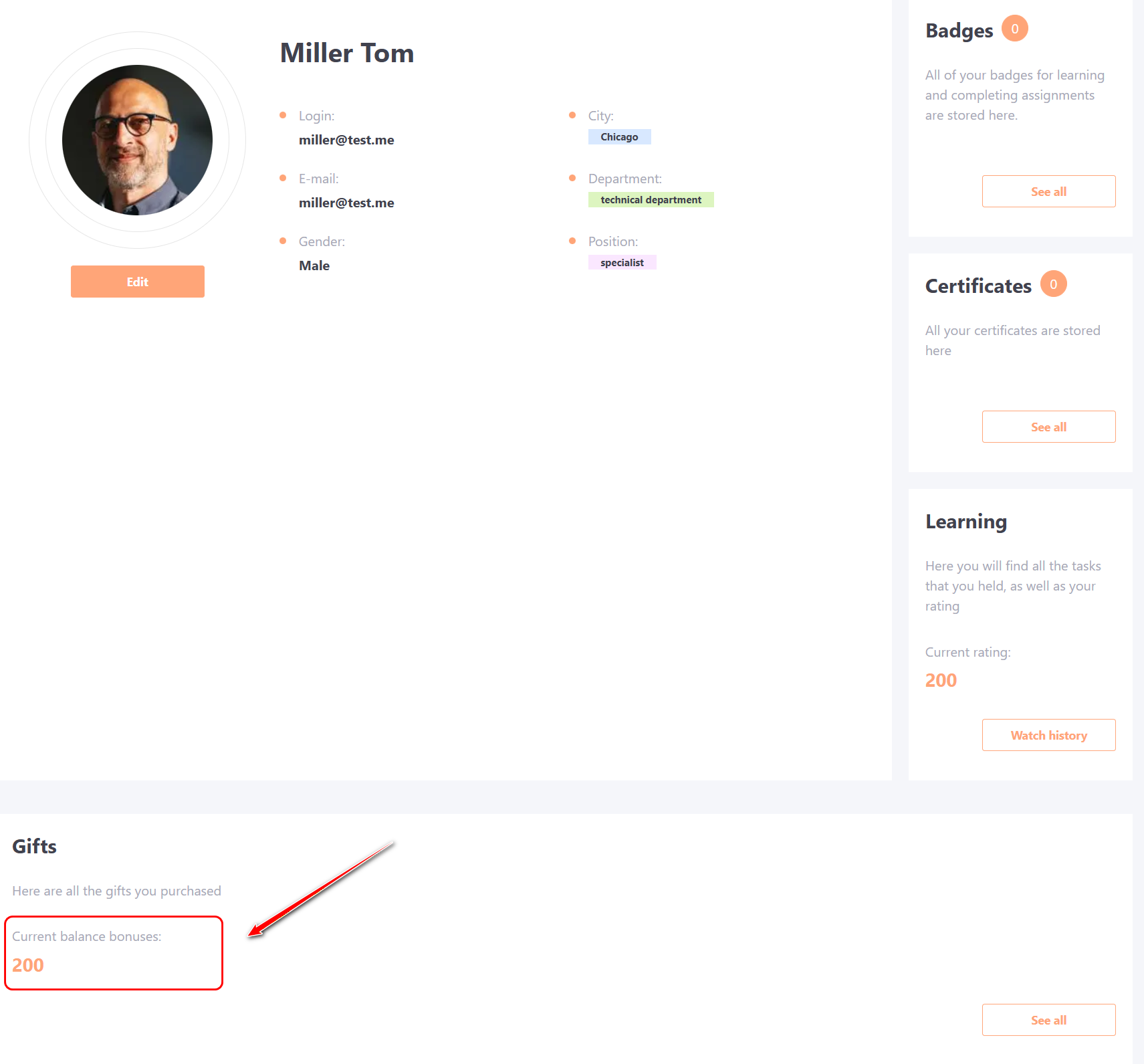
For the recipient user, the bonuses are automatically added to the Current balance bonuses, which can be viewed in the Gifts section of their personal profile. A record of this action will appear in Bonuses accrual and spending log