Position profiles
In LMS Collaborator, you can create position profiles. You can view the existing profiles and create new ones in the Development - Management - Position profiles menu:

The "Position profiles" page displays a list of available position profiles on the portal. The page displays the following information:
- (1) Profile title;
- (2) List of positions included in the profile;
- (3) Competencies selected for this profile;
- (4) Creation date;
- (5) Profile publication status (published / unpublished);
- (6) Profile editing button;
- (7) Button for profile duplication;
- (8) Button for removing a profile;
- (9) "Reset filter" function;
- (10) "Create" button for adding a new profile.
The instruments of searching and sorting are available for fields (1)-(5).

As well as with the other tables in the system, you can perform group actions on position profiles. First, you need to mark the required profiles with checkboxes, then choose one of the actions:
- publish;
- unpublish;
- remove.

Creating a new profile
To create a new profile, click the "Create" button on the "Position profiles" page 
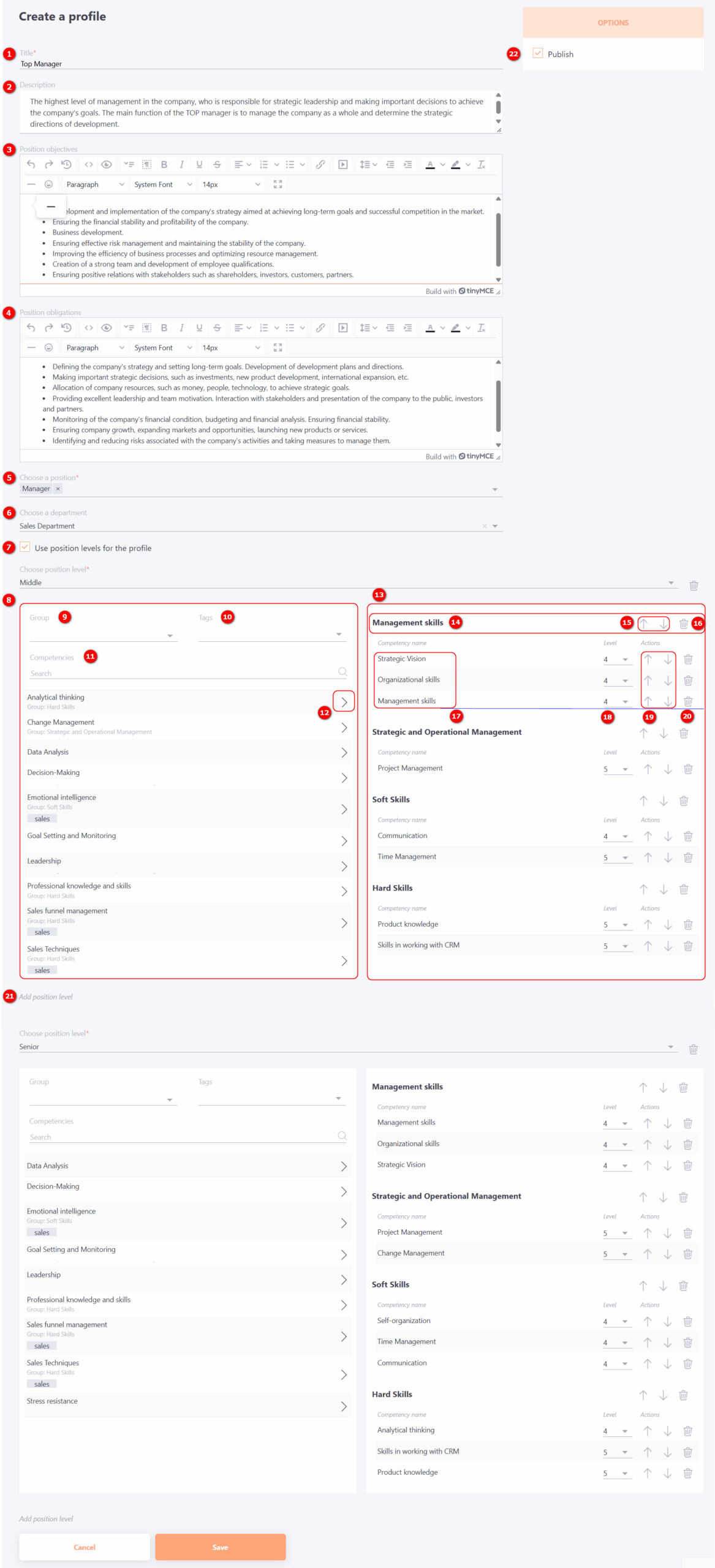
After this, the Create a profile page will open, where you need to enter and configure the following details:
(1) - Title for Position profile;
(2) - Description - a brief overview of the Position profile, which appears in the table listing all profiles created on the portal, as well as within the personal profile when viewing the Position profile.
(3) - Position objectives - the primary purpose of the role within the company, expected work outcomes, and its contribution to achieving the goals of the department and the organization as a whole.
(4) - Position obligations - a list of tasks and functions to be performed by an employee in this position.
(5) - Choose a position - a mandatory field where you must choose the specific position from the list of positions already created on the portal, for which the profile is being generated.
(6) - Choose a department - an optional setting that allows you to specify the particular department for which the position profile is being created.
(7) - Use position levels for the profile - the ability to create separate position profiles for different employee qualification levels.
If this setting is enabled, you must select a position level from the drop-down list.
Next, a list of all created competencies (8) is displayed. From this list, you need to select the competencies that correspond to the given position profile. To facilitate a quick search, you can use the filter by Competence groups (9) or by tags (10); a Search (11) by competency name is also available.
To add a competency to the position profile, click the arrow (12) next to the desired competency.
To the right, a list of competencies (13) added to the position profile is displayed. First, the title of the Competency Group (14) to which they belong is indicated.
Using the Up and Down buttons (15), you can change the position of the entire group within the position profile. The Remove (16) button allows you to remove the entire Competency Group at once.
The title of each competency (17) is displayed below.
For each competency, you must specify the Competency Level (18) - selecting a value from the Competency scale that corresponds to the employee's expected qualification level. This established level is displayed to the user when viewing the Position profile and is used when analyzing the results of the Competency Assessment.
You can use the Up and Down buttons (19) to change the order of individual competencies within a group. To remove a specific competency from the assessment, click the Remove (20) button.
In the system, you can create different sets of competencies for a single Position profile, depending on the position level.
To do this, click the "Add position level" (21) button , select the required level from the drop-down list, and define the corresponding set of competencies for it.
(22) – Publish – publishes the Position profile. Only published profiles appear in a user's personal profile and are available for creating Assessments by competency.
Viewing the Position profile
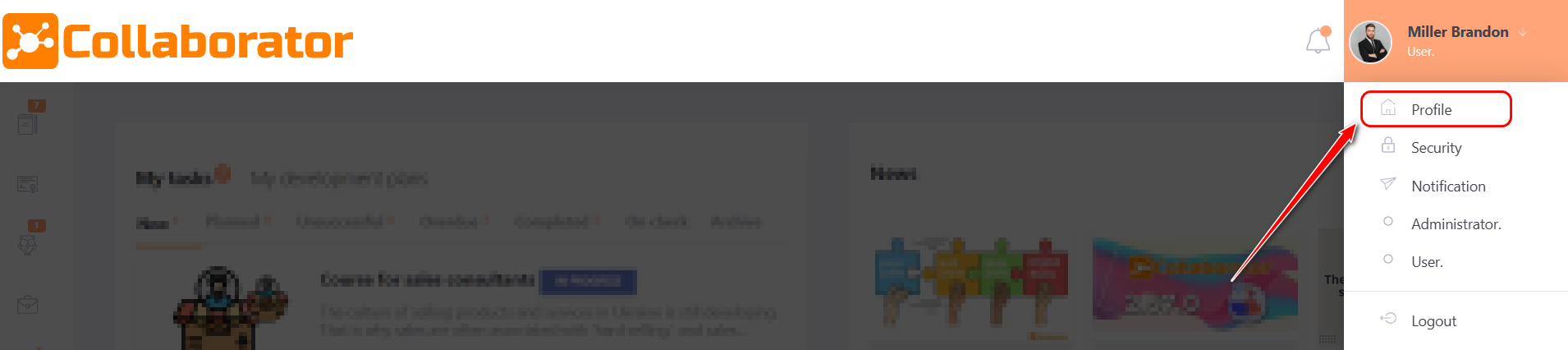
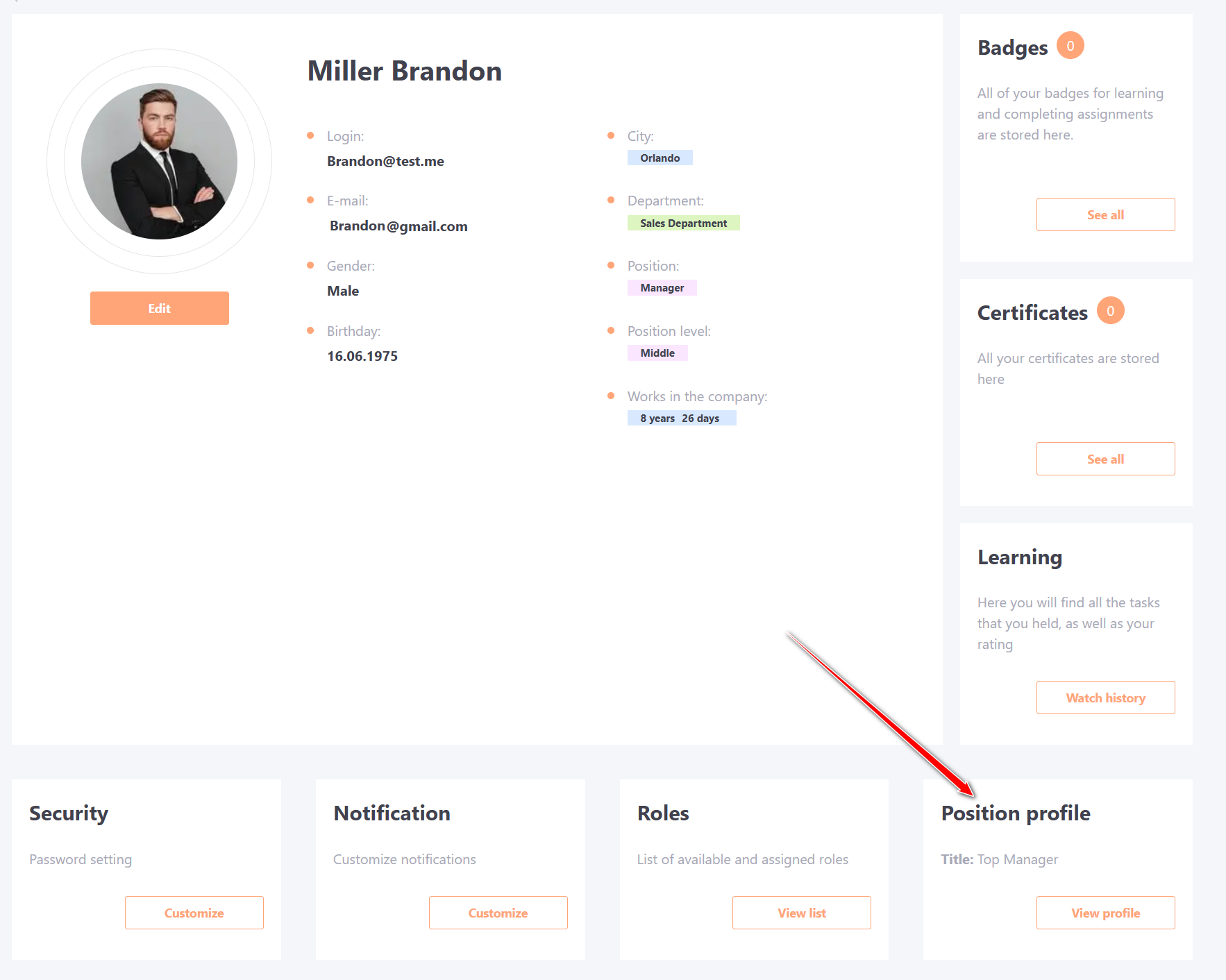
To view their own Position Profile, the user needs to go to their personal profile:
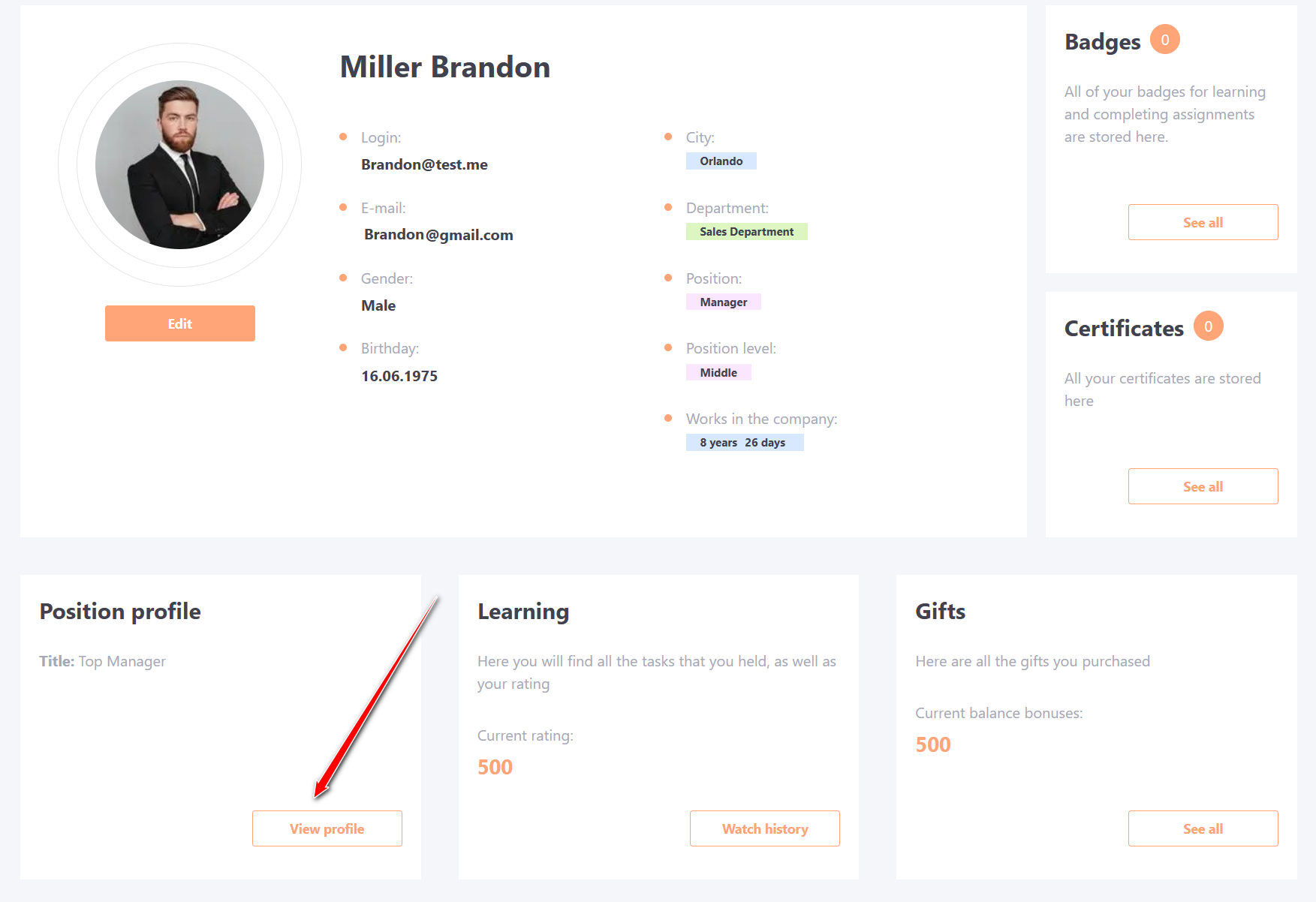
And in the "Position profile" block, click the View profile button:
The administrator can view the Position profile of another user in the corresponding user's profile through the Position profile block.
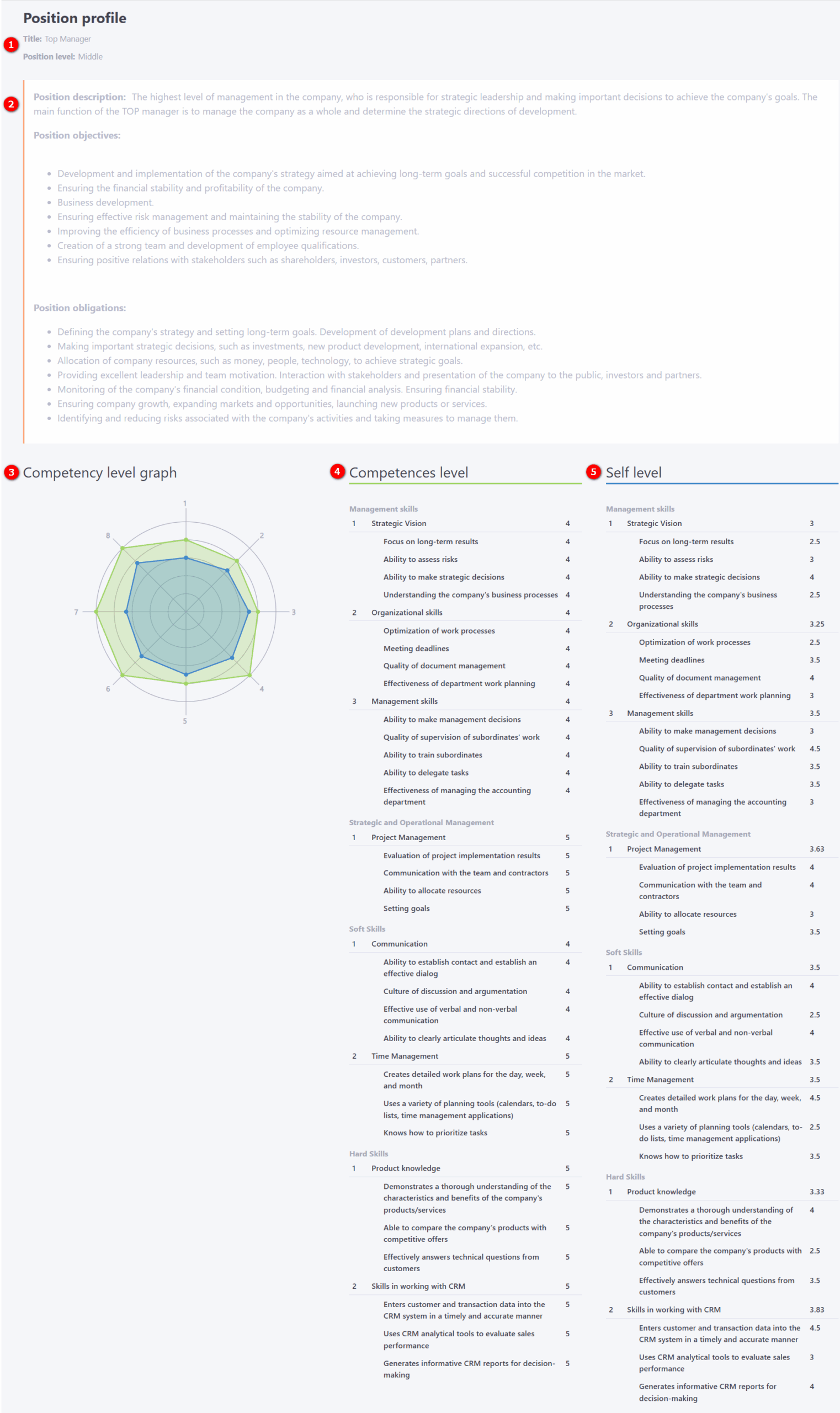
The Position profile page displays the Position title (1) and the Position Level, if specified during creation. It also shows the Position's description, objectives and obligations (2), provided this information was entered during the creation or editing of the Position profile.
The Competency level graph (3) provides a visual representation of an employee's expected versus actual competency levels.
Competences level (4) refers to the expected qualification level for each competency, as defined during the creation of the Position profile.
Self level (5) represents the user's actual qualification level for each competency, calculated based on the results of a assessment by competency task.