
Login with one time password
LMS Collaborator has the ability to log in using a temporary password if option "Enable authentication by one time passwords" has been enabled in Authentication policy settings.
On the login page you will see a one time password button:
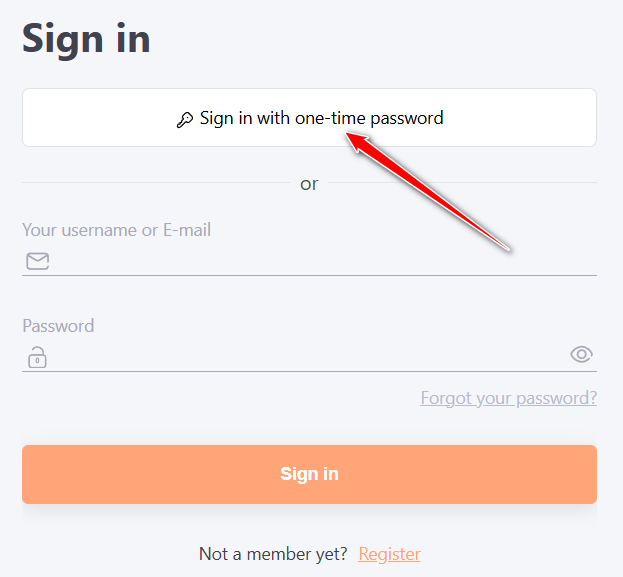
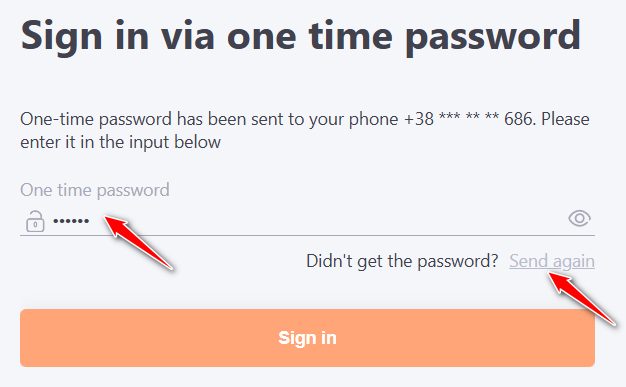
Next, you will need to enter the phone number to which you will receive a message with a one time password (on telegram/viber/sms etc.), and then enter it in the appropriate field. If the message has not arrived, you can send it again by clicking on the corresponding button.
Important! The phone number must match the one specified in the user profile.
Attention! For authentication using a temporary password, the system generates a one-time password, the validity period of which corresponds to the session lifetime in the portal settings. Using this password does not change the user's primary password for accessing the portal.