My tasks
To view tasks that a user has been assigned to or that they have assigned themselves, there is a My Tasks section. Here, the user can view new tasks, tasks in progress, scheduled tasks, etc.
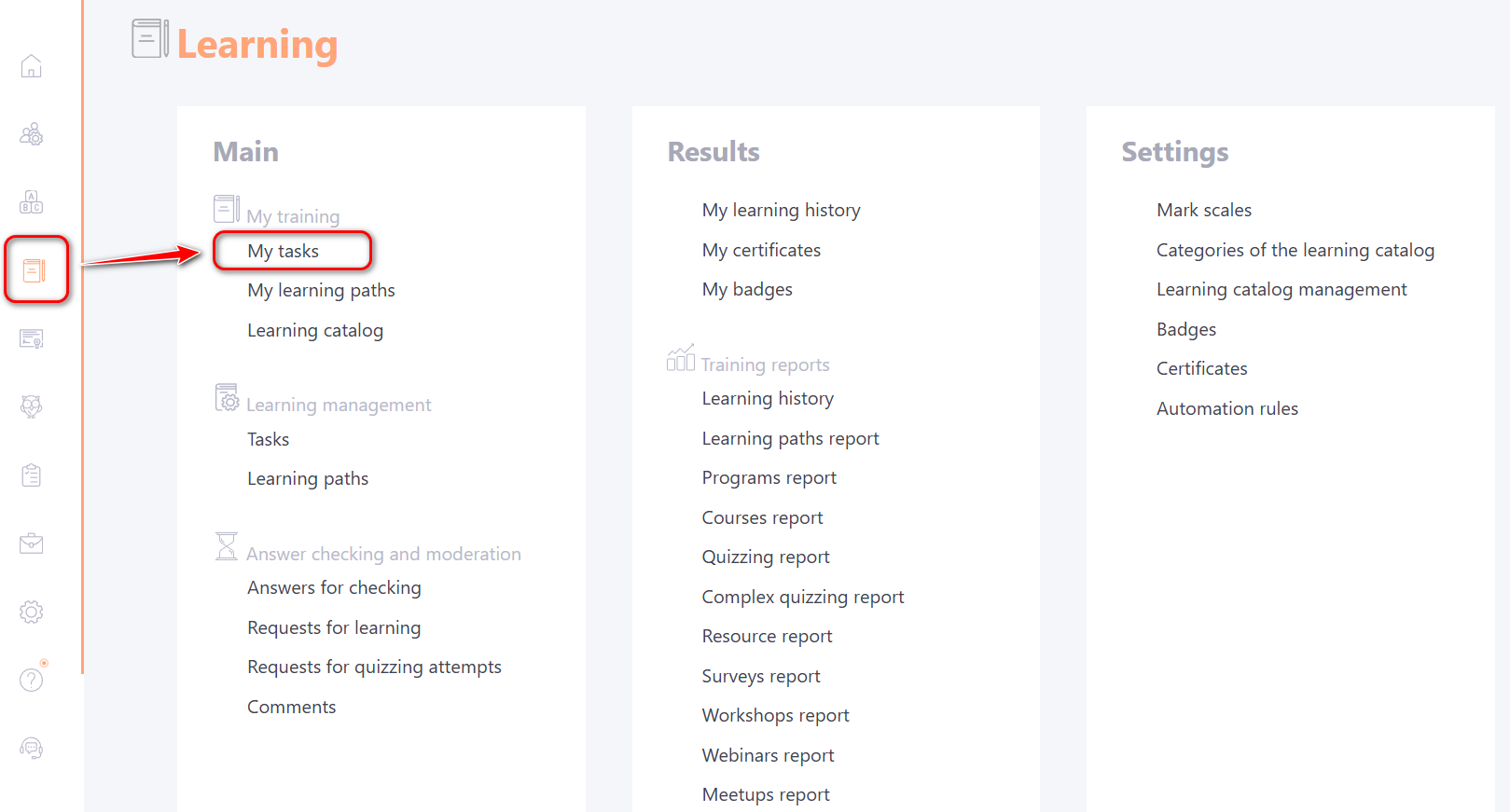
When going to the section, the user has access to:
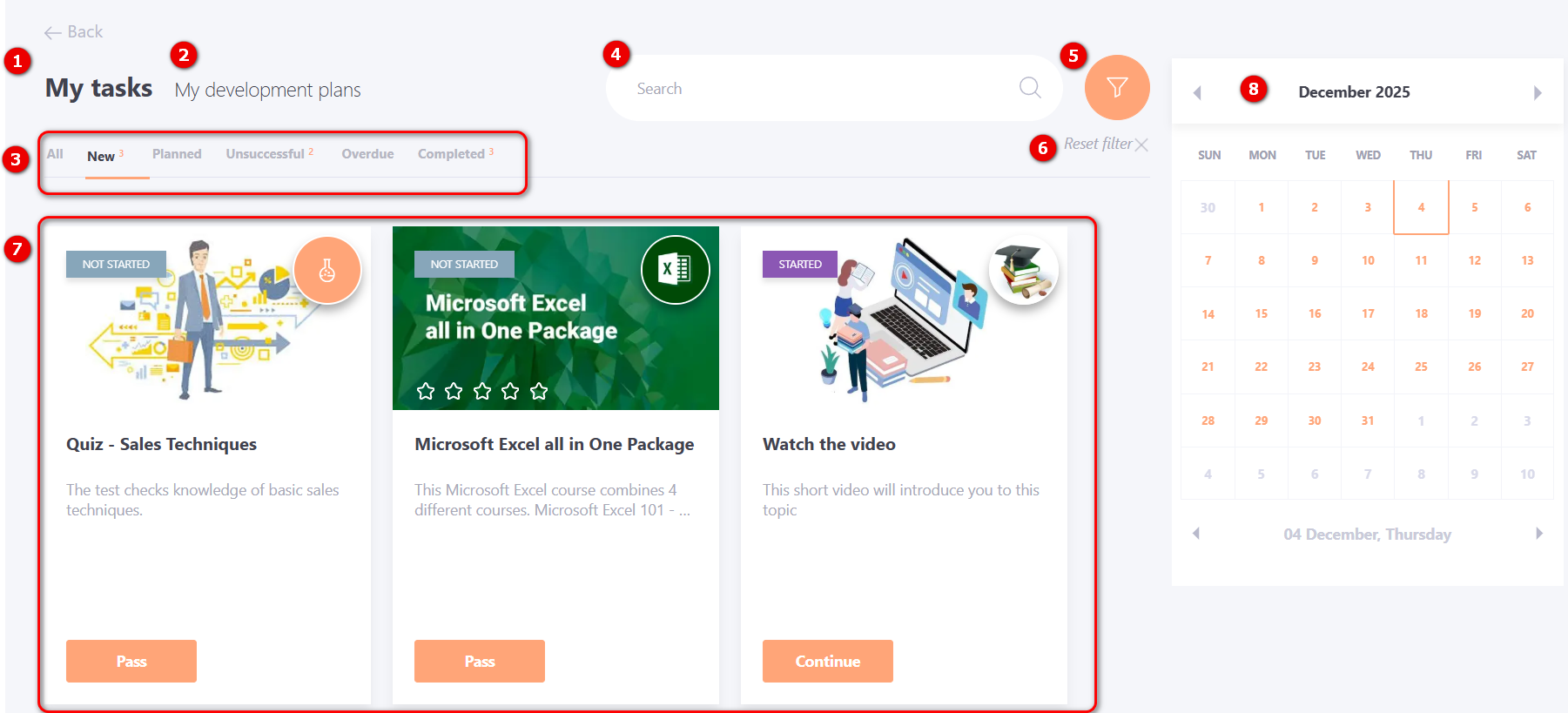
(1) – My Tasks tab: displays tasks assigned to the user.
(2) – My Development Plans tab: displays Development Plans assigned to the user.
(3) – Task filtering:
- All – a list of all tasks assigned to the user, regardless of completion status.
- New – current tasks that have not yet been started or completed. By default, the page opens on the "New" tasks tab.
- Planned – tasks that are assigned but not yet accessible.
- Unsuccessful – tasks completed with a result below the passing threshold.
- Overdue – tasks for which the access period has expired and were not completed within this timeframe. If the Administrator has not restricted access, these tasks can be retried to improve results.
- Completed – tasks successfully completed.
(4) – Task search;
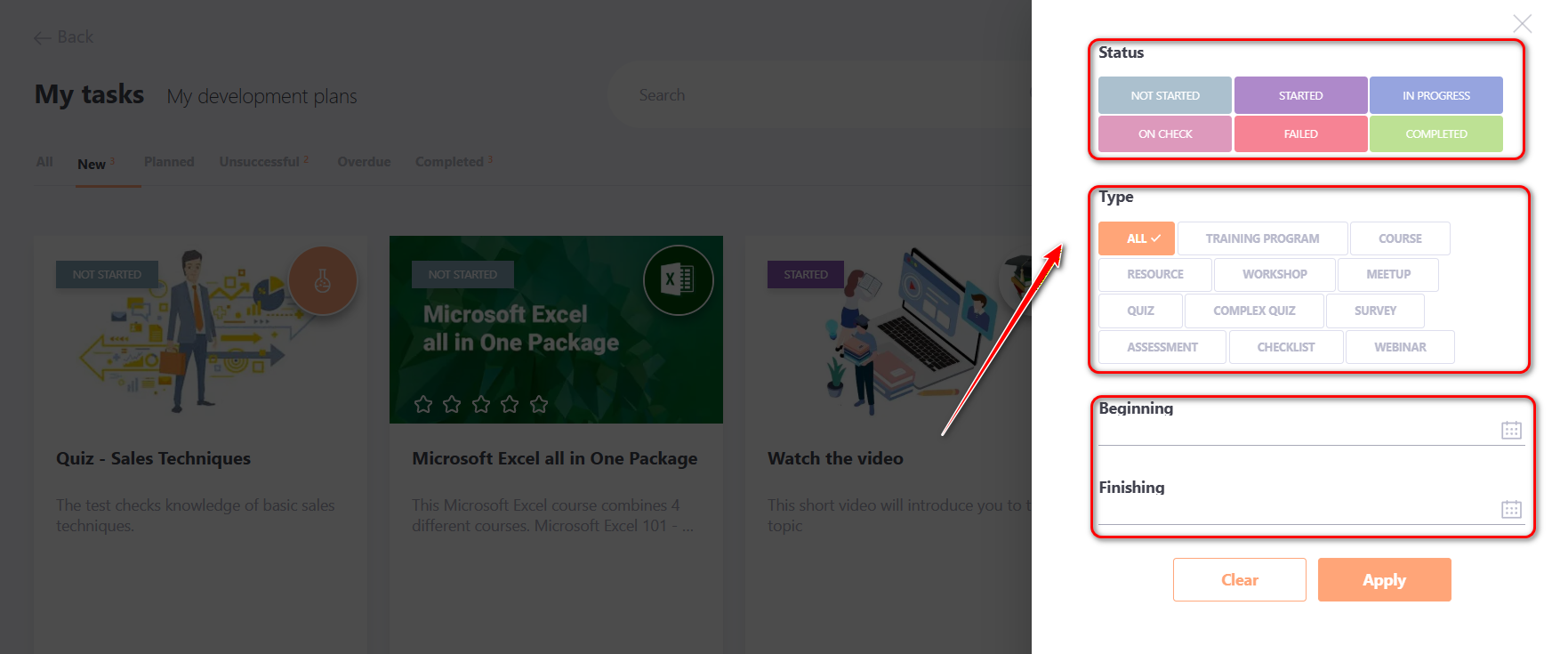
(5) – Advanced filtering by task status, type, and completion deadline
Advanced filtering
(6) - reset all filters;
(7) - task cards assigned to the user;
(8) - calendar of scheduled tasks.
Each task card contains the following information about the task: its name, completion status (1), and the corresponding action button (2).
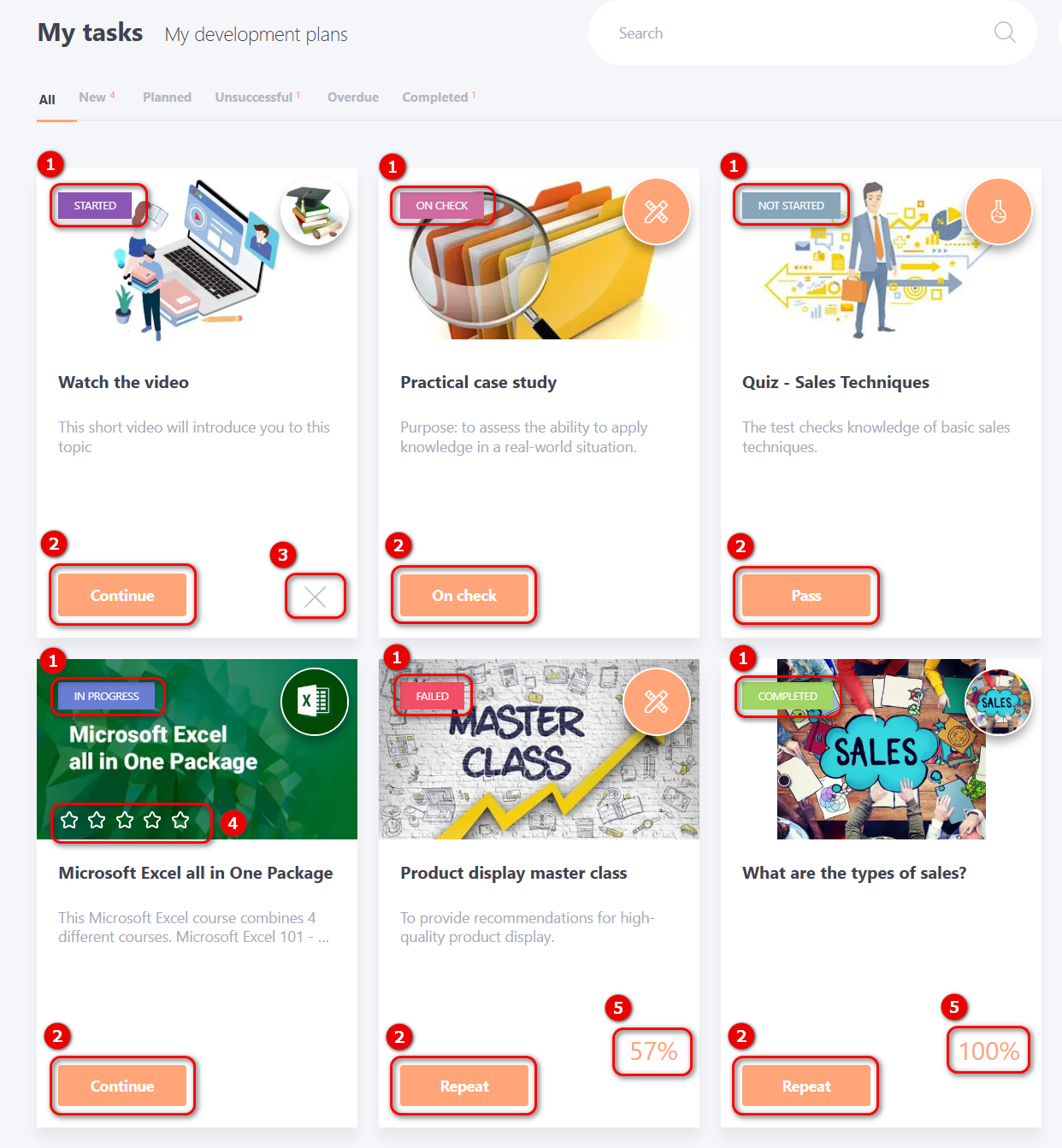
The system provides the following task completion statuses (1):
Not started - the user has not opened the task since it was assigned;
Started - a task can only move to the "Started" status from "Not Started" once the user has opened it at least once;
In progress - the user has begun working on the task or has opened it at least once;
On check - tasks awaiting evaluation (e.g., test, comprehensive test, practicum, etc.). After review by the curator, depending on the assessment, the task may move to either "Completed" or "Failed";
Completed - the user has finished the task with a result equal to or above the established passing threshold;
Failed - the task was completed with a result below the established passing threshold.
Task card action buttons (2) change depending on the current status (1):
- "Pass" – available for tasks with the "Not Started" status. Allows the user to begin the task or review its content.
- "Continue" – shown for tasks with the "Pass" or "In Progress" status. Allows the user to resume working on a previously started task.
- "Repeat" – appears for tasks with the "Completed" or "Failed" status. If enabled in the settings, the user can retake the task to successfully complete it (in the case of "Failed") or to improve a previous result.
- "On check" – available for tasks with the "On check" status. Allows the user to leave a comment or supplement their submitted answer.
- "Review" button is displayed for tasks of the following types: survey, webinar, meetup, assessment and checklist with the status "Completed" or "Failed", when retaking such tasks is not possible.
The user can refuse (3) only tasks they have personally assigned to themselves. More details: Registration for tasks in the catalog.
Tasks assigned by an administrator cannot be refused.
For tasks of the "Course" type, after completion, the user is given the opportunity to rate the completed material. The task card displays the overall course rating (4), based on feedback from users who have completed it.
For tasks with the "Completed" or "Failed" status, the task completion result (5) is shown as a percentage.
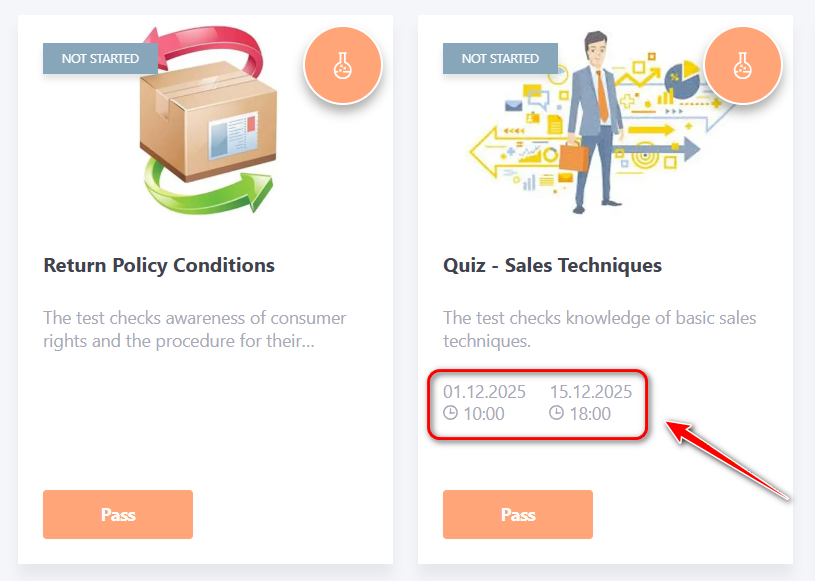
For tasks with a limited completion period set in the settings, the task card displays the start and end date and time. The task can only be completed within this specified period; after the end date, completing the task is no longer possible.