
Visualization of the organizational structure
Users can view the visualization of the company's organizational structure by going to the Information - Main - Company organizational structure menu:

On the visualization page, the org structure is presented as a tree consisting of the org structure folders configured by the Administrator and the users assigned to each folder (more details Working with the structure tree). Blocked users are not displayed in the tree because it reflects the current, active structure of the company.
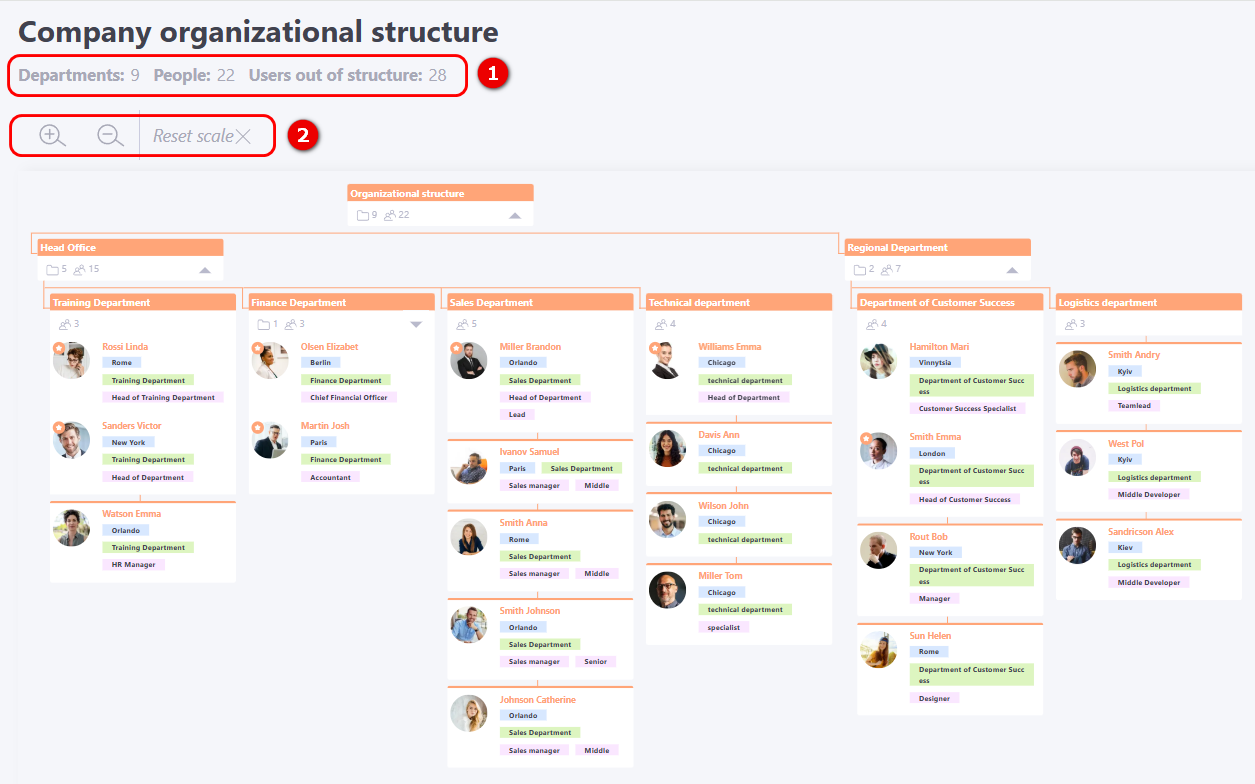
The page displays the number of departments in the org structure, the number of users assigned to it adn users out of structure (1). Zoom controls are available for managing the scale (2). All zoom settings are saved until the next time the user opens the page.
Org structure folders are displayed according to the hierarchy. Each department card shows its name (1). Below the card is a general list of users, which first displays all department managers, followed by the rest of the employees. If the structure has nested levels, the card displays the number of folders (2) at lower levels. The system also displays the total number of users (3), which includes all participants and managers in both the current folder and all of its child branches.
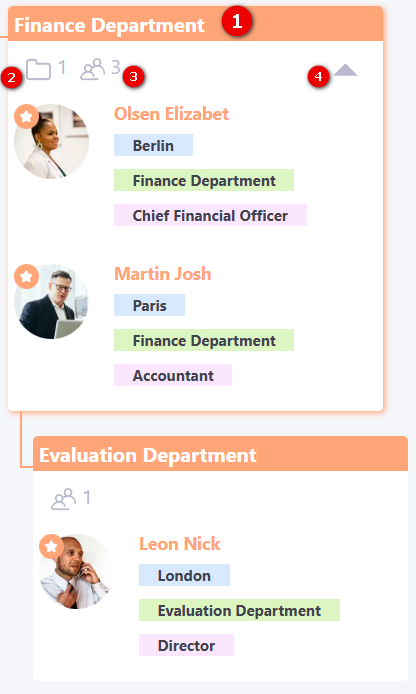
You can expand or collapse these sublevel folders using the corresponding button (4).
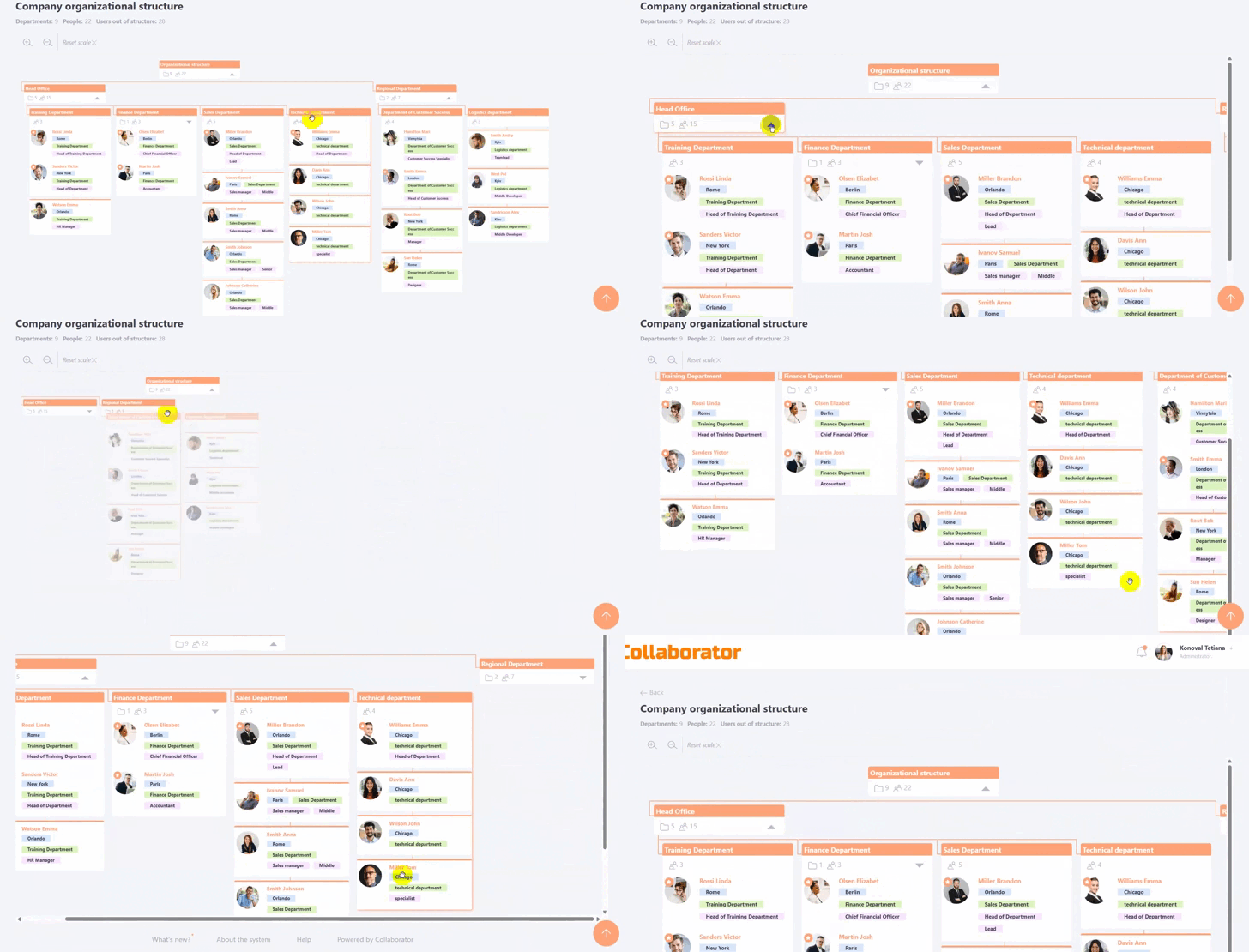
Example of zooming and collapsing/expanding folders.
If the org structure is being viewed by a user who is part of the structure, a green a green “You” abel will be shown next to their name:

If the user has the View information about other users permission, clicking on a user’s name will open that user’s profile:
