Checking meetups
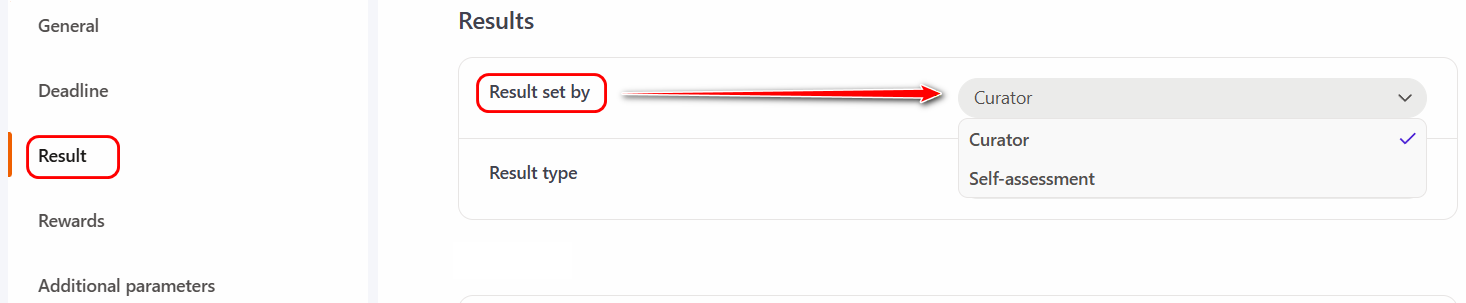
The mode of checking meetup is specified when creating a task-Meetup in the following settings Settings block - Results - Result set by:
-
curator - the default setting. The evaluation for completing the task is provided by the user assigned as the curator.
-
self-assessment - this setting allows users assigned to the task to evaluate themselves for the task.
Checking meetups - self-assessment
If in the task settings the Result set by is set to Self-assessment, after completing the task, a block with the ability to evaluate oneself becomes available to the user:
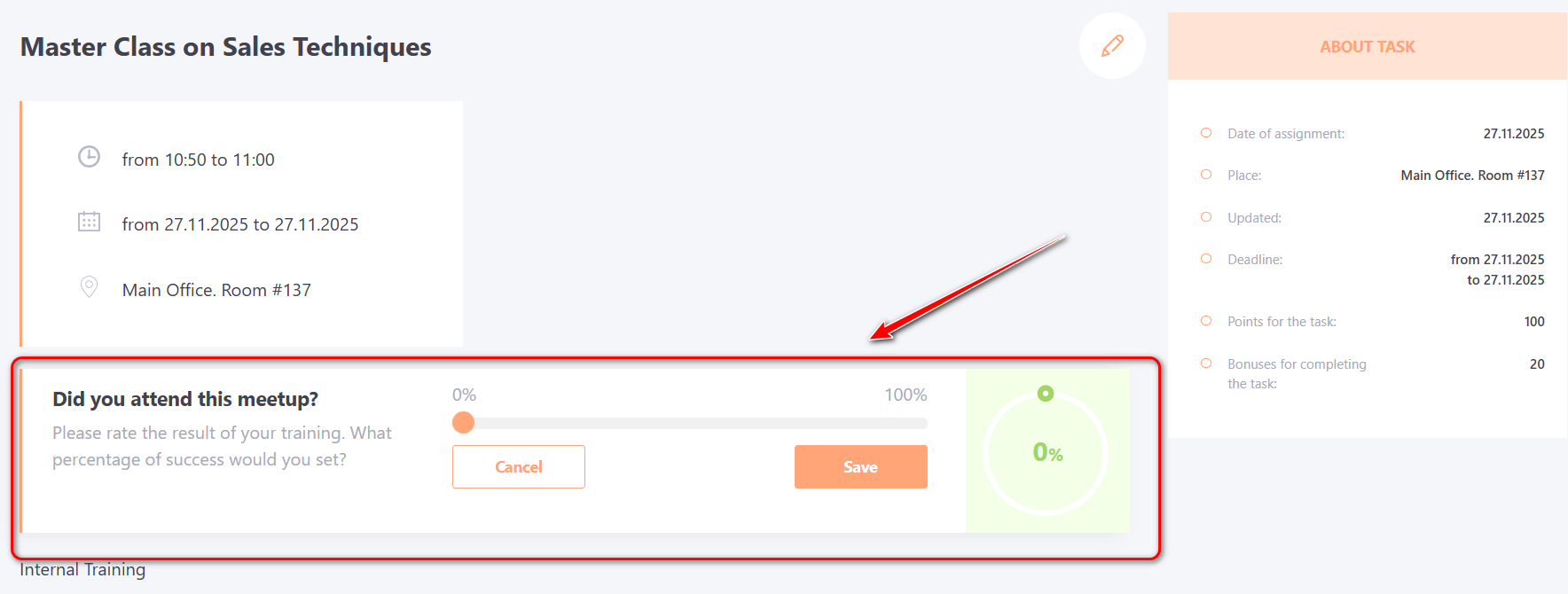
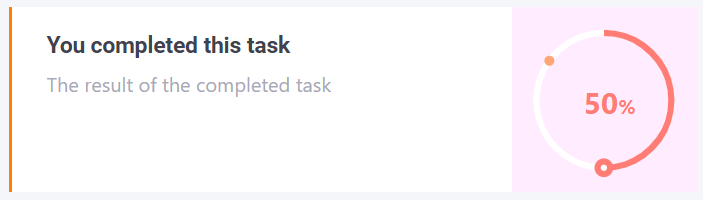
The user must assign a score from 0 to 100% and click Save. After that, the system automatically compares the submitted result with the passing threshold set for the task and determines the corresponding status — “Completed” or “Failed”.
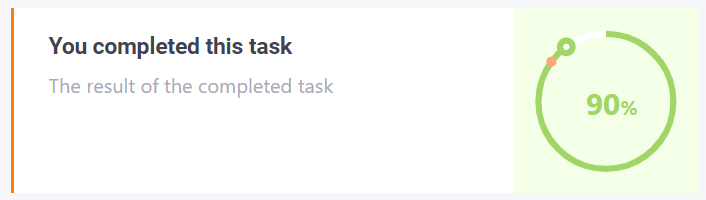
Evaluation of Meetups becomes available only after the specified time for their conduct has passed (the date and time of the class have already ended).
The system administrator always has access to meetups evaluations and can add or edit user evaluations in the Meetup report regardless of whether the class deadline has passed.
Checking meetups - curator
To evaluate a meetups session, a user assigned as a curator needs to go to the menu Learning - I'm Checking - Meetups check
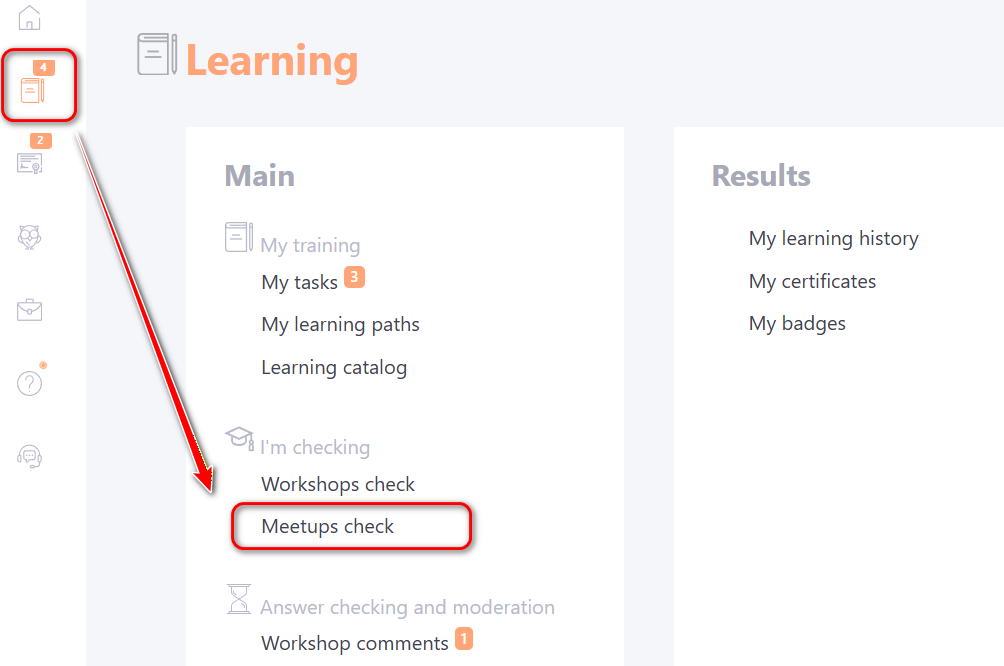
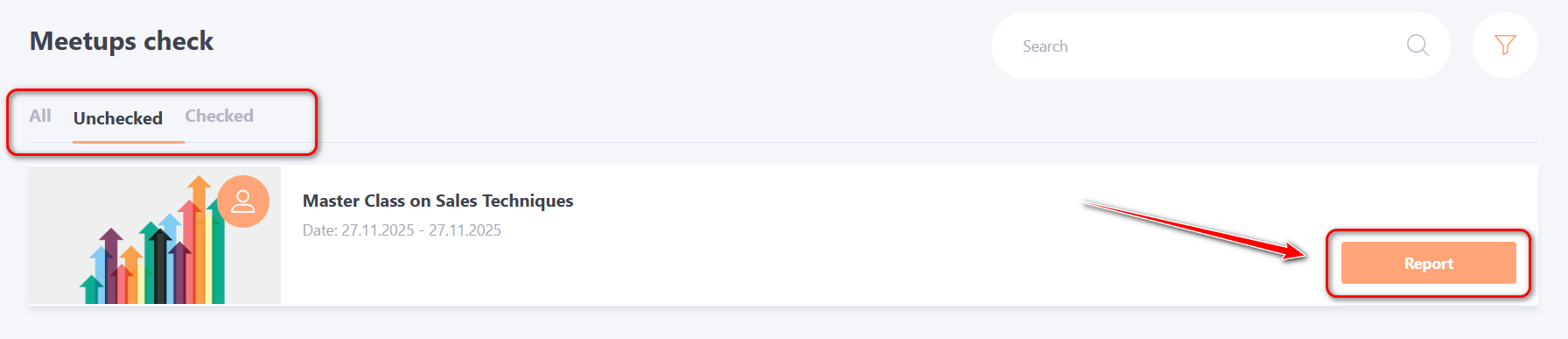
The Meetups check page automatically opens on the Unchecked tab. On the All and Checked tabs, you can view all tasks or only those that have already been checked, respectively.
To proceed with evaluating users, click the Report button.
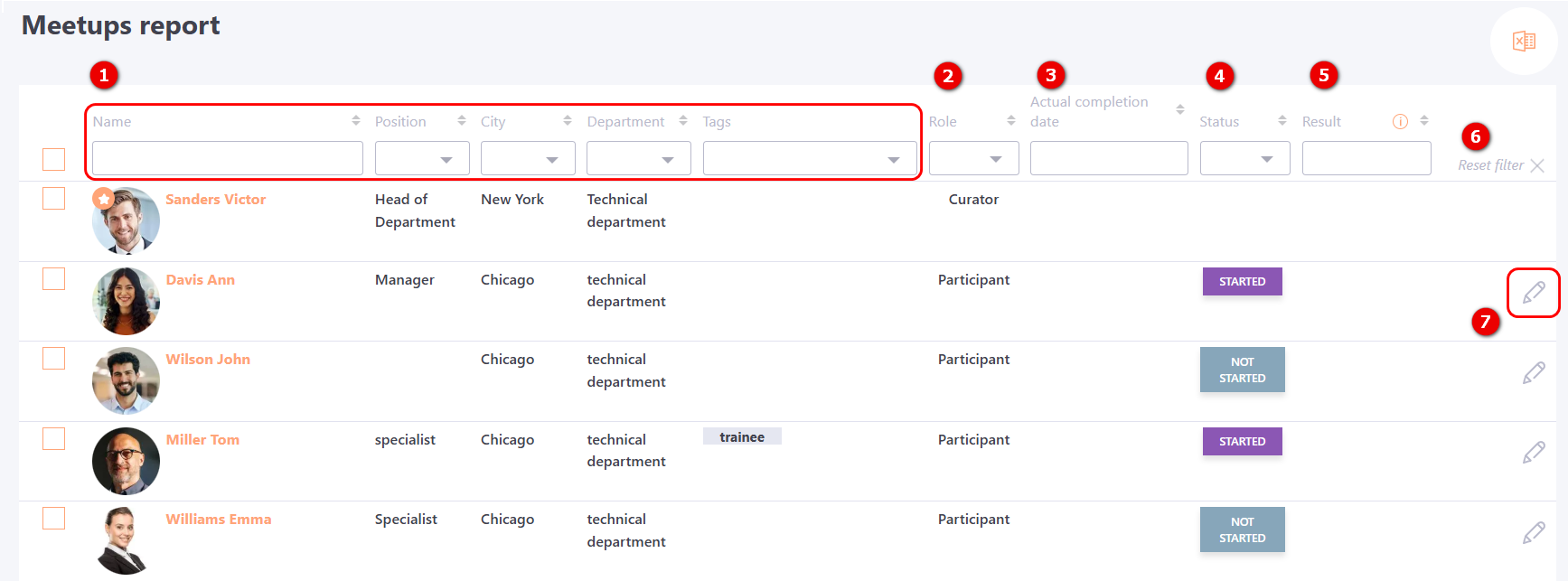
The Meetups report page contains the following information:
(1) - User data (name, position, city, department, tags);
(2) - User role in the task - participant or curator;
(3) - Actual completion date;
(4) - Task completion status;
(5) - Task completion result;
All these fields are available for filtering and sorting, to Reset filters, you need to click the button (6).
(7) - Change - button for displaying the result for the meetup.
The choice of the Result type for meetup is specified when creating a task-Meetup in the Settings block - Results - Result Type :
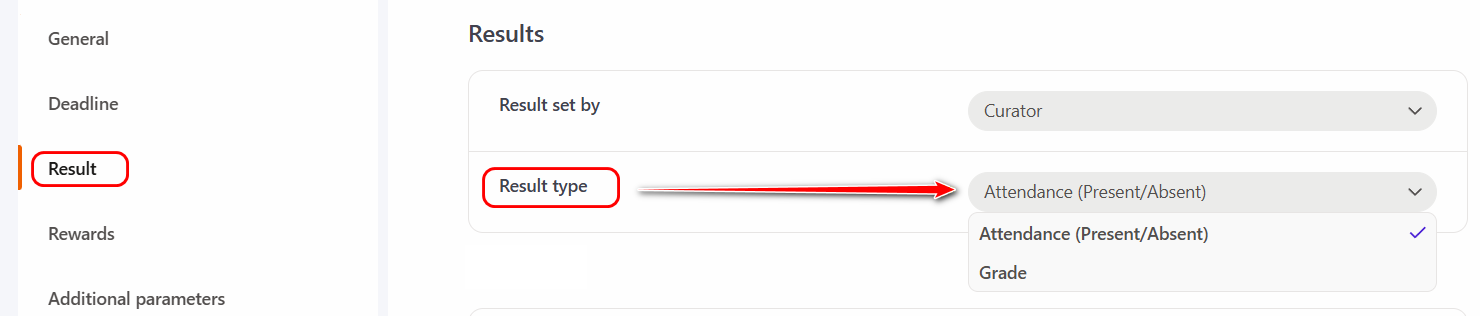
Meetups result - Attendance
If the Result Type - "Attendance (present/absent)" is selected in the task settings, then the task completion result depends on the presence at the meetup lesson.
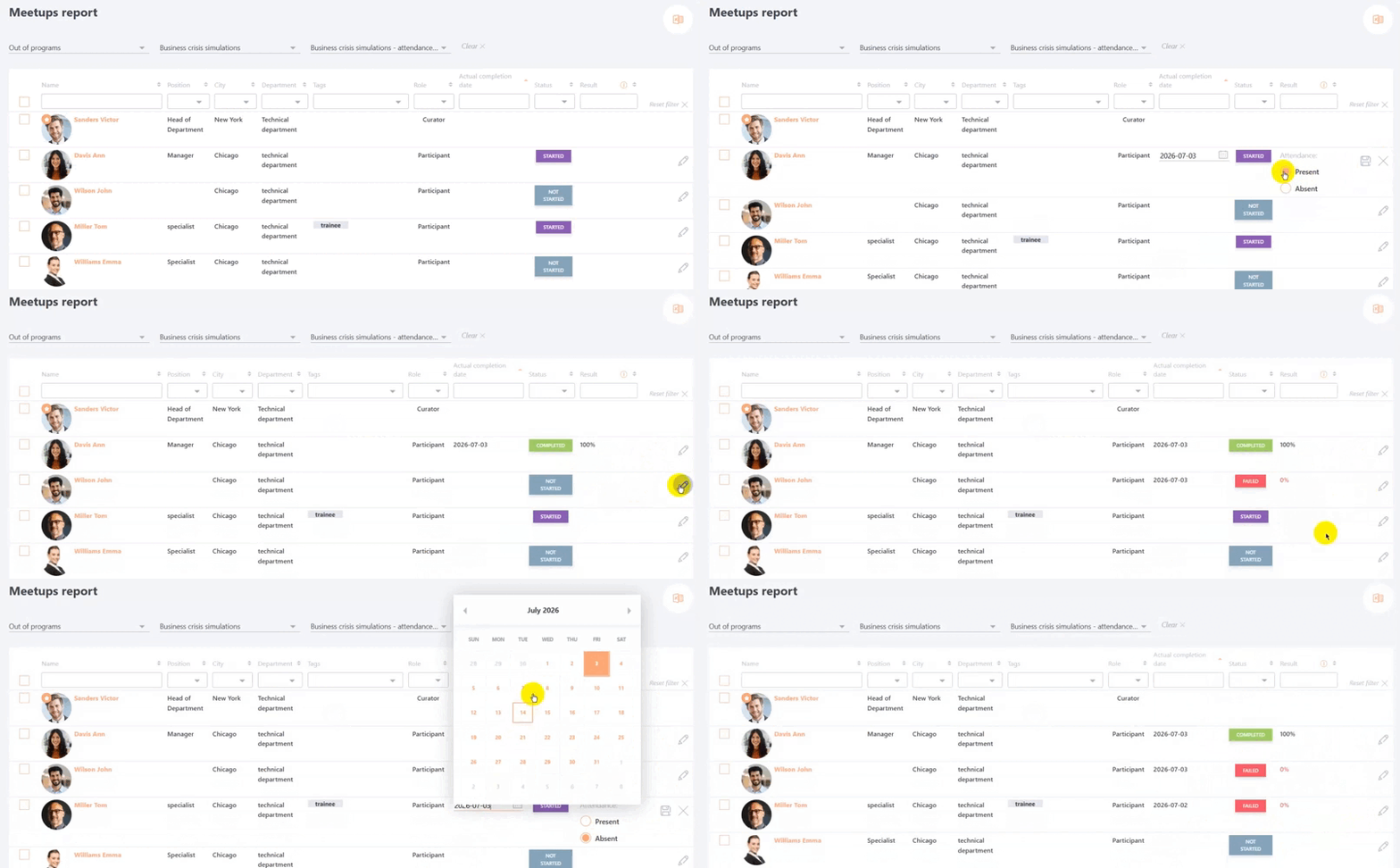
To evaluate a specific user, click the Change(7) button in the corresponding row. The Actual completion date and Result fields will become available for editing.
The curator needs to select the attendance result:
-
Present - the system will automatically count 100% completion and the task status will be "Completed"
-
Absent - the system will count 0% and the task status will be "Failed".
If necessary, you can adjust the actual date of task completion. To save the results, click the Save button, to cancel the editing - click the Cancel button.
It is also possible to evaluate multiple users at once using the group action feature.
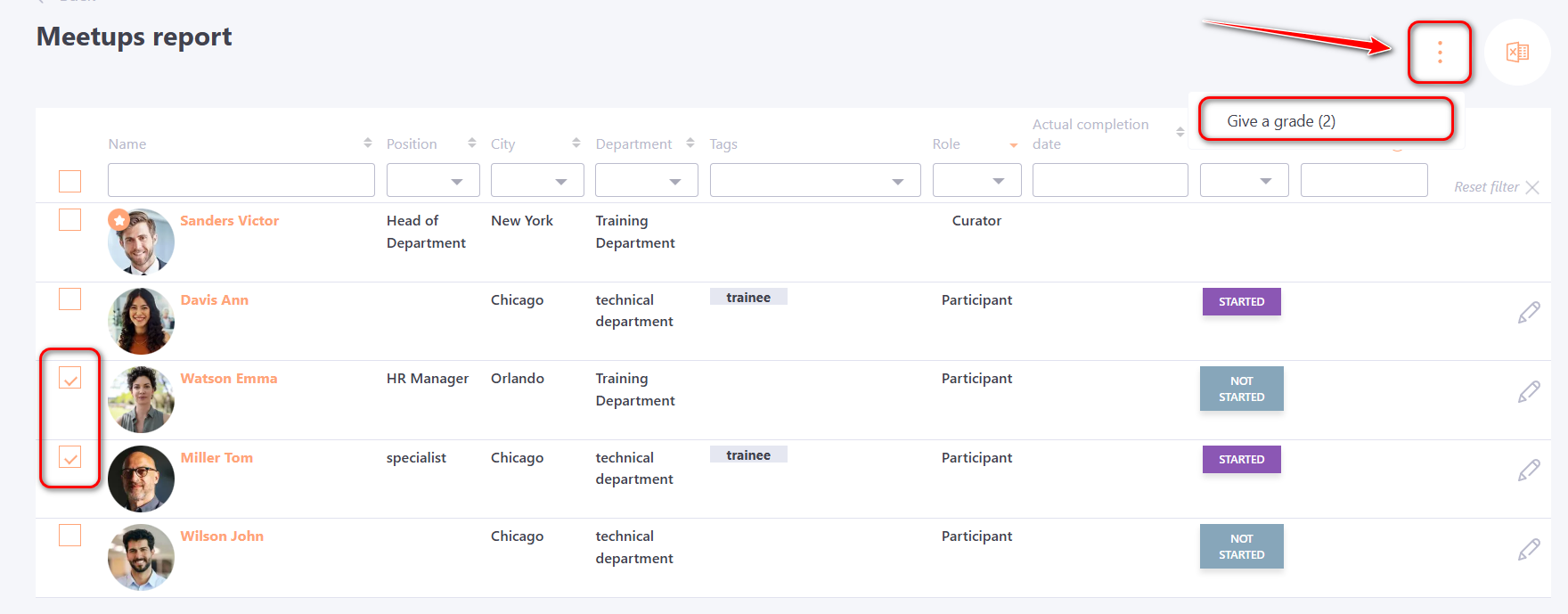
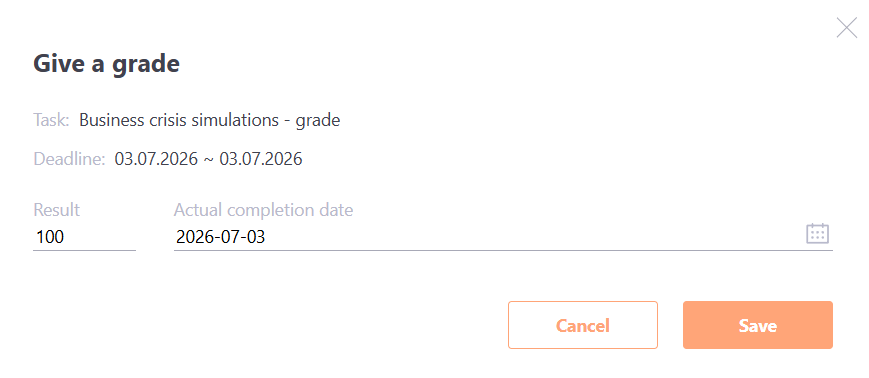
To do this, select the users using the checkboxes, then click Actions - Give a grade.
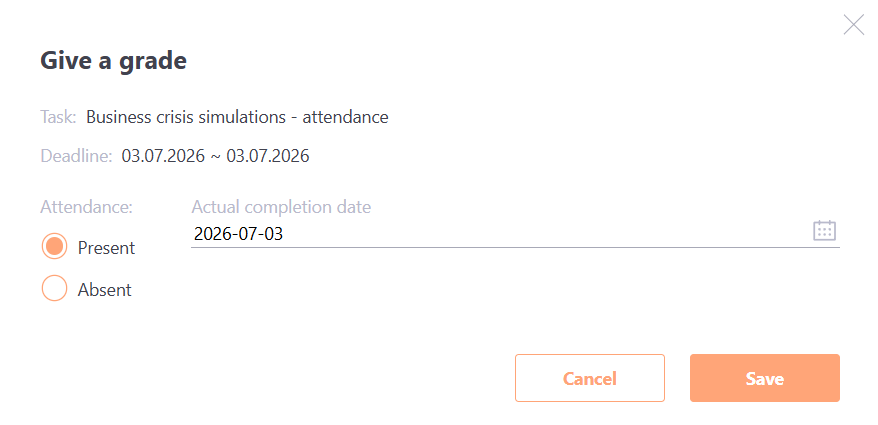
In the modal window that opens, select the attendance result: Present or Absent and the Actual date and click the Save button.
Meetups result - Grade
If the Result Type - Grade is selected in the task settings, then the curator needs to enter the result of completing the task in percentage.
To evaluate a specific user, click the Change(7) button in the corresponding row. The Actual Completion Date and Result fields will become available for editing. The curator should enter the task completion result as a percentage and, if necessary, adjust the actual completion date.The system will automatically determine the status — “Completed” or “Failed” — according to the set threshold for completing the task, more details Meetup statuses.
To save the evaluation results, click the Save button; to cancel editing, click the Cancel button.
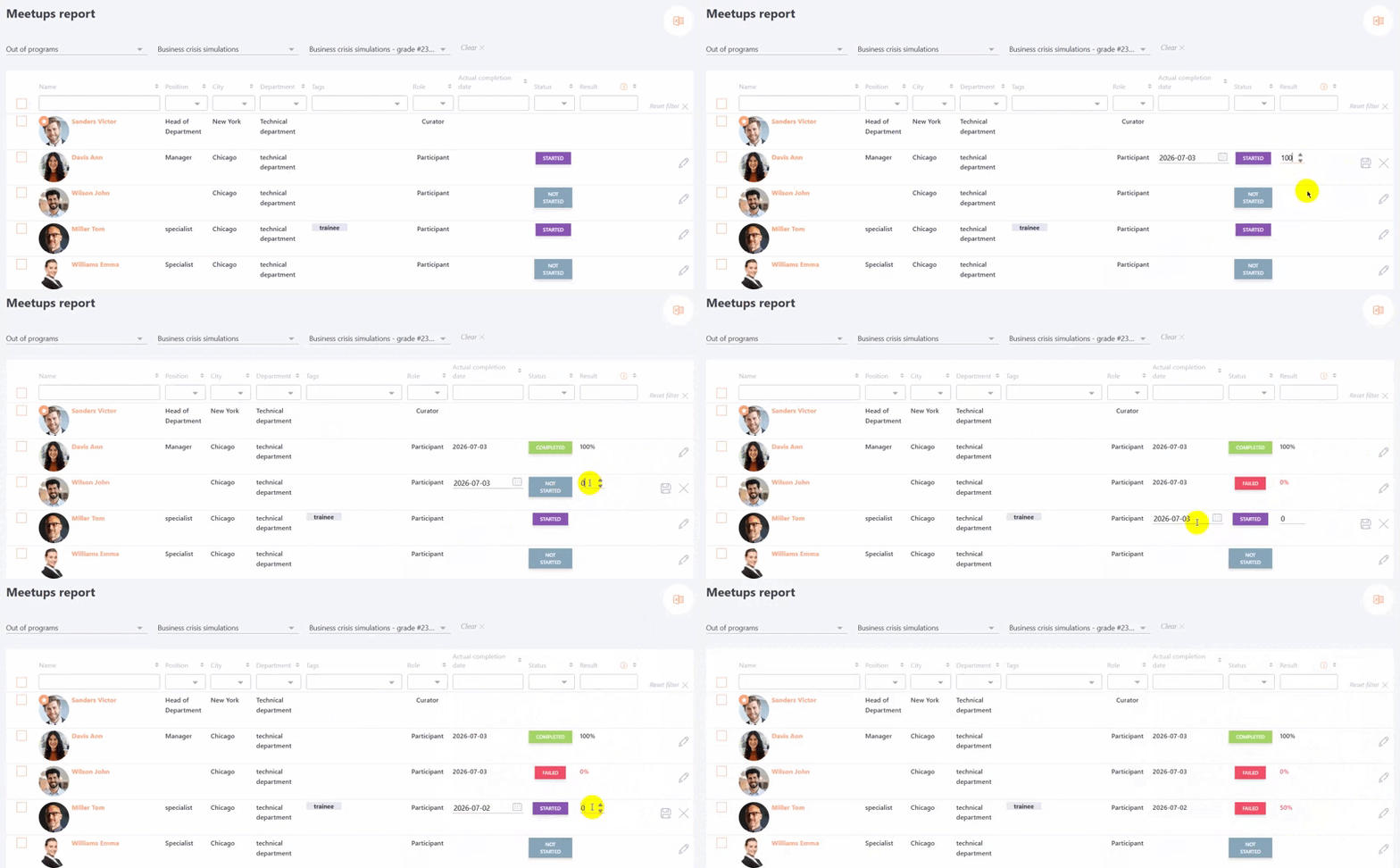
It is also possible to evaluate multiple users at once using the group action feature.
To do this, select the users using the checkboxes, then click Actions - Give a grade.
In the opened modal window, specify the Result of the task as a percentage and the Actual Completion Date, then click the Save button.