Checking tasks in Development plans
The Curator and Administrator have the ability to track and check tasks in the development plans of subordinates.
Any system user can be a curator - a manager, expert, mentor, etc.
If the assessment method "Assessment by curator" is selected in the settings for the task, after the user completes the task, it must be checked and evaluated by the assigned curator.
Assigning of a Curator
You can assign a Curator in the Evaluation Method block. To do this, click on the edit icon (pencil) and select the desired employee from the list by searching by name or email:
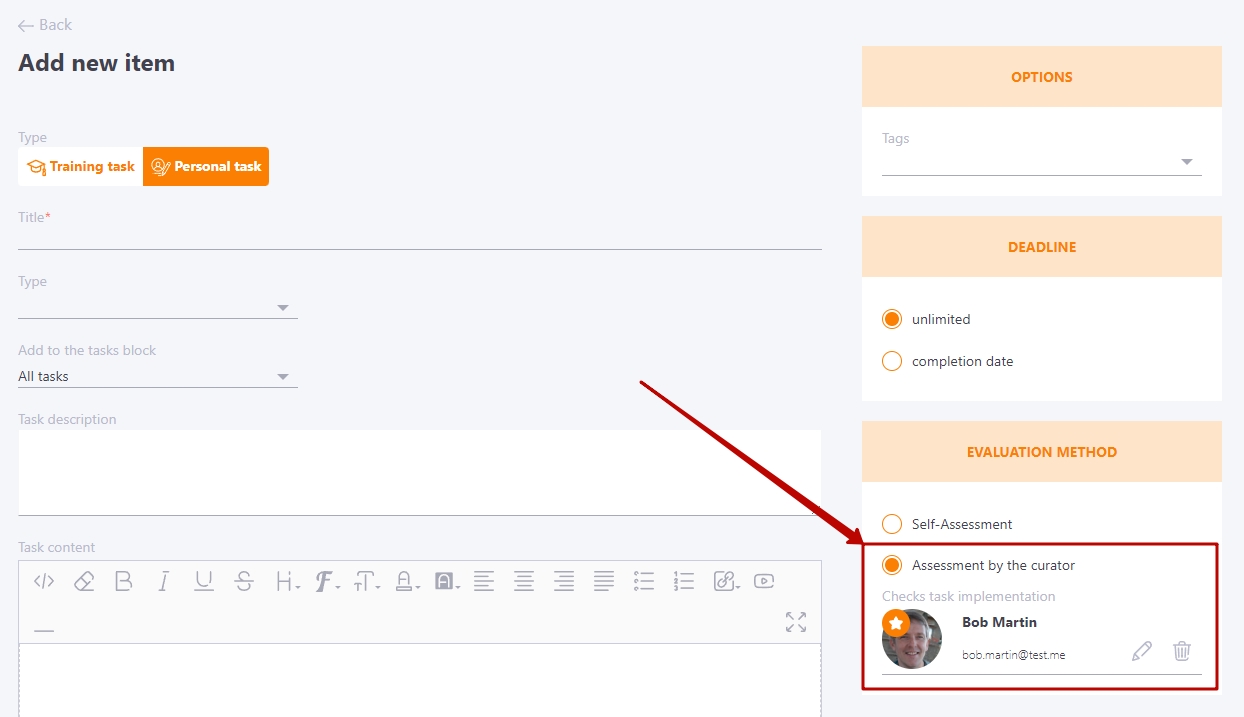
If necessary, you can remove the current curator and select a new one.
After saving a task with the selected Curator, the user receives a letter of assignment that specifies the name of the Curator, and the data about the Curator are displayed on the task card in the personal plan:

The curator also receives an email based on the template: You have been appointed a curator, which contains a link to directly access the section with tasks to check.
Checking the task by the curator
fter the user completes a task and submits it for checking, the curator receives an email notification based on the template New comment to check.
You can access the task for checking directly via the link in the email.
You can also go to the task check section from Development - I'm checking - Tasks in development plans.
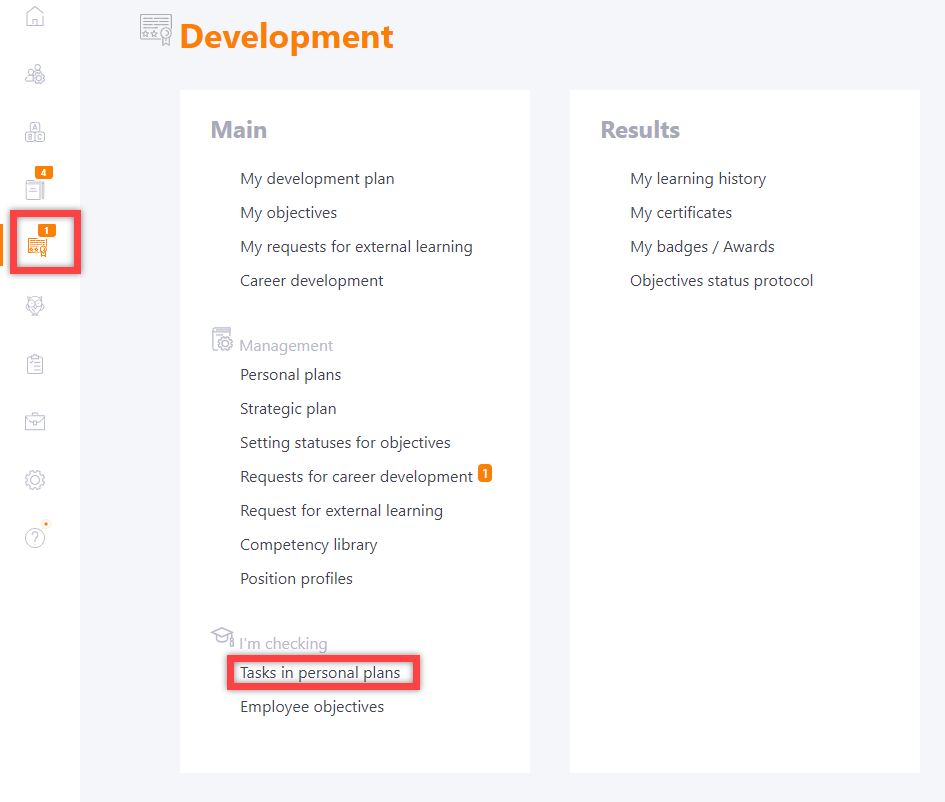
A page with a table of tasks for subordinates opens. The table consists of 3 tabs:
- "All" - displays all tasks of subordinates;
- "Unchecked" - displays only unchecked tasks;
- "Checked" - displays all checked tasks.
The page automatically opens on the Unchecked tab. In the top right corner of the table, buttons Search and Filter are available. Search is performed by task name.
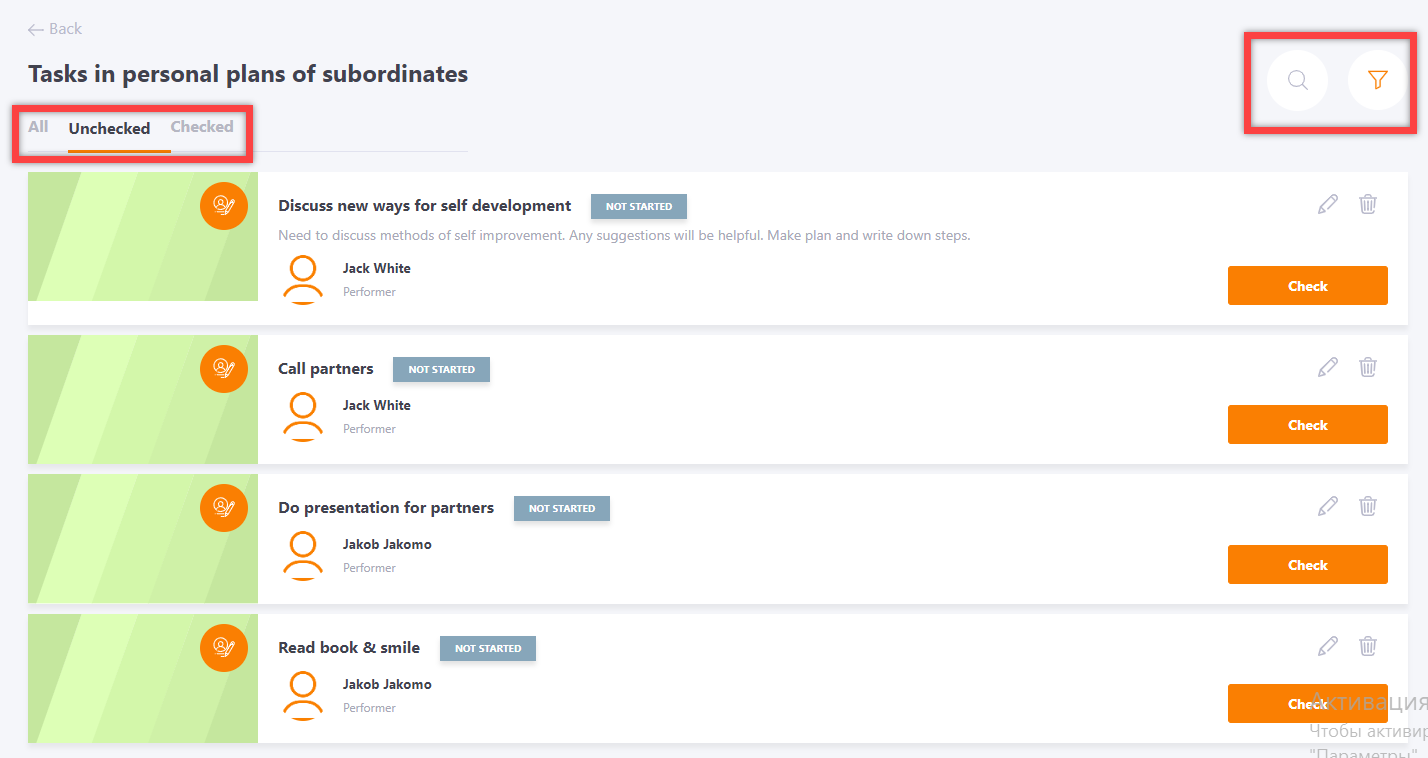
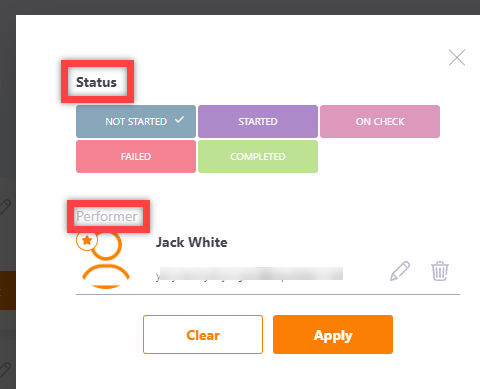
To open the filter window, click on the button. Filtering is available by task status and performer.
The task card displays the following information:
(1) task status;
(2) the block to which the task belongs;
(3) task type;
(4) task description;
(5) assigned performer;
(6) edit and delete task buttons;
(7) the Check button.

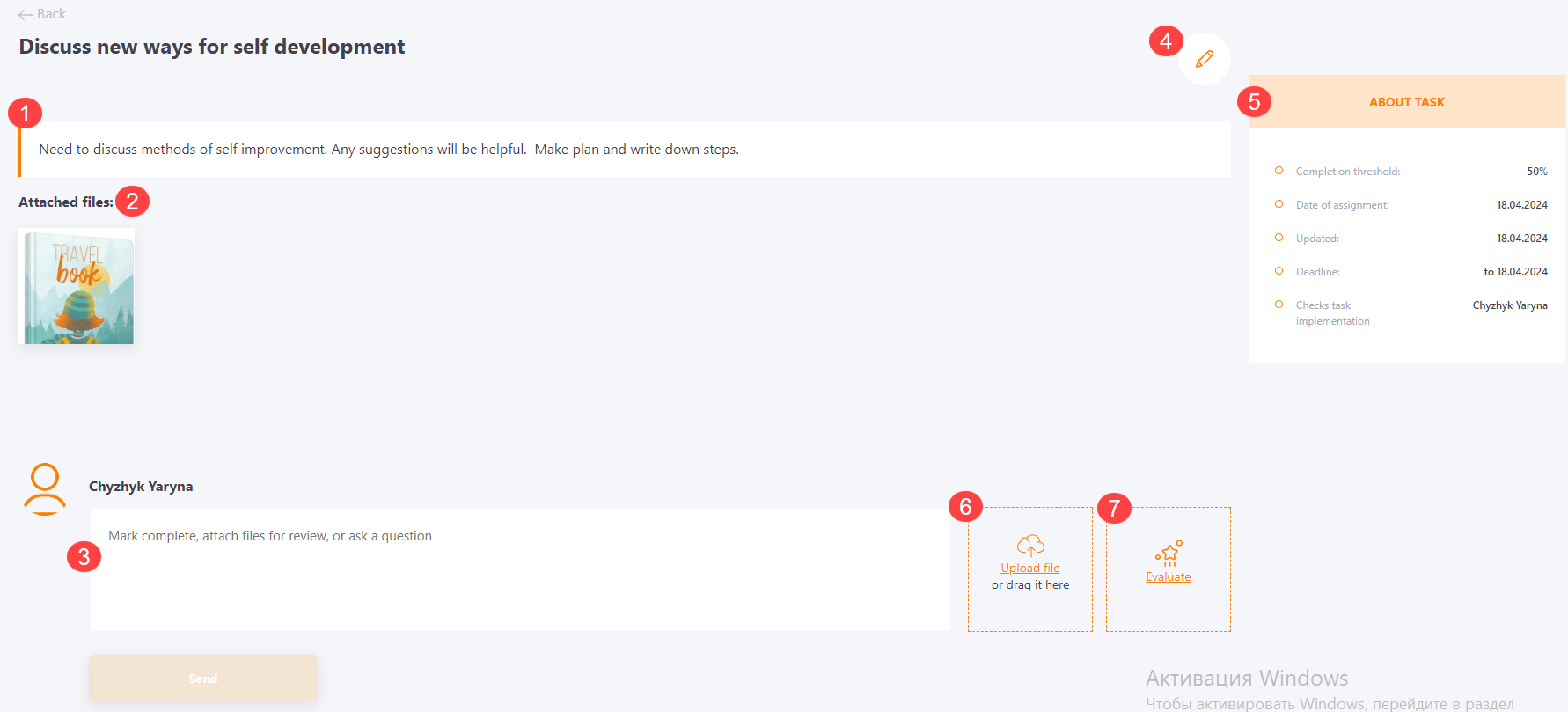
To open the task checking page, click Check. After that, a page for evaluation opens, displaying the following information:
(1) task description;
(2) comments left by the assigned curator or performer;
(3) text field for new comment;
(4) task edit button;
(5) additional information about task;
(6) button to upload files to comments;
(7) Evaluate button.
If the task is not fully completed and the Curator is not ready to give a grade, he or she can only send a comment without giving a grade. To do this, enter the text of the comment and press the "Send" button.
Click Check to give an evaluation to the completed task. If a curator is assigned for evaluation in the task, the button will be displayed only for them. If Self-assessment is selected, the user can independently provide an evaluation. Use the slider to rate the task.

After the task is evaluated, the task performer will receive an email with the evaluation results based on the template: You got a mark for task.
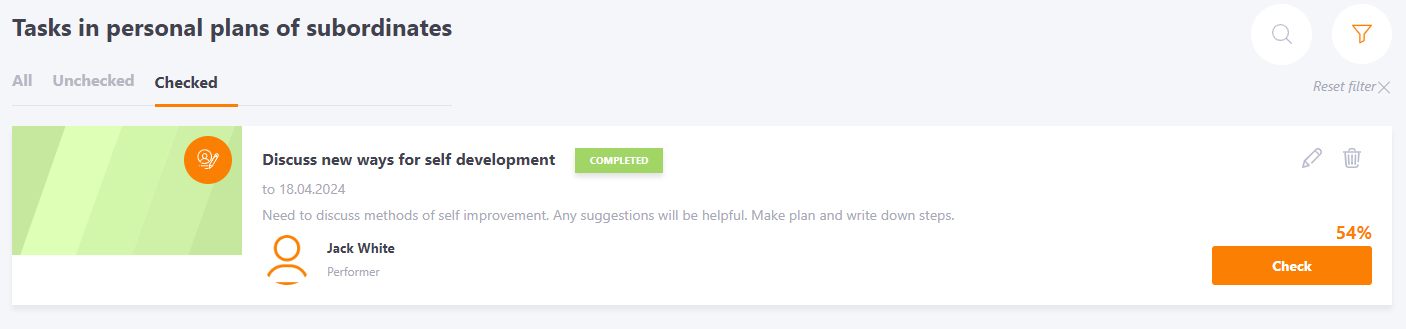
After the task is evaluated, it will move to the Checked tab. The task card will display its new status and rating. If necessary, you can leave new comments and change your grade. The history of grade changes is saved.