
Internal certificates
Internal certificates are awarded to users for completing tasks. Such certificates can be created and managed by an Administrator with the Manage certificates permission.
Creating internal certificates
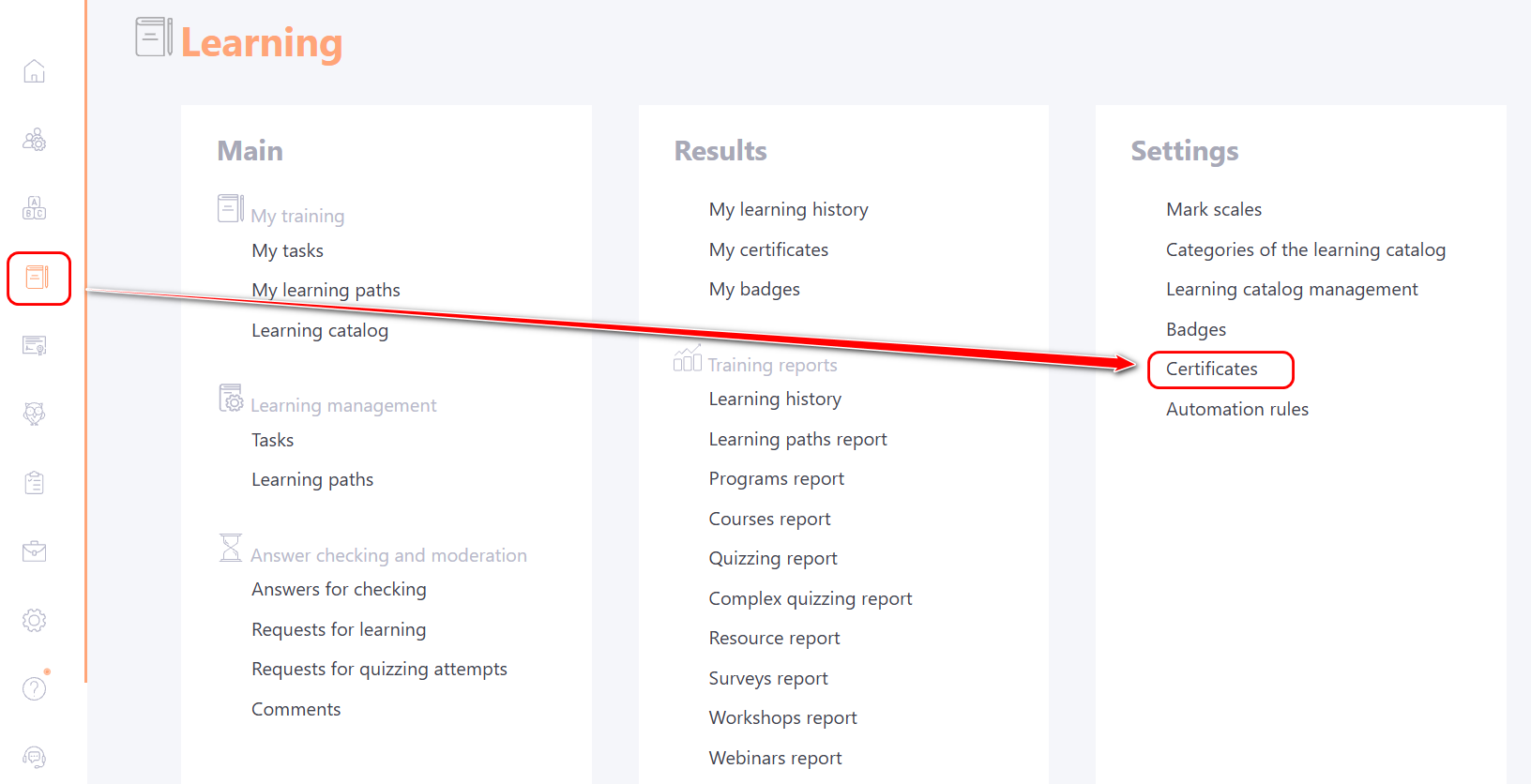
To create an Internal certificate, go to the menu Learning – Settings – Certificates.
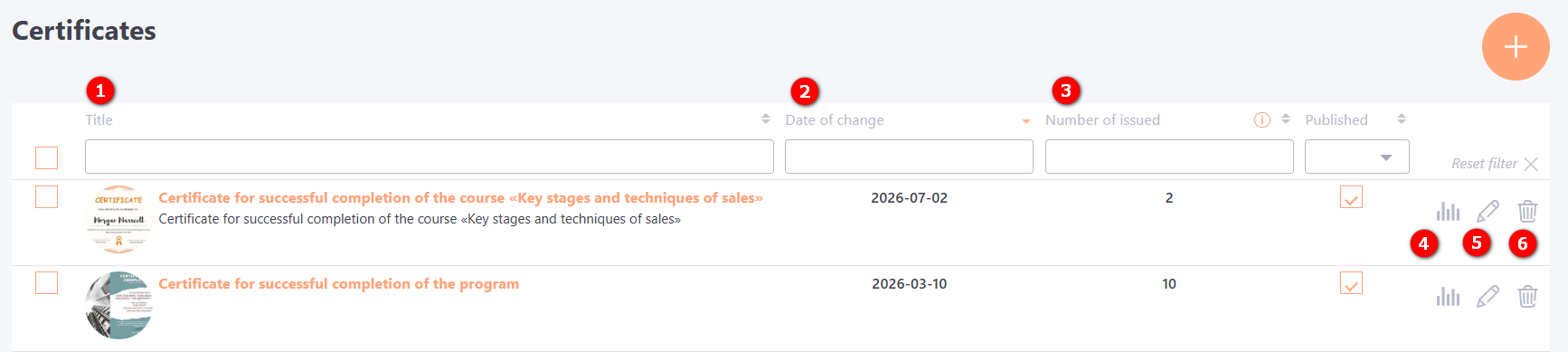
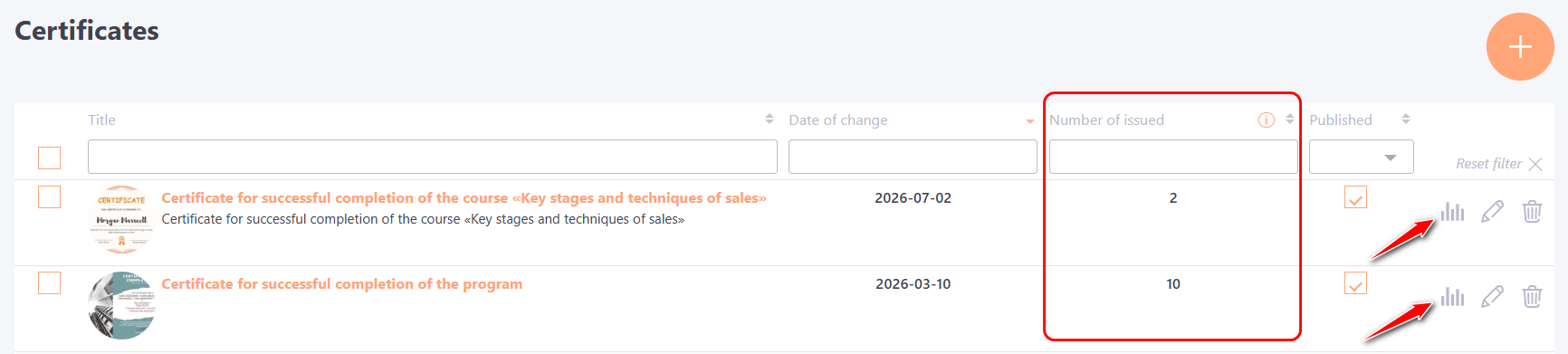
The Certificates page displays all previously created internal certificates and also allows for the creation of a new one:
(1) - certificate title and description;
(2) - date the certificate was last edited;
(3) - Number of issued certificates;
(4) - report on the issuance of certificates to users;
(5) - edit certificate;
(6) - remove certificate.
To create a new Internal certificate, you need to click the Create button .
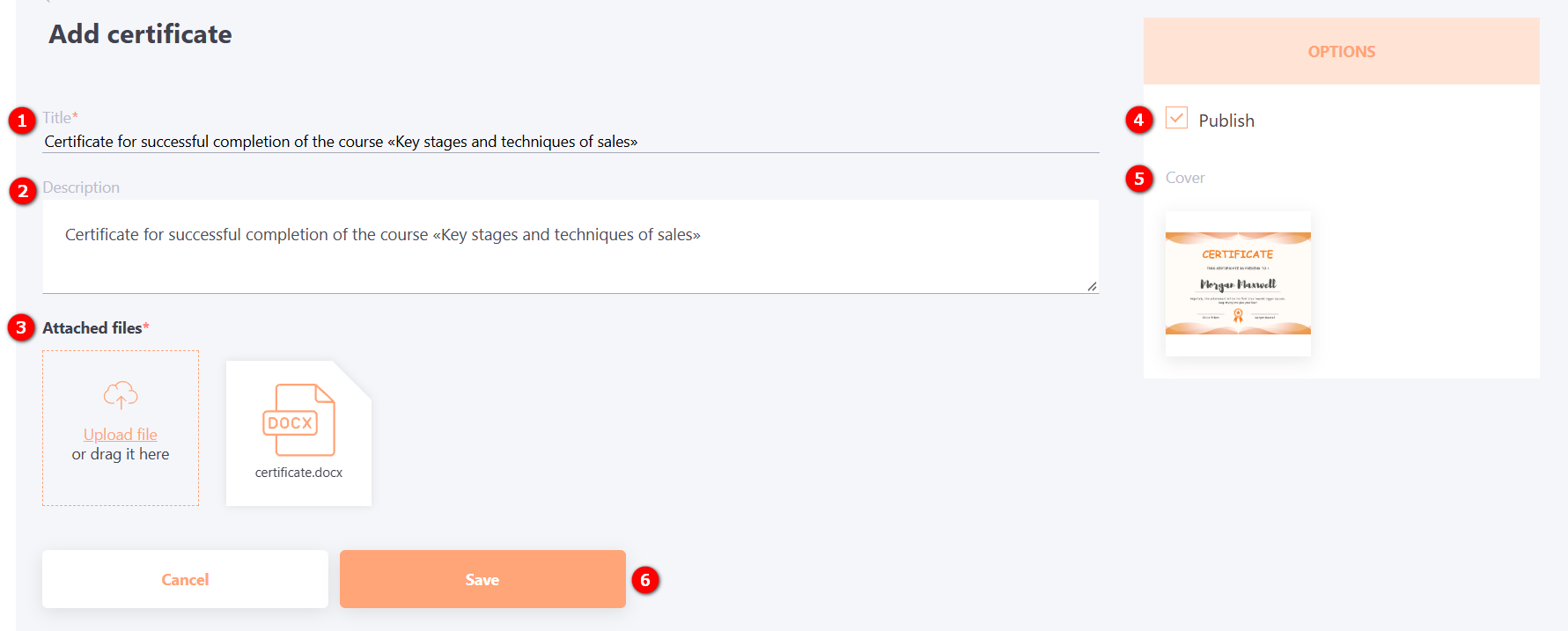
After this, the Add Certificate page will open.
Required fields:
(1) Title — the name of the certificate template; a mandatory field.
(2) Description — a brief text description; optional, but useful for searching.
(3) Attached files — a file upload component for the template document.
(4) Publish — determines whether this certificate appears in the list for assignment to a Task.
(5) Cover — an image representing the appearance of the certificate.
(6) Save — a button to save the certificate.
Internal certificate templates
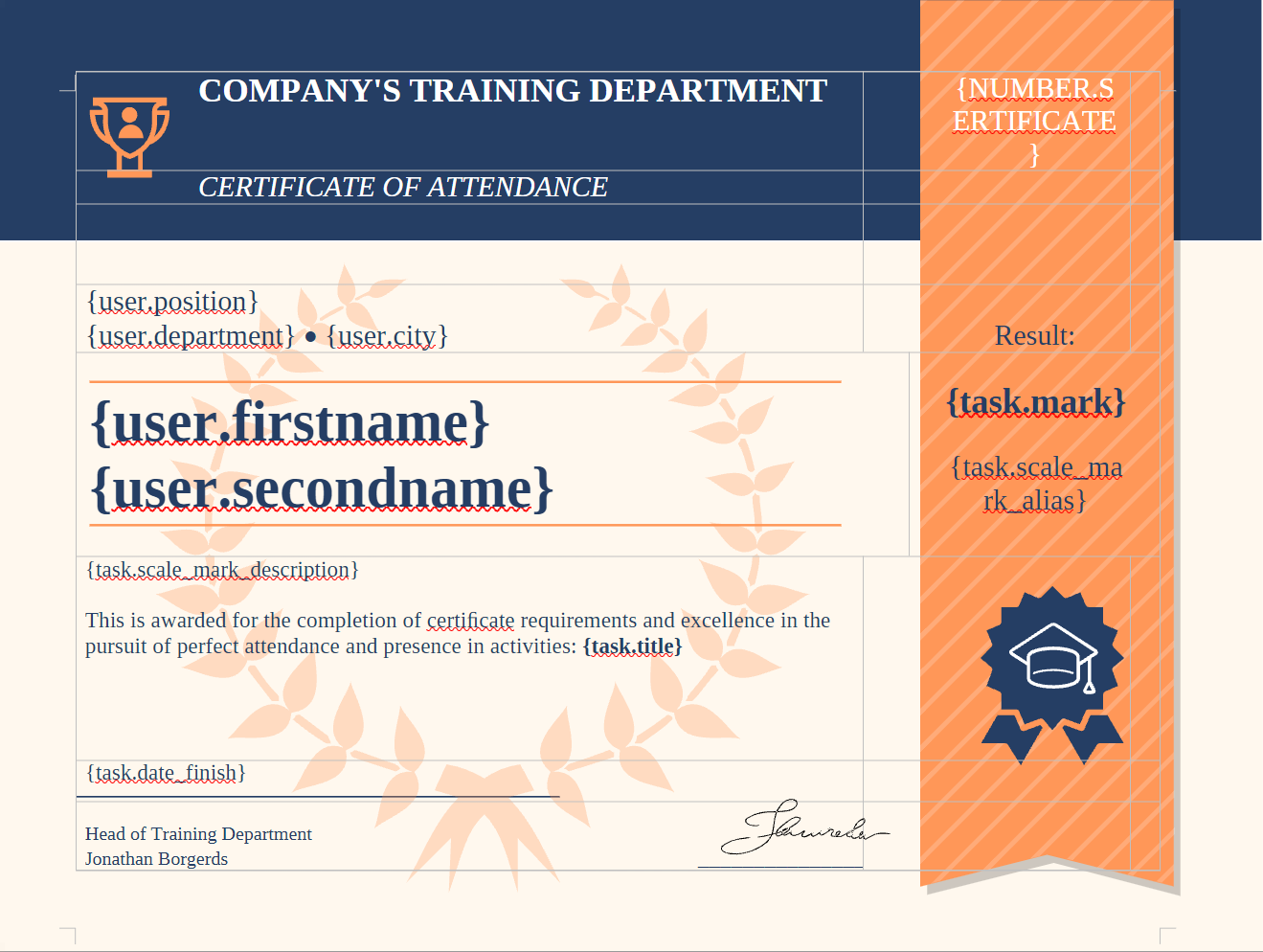
An internal certificate template is created as an MS Word document (DOCX format) using external editors, with keywords used to denote variables.
List of variables that can be used in a certificate template
- number.sertificate - certificate number – a value generated when the certificate is first created for a user; this is the certificate ID.
- user.short_name - user's short name.
- user.firstname - user's first name.
- user.secondname - user's surname (last name).
- user.fullname - user's full name.
- user.position - user's position title.
- user.department - user's department.
- user.city - user's city.
- task.title - title of the task for which the certificate was issued.
- task.date_finish - date the task was completed, in "dd.mm.yyyy" format.
- task.mark - result of the task completion (an integer).
- task.scale_mark_alias - result of the task completion based on the assigned grading scale.
- task.scale_mark_description - description of the task completion result based on the assigned grading scale.
Recommendations for creating a certificate template:
- The certificate template must be created in DOCX format (Word 2010 or later).
- Be sure to enable the “Embed fonts in the file” option in the MS Word settings for saving files.
- To place text elements over the certificate background, it is better to use a table with transparent borders. The table automatically aligns the content of its sections and maintains the set distances (section margins) when the amount of text changes. This means the layout of the certificate content will stay consistent even when the amount of content varies.
- To place background images, anchor their position to the Page (the “Size and Position” properties) and use the “Lock anchor” option.
- After creating the template, check how the layout behaves when there is a lot of text or very little.
Examples of an Internal certificate template
Certificate Template Example №1

Example of a certificate template – using a table to position text and variables alongside an image object.
Certificate Template Example №2

Example of a certificate template: using a background image with a table overlaid to position text and variables.
Certificate Template Example №3

Example of a certificate template – using MS Word objects to position text, variables, images, and graphic elements.
Internal certificates report
You can view statistics on all issued internal certificates on the portal.
On the Certificates page, you can see the number of certificates issued and access a detailed report:
The report indicates:
- Full name and attributes of the user who received the certificate;
- task;
- title of the certificate;
- date of receipt;
- certificate number.
An administrator can download any certificate that was visible to a user.
Furthermore, if the certificate template has been updated or the task details have been changed, the certificate can be reissued to the user if necessary. Clicking the Reissue button will update the user's certificate to reflect the current data.
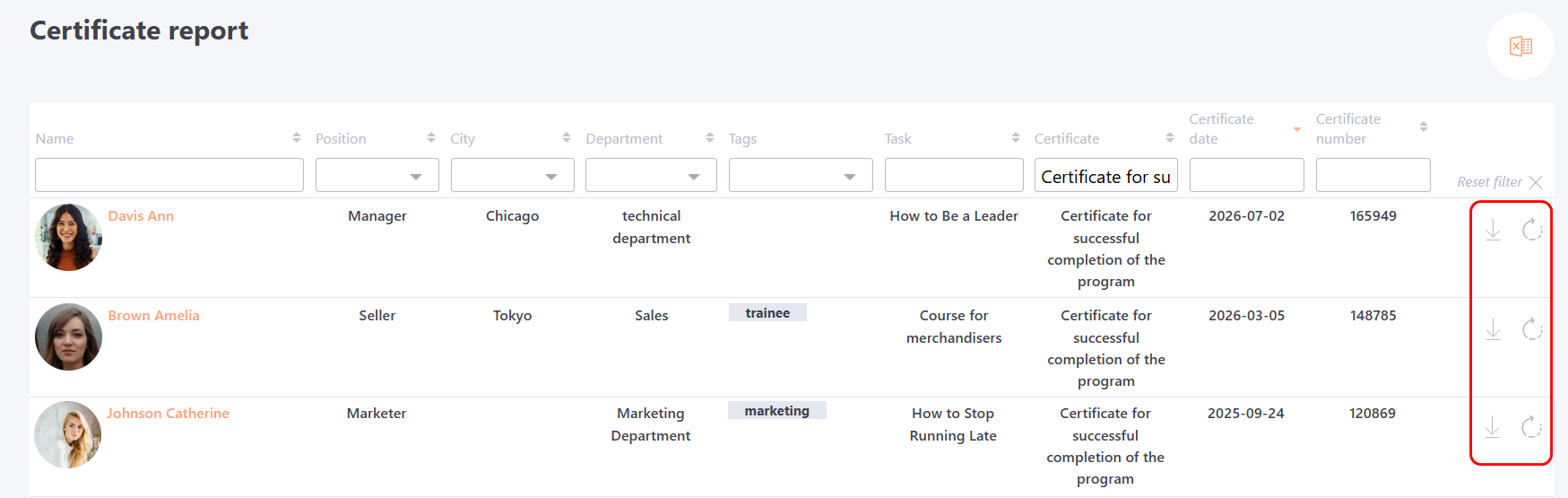
The report on issued certificates can be exported to Excel.

Data regarding issued certificates is removed when the certificate itself is removed.