
Login via biometric authentication
To ensure quick and secure system access, the Collaborator LMS offers the option to set up biometric authentication. Users can log in using a fingerprint (Touch ID), facial recognition (Face ID), a PIN code or a USB security key.
To enable this, the system administrator must activate the "Allow authentication by biometric" setting within the Authentication policy.
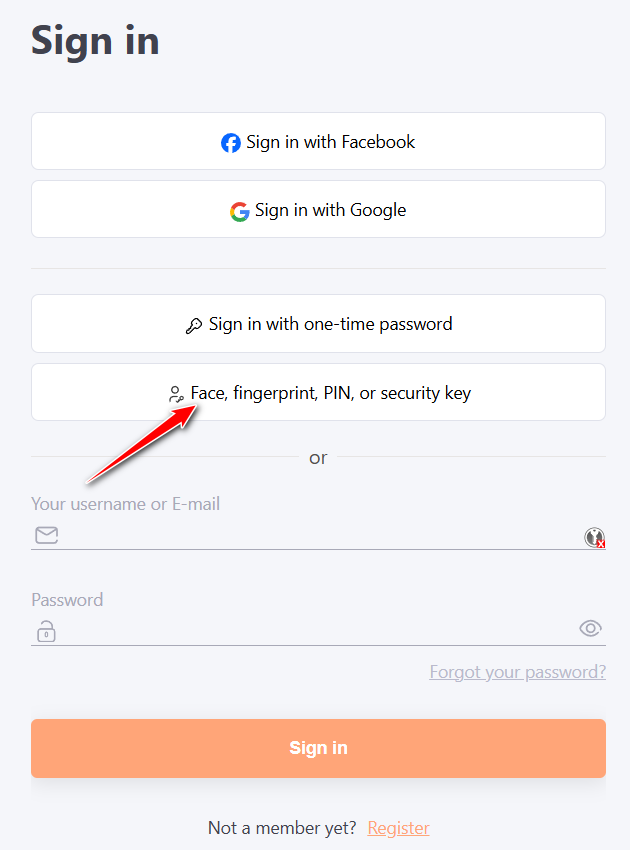
Once enabled, an additional biometric authentication button will appear on the portal login screen:
Enabling biometric authentication by user
Users can enable biometric authentication only on devices that support WebAuthn technology.
Biometric authentication can be enabled on the portal in the following ways:
- via a pop-up banner;
- via the Security menu.
Enabling biometric authentication via a pop-up banner
To enable biometric authentication, the user needs to:
-
Log in to the system using their standard username and password.
-
A banner offering to enable quick login will appear at the top of the screen.

Tap the "Enable" button and follow your device's security prompts (place your finger, scan your face, or insert a USB key).
Once successfully enabled, the user can log in using biometric data without entering a username and password.
If the user does not wish to enable biometric authentication, they can close the banner by tapping the "Close" button in the top-right corner. The banner will not appear on this device again.
Biometric authentication can be enabled later via the Security Menu.
Enabling biometric authentication via the Security menu
To enable biometric authentication via the Security menu, you need log in using your standard username and password.
Select the Security menu from the user drop-down menu:

On the Security page in the Biometric sign-in blok click the "Enable biometric sign-in" button:
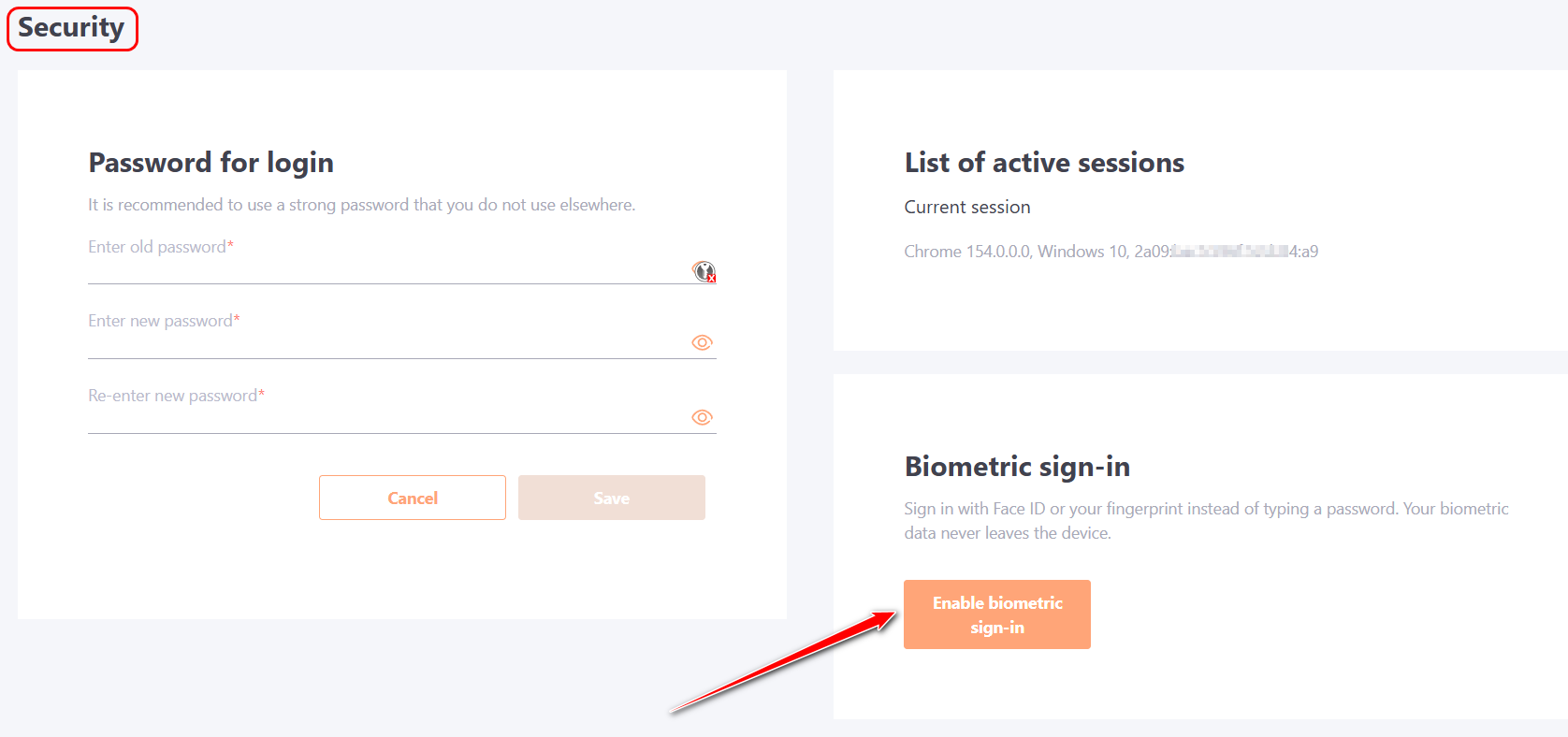
Follow your device's security prompts (place your finger, scan your face, or insert a USB key) to enable biometric authentication.
Once successfully set up, you will be able to log in using biometric data without entering a username and password.
You can also view connected biometric authentication devices, add new ones, and remove existing ones in the Security menu. Biometric login can be completely disabled if needed.
More details: Security Menu.
System login methods
To log in using biometric authentication, click the corresponding button on the login form and select your preferred authorization method:
- Use a passkey – log in using biometrics (on mobile devices and laptops).
Tap the Passkey button and use your device's built-in fingerprint scanner (Touch ID/Fingerprint) or facial recognition (Face ID).
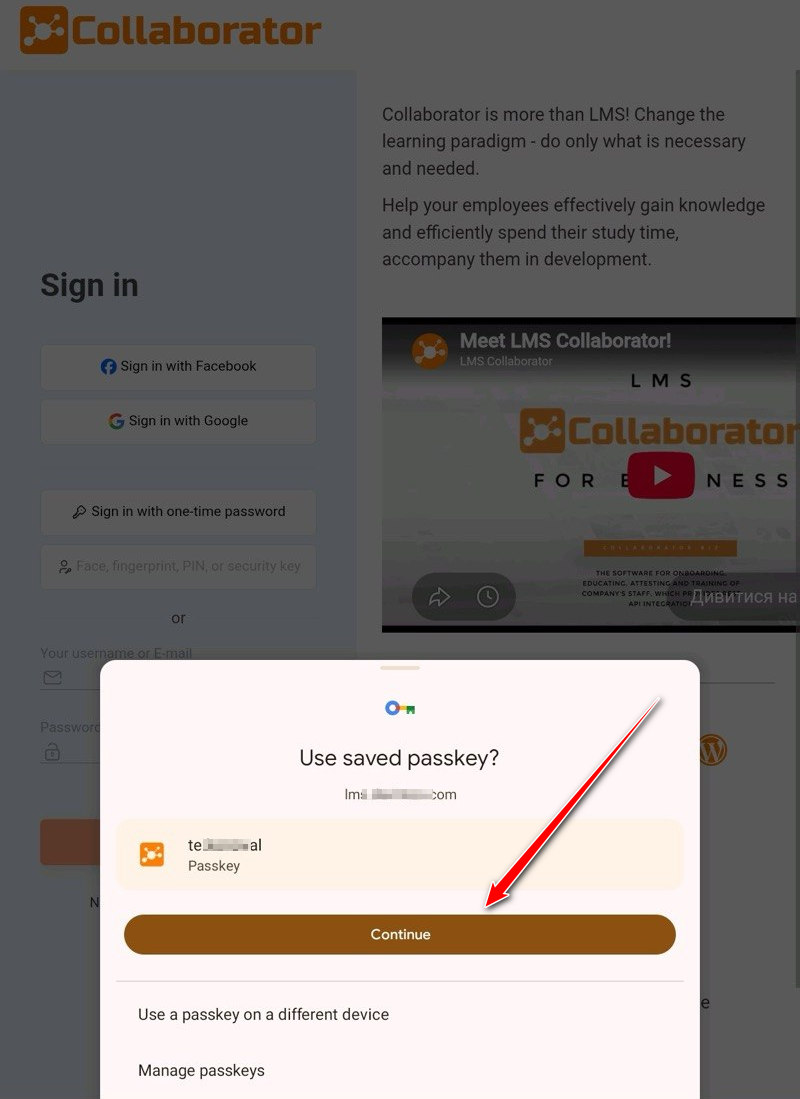
Access is granted instantly after a successful scan.
- Log in using a hardware USB-key
Click the biometric authentication button on the login form:
In the modal window that opens, select the "Security key" option:
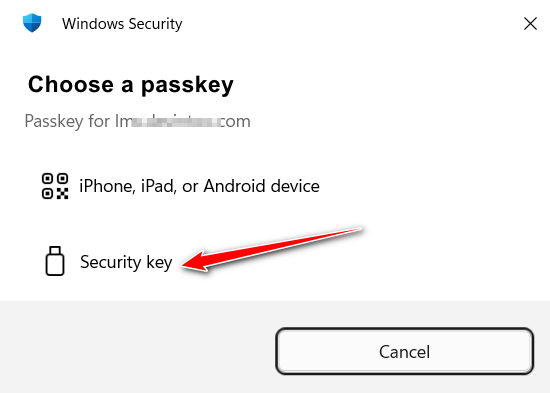
The system or browser will then display a notification: "Insert your security key into the USB port":

Insert your USB key into the PC or laptop port to authenticate.
- Logging into a PC using a smartphone (via QR code)
Biometric authentication set up on your smartphone can also be used to log in to your computer. To do this, click the biometric login button when logging in on your PC:
In the modal window that opens, select the "iPhone, iPad, or Android device" option.
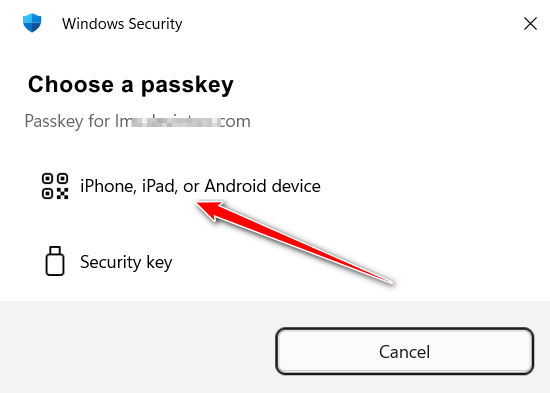
A QR code will appear on the PC screen.
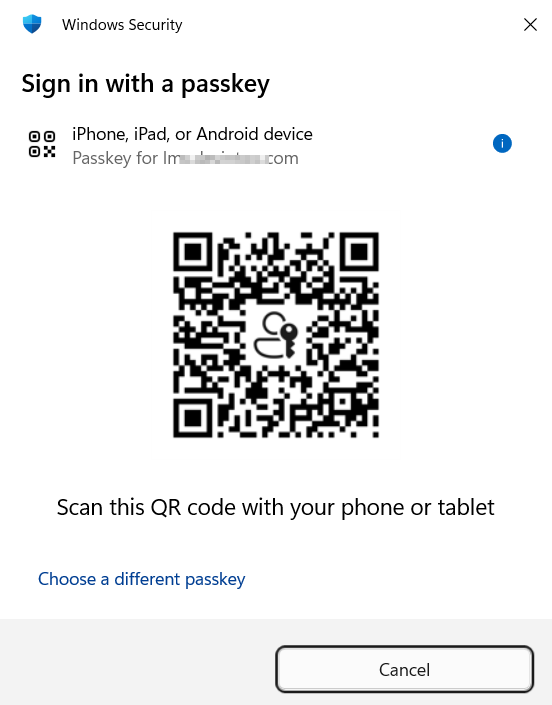
Open the camera on your smartphone and scan this QR code. Confirm the login on your smartphone using Face ID, Touch ID, or a PIN code.
Authorization on your PC will occur automatically.