Checking and Completing a One-to-one meetings
The curator and the Administrator can monitor and review One-to-one Meetings in the Development Plans of their subordinates. A curator must be assigned when creating a One-to-one Meeting.
Any system user can be chosen as a curator – a manager, expert, coach, etc.
The curator receives a notification based on the template You have been assigned a curator:
Viewing One-to-one Meetings for Checking
The curator can check and track One-to-one Meetings in the Development - I'm checking - One-to-One Meetings menu:

The One-to-one meetings page displays:
(1) - tabs for All,
Not completed and Completed Meetings;
(2) - a One-to-One Meeting card with detailed information;
(3) - search field for the Meeting title;
(4) - a filter by assignee.
(5) - a filter by Tasks blocks.

Checking and Completing a One-to-One Meeting
To access the check page for a specific Meeting, click the “Check” button.
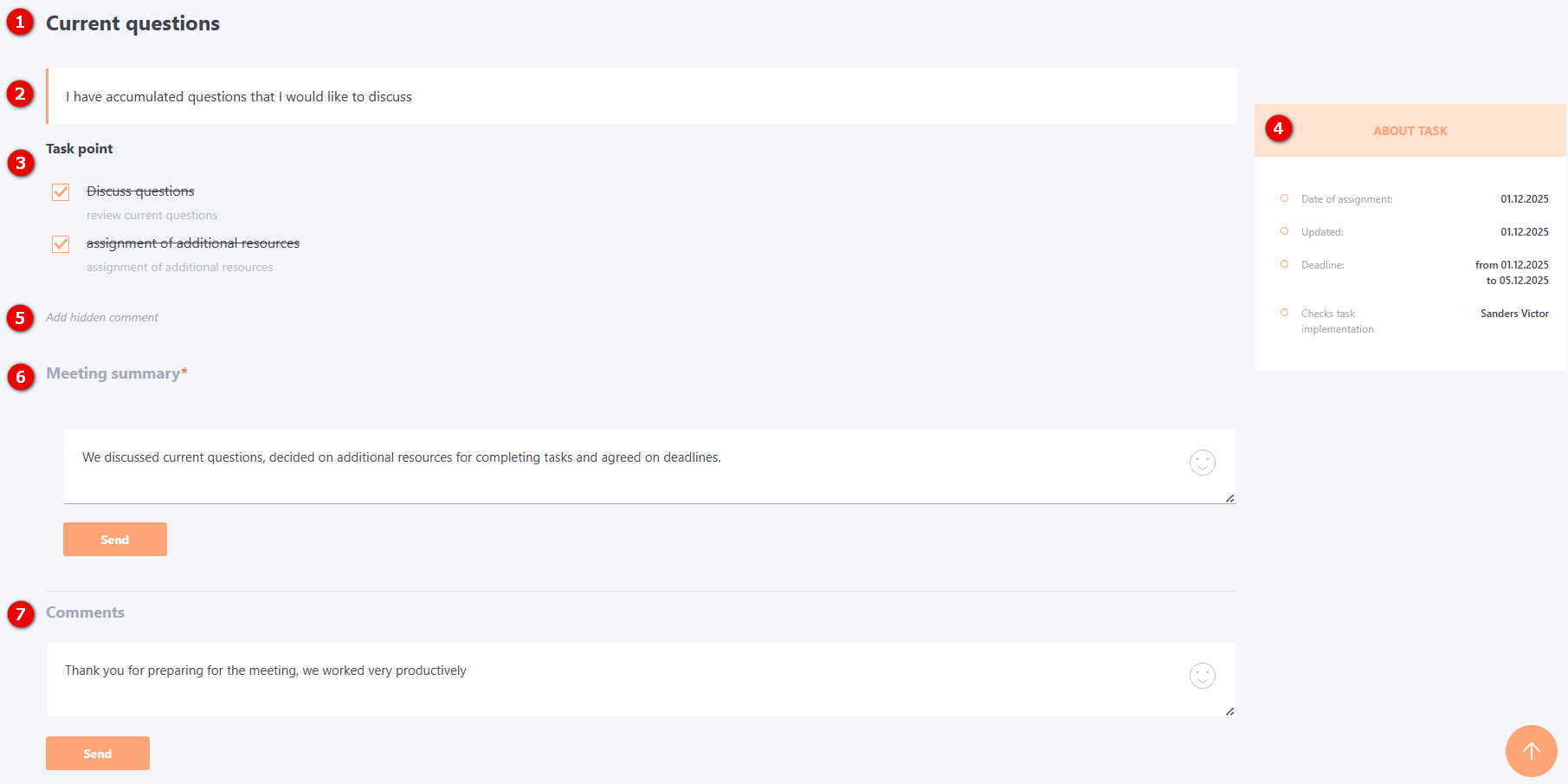
On the One-to-One Meeting check page, the following information is displayed:
(1) - Meeting Title;
(2) - Meeting task description;
(3) - Task points;
(4) - Detailed task information;
(5) - A hidden comment option for the curator, visible only to them (this may include personal notes, etc.).

Multiple hidden comments can be added, and they can also be edited or deleted; management buttons appear when hovering over the comment.
(6) - Meeting Summary – brief information on the results of the Meeting;
(7) - Comments on the Meeting.
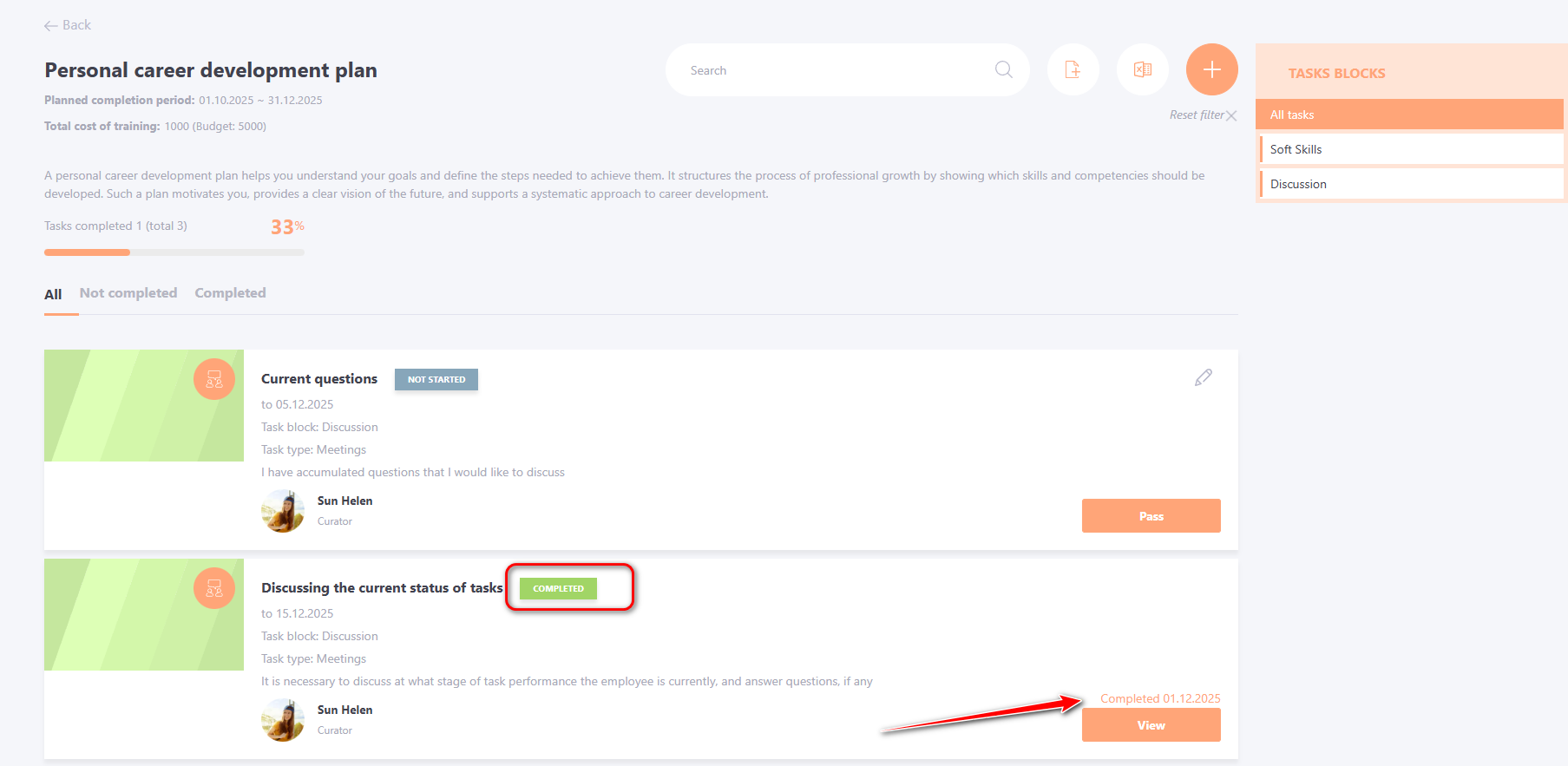
To complete the One-to-One Meeting, the сurator or the user must fill in the Meeting Summary field and click Save button.
After the summary is submitted, the system automatically changes the task status to “Completed” and records the completion date. The View button remains active, and comments can still be added if needed.