Direct messages
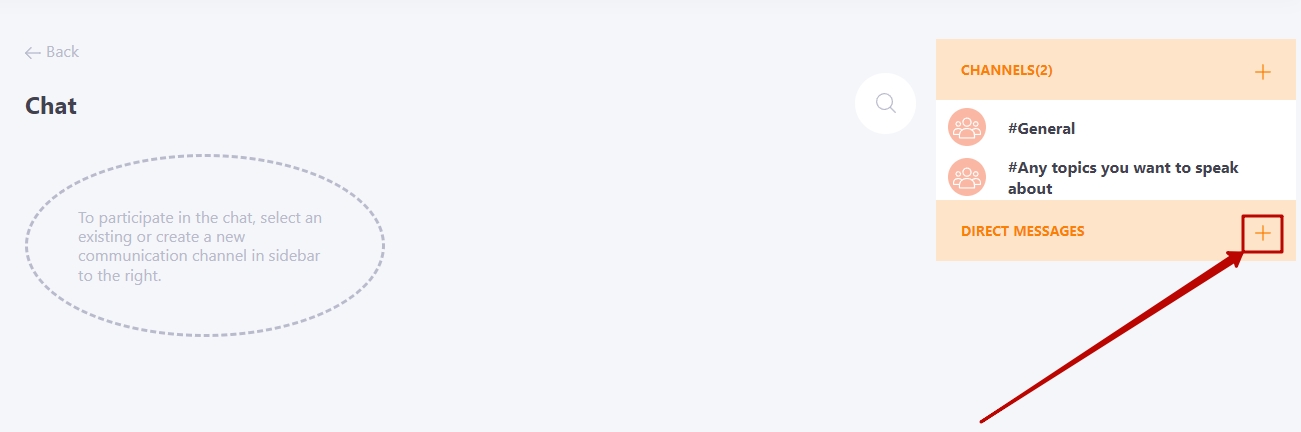
Personal or direct channel can create all users of the system with access to the Chat. You can do this in the "Direct messages" block.
To create a new personal channel, click Create channel.
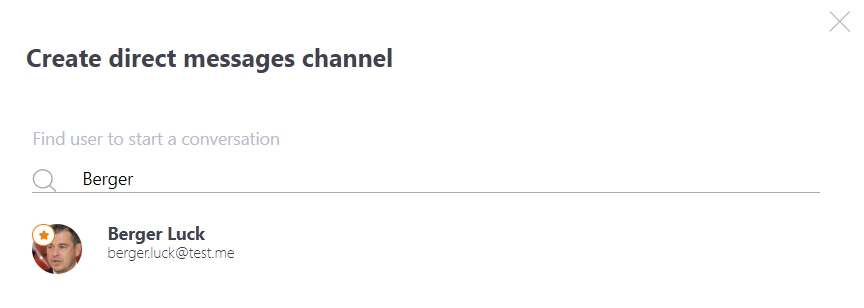
After that, the Create direct messages channel window will open. Using the search line (search by full name and postal address) select the desired user.
The "Direct messages" block displays the entire list of personal channels with other users. Depending on the icon in front of the user's name, you can determine the status of correspondence:
- the user has been added to the list of personal correspondence and is now online in the system.
- the user has been added to the list of personal correspondence, but he is currently not online in the system.
- the user has added a request to create a channel or you have sent a request to them. And this user is now in the system.
- the user has added a request to create a channel or you have sent a request to them. However, the user is not currently in the system.
By opening the channel you can see the status of the request:
1) The request was sent by you and the user has not yet reviewed it
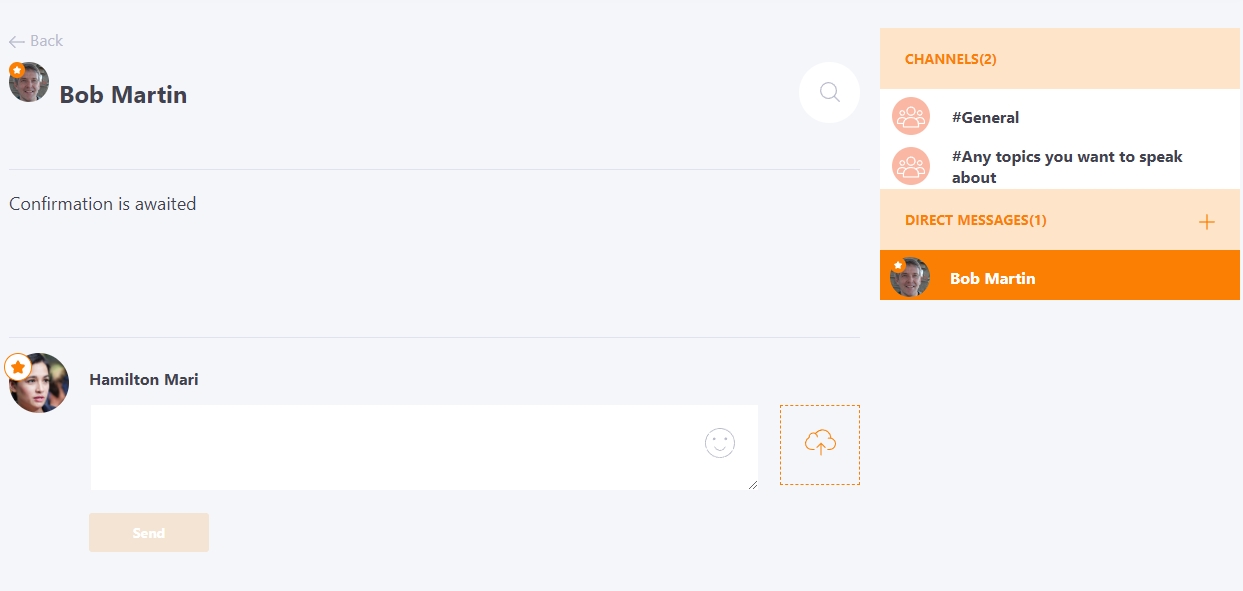
2) A request for communication has been sent by another user
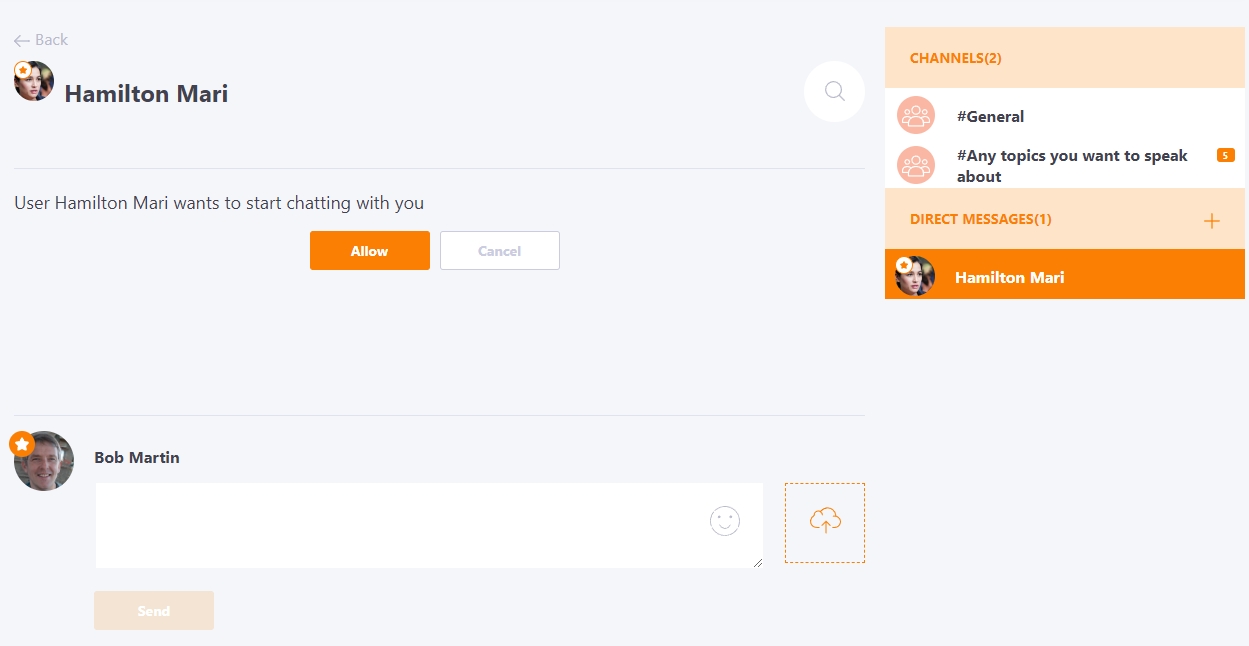
Allow - Allow sending direct to the user. In the Direct messages block, a new channel appears, the name of which corresponds to the name of the user with whom you are corresponding. You can now view or send a new message to this user by opening the previously created channel.
Cancel - Reject a request to create a personal chat with a user.
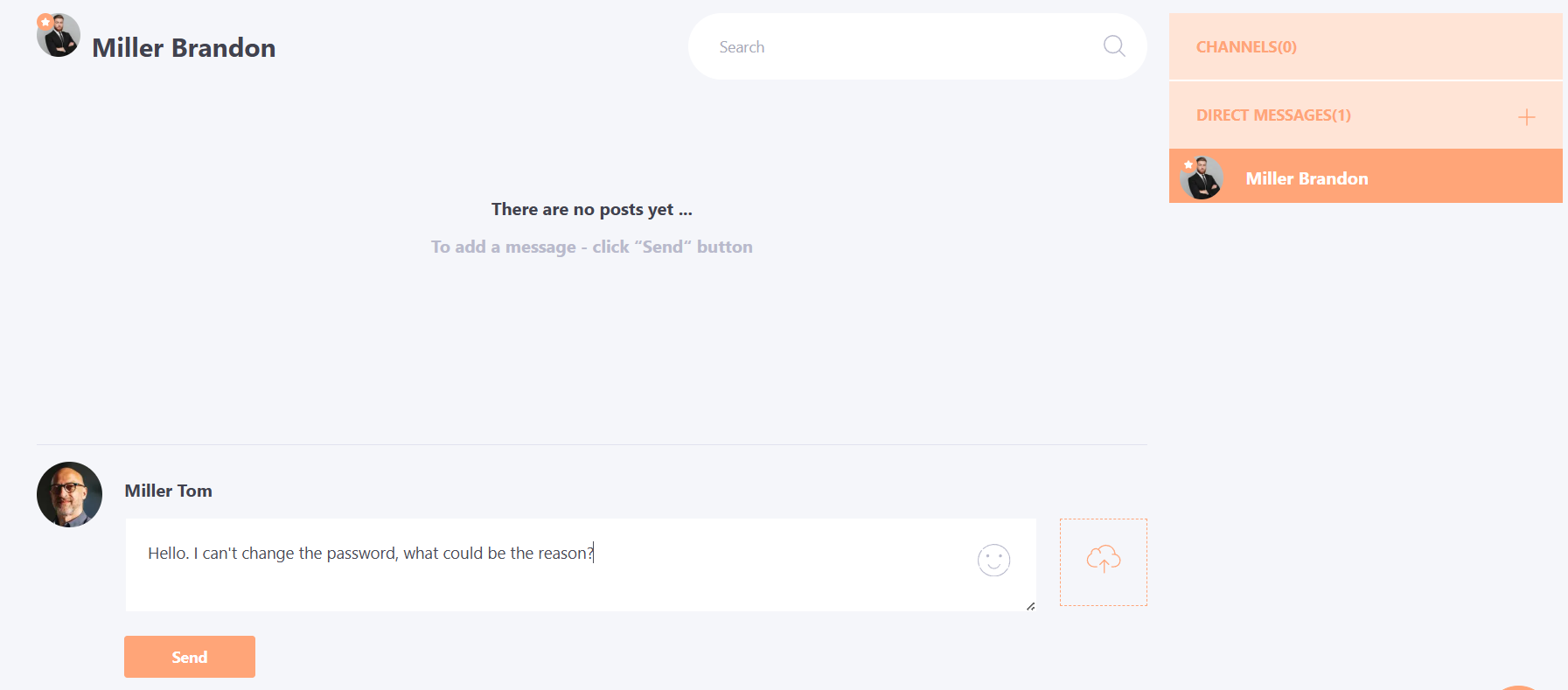
Quick chat with the administrator
Quick chat with the administrator "Assistance" is a type of personal chat channel that allows users to quickly contact the administrator. The main difference is that it is created immediately with permission to communicate, so the user can write without waiting for confirmation.
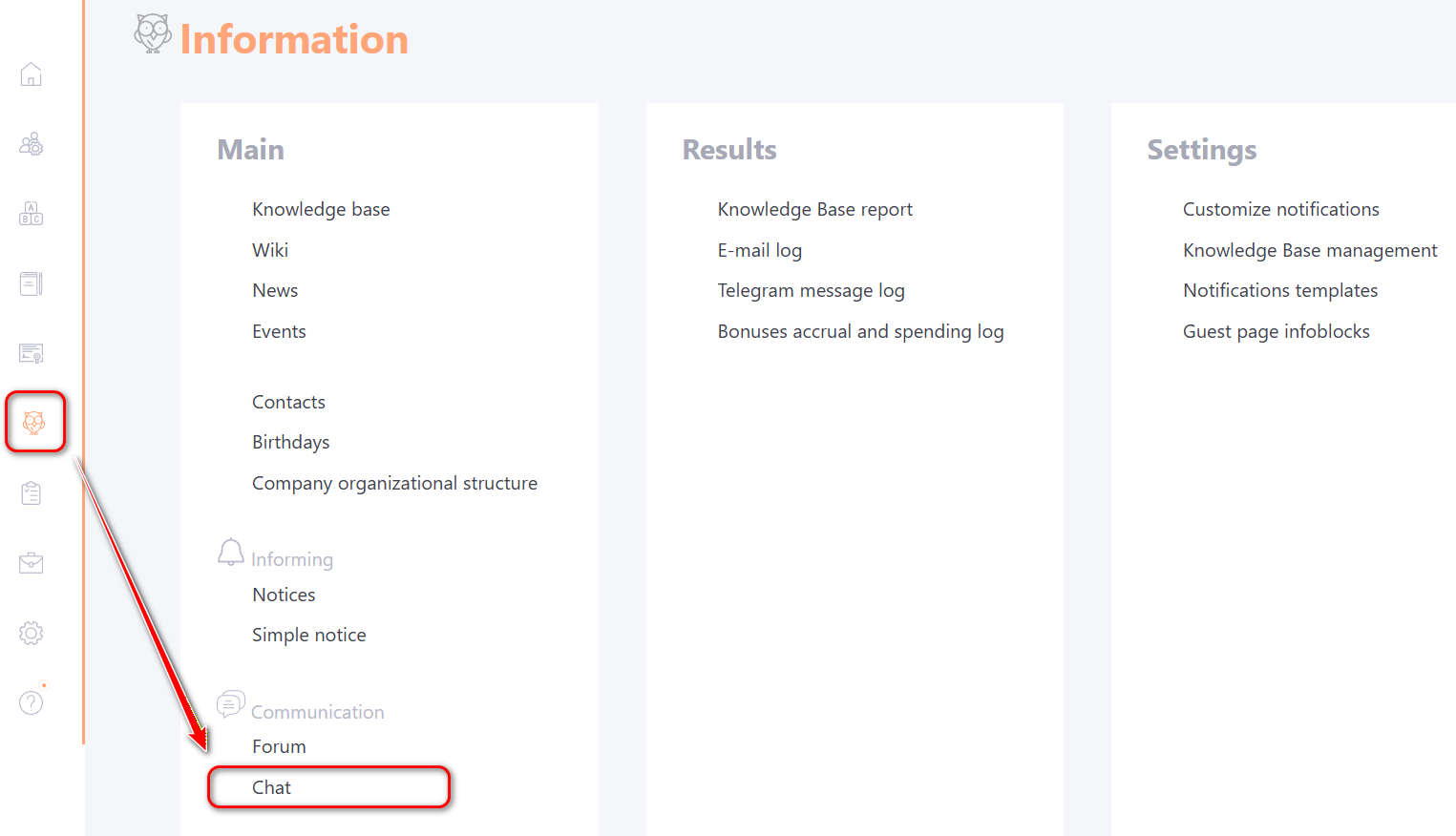
To configure the chat "Assistance", go to the menu Information - Chat
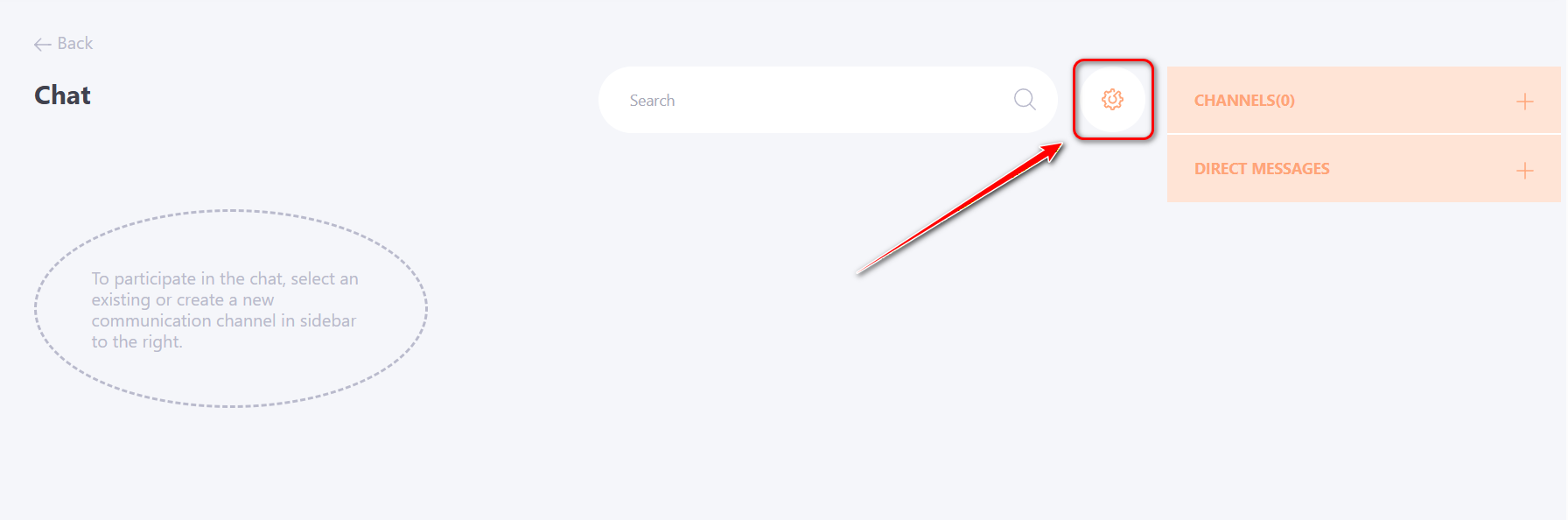
On the Chat page, click the Chat Settings button
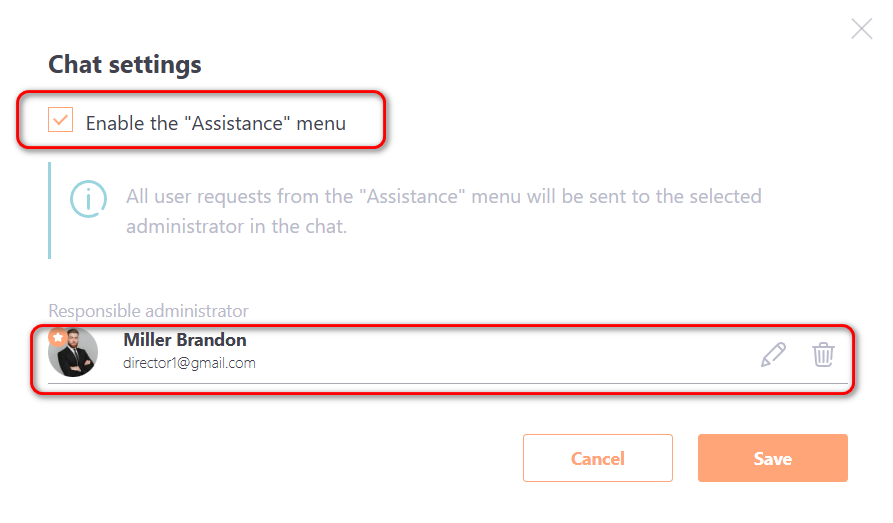
In the modal window, you need to activate the "Enable the "Assistance" menu" option (check the checkbox), assign a responsible administrator who will process the request, and click the "Save" button.
Only one responsible administrator can be appointed.
After saving the settings, the Assistance button will appear in the user menu.
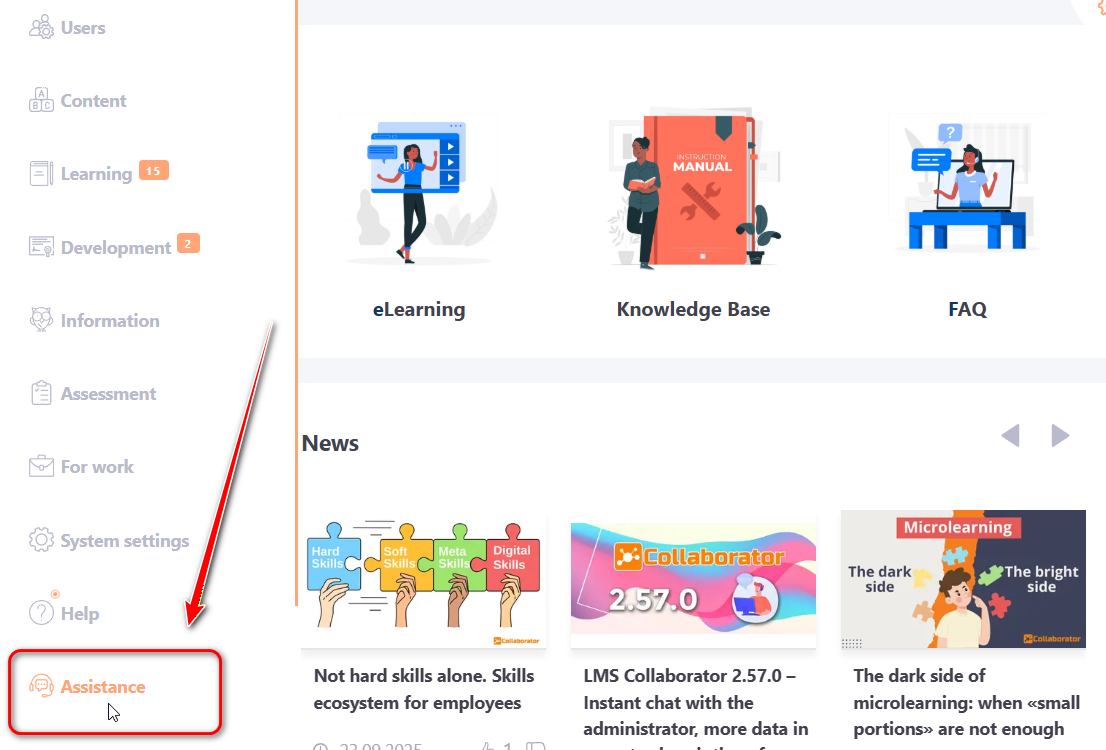
Clicking the Assistance button opens a personal chat with the assigned administrator. In this chat, the user can ask a question, attach a file if necessary, and send a message using the Send button.