
Passing learning paths
All assigned learning paths to the user are available on the My learning paths page in the Learning block:
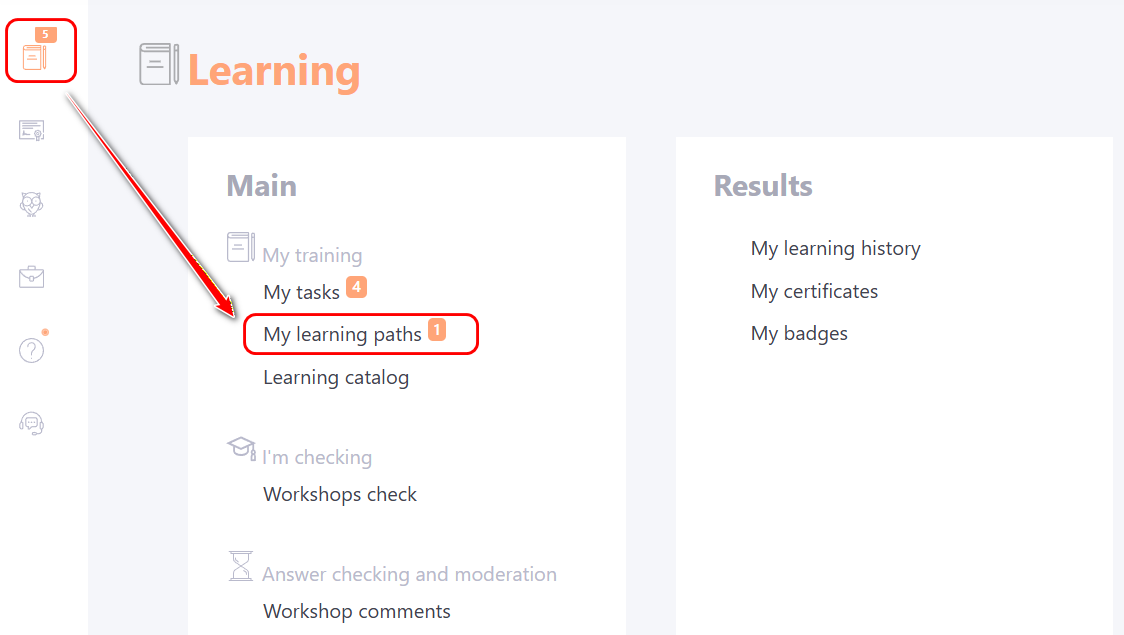
Near the My learning paths menu item, the number of learning paths assigned to the user will be displayed.
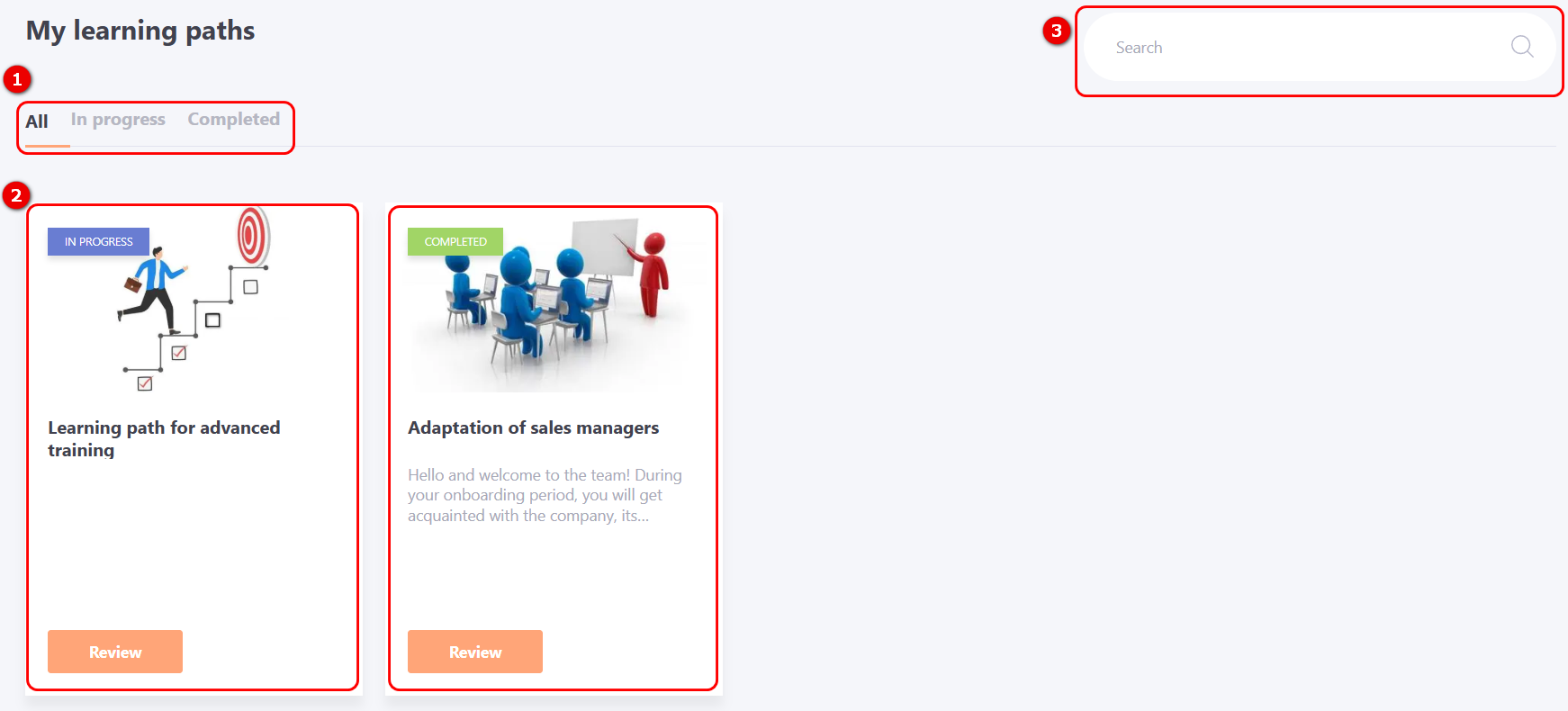
Here you can see the cards of all assigned paths with passing statuses (2). You can search by learning path name (3) and filter by status (1).
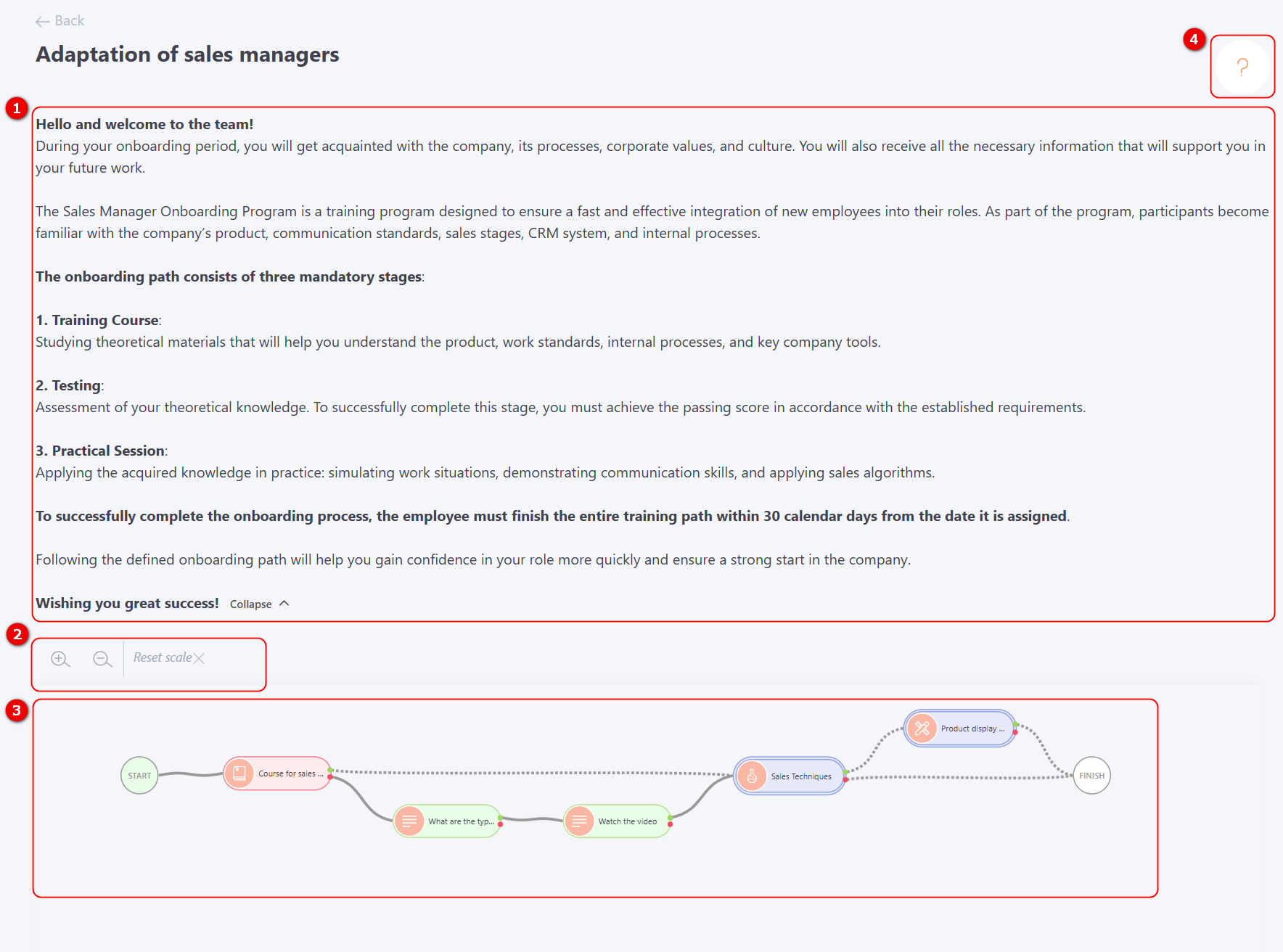
Clicking on the Review button opens a page with detailed information about the learning paths:
Description (1) - general information about training, list of tasks, conditions for passing and deadlines, etc. The description can be hidden by clicking the Collapse button.
For convenience, the page has a zooming of the canvas. To do this, use the appropriate buttons (2).
Visual scheme (3) – allows you to track the progress of completing the learning path, view assigned tasks, and see the conditions for their completion in a convenient graphical format.
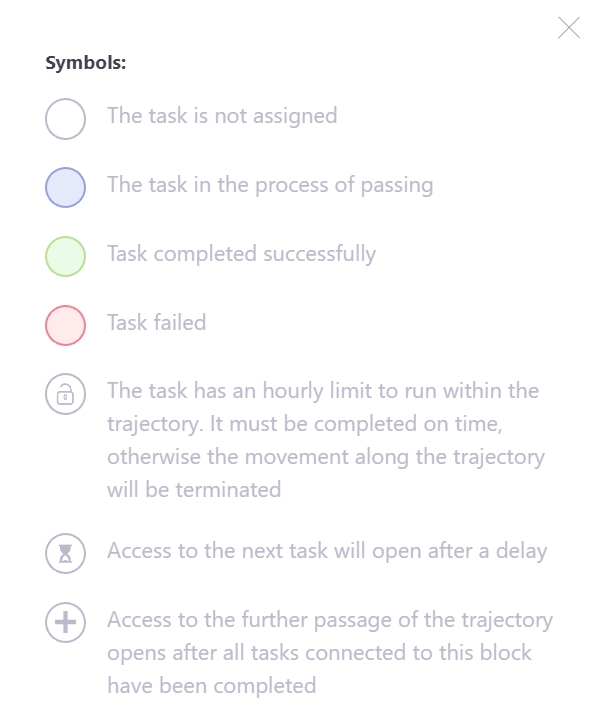
In the upper-right corner, a legend (4) is displayed on the visual learning path, showing the symbols used in the scheme.
By clicking on any element of the path, a modal window opens with a description of the task, access conditions, status and grade data, if the task has already been completed. If access to the task is open, you can go directly to its completion. To do this, click on the Start button.
| Displaying a modal window for the completed task | Displaying a modal window for the task that needs to be completed |
|---|---|
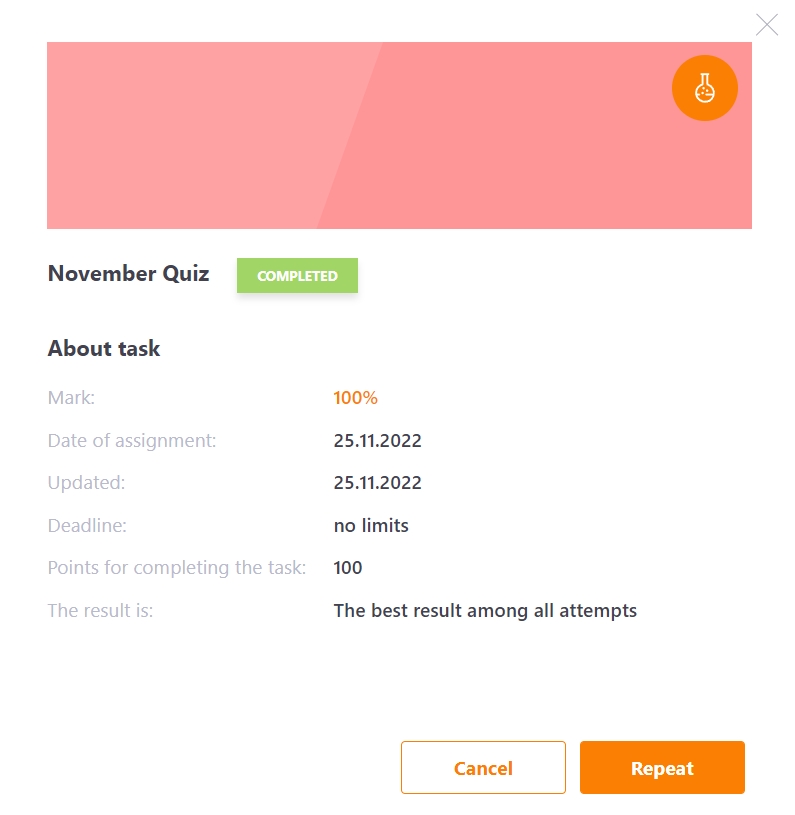 |
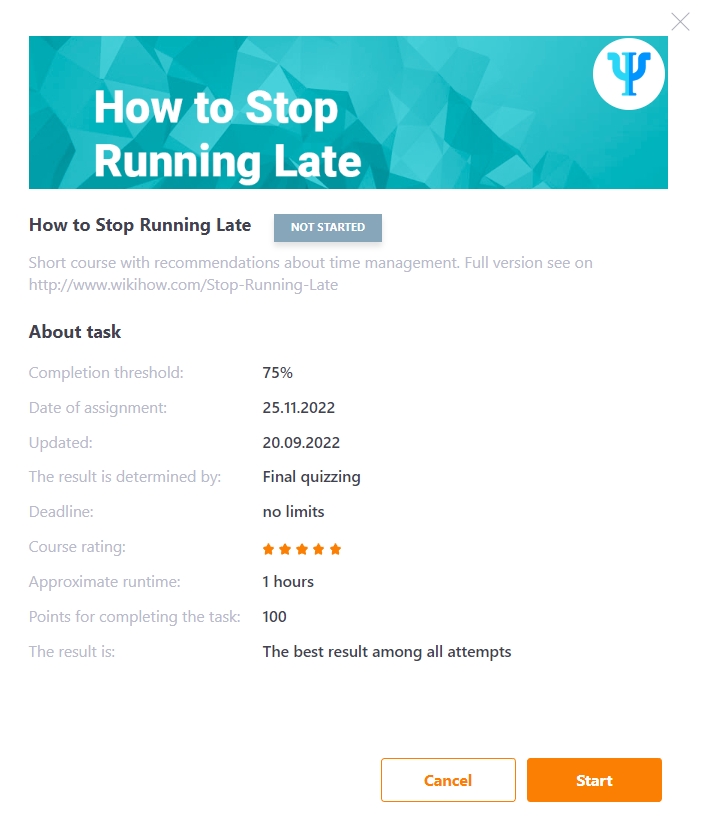 |