Learning path creation
To create a learning path, you need to enter the Learning paths and click on the Create button  .
.
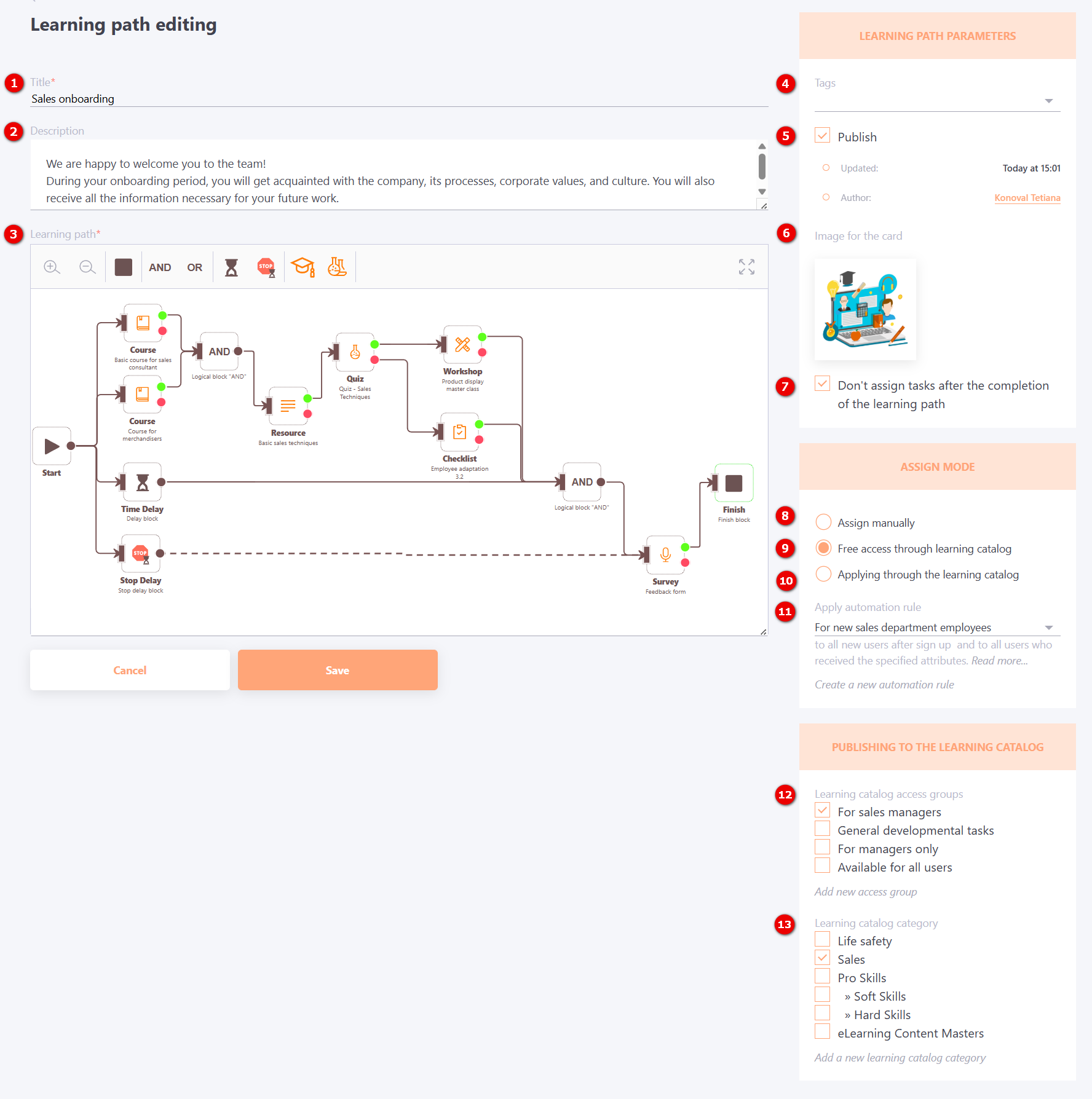
After that, the Learning path creation page opens, where you need to specify the following parameters:
(1) - Title – learning path title (required field, it is recommended to make it as short as possible).
(2) - Description – information about the learning path, description of training elements, conditions for completing the learning path, terms, etc. The text can be formatted with the tags 'br', 'b', 'ul', 'ol', 'li', 'a'. This description is displayed to the user on the task card and on the learning path view page ( more details Passing learning paths).
(3) - Learning path – learning path editor. The panel contains buttons for changing the scale and available blocks for creating a learning path (find more in Types and parameters of blocks).
(4) - Tags – if necessary, set a tag for the Learning paths. You can select a tag from the existing ones in the drop-down list or by using the search function. More details: Tag management.
(5) - Publish - by default, the learning path is not published. To assign the created learning path to users, it must be published (checkbox must be selected).
The date and time of the Learning paths last update are also displayed, and the author is indicated.
(6) - Image for the card - the ability to upload a custom cover image for the learning path card instead of the default one, which will be displayed to users on the My learning paths page.
(7) - Don't assign tasks after the completion of the learning path - this option controls the assignment of new tasks after the user has completed the learning path.
- If the option is enabled, after a user completes a learning path (reaches at least one finish block), they are no longer assigned any other tasks from that path. This applies to both existing but not yet assigned tasks (e.g. from parallel branches) and new tasks that may be added to the path later.
- If the option is disabled, all tasks added to the path will be automatically assigned to the user, regardless of whether they have already completed the path earlier.
The Assign mode block is designed to configure the method of task assignment.
(8) - Assign manually - the administrator manually assigns the learning path;
(9) - Free access through learning catalog – the user can independently select and assign themselves a learning path from the Catalog of learning paths. At the same time, the administrator also has the option to manually assign a learning path.
(10) - Applying through the learning catalog – the user submits a request to take a learning path, and the administrator approves or rejects it. At the same time, the administrator has the option to manually assign a learning path.
(11) - Apply automation rule – a learning path is automatically assigned to users based on a selected automation rule chosen from the drop-down list.
If the required rule is not in the list, it can be created by clicking the "Create a new automation rule" button (more details: Automation rules ). Additionally, the administrator has the option to manually assign a learning path.
(12) - Learning catalog access groups – this setting appears if the Assign mode "Free access through learning catalog" or "Applying through the learning catalog" is selected, and if the "Use task access restrictions in learning catalog" setting is enabled on the "Learning catalog management" page of the portal.
You must select which users will have access to this Learning Path within the Learning Catalog. To do this, select one or more previously created Access Groups using the checkboxes. If the required access group does not exist among the created groups, you can create one by clicking the "Add new access group" button.
For more details: Learning catalog management.
(13) - Learning catalog category – you can select one or more Learning catalog categories from the list to which the Learning Path will belong. If the required category does not exist among the created categories, you can create one by clicking the "Add a new learning catalog category" button.
Learn more: Catalog categories.
Save button – saves the Learning Path. It becomes active once the mandatory fields are filled in, at least one task has been added in the path editor, and all elements are connected.