Translations
In the Collaborator system, there is a possibility to rename interface phrases — for example, menu item names, portal page headers, block titles on the main page, buttons, etc. This allows adapting the system to the company’s corporate terminology and making the interface more intuitive for employees.
To do this, you need to enter the System settings - Translations menu:
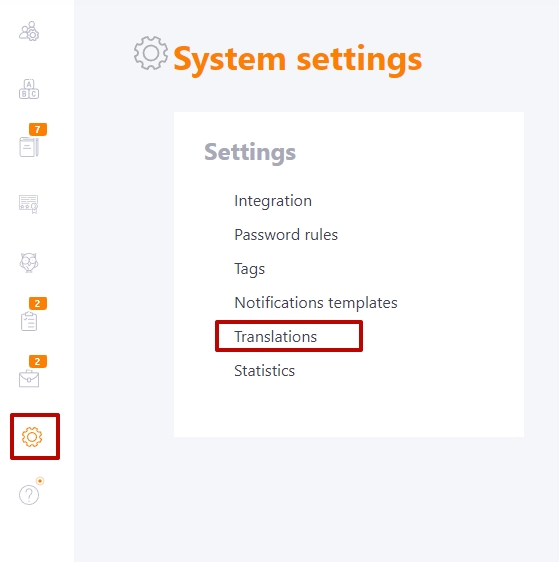
On the Translations page you will see the list of already added translations, and also have the option to create new ones:
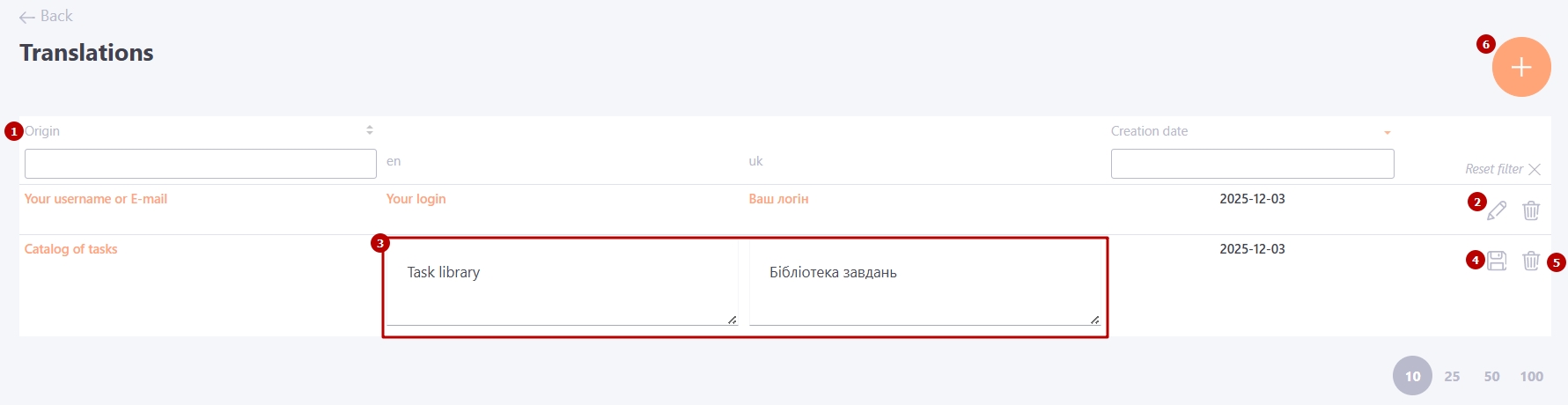
- Origin (1) — the original phrase in English as used in the system;
- Edit (2) — opens the translation fields for the languages enabled on the portal;
- Translation (3) — fields for entering the new wording;
- Save (4)) — to save the modified phrases;
- Remove (5) — to remove an existing translation.
To add a new translation, click the Add phrase (6) button. In the form, enter the original English phrase (field Original) and then provide the new wording for all available languages, after which click Save.
Once saved, the modified phrase will automatically update in all relevant locations throughout the portal.
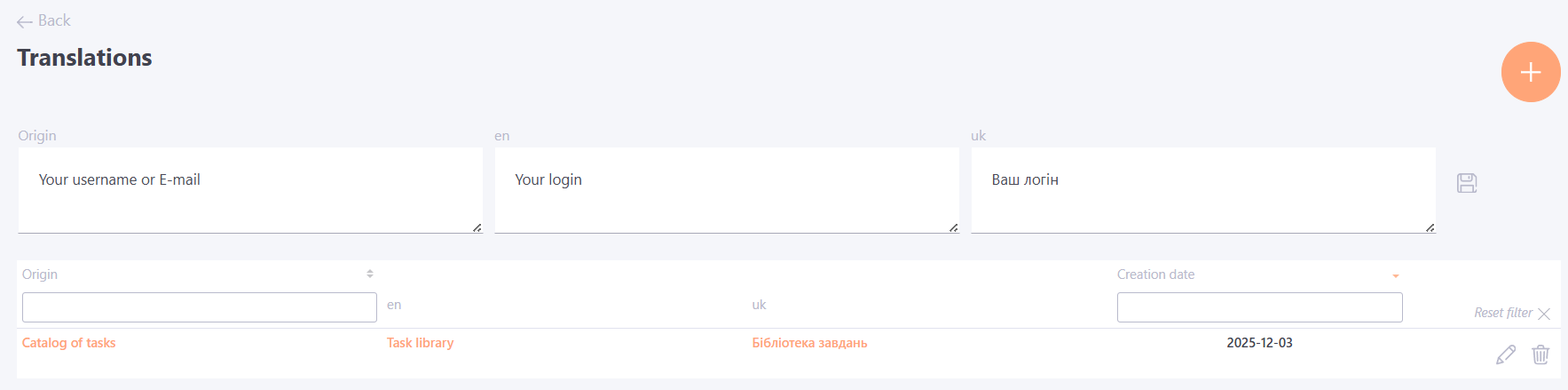
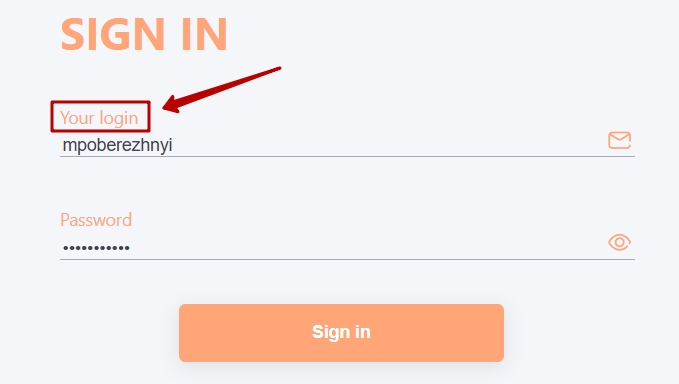
Example of a phrase translation on the login page: