
One-to-one meetings
In addition to training tasks and personal tasks, a One-to-One Meeting can be added to the Development Plan.
This is a tool for recording in the system the outcomes of face-to-face one-on-one meetings with a mentor or manager to discuss the progress of tasks in the Development Plan, their completion results, and related topics.
To conduct such a meeting, you need to:
- Add a One-to-One Meeting task to the user's Development Plan.
- Within the timeframe specified when creating the task, organize and conduct an in-person or online meeting between the employee and their mentor or manager. If needed, comments can be added within the Meeting task.
- Complete the Meeting by filling in the Meeting Summary. It can be filled out either by the employee or by their mentor or manager.
A Meeting can be created either by the Administrator or by the User.
Creating a One-to-One Meeting by the Administrator
To add a One-to-One Meeting to a Development Plan, the administrator needs to:
- go to the Development - Development Plans menu;
- find the user in the table and open their Development Plans.

- select the Development Plan to which the One-to-One Meeting will be added and click the “Review” button;

- click the Add button;

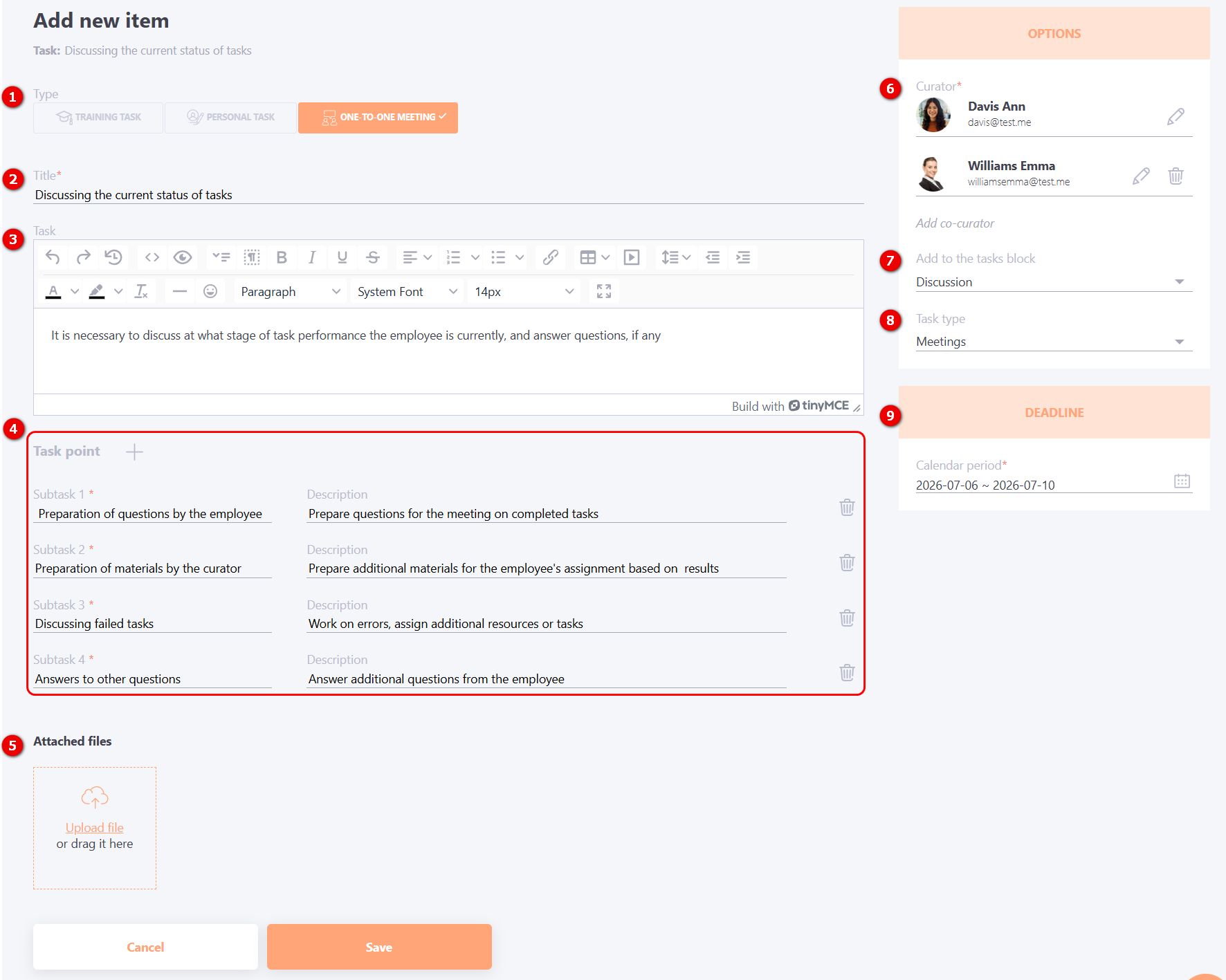
- add a One-to-One Meeting to the user's Development Plan:
(1) - Select the task type – One-to-One Meeting;
(2) - fill in the Meeting title;
(3) - fill in a Task description – using the editor, you can insert links, dropdown menus, change font color and size, etc.;
(4) - fill in Task point - subtasks can be added to the Meeting (subtask fields are required, and you can also fill in their description). Point can be deleted using the corresponding button;
(5) - Upload file (the user cannot delete files uploaded by the administrator, only upload is available);
(6) - Select the Curator – if not selected, the task will not be created. You need to appoint one or more curators to conduct the One-to-One meeting.
(7) - Select the task block (more details Tasks blocks);
(8) - Select the task type (more details Types for personal tasks);
(9) - Specify the Calendar period – this is the approximate calendar timeframe within which the meeting should take place, e.g., a specific week or month.
To save the Meeting, click the Save button.
Creating a One-to-One Meeting by the User
To add a One-to-One Meeting, the user needs to:
In the Development Plan (menu Learning- My Tasks - Filter: My Development Plans - select the desired Development Plan or menu Development - My development plan - select the desired Development Plan), click the Add button.

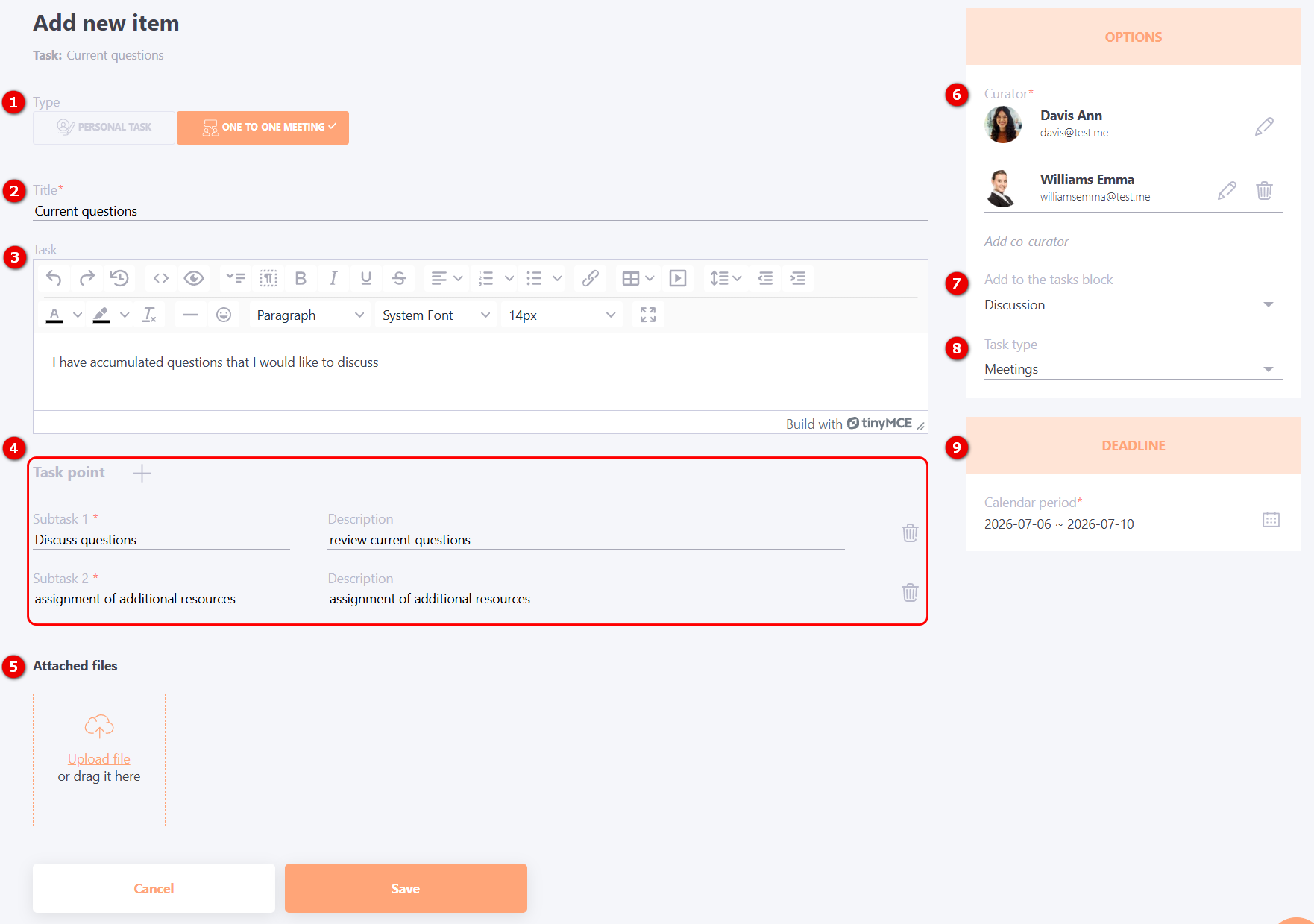
- fill in all the required fields to create a task:
(1) - Select the task type – One-to-One Meeting;
(2) - fill in the Meeting title;
(3) - fill in a Task description – using the editor, you can insert links, dropdown menus, change font color and size, etc.;
(4) - fill in Task point - subtasks can be added to the Meeting (subtask fields are required, and you can also fill in their description). Point can be deleted using the corresponding button;
(5) - Upload file (the user cannot delete files uploaded by the administrator, only upload is available);
(6) - Select the Curator – if not selected, the task will not be created. You need to appoint one or more curators to conduct the One-to-One meeting.
(7) - Select the task block (more details Tasks blocks);
(8) - Select the task type (more details Types for personal tasks);
(9) - Specify the Calendar period – this is the approximate calendar timeframe within which the meeting should take place, e.g., a specific week or month.
To save the Meeting, click the Save button.
Viewing a One-to-One Meeting
After the Meeting is created, it will appear in the list of tasks in the Development Plan:
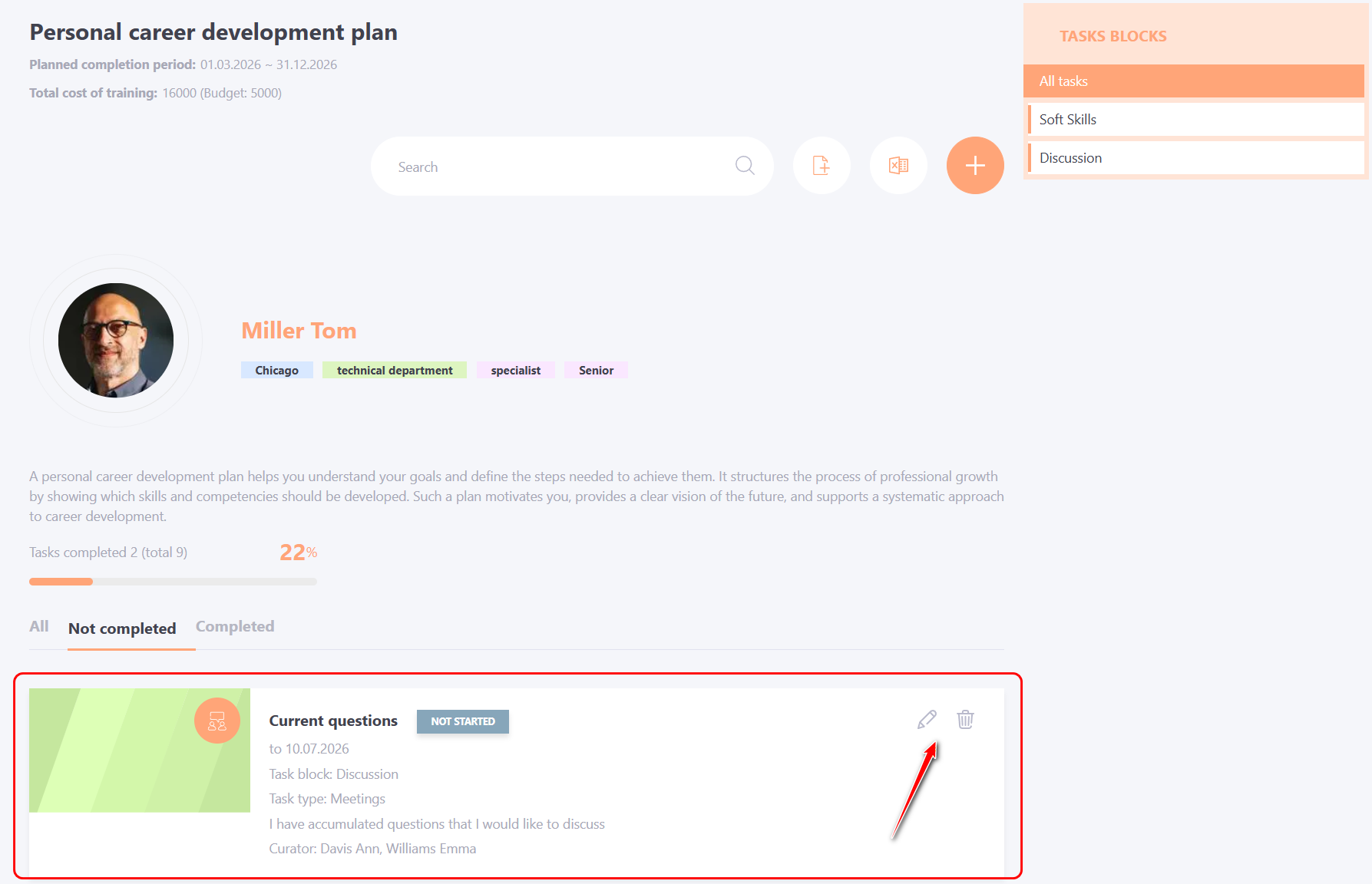
The Administrator can edit and remove tasks with a One-to-One Meeting from the Development Plan.
The User can only view One-to-One Meetings and edit those they have personally created:
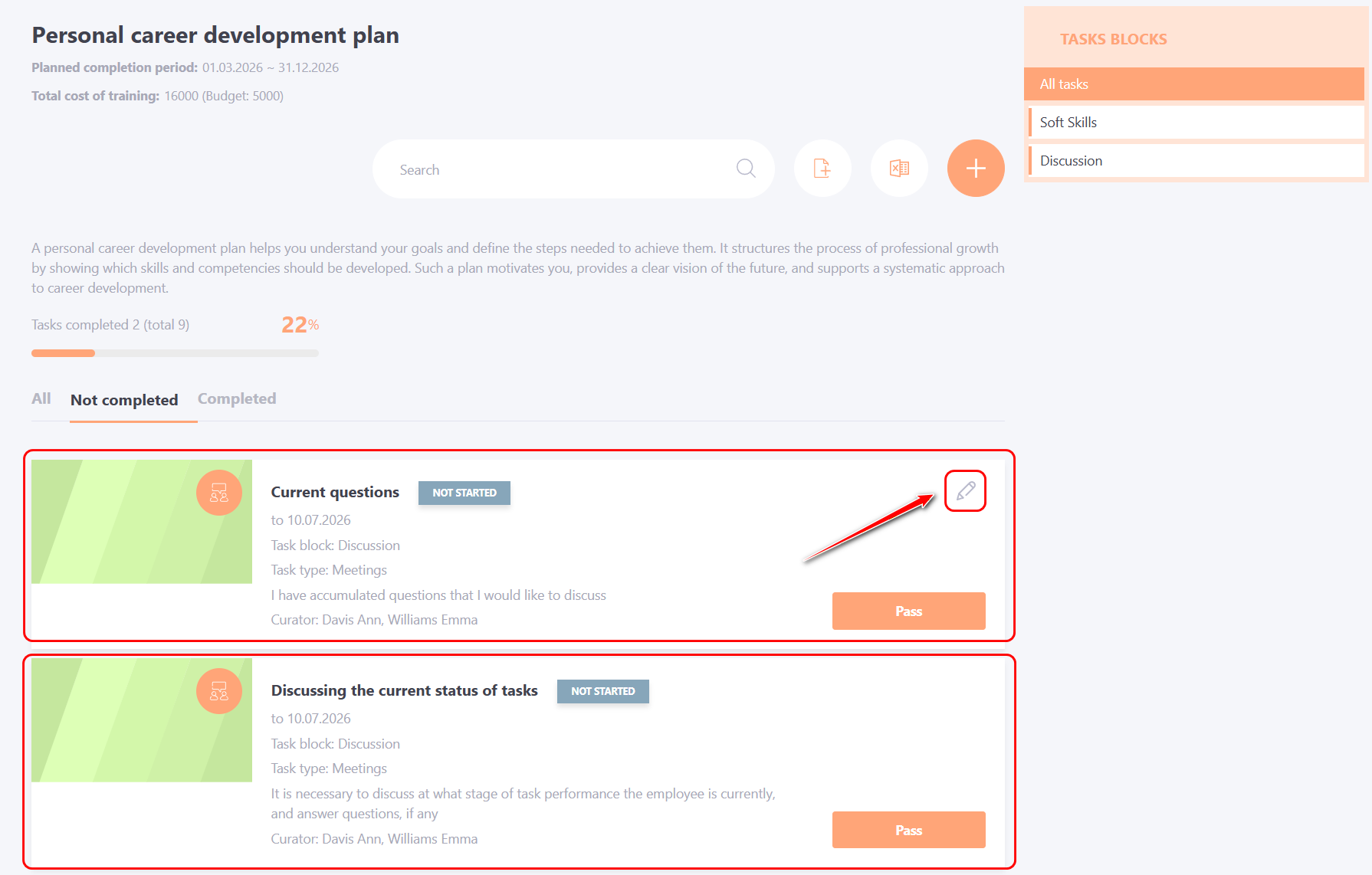
When editing a One-to-One Meeting, you can change all fields filled in during creation, except for the task type.
When viewing a One-to-One Meeting, the following information is displayed:
(1) - Meeting Title;
(2) - Task Description;
(3) - Meeting points – checkboxes can be used to mark completed points;
(4) - Detailed task information;
(5) - Meeting Summary – a comment with the results of the Meeting, required to be filled in after the Meeting is completed in order to close it;
(6) - Comments – you can leave comments on the task.
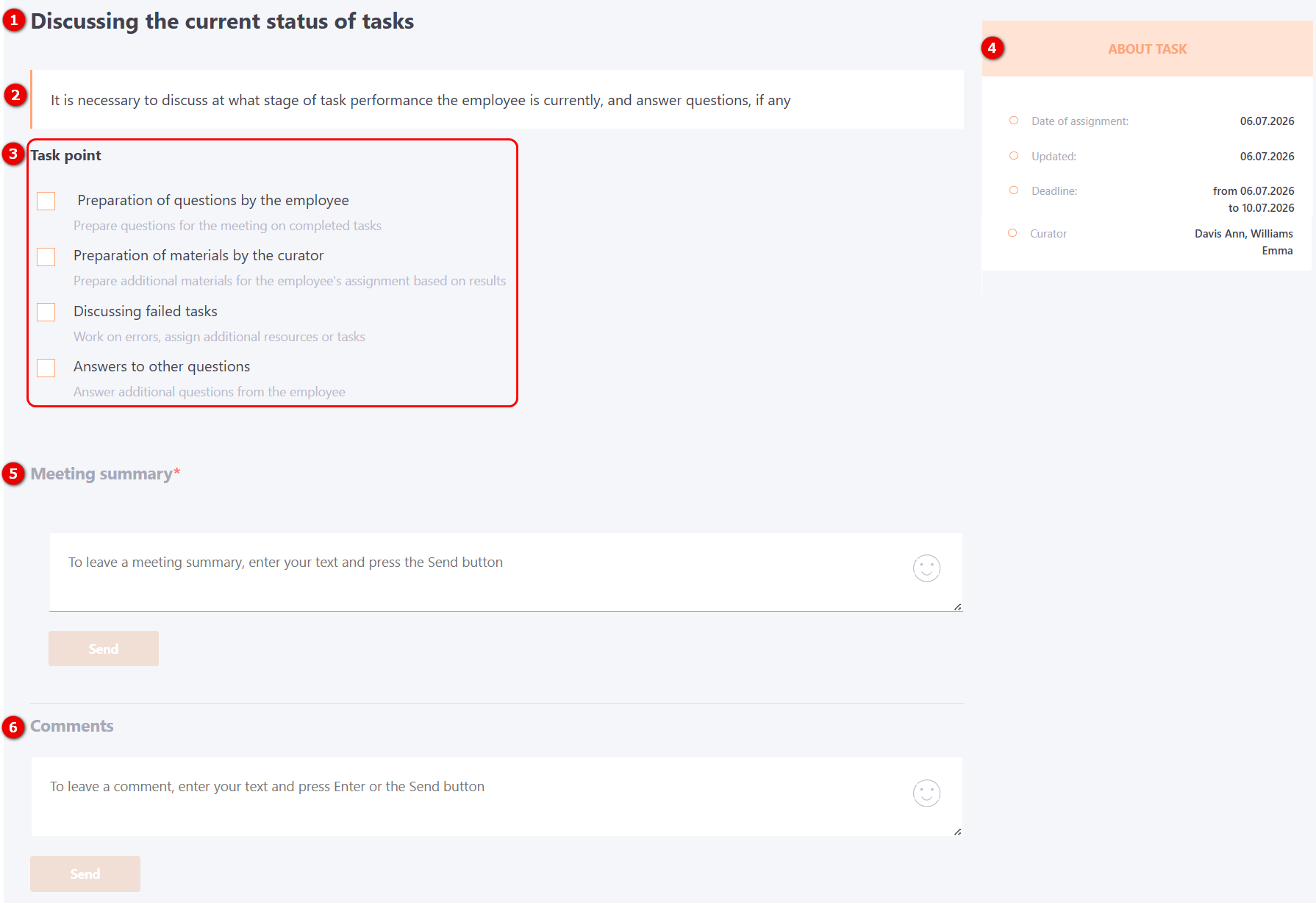
The edit button is available only to the Administrator, and to the User for Meetings they have created themselves.
Additionally, when a task is assigned to a user, a notification is sent based on a template Task has been assigned to a user's PDP.