Webinars table
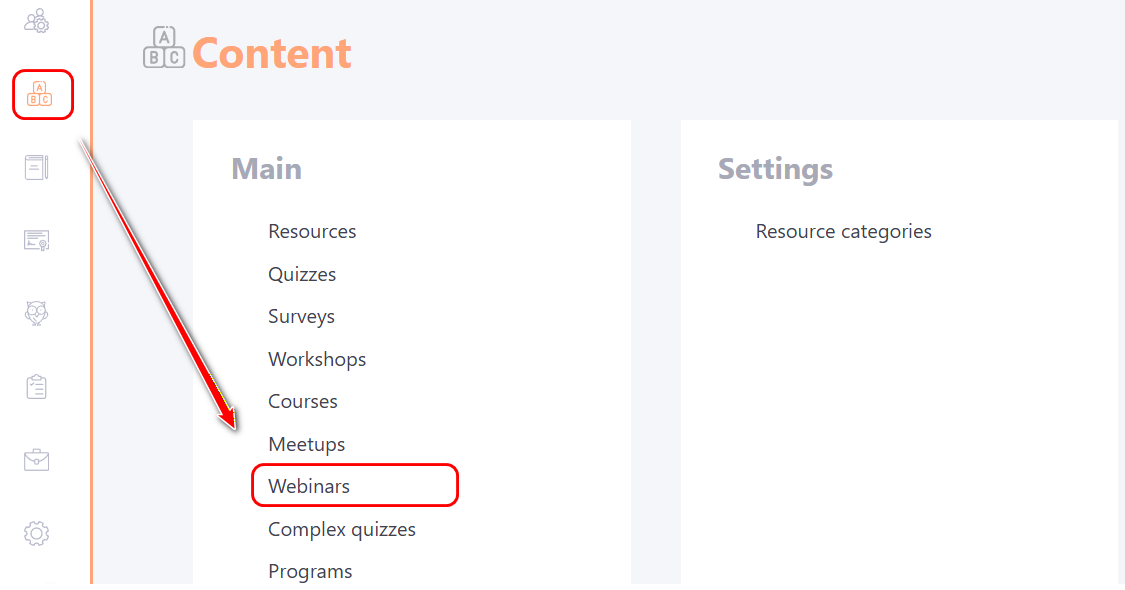
To go to the table with webinars, go to the Content - Webinars menu:
On the Webinars page displays a list of all created announcements for webinars in a table with the following columns:
(1) — Webinar Title;
(2) — Tags — tags can be added to webinar for easier search;
(3) — Date of change;
(4) — Published status — after creation, a webinar must be published. Only published webinars can be used in tasks.
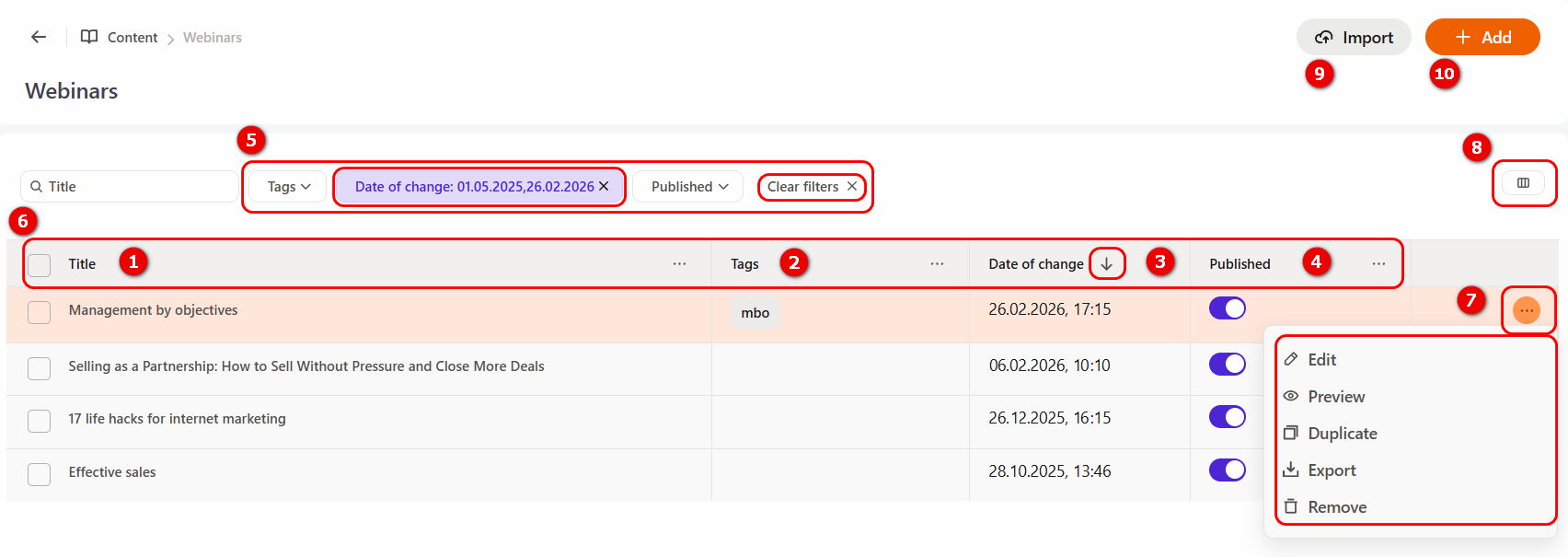
You can Search for a specific webinar by Title. Filtering (5) is available for the other columns.
Filtering can be performed on multiple columns at the same time. When any filter is applied, the Clear filters button is displayed. If several filters are active, a remove icon appears next to each parameter, allowing you to delete filters individually. To reset all filters at once, click the Clear filters button.
Sorting (6) is available for any column in the table; however, it can be applied to only one parameter at a time. By default, sorting is set by Date of change.
(7) — Actions button — the following actions are available for each webinar:
- Edit — navigates to the webinar editing page;
- Preview - the ability to see how the webinar will appear to users;
- Duplicate — creates a copy of the webinar;
- Export — saves an archive of the webinar, which can later be imported into the system;
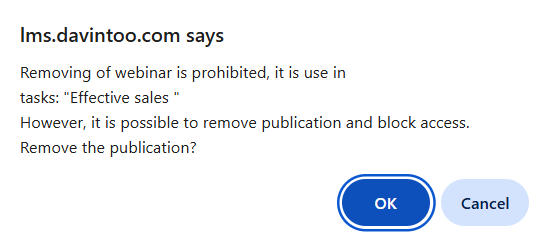
- Remove — clicking the Remove button opens a confirmation window. If the webinars is used in courses, programs or tasks, it cannot be deleted; instead, the system suggests unpublishing it.
(8) — Column display settings — this feature allows you to hide or show columns in the table.
You can also hide a column by clicking the More button next to its name and selecting Hide column from the dropdown menu. The More button also provides access to Sorting and quick navigation to Filter for that column.
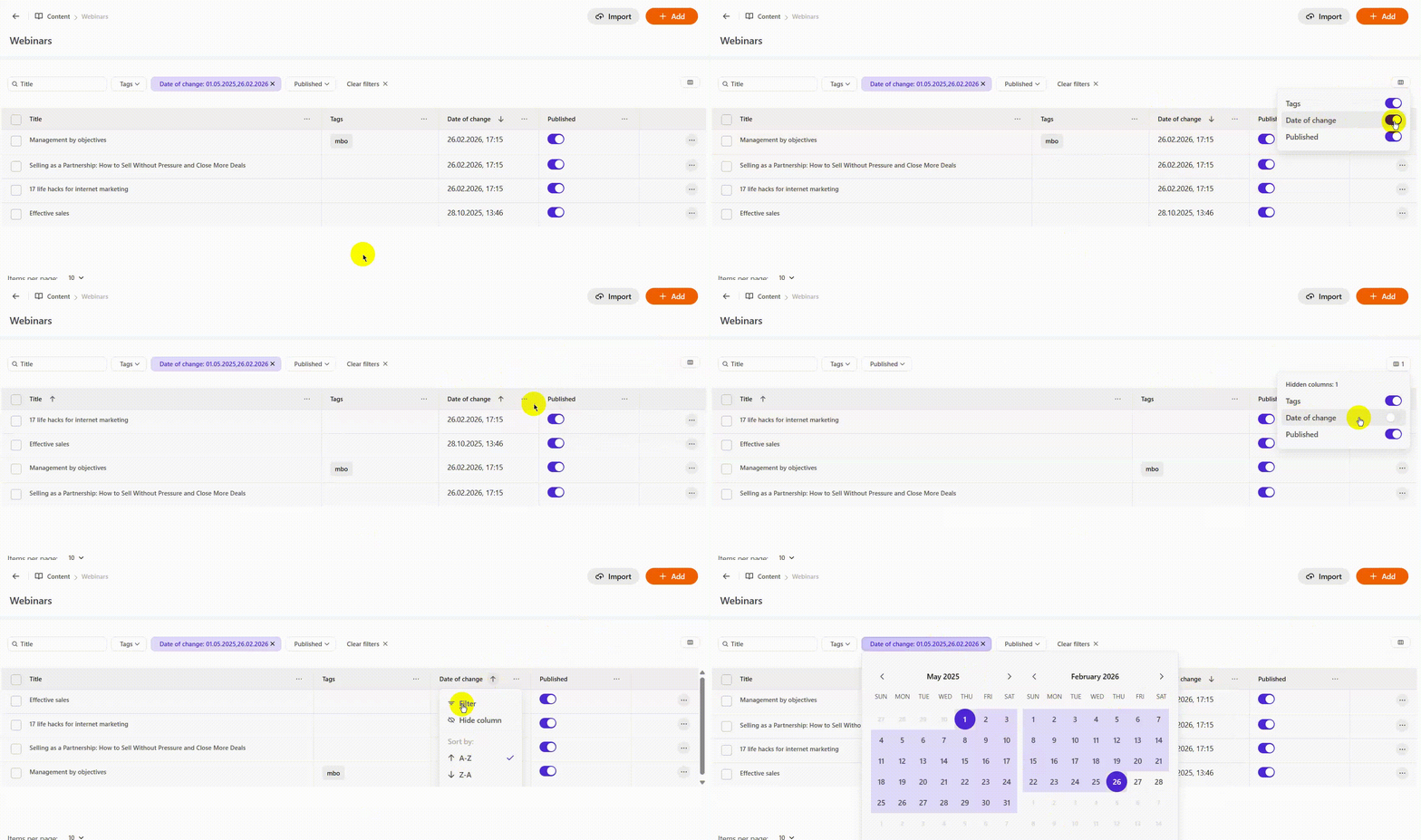
Example of hiding the "Date of change" column
(9) - Import - you can import an archive with a previously exported webinar into the system;
(10) - Add - clicking the button will open the webinar creation page. For more information: Webinar creating
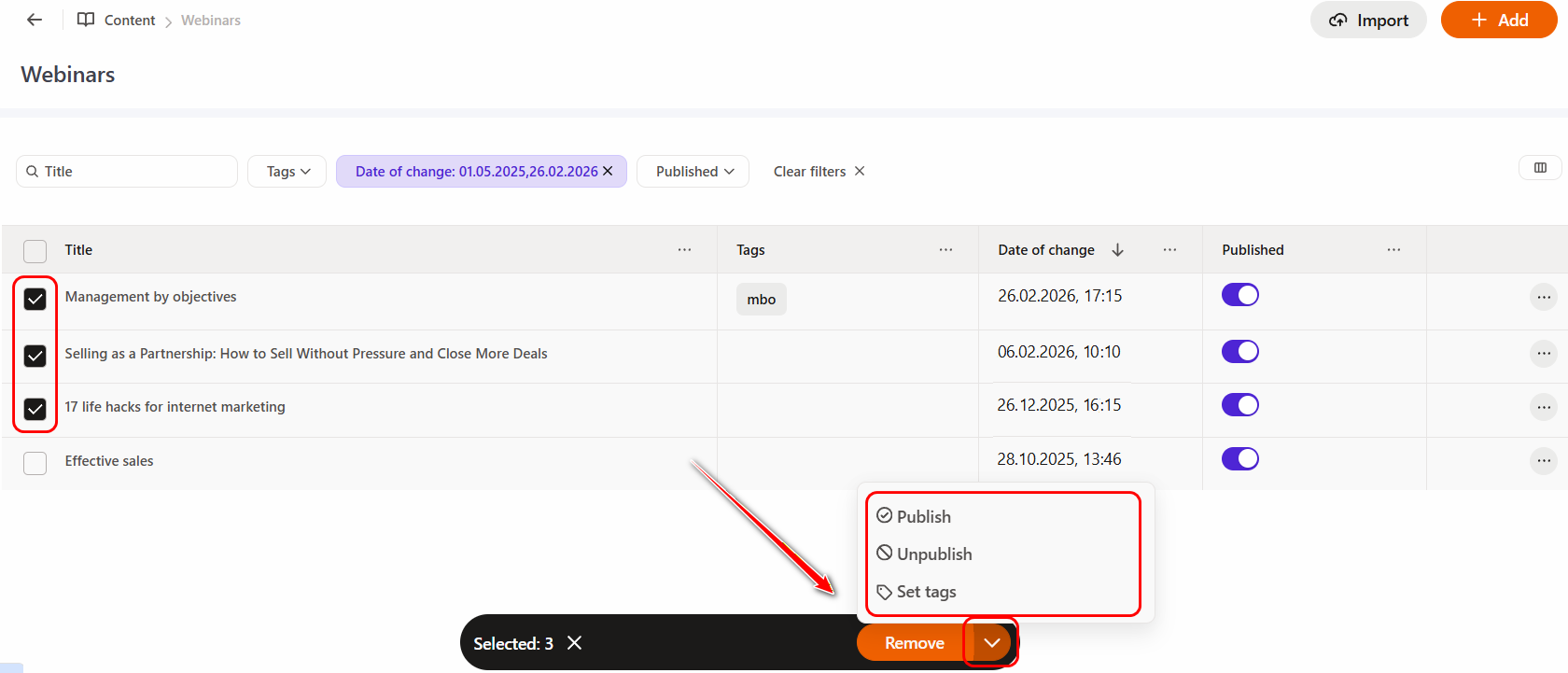
For convenient work with webinars, there is a possibility of group actions. To do this, you need to mark the necessary webinars using checkboxes - after which a panel with available actions will appear at the bottom of the screen.
By default, the "Remove" button is available, and by clicking on the arrow next to it, you can additional options: Publish, Unpublish, or Set tags.
If you uncheck the checkboxes from the webinars, the action panel will automatically disappear.