Setting up the questionnaire filling order by role
In some cases, a clear sequence of assessment stages is important. Usually, the employee completes their questionnaire first. This allows the manager to see the results of the subordinate’s self-assessment during their evaluation stage. This approach helps objectively compare the subordinate’s self-perception with the actual situation and identify possible discrepancies.
To configure the order of questionnaire completion, on the task creation page in the Settings block enable the option "Set up the order of filling out the questionnaire by roles".
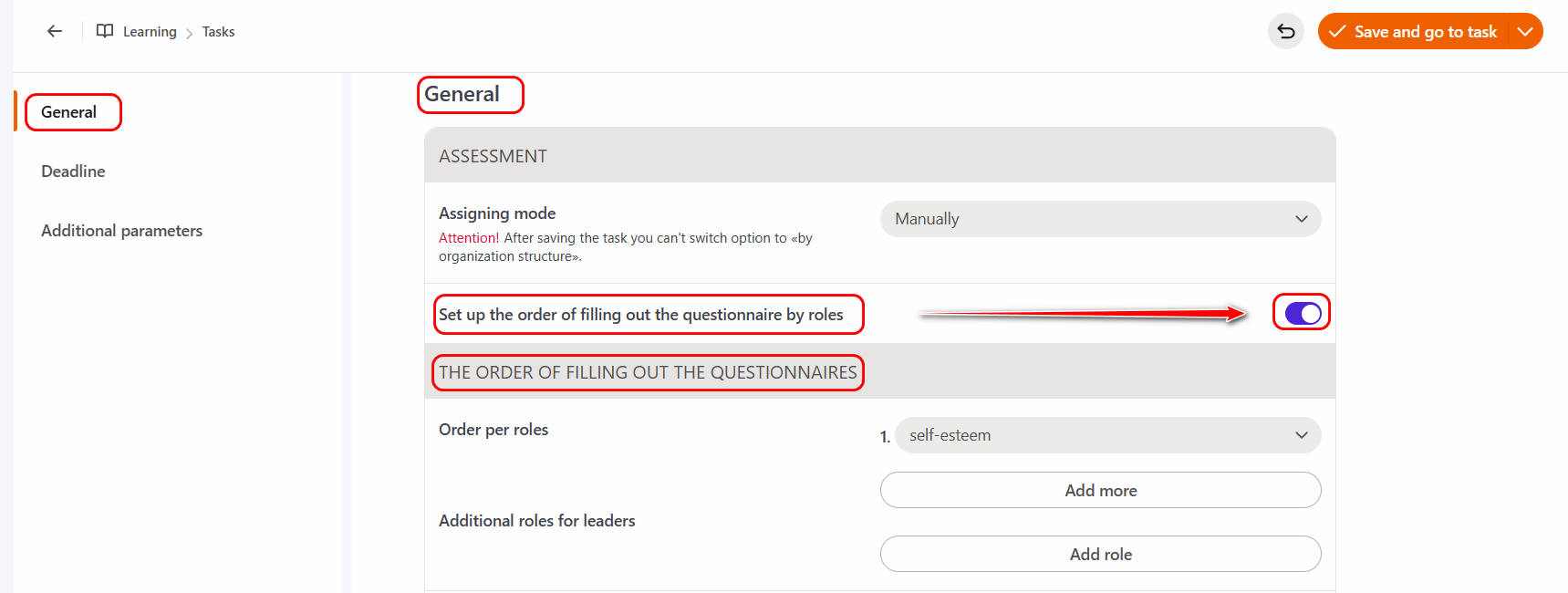
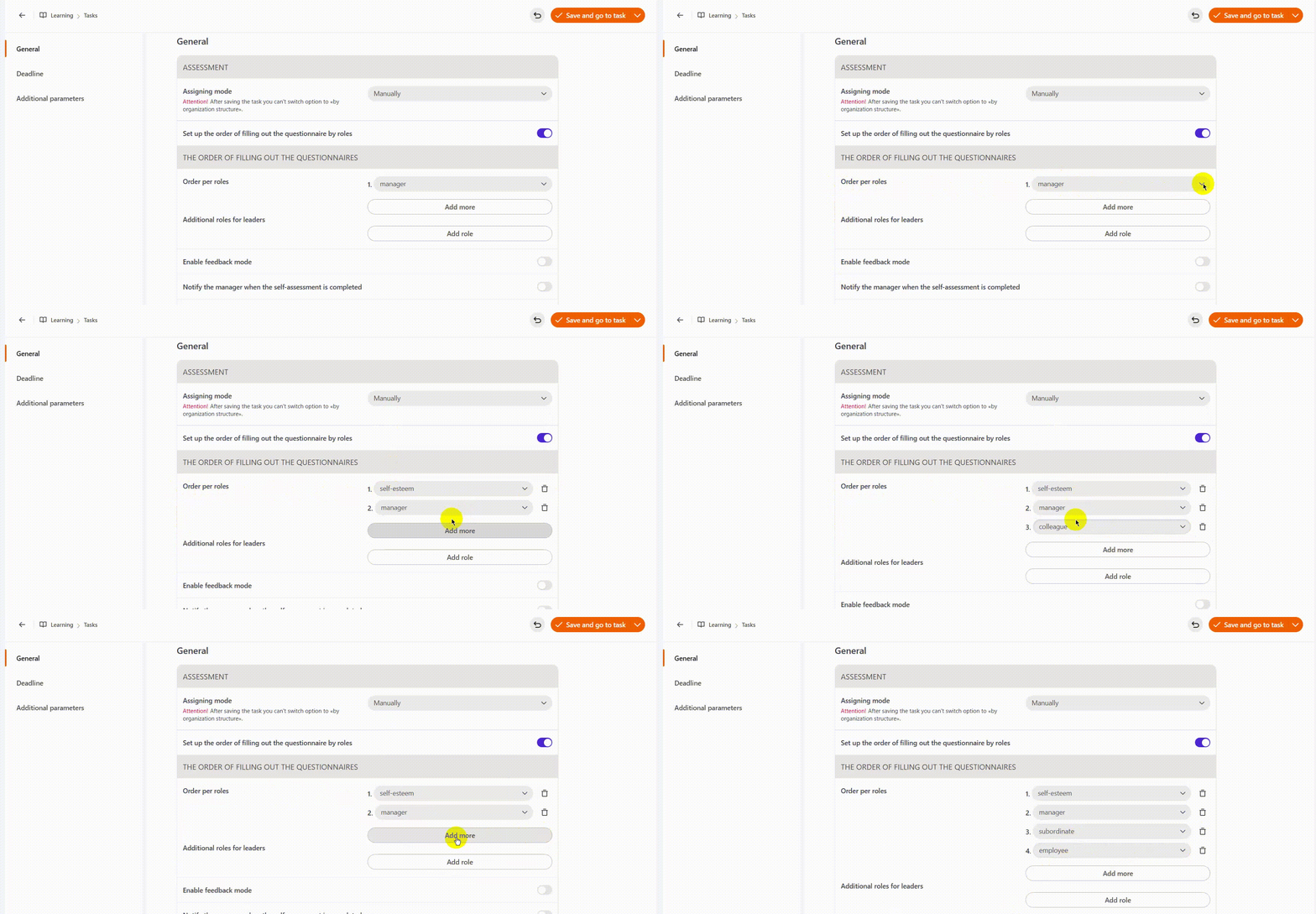
To define the evaluation sequence, in the "Order per roles" field, select the desired role from the dropdown menu next to the sequence number: self-esteem, manager, subordinate, colleague, employee.
To add the next role in the sequence, click the "Add more" button and select the next employee from the dropdown menu.
To remove an unnecessary role from the sequence, click the "Remove" button.
To do this:
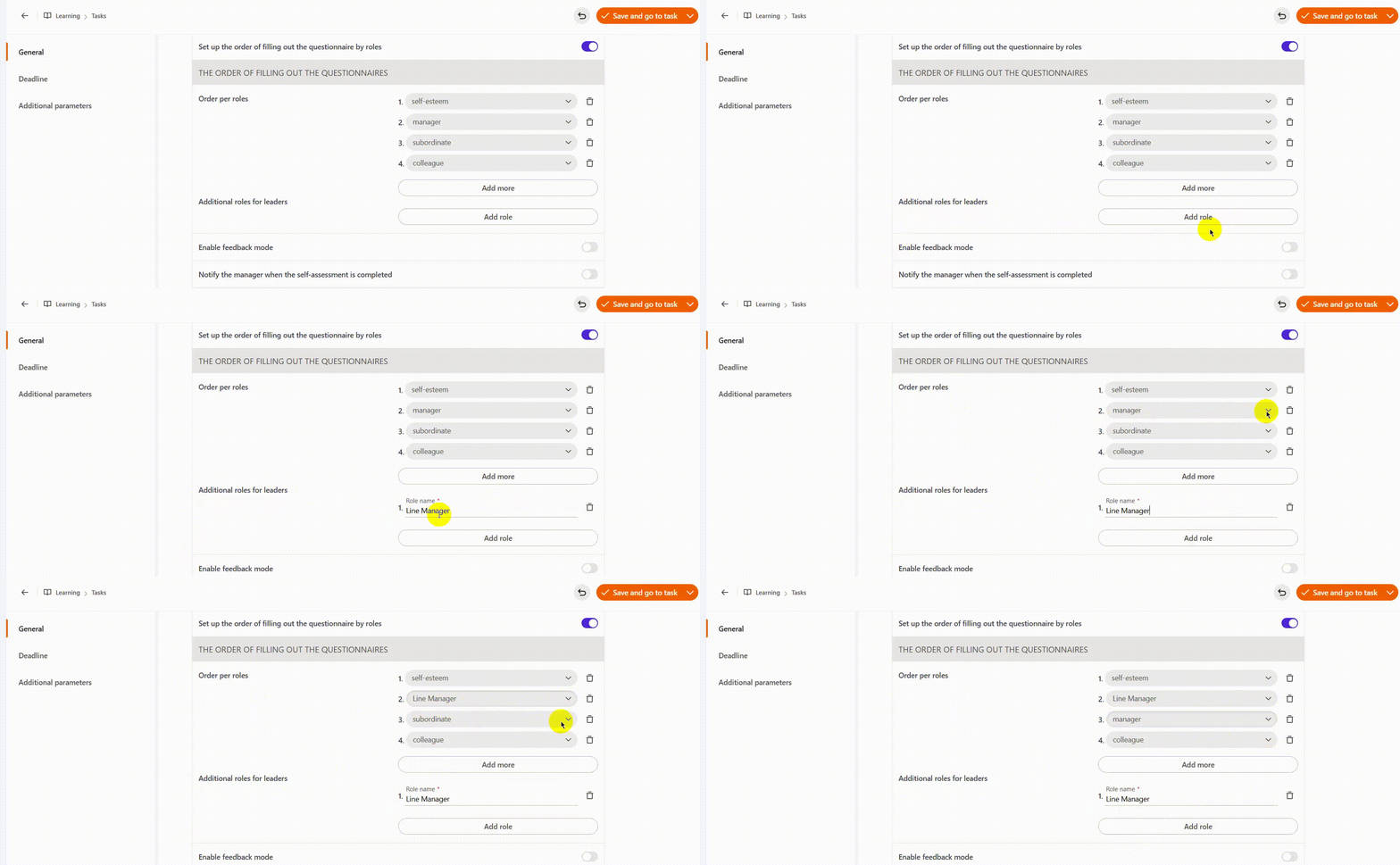
-
In the "Additional roles for leaders" field, click the "Add role" button and enter a name (for example, "Line Manager"). The new role will automatically appear in the Roles dropdown menu.
-
To configure the questionnaire completion order, in the "Order per roles" field, select the added role from the dropdown menu next to the desired sequence number.