Viewing the Competency assessment protocol
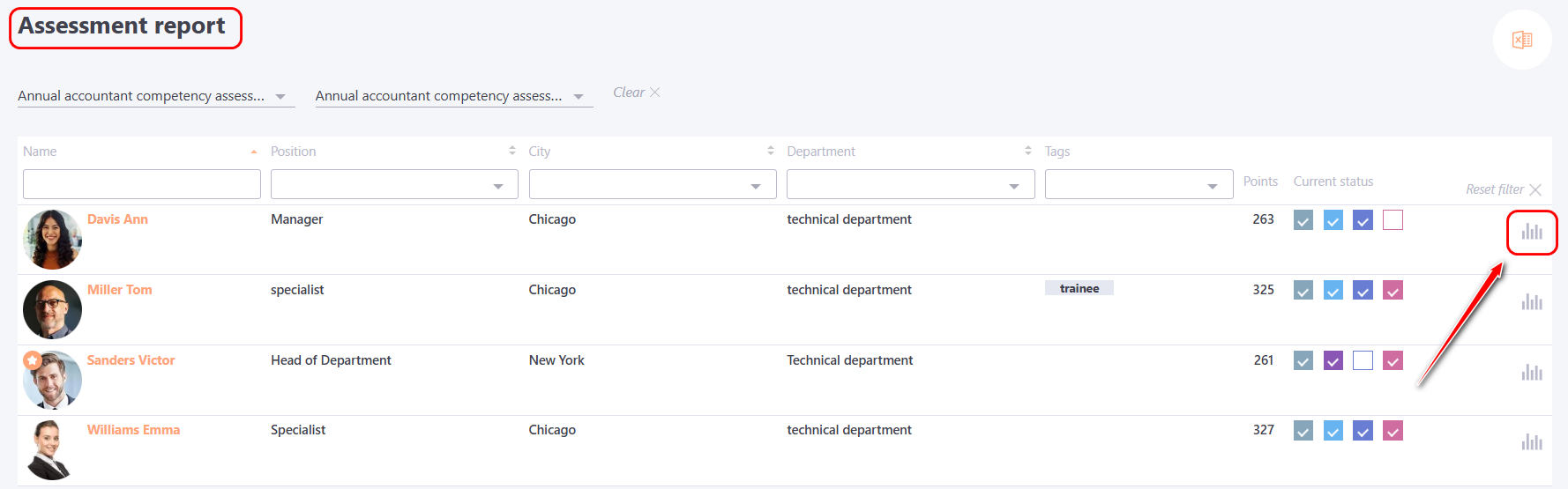
To view the Competency assessment protocol, click the Competency assessment protocol button in the Assessment Report page opposite the desired user:
The Competency assessment protocol page displays the following information:
(1) - Task title;
(2) - title of the Assessment by which the report was generated;
(3) - Full Name and information about the employee who was evaluated;
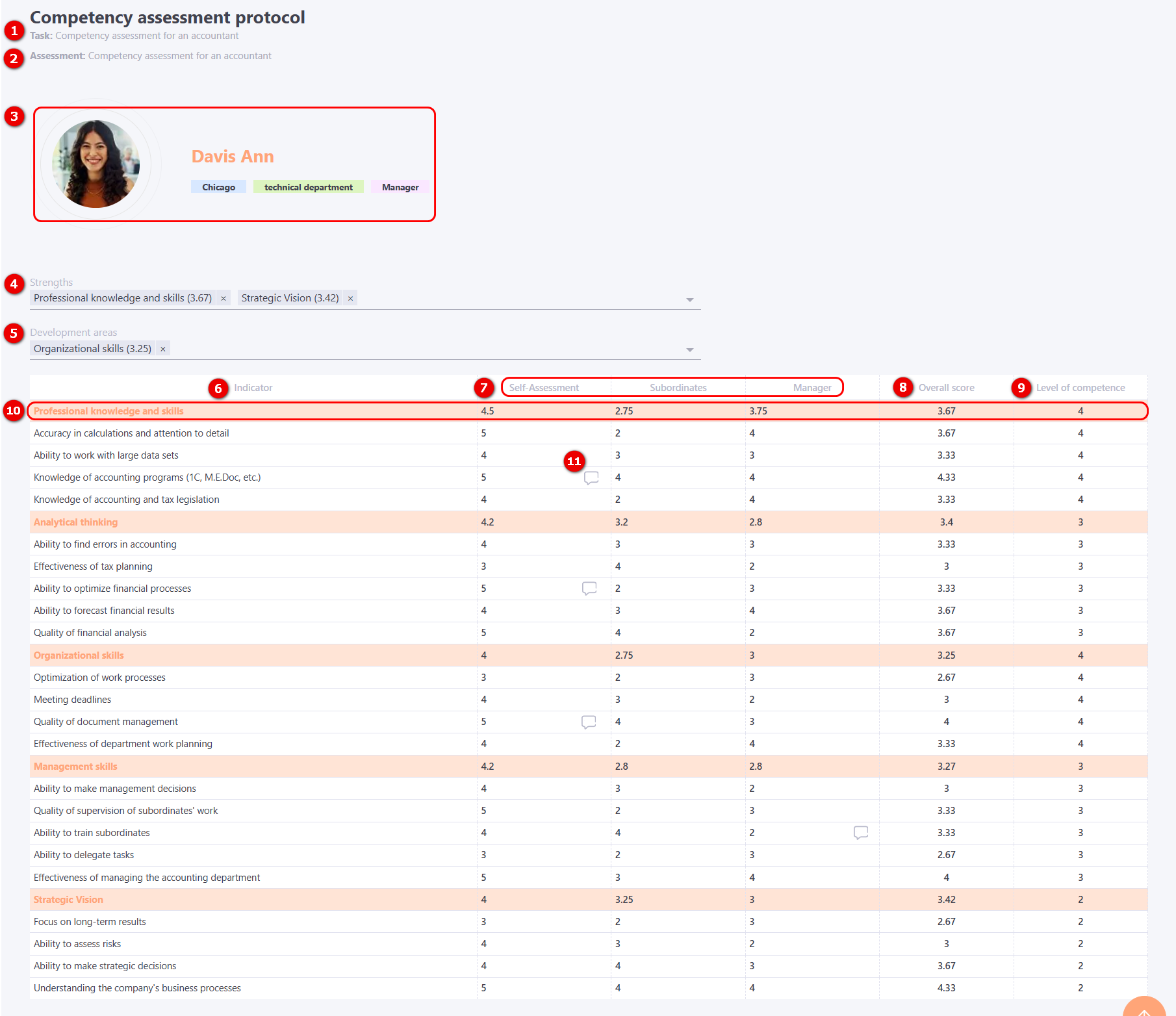
(4) – Strengths - competencies that have the highest level of development in the user.
After calculating the Overall score, the administrator or manager can determine the Strengths of the evaluated employee. To do this, in the drop-down list, you need to select the competencies with the highest results. For convenience, its final score is displayed in brackets next to the name of each competency. Competencies in the list are automatically sorted by the evaluation result - from the highest score to the lowest.
(5) - Development areas - competencies that have the lowest level of development in the user.
After calculating the Overall score, the administrator or manager can determine the Development areas of the evaluated employee. To do this, in the drop-down list, you need to select the competencies with the lowest results. For convenience, its final score is displayed in brackets next to the name of each competency. Competencies in the list are automatically sorted by the evaluation result - from the lowest score to the highest.
(6) - the list of indicators by which the assessment was made;
(7) - depending on the users assigned to the assessment, columns with self-assessment, assessments of employees, colleagues, subordinates and the manager for each indicator;
(8) - the overall score for each indicator, is determined automatically as the average of all assigned scores (after all questionnaires have been completed).
(9) - level of competence, norm for each indicator according to Position Profile.
(10) - Competency title - a specific competency that unites a group of indicators and for which the average value of the scores for these indicators is displayed.
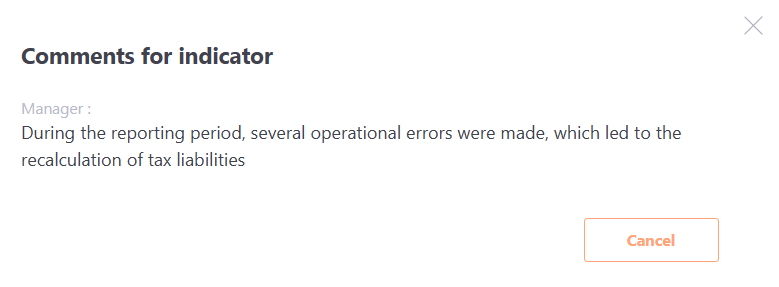
(11) - Comments – if the option to add comments is enabled in the settings and the user has provided them during the assessment, they will appear in the report. Clicking the Comments button opens a modal window displaying the corresponding text.
Viewing the Competency assessment protocol with Final evaluation
If the Add Final evaluation option is enabled when creating an Assessment by competencies, the Competency assessment protocol will display additional columns and data.
A Final evaluation - is a score that the manager assigns manually after all questionnaires have been completed.
If a final evaluation is set, it will be displayed in the user's position profile. More details: Overview of position profile.
The Competency Assessment Protocol page displays:
(1) - Task title;
(2) - title of the Assessment by which the report was generated;
(3) - Full Name and information about the employee who was evaluated;
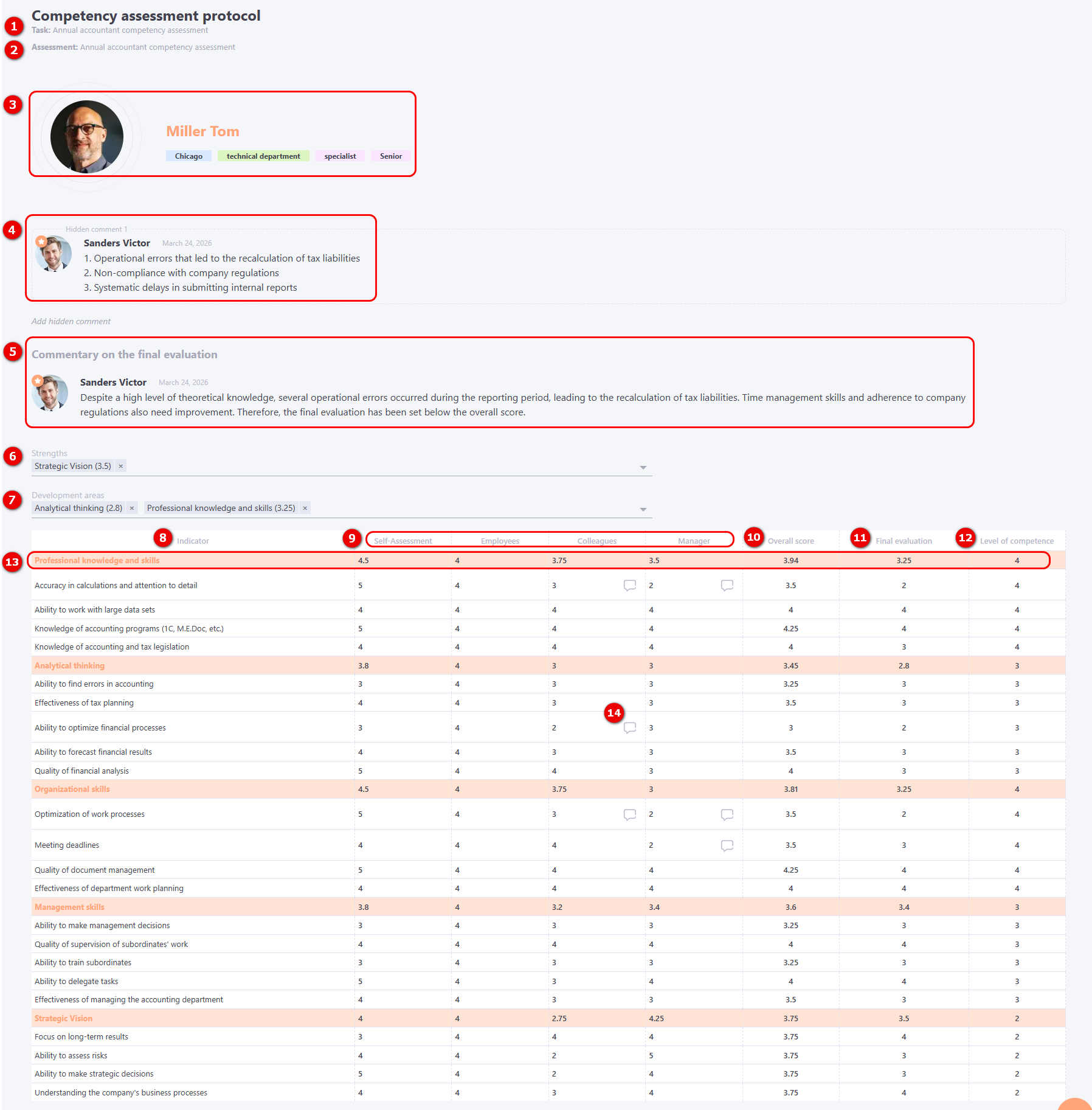
(4) – Hidden comment – this field is visible to the manager and administrator, it is intended for internal notes regarding the subordinate’s assessment results and is not visible to the user. Filling in the field is not mandatory. When hovering over the text, editing and deletion functions become available.

(5) – Commentary on the final evaluation – a field available to the manager and administrator, it can be used to explain the assessment results or justify the assigned scores. Any comment added will be visible to the assessed user in the Assessment protocol. To change the comment, hover over the field and click the Edit button.

(6) – Strengths - competencies that have the highest level of development in the user.
After assigning the Final evaluation, the administrator or manager can determine the Strengths of the evaluated employee. To do this, in the drop-down list, you need to select the competencies with the highest results. For convenience, its final score is displayed in brackets next to the name of each competency. Competencies in the list are automatically sorted by the evaluation result - from the highest score to the lowest.
(7) - Development areas - competencies that have the lowest level of development in the user.
After assigning the Final evaluation, the administrator or manager can determine the Development areas of the evaluated employee. To do this, in the drop-down list, you need to select the competencies with the lowest results. For convenience, its final score is displayed in brackets next to the name of each competency. Competencies in the list are automatically sorted by the evaluation result - from the lowest score to the highest.
(8) - the list of indicators by which the assessment was made;
(9) - depending on the users assigned to the assessment, columns with self-assessment, assessments of employees, colleagues, subordinates and the manager for each indicator;
(10) - Overall score is determined automatically for each indicator and competency, as the arithmetic mean of all assigned scores (after filling out all questionnaires);
(11) - Final evaluation - a score for each competency indicator, which the manager sets manually.
(12) - level of competence, norm for each indicator according to Position Profile.
(13) - Competency title - a specific competency that unites a group of indicators and for which the average value of the scores for these indicators is displayed.
(14) - Comments – if the option to add comments is enabled in the settings and the user has provided them during the assessment, they will appear in the report. Clicking the Comments button opens a modal window displaying the corresponding text.
Review Competency assessment protocol by the Manager
If the "Allow the manager to review the results by subordinates" option is enabled in the Settings Block when creating an assessment task, then the user assigned to the assessment as a manager will be able to view the Competency assessment protocol of the subordinates' assessment from the assigned tasks page.
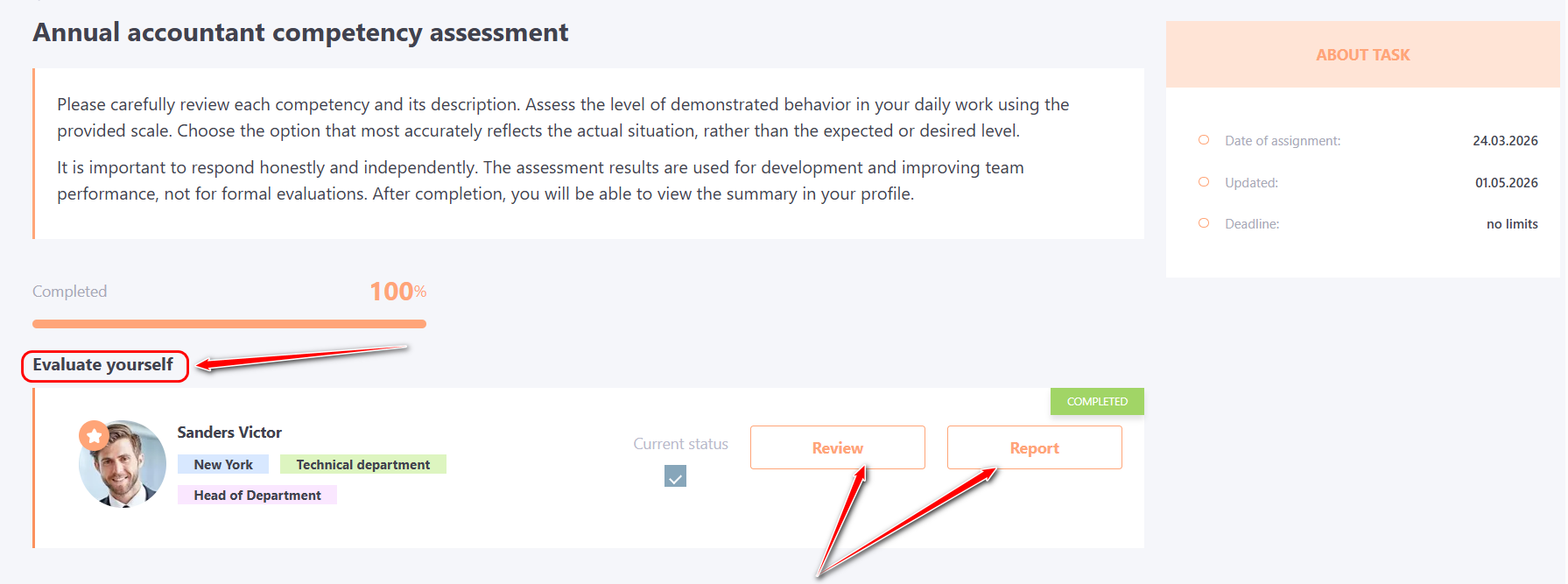
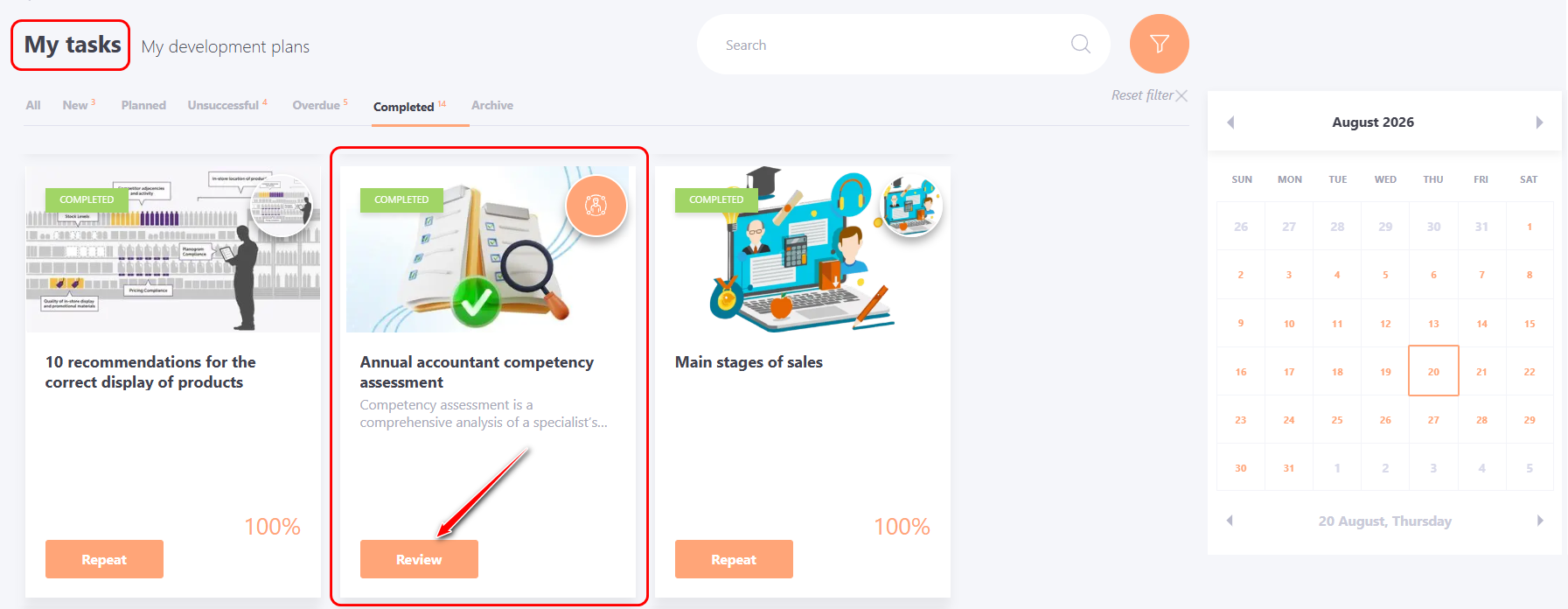
To view the protocol, go to the Learning - My Tasks menu and click the Review button on the card of the corresponding assessment task.
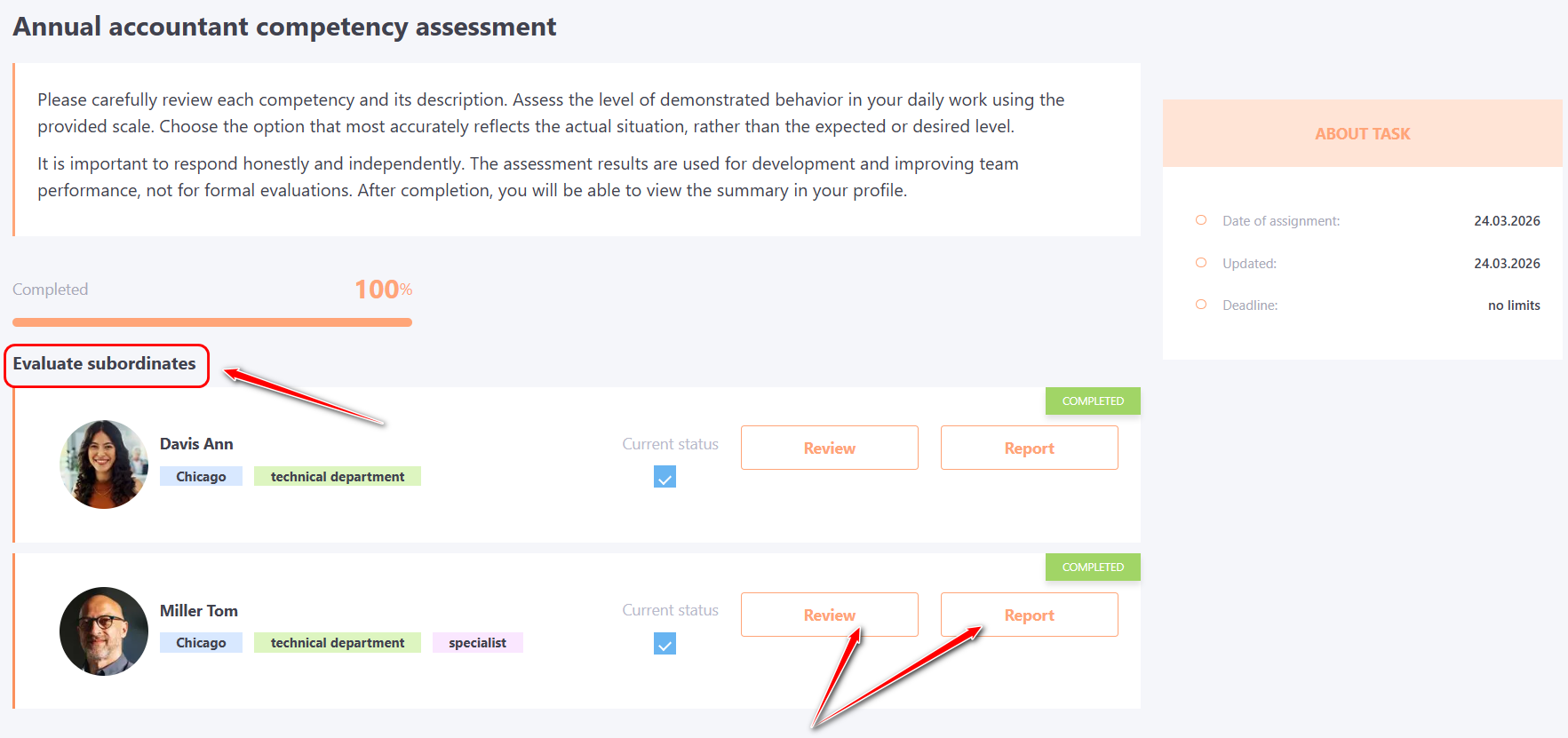
After the manager completes the evaluation of subordinates, the following actions will be available in the Evaluate subordinates block opposite each employee:
- Review — view the answers provided by the manager during the evaluation of this employee;
- Report — go to the Competency Assessment Report page, where you can view the assessment results for the selected employee.
If the "Add final evaluation" option was enabled when creating the assessment, the manager must set a final evaluation for each indicator in the Report.
The manager can also specify the employee's Strengths and Development areas.
Algorithm for setting the final evaluation
After filling out all the questionnaires, the manager has the opportunity to set the Final evaluation, which may differ from the automatically calculated Overall score.
To set the Final evaluation, on the Competency assessment protocol page in the "Final evaluation" column, click the Change (pencil) button. Next, select the appropriate grade level for each indicator from the drop-down list.
You can save the changes only after the final evaluation is set for all indicators.
If the manager exits the Competency assessment protocol page before completing all the values, the system will automatically save the already selected grades, and the process can be continued later.
After filling in the grades for all indicators, click the Save button in the "Final evaluation" column.
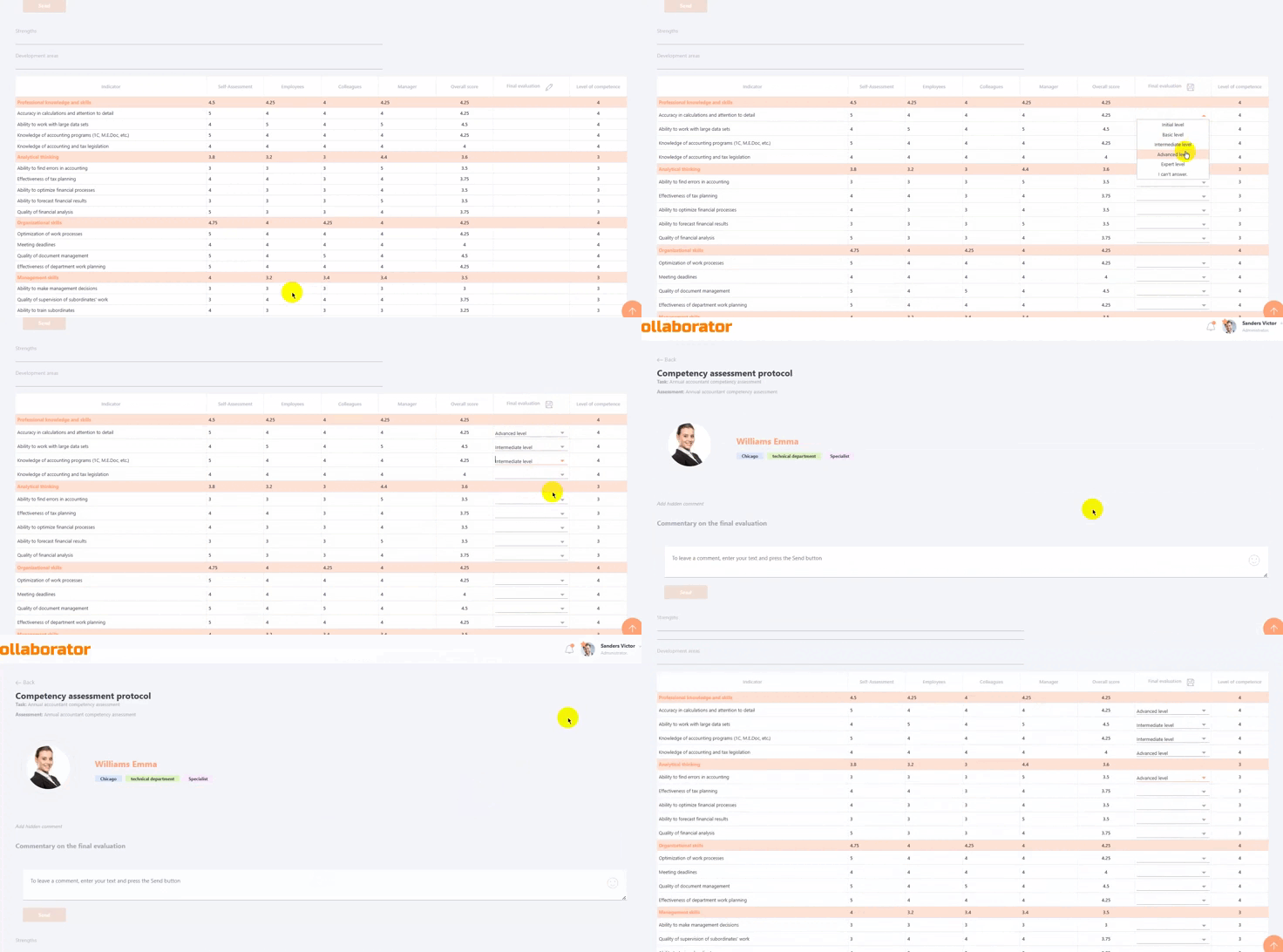
Example of setting the Final evaluation
Viewing Competency assessment protocol by the user
If the "Allow the survey participant to see own received mark" option is enabled in the Settings Block when creating an assessment task, then after completing the self-assessment, the user will be able to view the Competency assessment protocol from the assigned tasks page.
To view the Report, go to the Learning - My Tasks menu and click the Review button on the card of the corresponding assessment task.
After completing the self-assessment, the following actions become available to the user:
- Review - view the answers provided by the user during the self-assessment;
- Report - go to the Competency Assessment Protocol page, which displays detailed information about the assessment results.