
Passing an assessment task
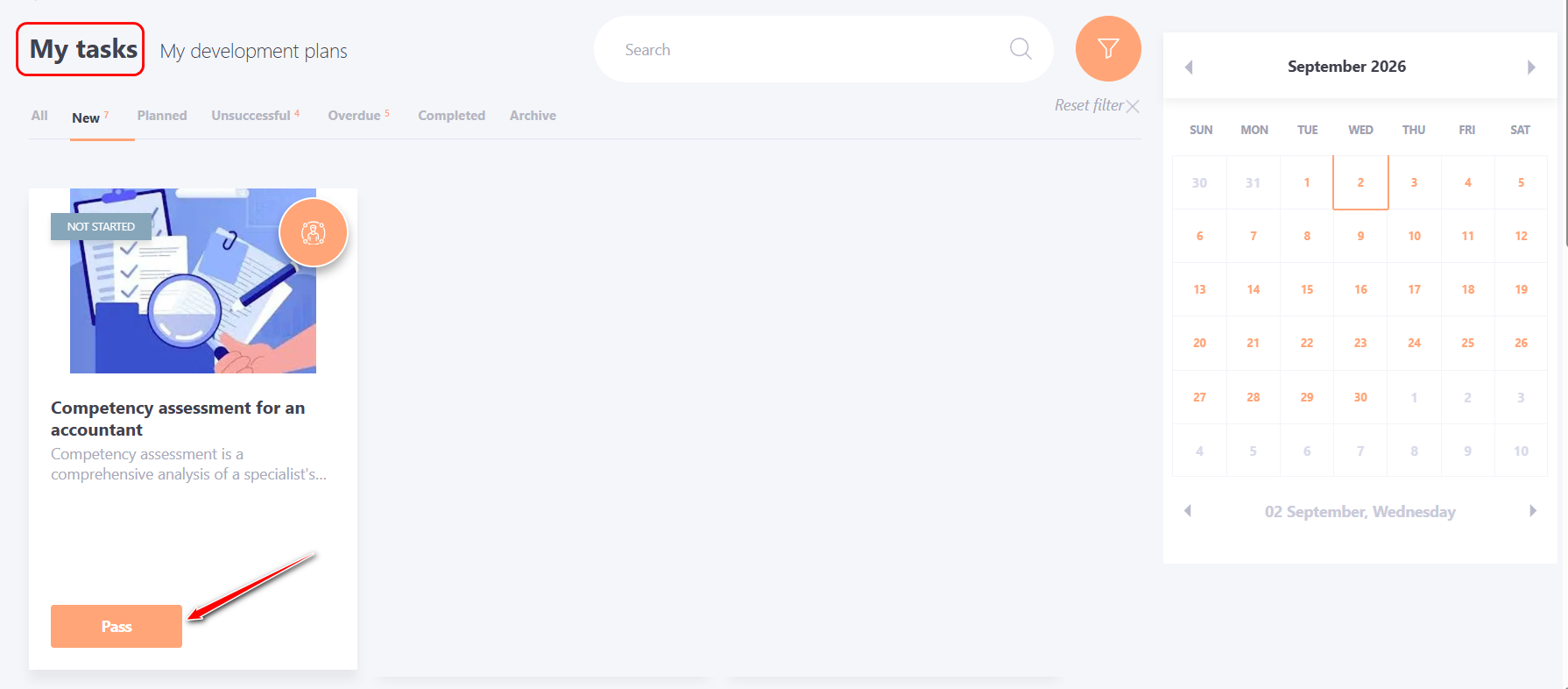
To complete the assessment task, you need to access the Learning - My tasks menu, select the task you need and click Pass button:
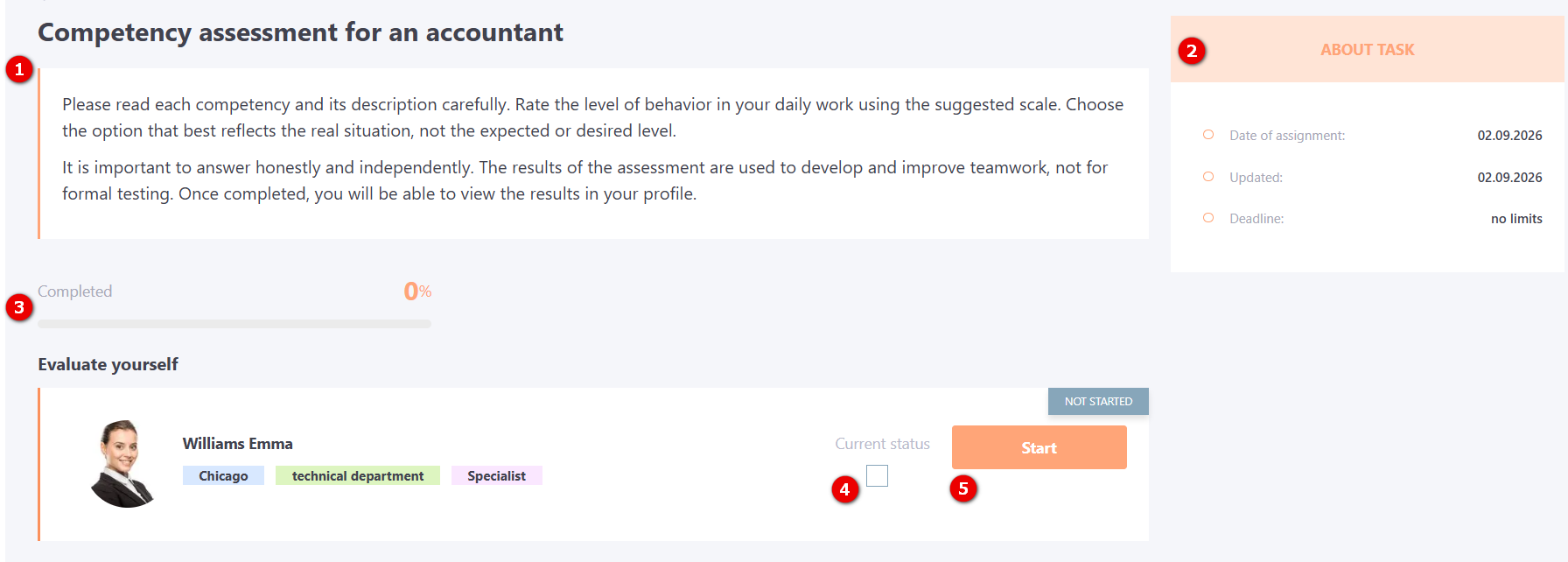
After that, the user will be redirected to a page containing:
- (1) - Assessment description;
- (2) - "About the task" block;
- (3) - Progress on the assessment task in percentage terms;
- (4) - Current status of the assessment task;
- (5) - The Pass button to proceed directly to the assessment task.
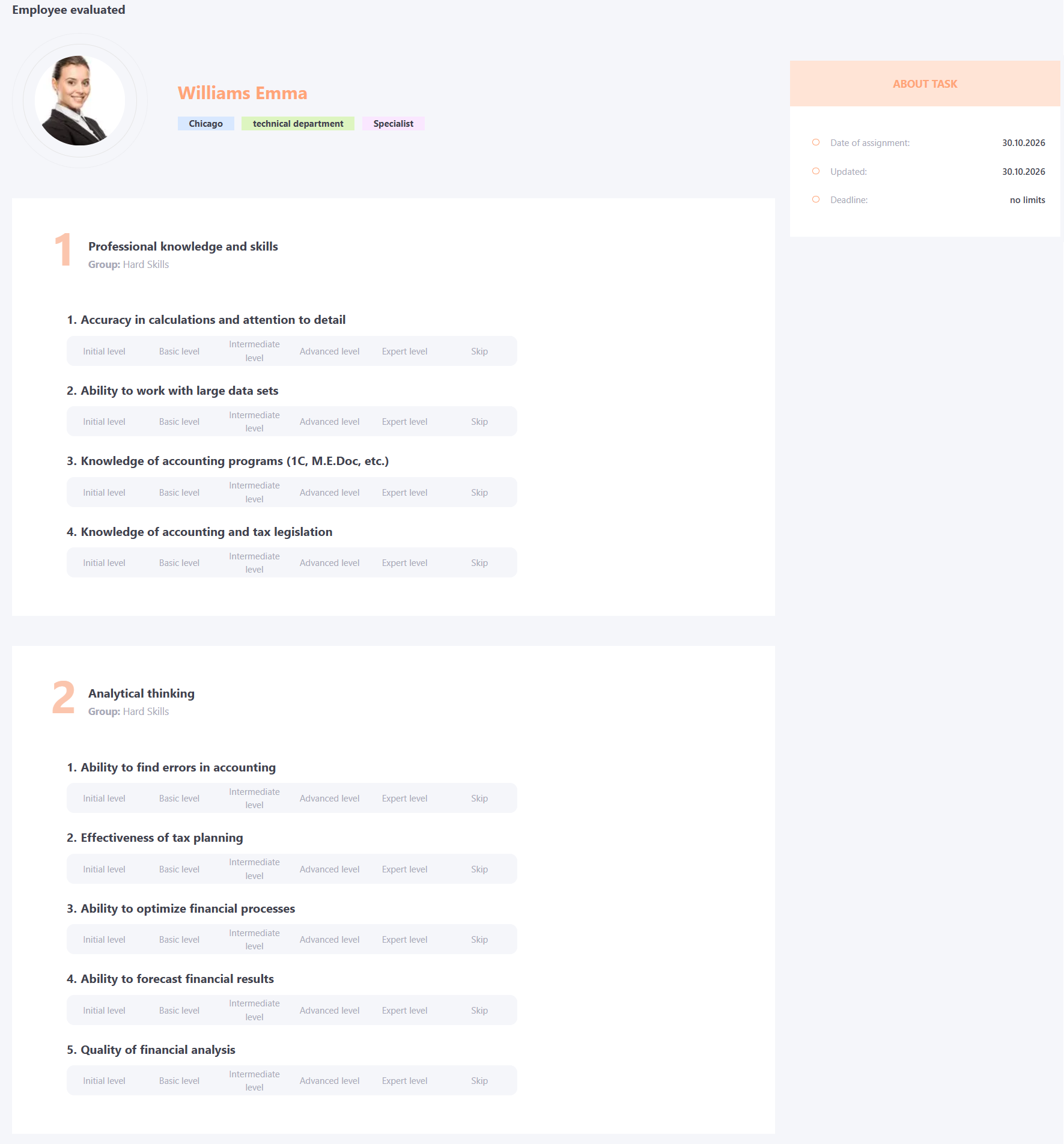
After clicking the Pass button, the user will be shown a page with task-assessment questions.
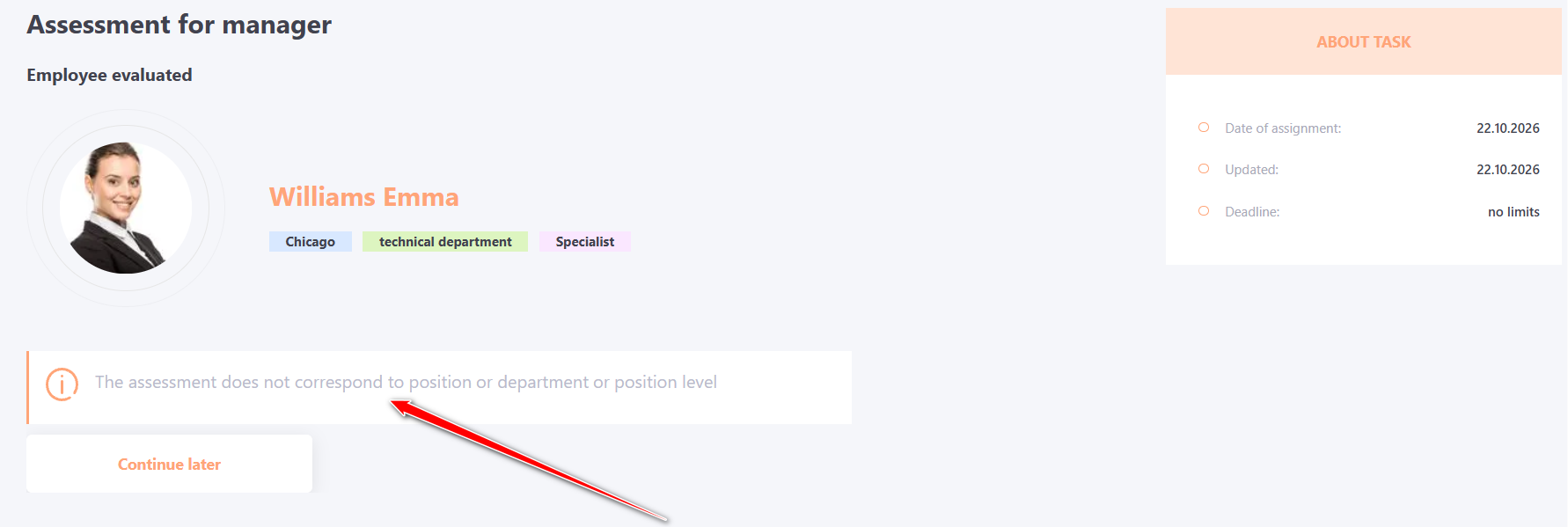
If the value of even one of these attributes does not match, the user will be unable to complete the assessment, and other users will be unable to evaluate them based on competencies.
If an attempt is made to complete such a task, the system will display the following message: "The assessment does not correspond to position or department or position level."
Feedback collection mode
There are cases when a simple answer to a question is not enough and it is necessary to make a comment/clarification of your answer. That is, employees in different roles (manager, colleague, subordinate) should provide feedback on the results of interaction with another employee in specific situations (tasks). Thus, before each assessment, the respondent must describe the situation (answer the question) in which the employee being evaluated demonstrated a particular criteria
This mode is only available for Assessment by criteria.
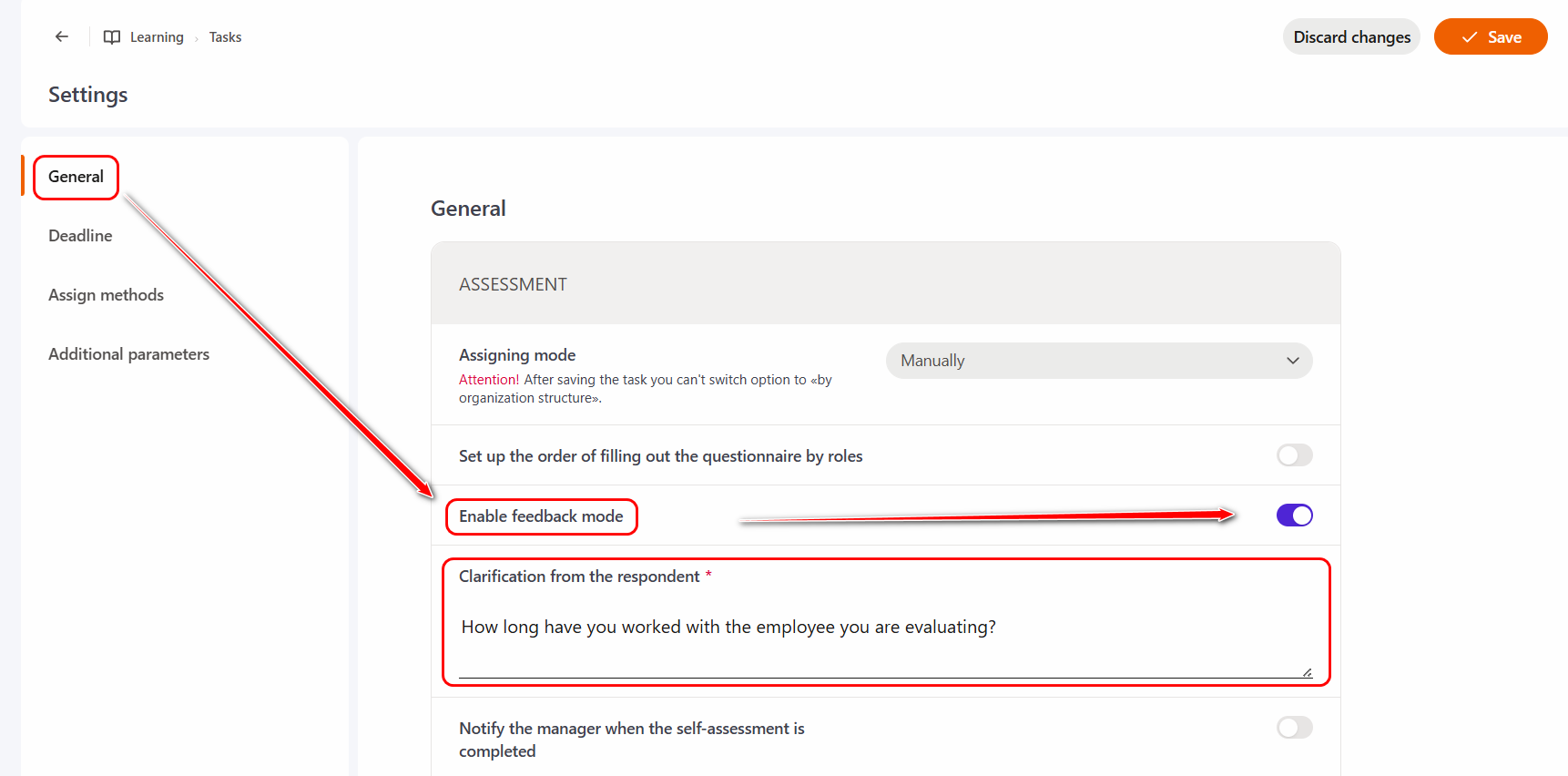
In this case, when creating an assessment task, you need enable the "Enable feedback mode" option in Settings and write an additional question / clarification from the respondent:
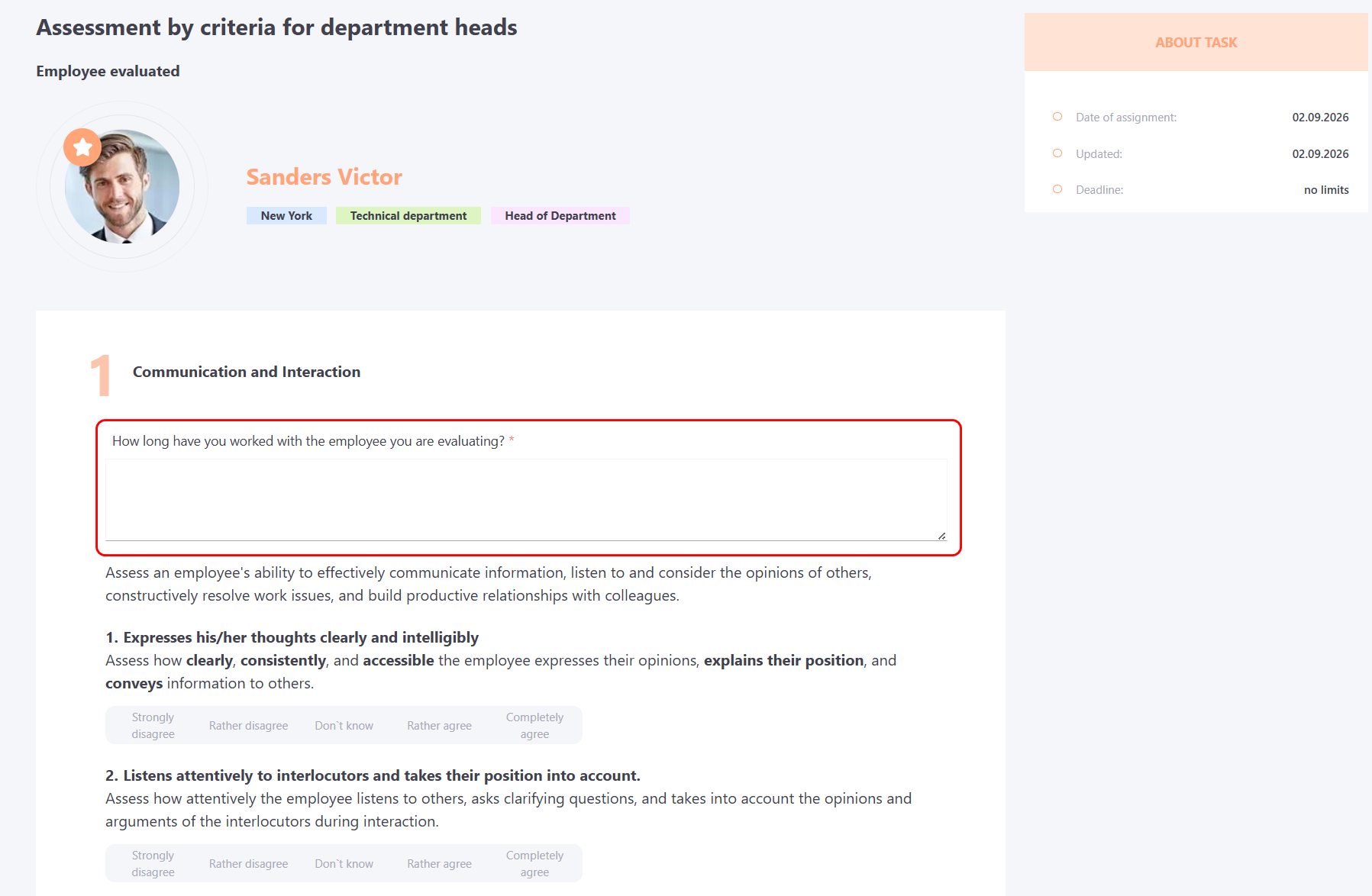
When the User completes the Task, the Feedback mode will be displayed as follows:
All completed questionnaires will be exported to an Excel file. No other reports will be displayed.