Viewing assessment questionnaires
When you have selected employees to be evaluated in an assessment task, all respondents to the assessment will have a sub-task which you can view.
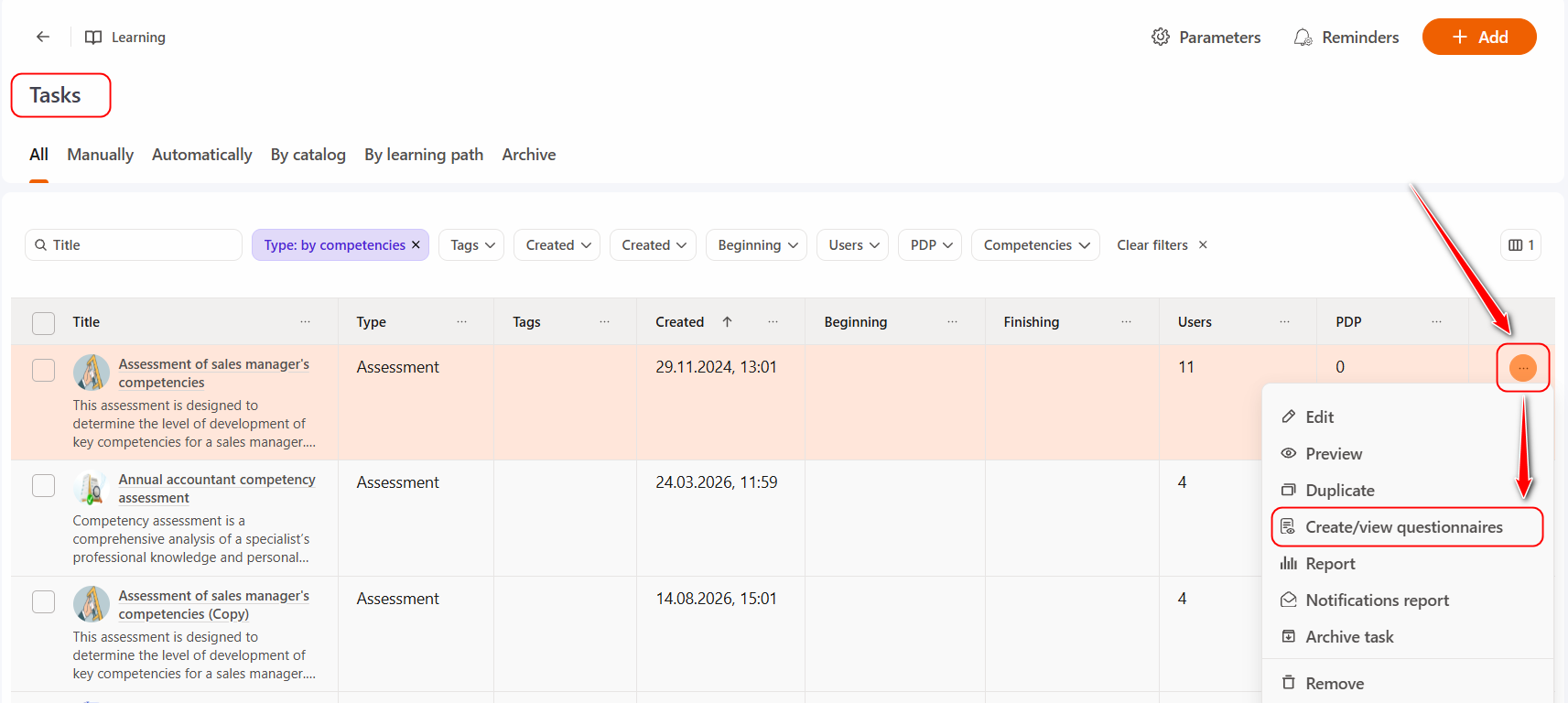
To view assessment questionnaires, on the Tasks page, click the "Actions" button next to the selected assessment and select "Create/view questionnaires":
The following information is displayed on the page:
(1) - Title of the Task with assessment
(2) - Respondent data: Title (in which role evaluated), Evaluated, Interviewed, Position, City, Department.
(3) - Status - the status of the Task with assessment (questionnaire completion): Not started, Started (the assessment is open), In progress (at least 1 question answered), Completed.
(4) - Date of assignment - the date and time the respondent was assigned to the Questionnaire (assessment tasks).
(5) - Finishing date - the date and time the respondent completed the Questionnaire (assessment tasks).
(6) - Reset filter- reset all filters.
You can filter data by all parameters in the table, as well as sort them alphabetically or by date.

(7) - The different colors indicate the options for completing the questionnaires by type of participant :
 - the evaluation is given by the employee themselves, self-esteem;
 - the evaluation is given by the employee's supervisor;
 - the evaluation is given by a colleague of the employee;
 - the evaluation is given by the employee's subordinate.
 - the evaluation is given by an employee.
(8) - sending the Reminder about incomplete tasks. An envelope icon appears next to the User if they did not complete the Questionnaire (did not pass the Task with assessment) (Task status: Not started, Started, In progress).
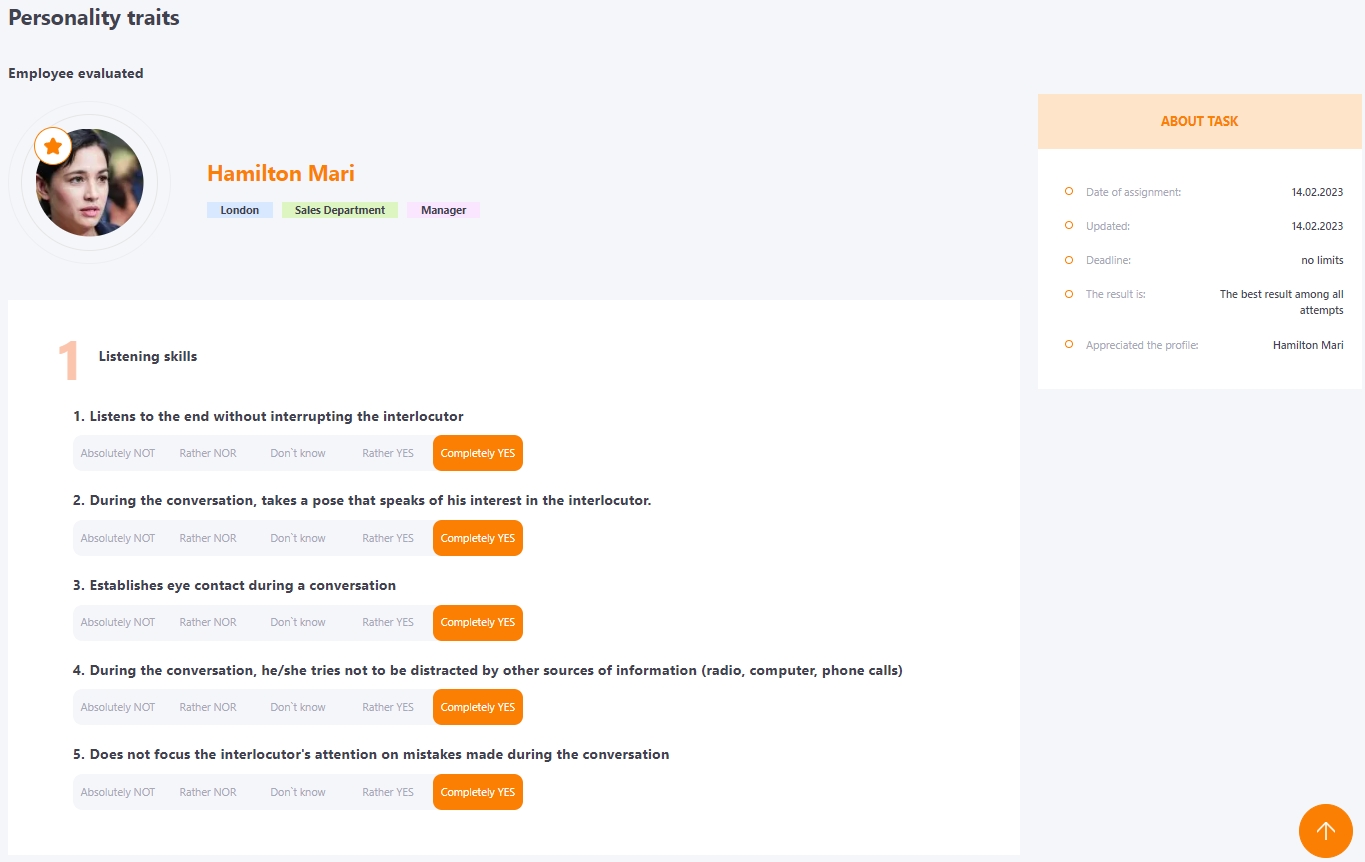
(9) - Review - viewing information about how each user filled out the Questionnaire. Different tabs have different clusters.
(10) - Remove - remove the respondent from the Questionnaire.
(11) - Assign as a list from a file - assigning respondents using a .csv file, more details - Creating questionnaires for the assessment task using a file.
(12) - Assign the Questionnaire manually.
(13) - Export to Excel - table data export to Excel.

Briefly about the status of the questionnaires
You can also view the current completion status of questionnaires on the Assessment Report page.
To do this, go to the Tasks page locate the selected Assessment and click the "Actions" button, then select "Report":
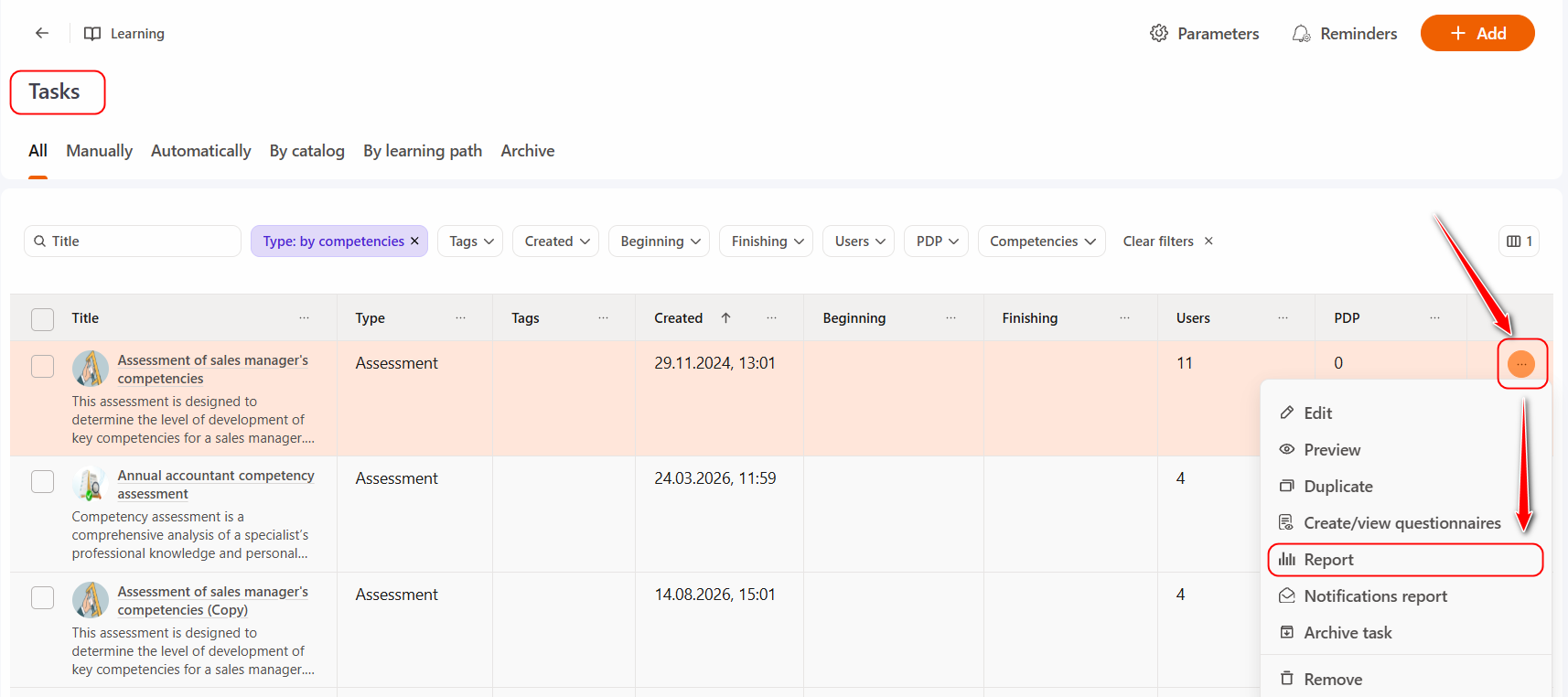
The Assessment Report page displays a list of employees assigned to the assessment. The Current Status column features color-coded markers that indicate the roles of assessment participants and the completion status of their questionnaires. The color of the marker depends on the role in which the respondent has been assigned to the task.
 - the employee evaluates themselves, self-esteem;
 - the evaluation is given by the employee's supervisor;
 - the evaluation is given by the employee's subordinate;
 - the evaluation is given by a colleague of the employee;
 - the evaluation is given by an employee.
 - manager has assigned a final evaluation (this element appears only for assessments by competency that include a final evaluation).
The completion status of the questionnaires is indicated as follows:
- An empty square — the questionnaires have not yet been started; the task status is "Not started."
- A filled square — the assessment process is underway (the questionnaires are partially completed); the task status is "In progress."
- A filled square with a checkmark — the questionnaire has been completed and submitted; the task status is "Completed."
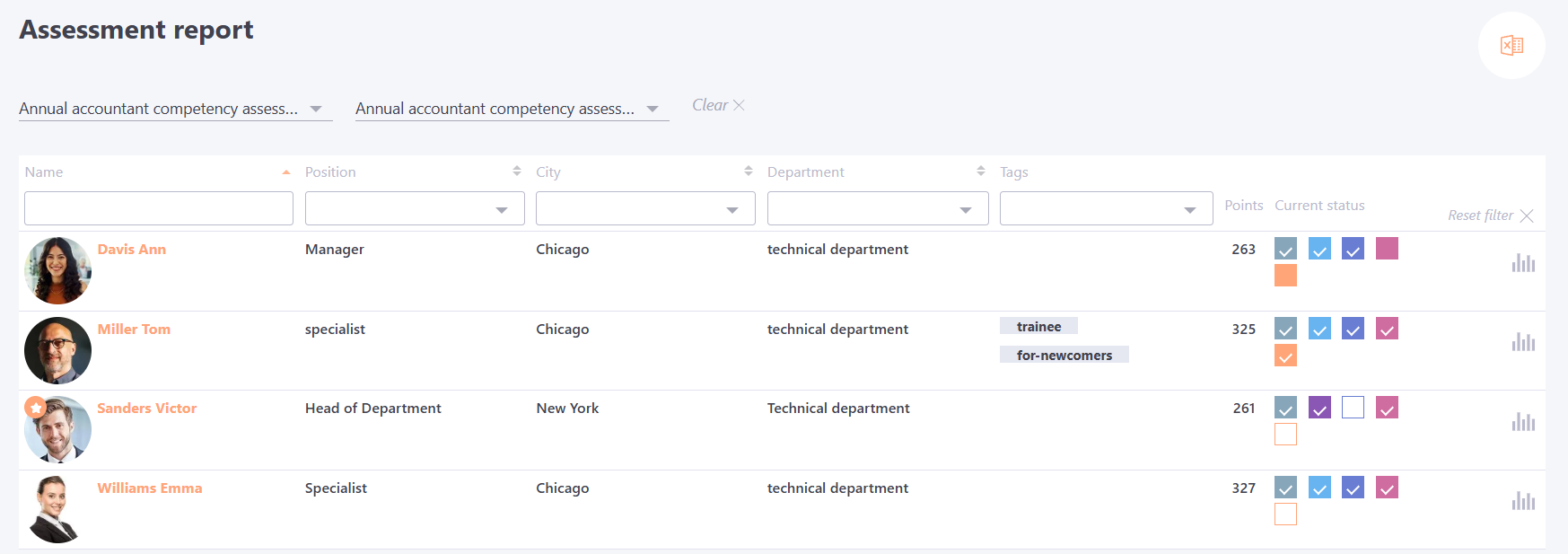
For each answer to a question, points are awarded. The number of points awarded for a particular answer is set in the evaluation scale through the parameter "numerical value", according to the type of assessment will be used values of selected criteria scale or competency scale. The already existing evaluation scale is used at the stage of assessment creation (by criteria or by competence).
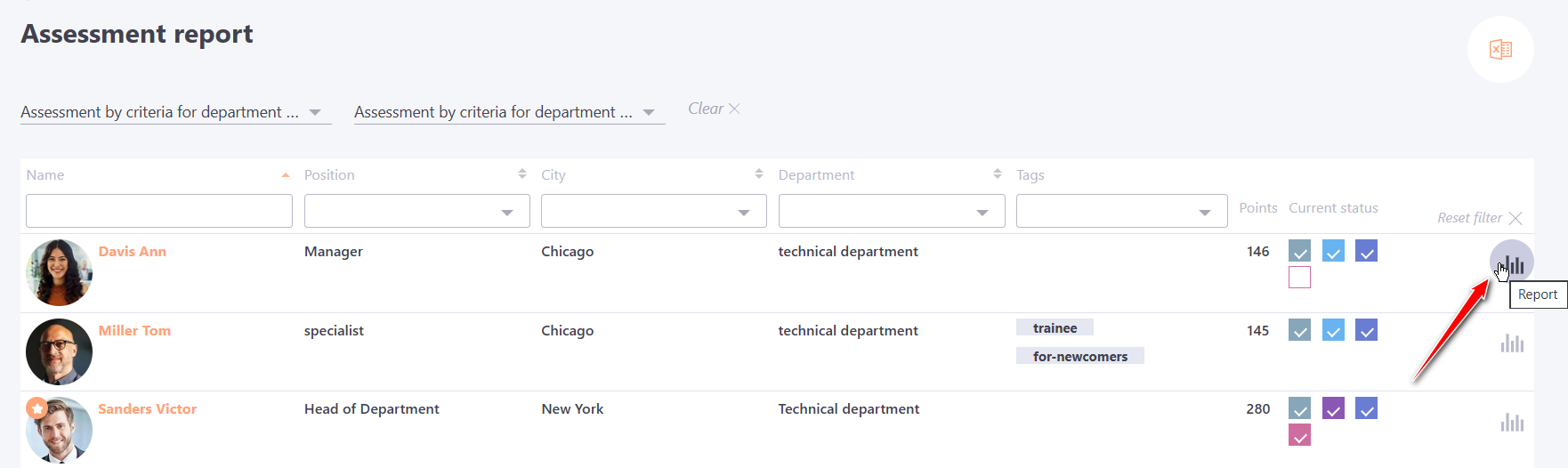
Report for Assessment by criteria
The Report button  allows you to view a detailed analysis of the assessment results for a user. More details: Assessment results.
The Report button is not displayed if during the assessment creation the "Feedback collection mode" option was set.
Report for Assessment by competencies
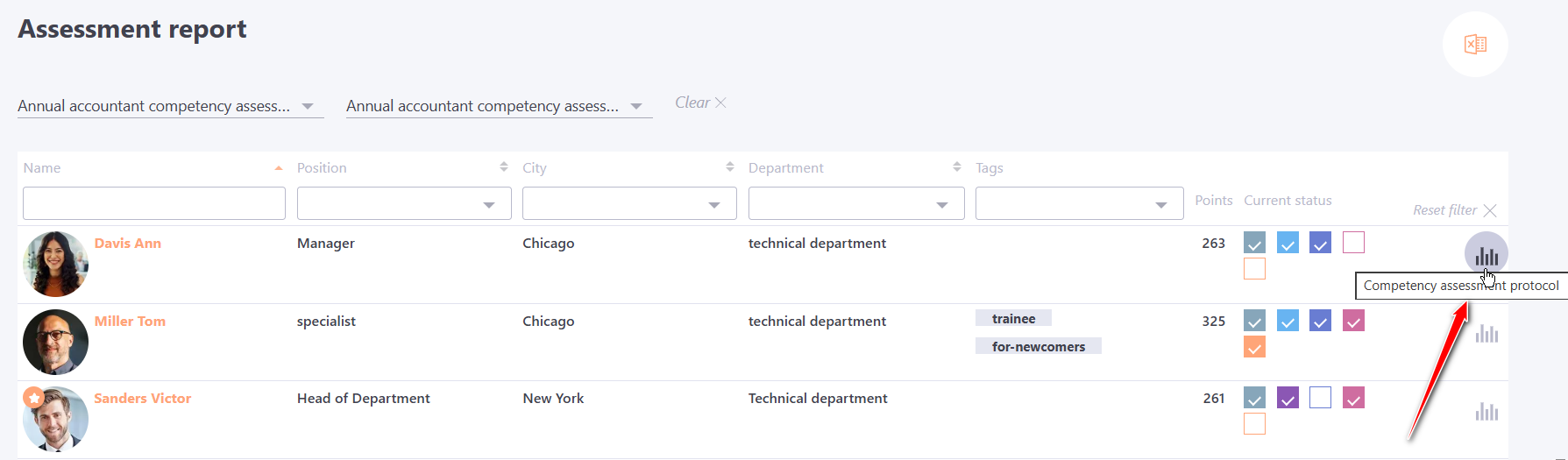
The Competency assessment protocol button allows you to view detailed assessment results for a specific user.
More details: Viewing the Competency assessment protocol.