Competency assessment report
You can navigate to the Assessment Report page in the following ways:
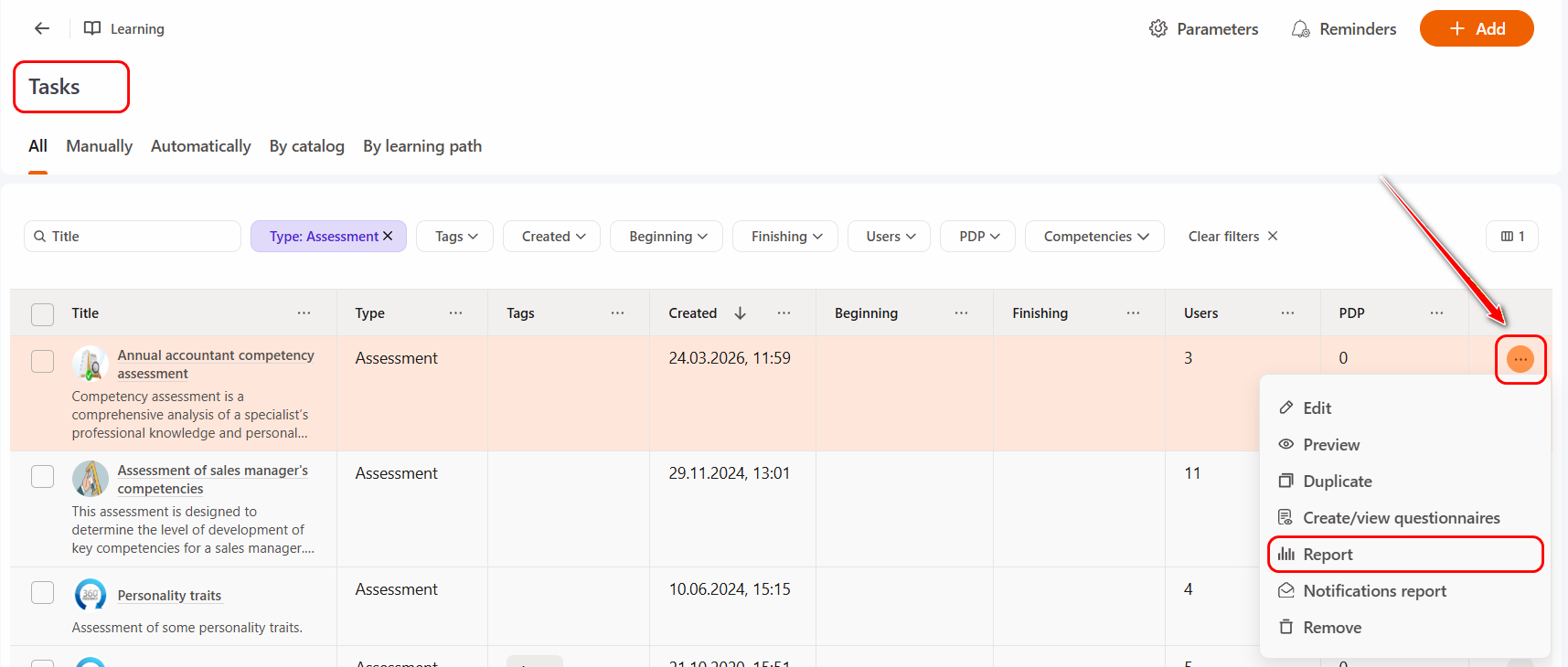
- On the Tasks page next to the required task click Actions button - Report:
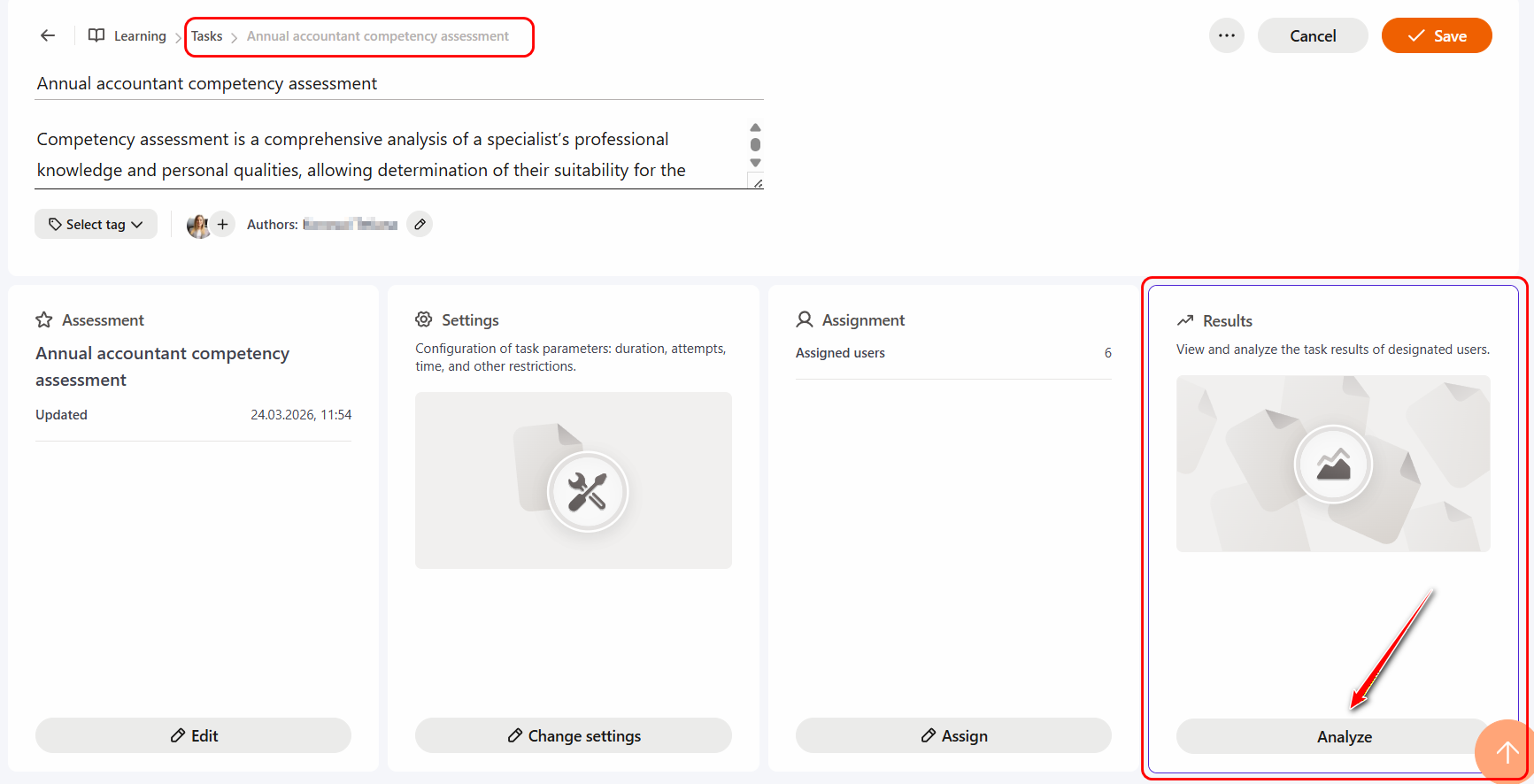
- On the Task – Assessments page, in the Results section, click the Analyze button:
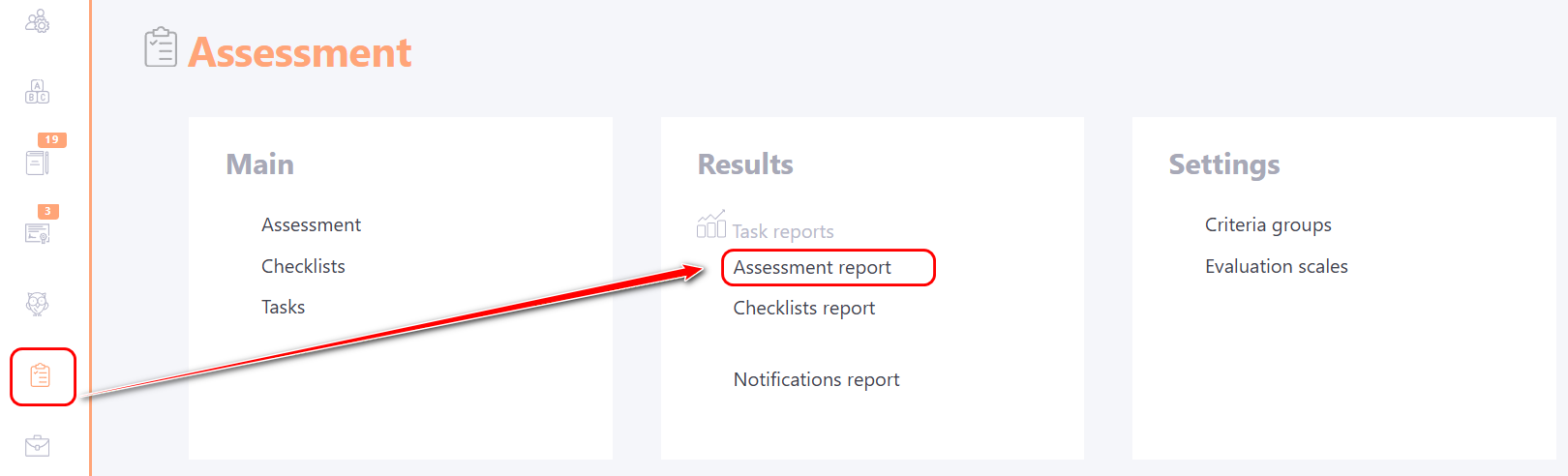
- Through the Assessment - Results - Assessment Report menu:
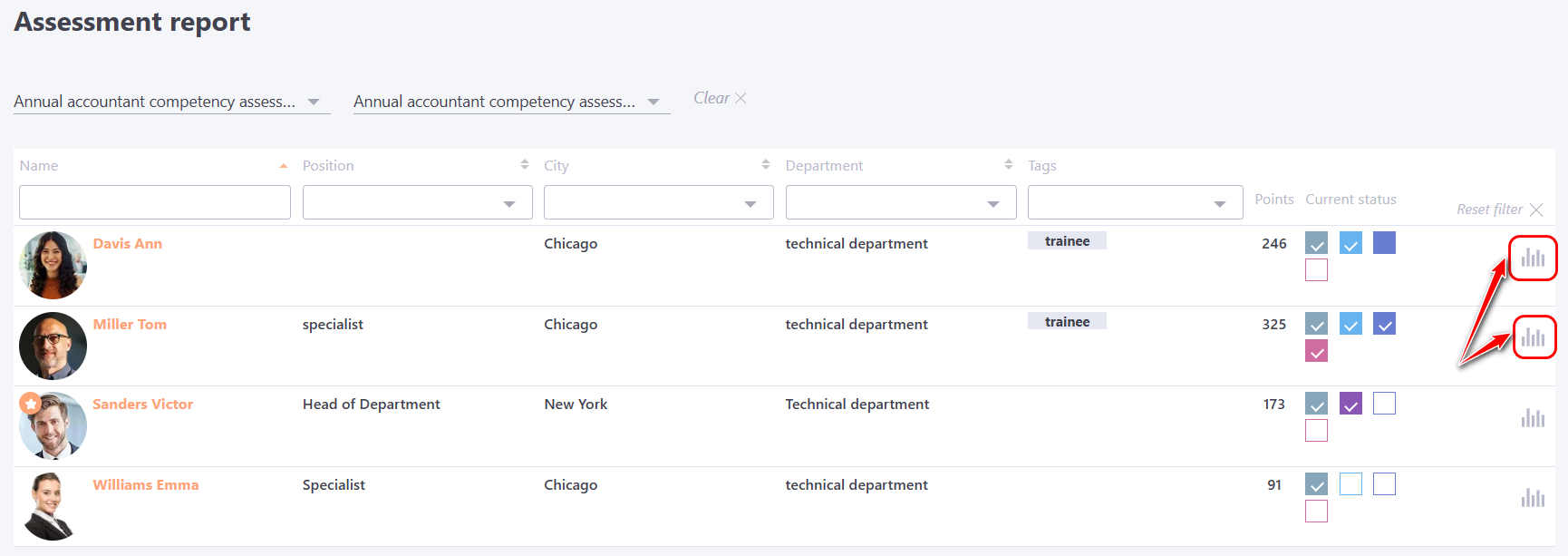
The following fields are displayed on the Assessment Report page:
(1) - a filter for selecting the Assessment that is used in the specific Tasks;
(2) - filter for selecting the Task. Along with the task title, the date/time of creation and Id number are displayed;
(3) - button to reset the filters by assessment and tasks;
Fields (1) and (2) need to be filled in only if you access the report via the Assessment - Assessment Report menu. In other report opening options, the assessment and task name are automatically selected.
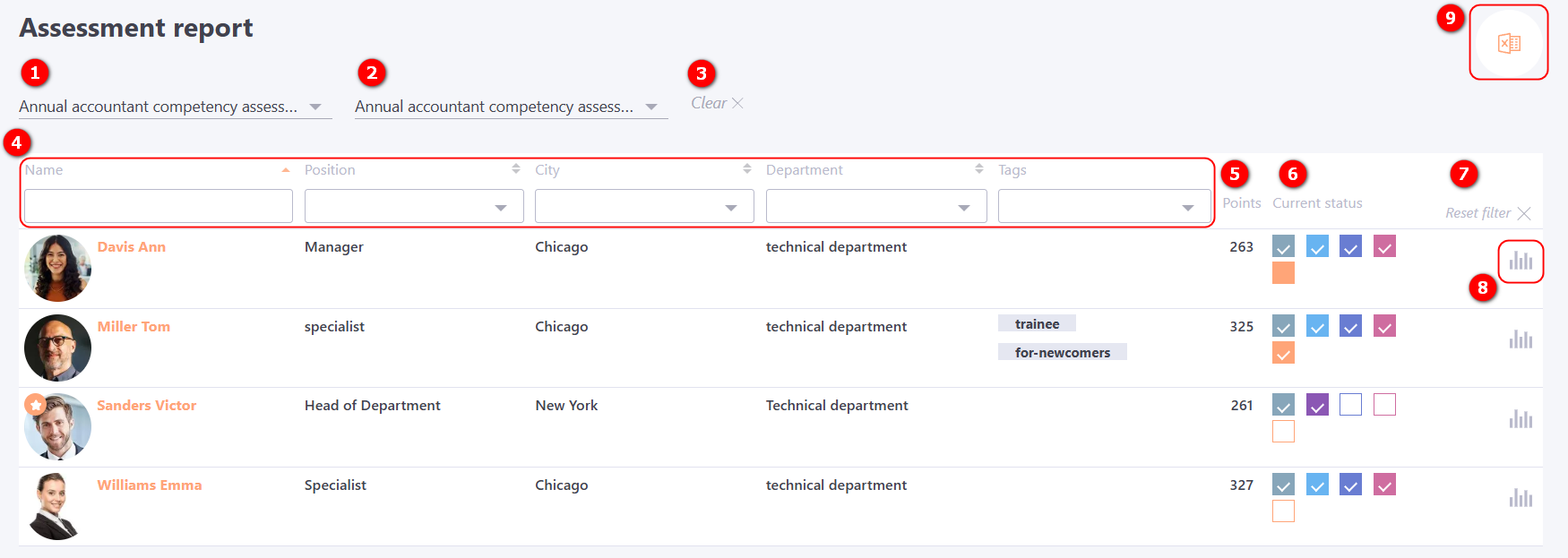
(4) - data on the User: Name, Position, City, Department, Tags. You can filter and sort data by all these parameters (in alphabetical order) to quickly find the information you need;
(5) - the number of Points awarded for a certain answer according to Competency scale or the Evaluation scales;
(6) - the current status of completing the questionnaires;
(7) - button to reset filters by users.
(8) - button to navigate to the Competency assessment protocol.
(9) - Export to Excel - a button for uploading all assigned questionnaires and their results to Excel.
The report contains Task Information (1) - the title of the assessment and the title of the task. The table then displays data about the evaluated user (2): position, city, department, tags and data about the gave the feedback user (3): position, city, department, tags, assessor role, as well as the assessment status, assignment date and actual completion date.
Also displayed are detailed information for each competency: its title and Average score by competency (4), the title and level of the competency indicator (5) and the Mark (6) for each indicator. At the end of the table, the Average score across all competencies (7) is displayed, which is calculated as the arithmetic mean of the Average scores by competencies.
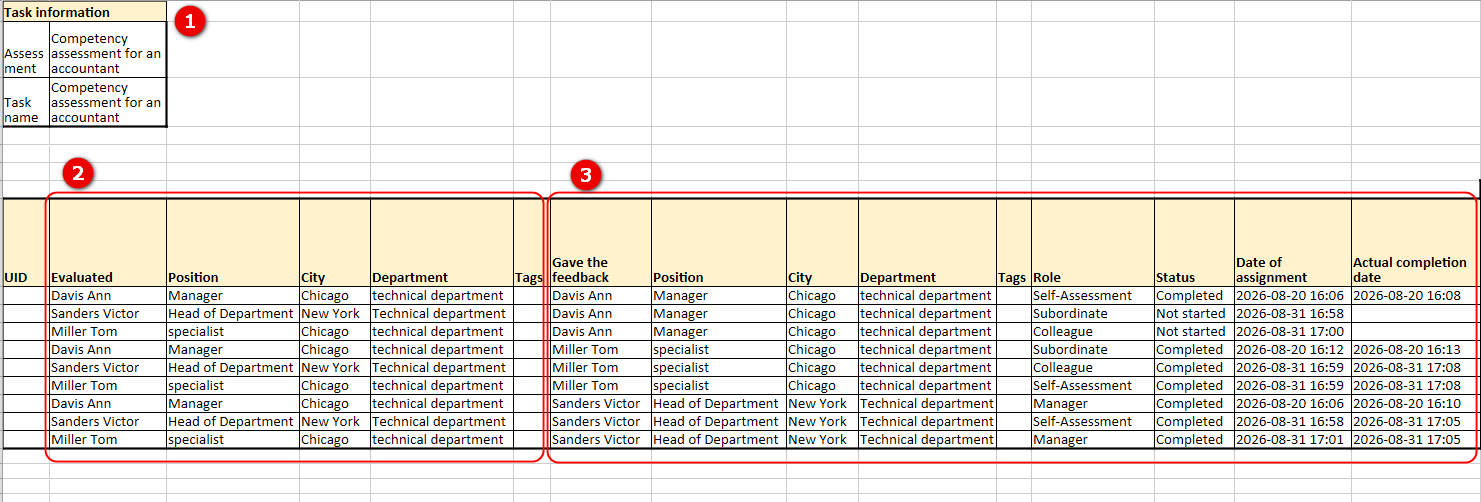
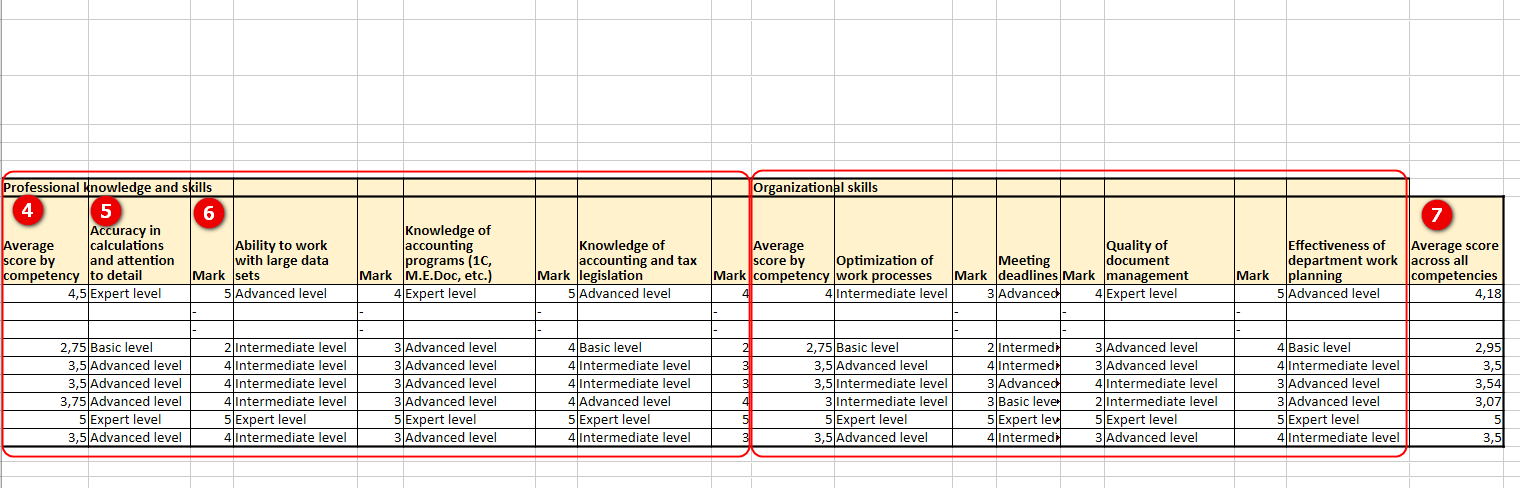
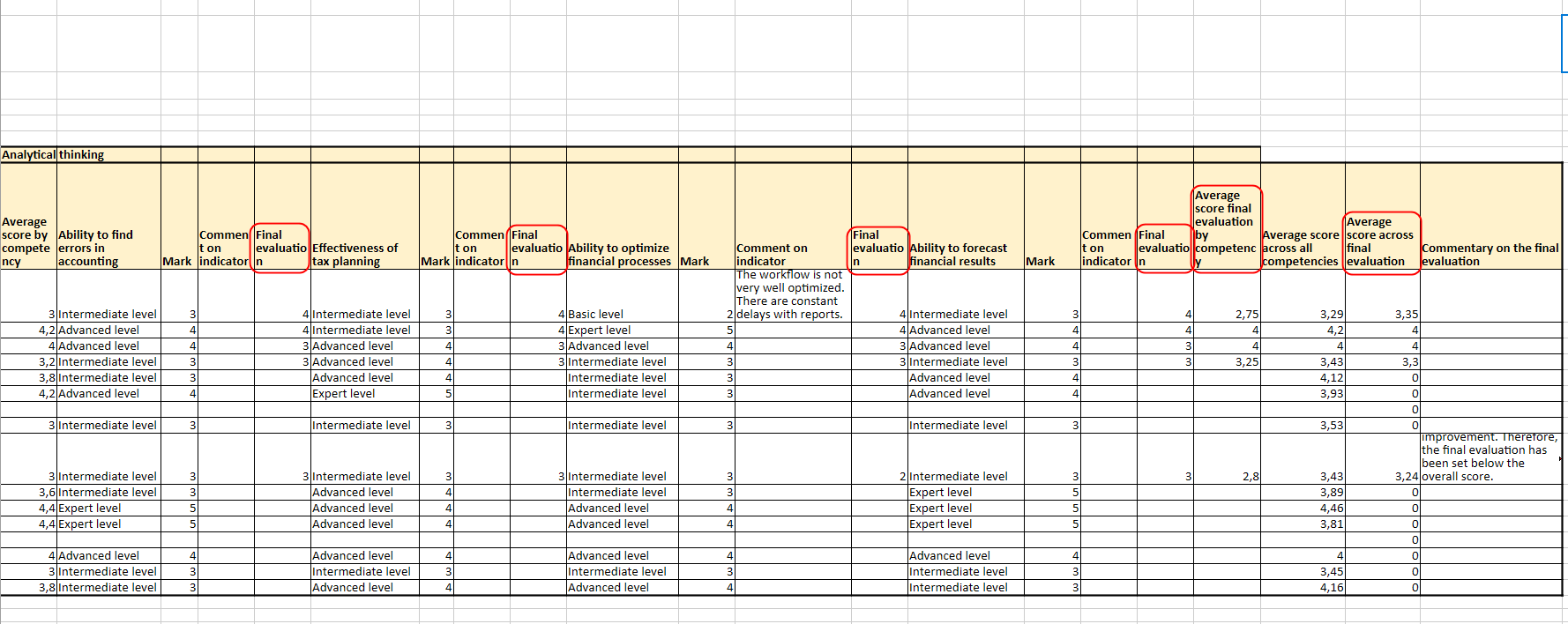
Example of an exported report with a Final evaluation
In the competency report with a Final evaluation, in addition to each indicator a separate column with a Final evaluation is displayed, which indicates the score given by the manager. For each competency the Average score final evaluation by competency is also calculated and displayed.
At the end of the table, the Average score across final evaluation is displayed, which is calculated as the arithmetic mean of the Average score final evaluation by all competencies.
If the ability to leave comments is enabled when Creation of assessment by competencies, they will be displayed in the report in separate columns for each competency indicator.
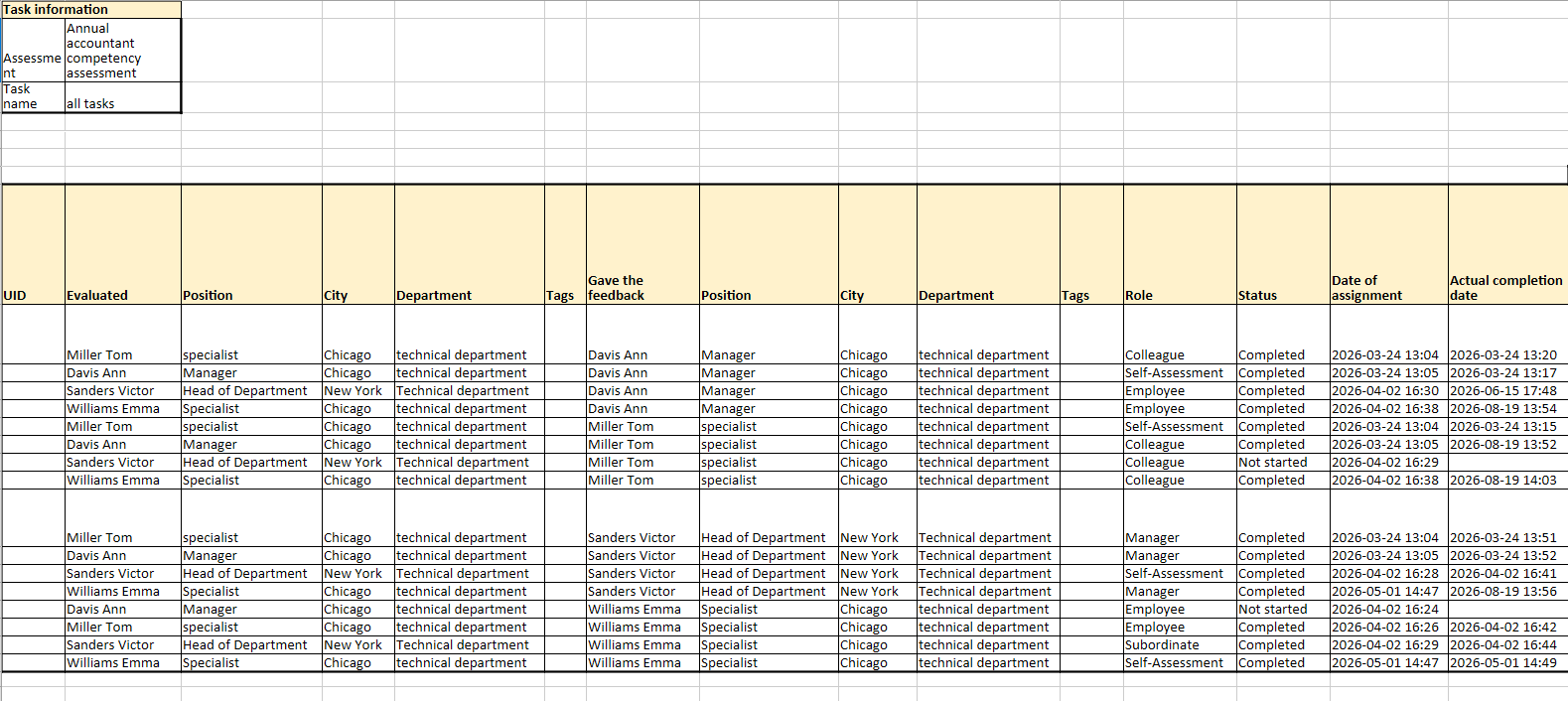
Manager’s View of the Competency Report
Department managers can view the Competency Report provided that the appropriate role for monitoring subordinates’ training has been configured. For more details, see: Manager Role.
To open the report go to Assessment - Assessment Report in the menu:
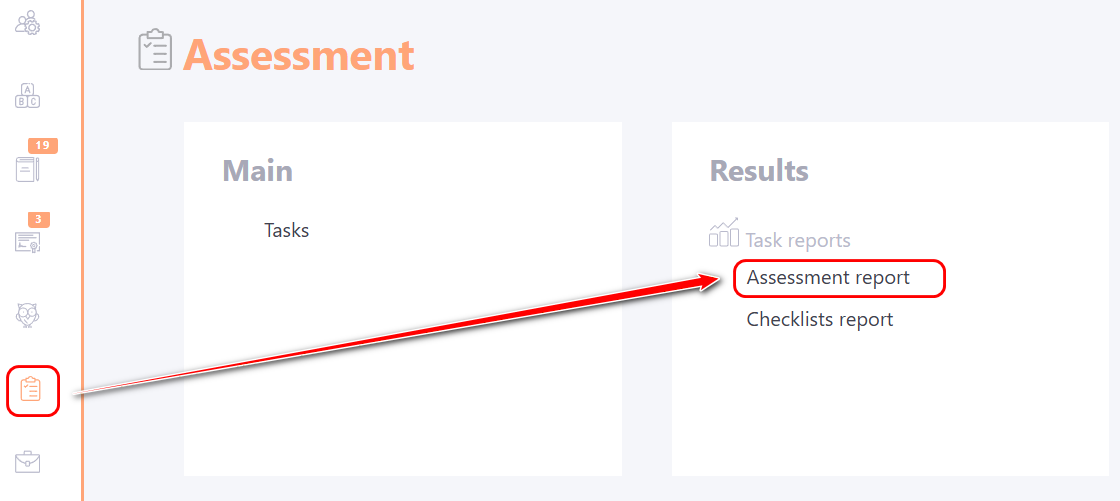
On the Assessment Report page, the manager can track the Current Status of completing the questionnaires and proceed to view the Competency assessment protocol for each subordinate.