Copying questions from quizzes
In LMS Collaborator there is an option of adding new questions to quizzes by copying them from previously created quizzes. For example, you can create summary quizzes for courses or programs. You can add any number of questions from selected quizzes to such a quiz.
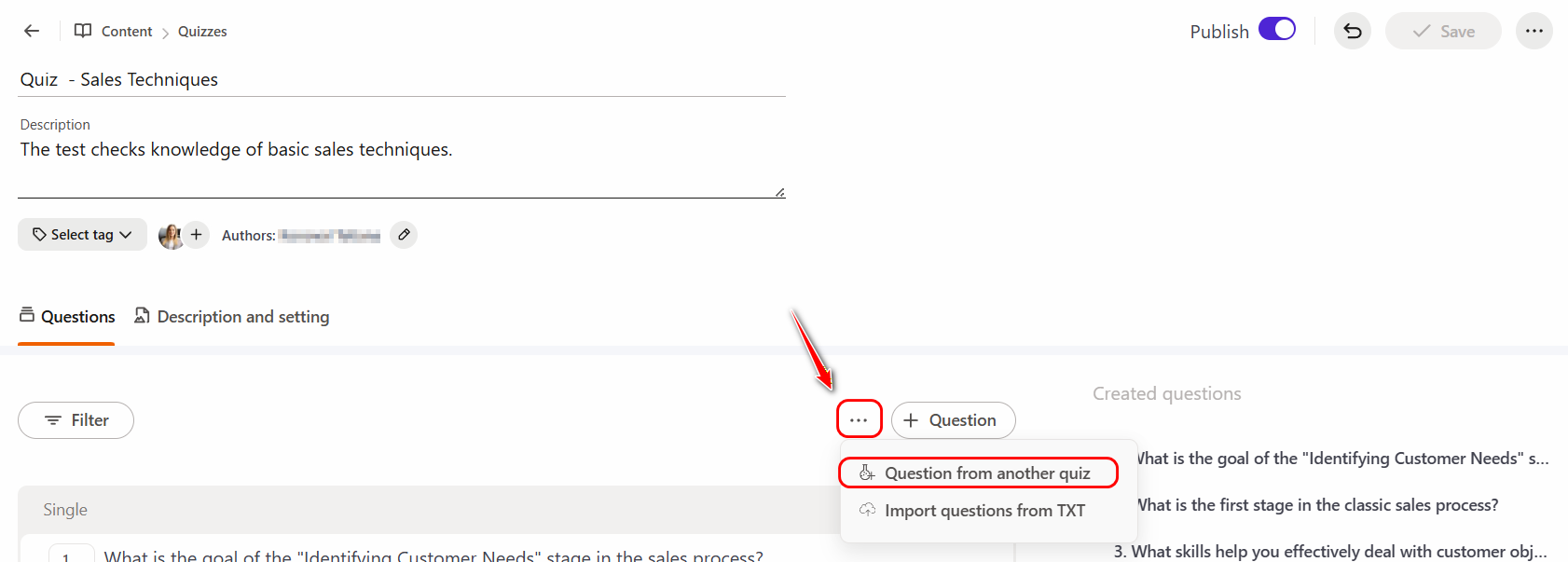
To add a question from another test, click the Actions button and select the Question from another quiz option.
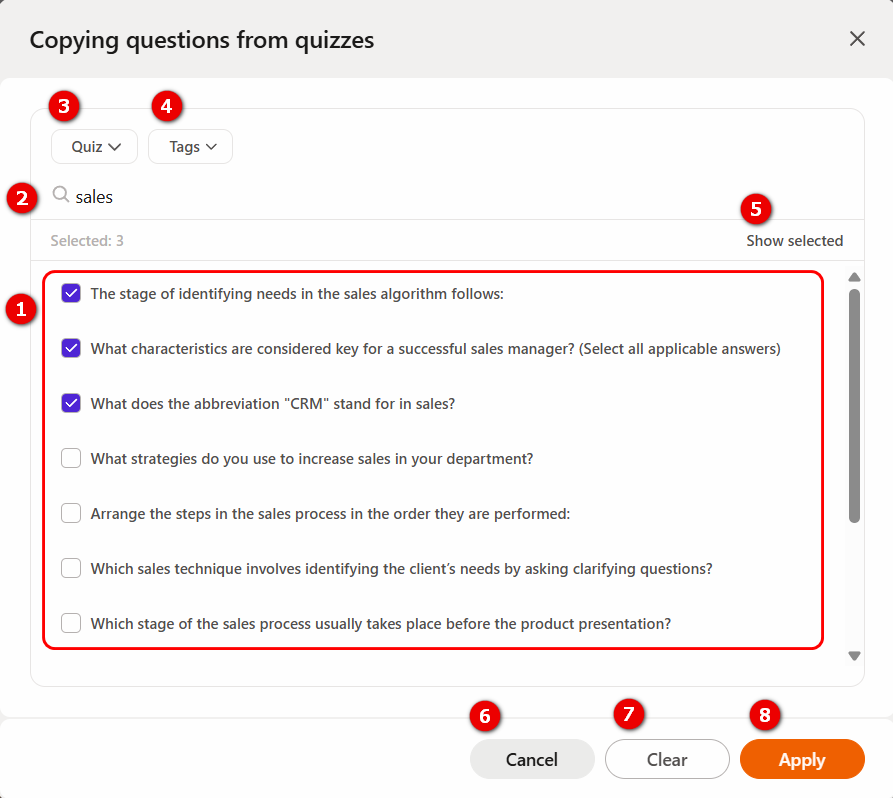
In the modal window that opens, 50 random questions (1) from all quizzes created in the system are displayed by default. To search by question text, phrase, or keyword, use the Search field (2).
To copy questions from a specific quiz, click the Quiz (3) button , select a quiz from the drop-down list, or enter the quiz name in the search field. After selecting the required quiz, the system will display all questions from that quiz.
You can also search for the required questions using the Tags button (4). To select a tag, use the drop-down list or enter the tag name in the search field. It is possible to select multiple tags at the same time. After selection, the system will display all questions with the specified tags.
If one or more questions are selected using checkboxes, the Show selected (5) button will appear in the upper-right corner for quick viewing of only the selected questions.
Cancel (6) — closes the window without saving changes.
Clear (7) — clears the selection of all questions at once.
Apply (8) — confirms copying questions from another quiz. The new questions are added to the end of the list with automatically assigned sequence numbers.