Free answers results
When you use quizzes with the free - answer question type to get the results of the quiz you need to check all the answers for free answers.
A user with one of permissions can do this:
- check answers to questions with a free answer (access to all tests on the portal);
- check free-answer questions for your subordinates (access to passed tests by the user's subordinates);
- check questions with a free answer for your tasks (access to passed tests in tasks created by the user);
- check free-response questions for your tests (access to completed user-created tests).
This can be done by the System Administrator in the Learning - Answers for checking menu. (Find more in Answers for checking).
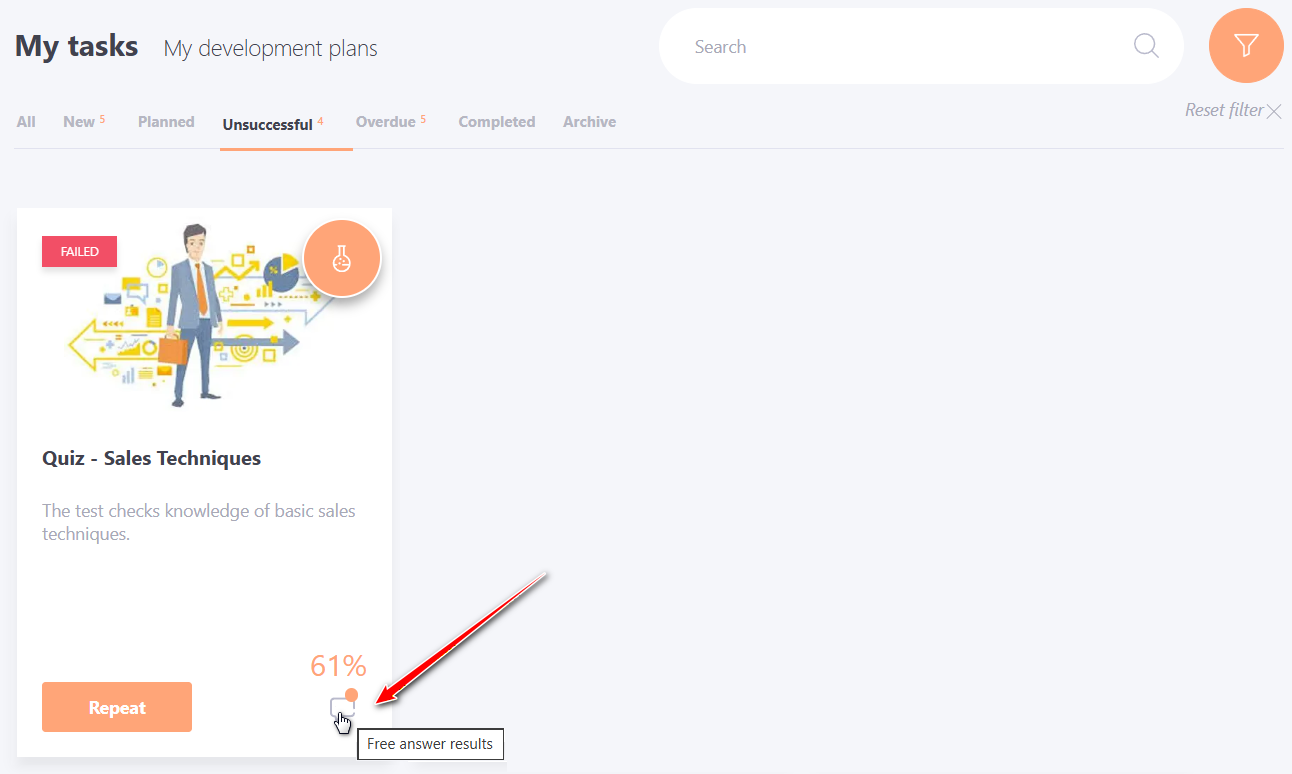
After checking all free answers, the user can view the results in the My tasks section. In tasks that include free answer questions, an additional button Free Answer Results appears.
There can be several quizes in one task, for example, in courses or programs, and in each quiz there can be several Free answer questions. For convenient viewing, the results are structured by quiz and question names. To view the result, the user first needs to open the desired quiz and then the corresponding question (1).
On the Free answer results page, the user can view the Mark for the provided answers and comments on them (2).
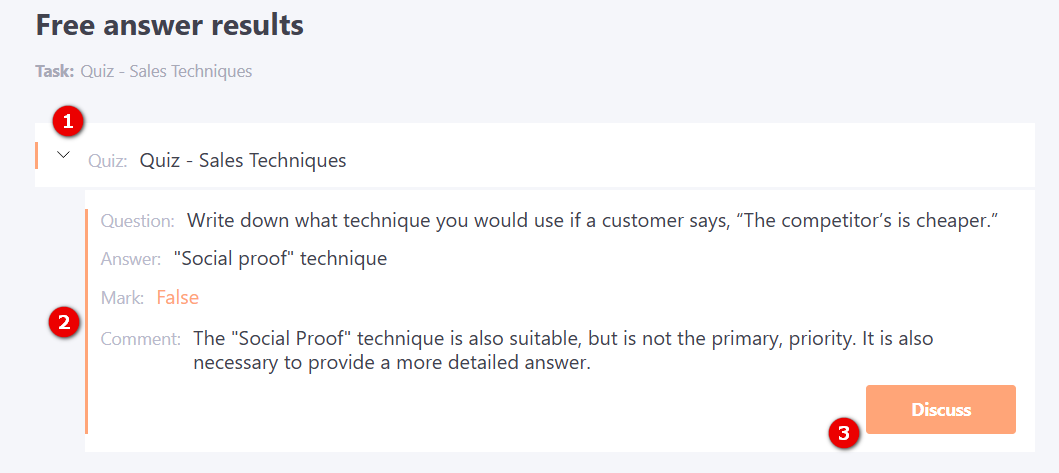
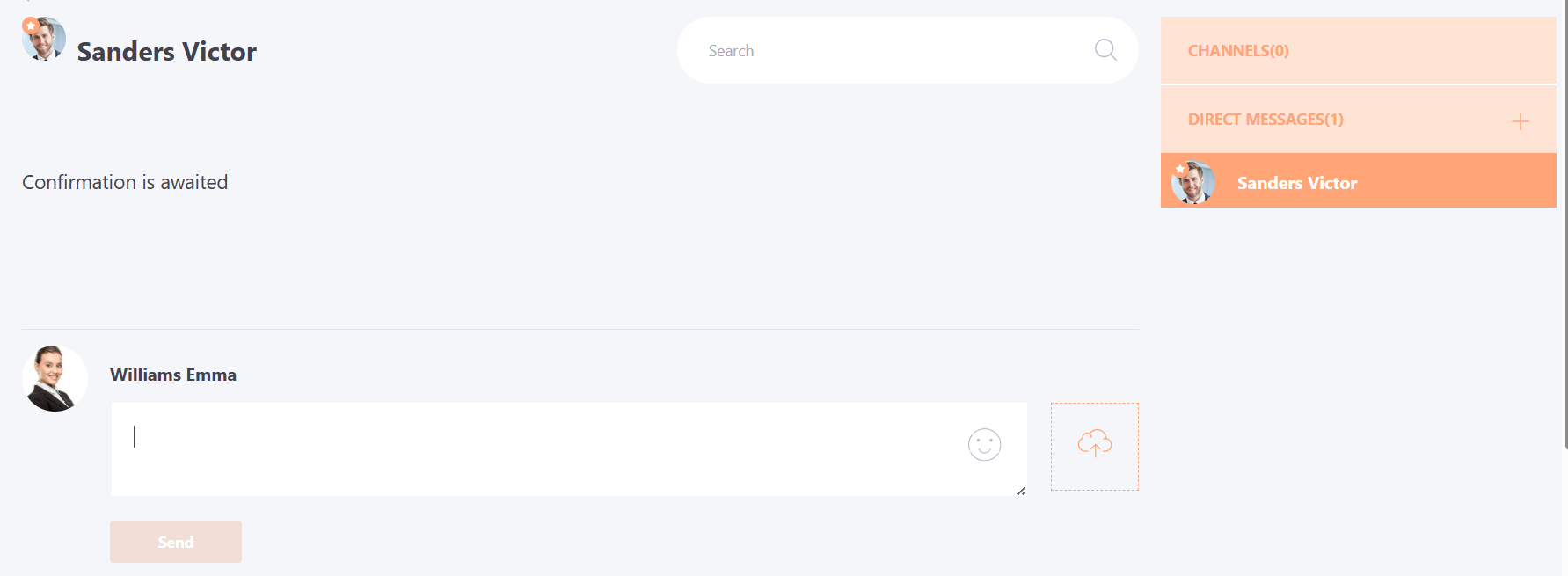
The page also has a Discuss (3) button . Clicking it opens a Direct messages with the user who checked and rated the answer.