Editing a program structure
To populate the program with tasks, you can use any types of learning resources. The selection of resources is carried out in the same way as when creating the Course Plan.
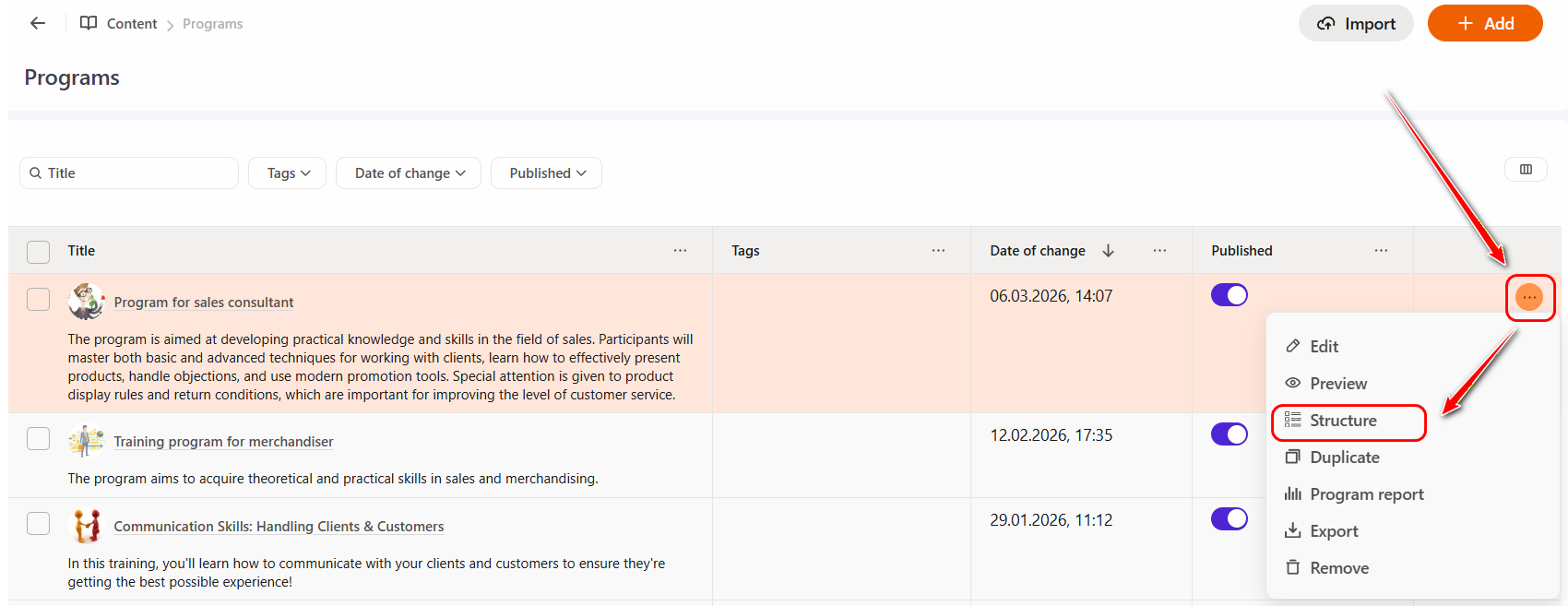
Learning elements are added to the program on the Program Structure page. To open the Program Structure page, in the table with programs click Actions button - Structure.
Search for resources and adding them to the program
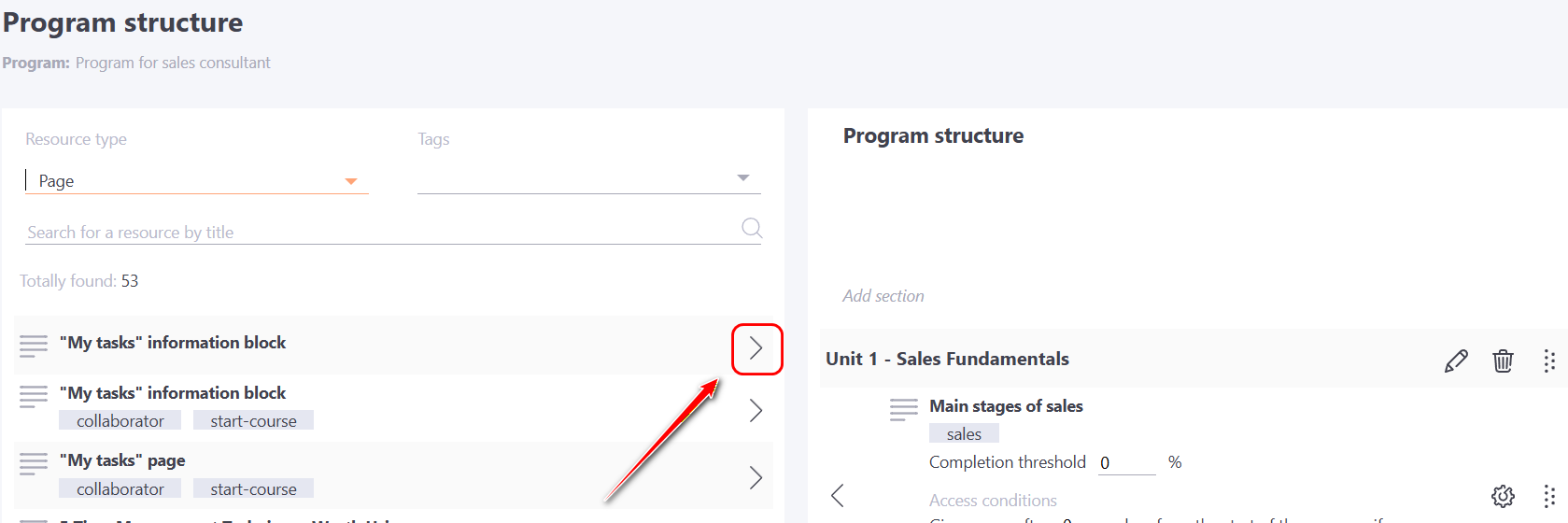
On the left side of the page a search box and add items to the program.
You can filter items by type: course, resource (you can specify what kind - video, file, web page, etc.), quiz, survey, webinar, complex quiz, workshop and meetup.
You can also filter items by tags. Or search by keyword/phrase in the title.
When the desired item is found, you need to click the "Add" button in order to add the resource to the program. Each new element is added at the end of the program.
Working with program structure
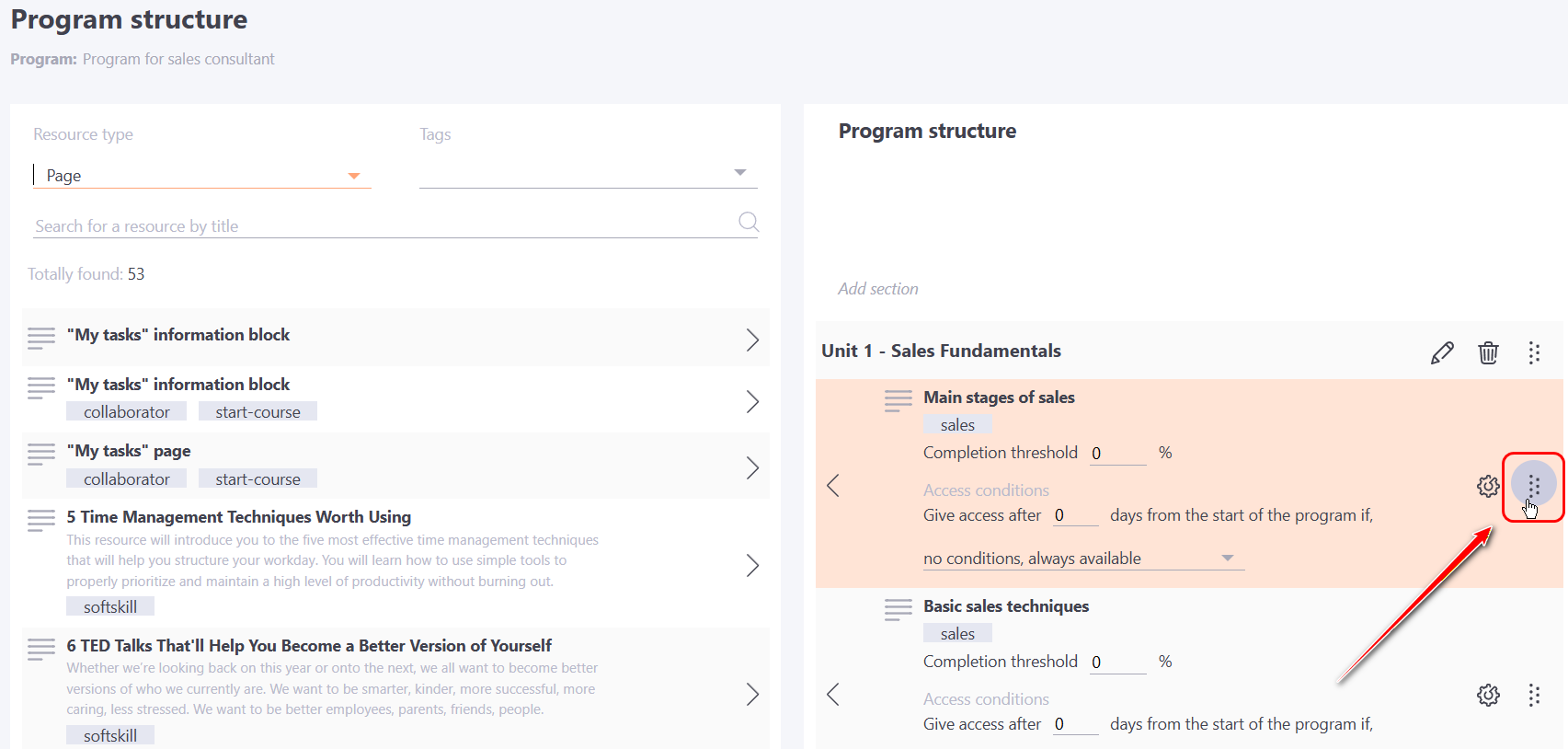
The right side of the page shows the resources that have been added to the program's task list. You can change their order in the list using the following button  - you need to left-click and drag it.
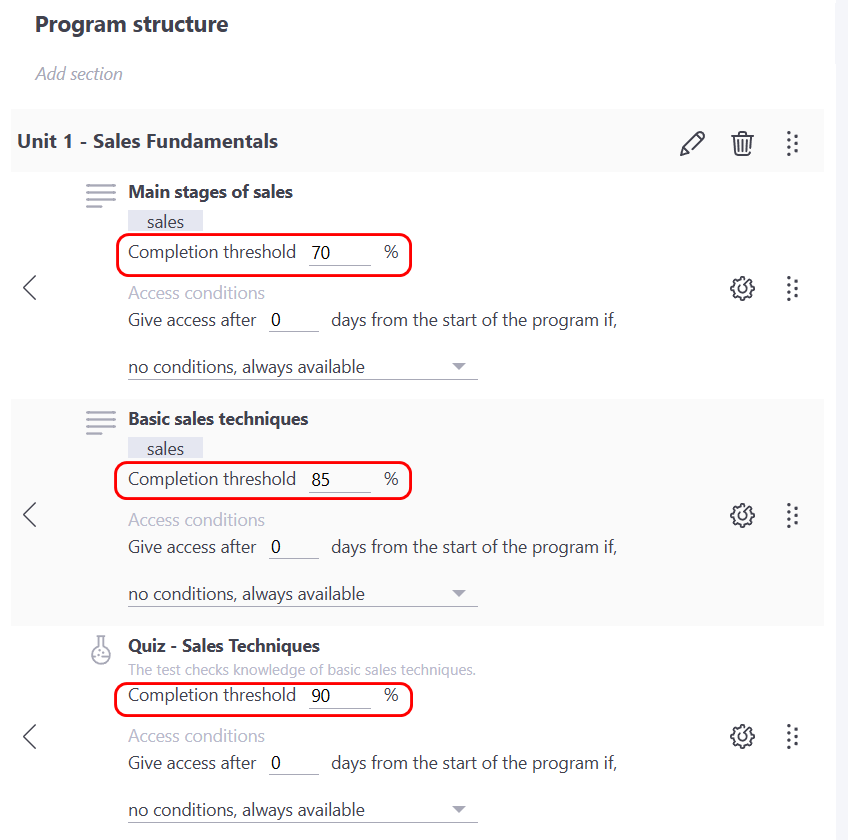
For each learning element within the Program, it is necessary to set a Completion threshold — specify the minimum percentage of points required for the task to be considered successfully completed. By default, the Completion threshold is set to 0%.
You can also set access conditions for each task. The available options include:
- no conditions, always available;
- successfully completed the previous task;
- the previous task is done;
- the specified task is completed;
- successfully completed all previous tasks.
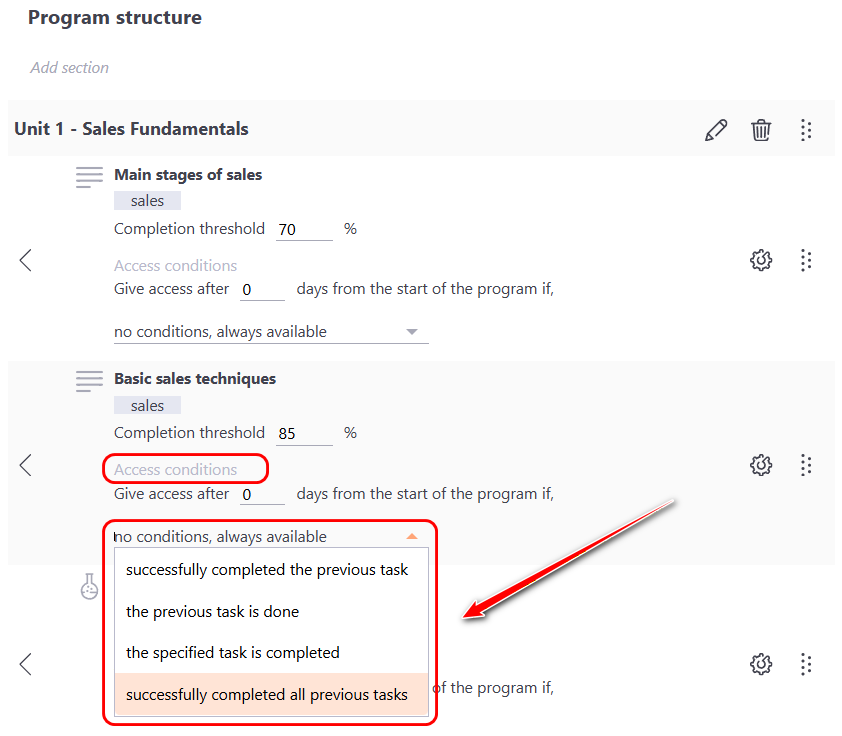
The condition for the first item of the program is always set by default - no conditions, always available.
"Access condition – successfully completed the previous task" means that the user must complete the previous task above the specified Completion threshold in order to unlock access to the next element.
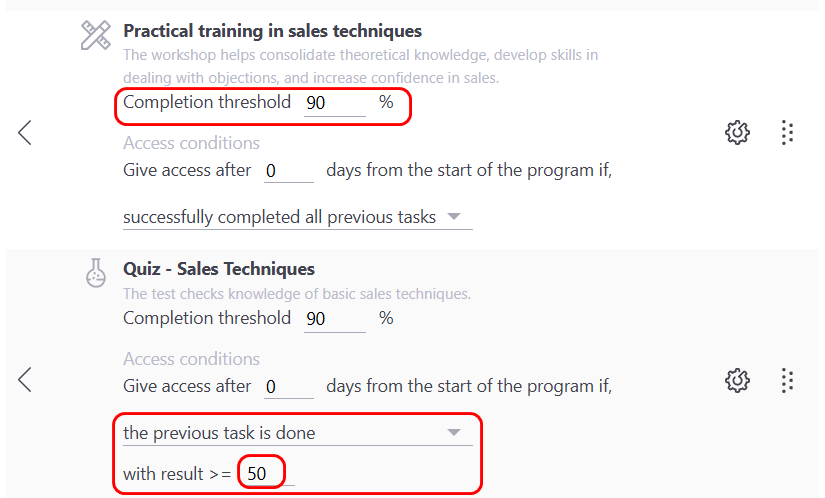
"Access condition – Previous task completed with a result of __%" means that the user must complete the previous task with a score higher than the specified percentage in the access conditions in the program on the previous task to unlock access to the next element.
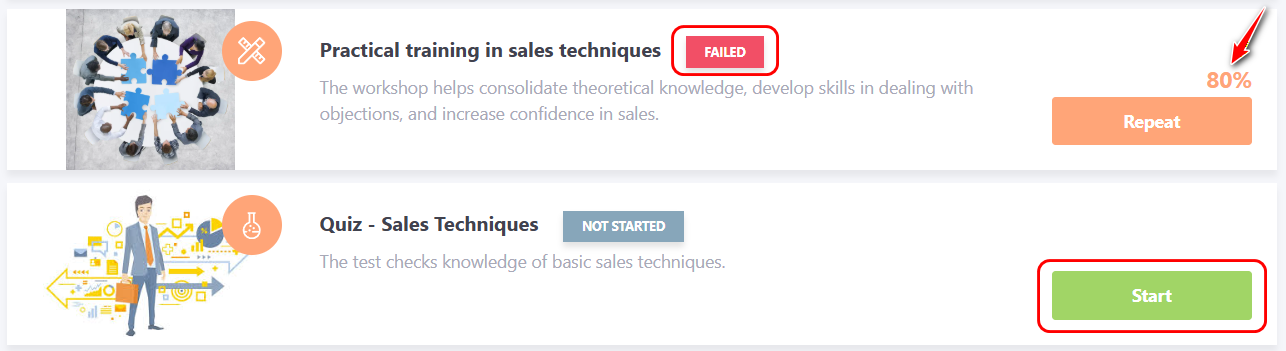
For example, the workshop "Practical training in sales techniques" has a Completion threshold of 90%, while in the program structure the result required to unlock the next element is 50%.
If a user completes the workshop task with a 80% result, they will receive a Failed status (since the Completion threshold for the task is 90%). However, access to the next element in the training program will still be unlocked (the Start button will be active), because the access condition "the previous task is done with result >= 50%" is satisfied.
In addition to conditions of access according to the results of the passage, you can set conditions for opening access to the element by time from the moment of assignment:
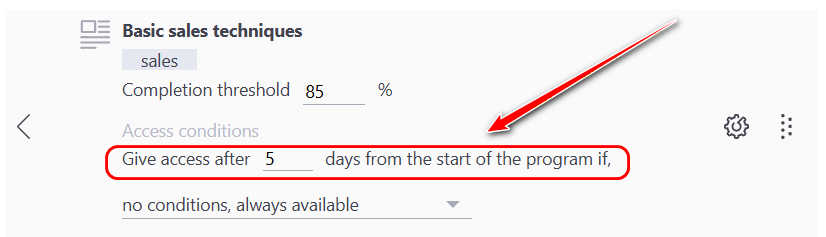
Access conditions by results and time can be combined.
Additional settings are also available for resources, quizes and the course within the program:
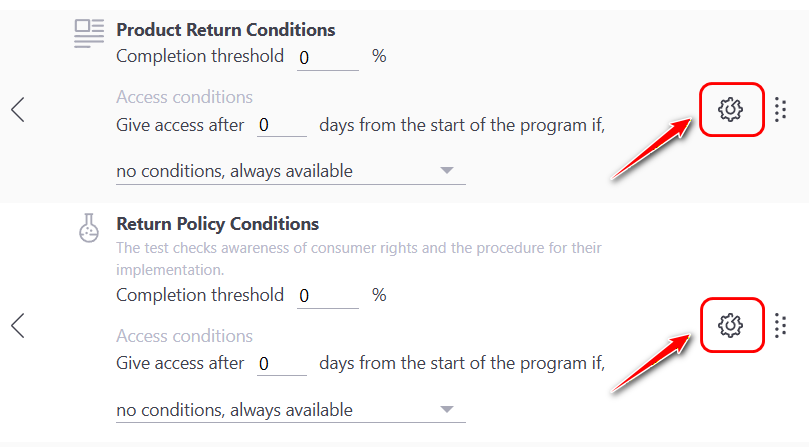
Resource settings page in the program
For resources, you can enable the Request confirmation option.
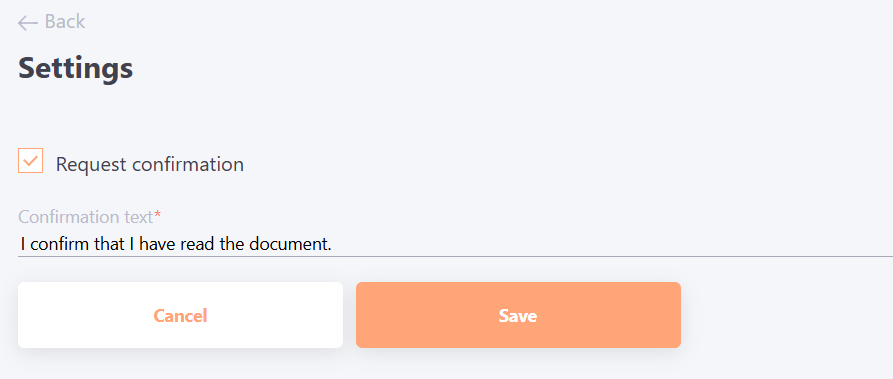
If this option is enabled, after viewing the resource the user must check a box to confirm that they have read it. Information about the confirmation will be displayed in the report. Until the user confirms that they have read the resource, its status will remain “In Progress.”
To enable this option, it is required to enter a confirmation text:
Course settings page in the program
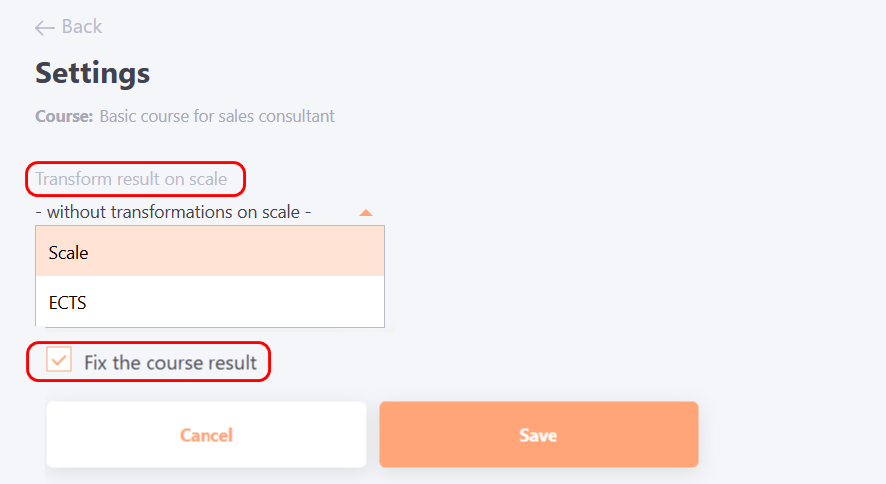
For a course within a Program, you can additionally configure the following options:
Transform result on scale - allows to configure the conversion of the score from percentage (%) to the required scale (for example, a 5-point grading system, ECTS, etc.). By default, all tasks in the system are graded from 0 to 100%. For more details: Mark scales.
Fix the result of the task - when this option is enabled, the course result and completion status remain unchanged for users who have already completed the course, even if the course structure is modified and new assignments are added.
If the option is disabled, after changes to the course structure, the assignment status will automatically change from "Completed" to "In Progress" and users will need to complete the new elements for the status to return to "Completed".
Quiz settings page in the program
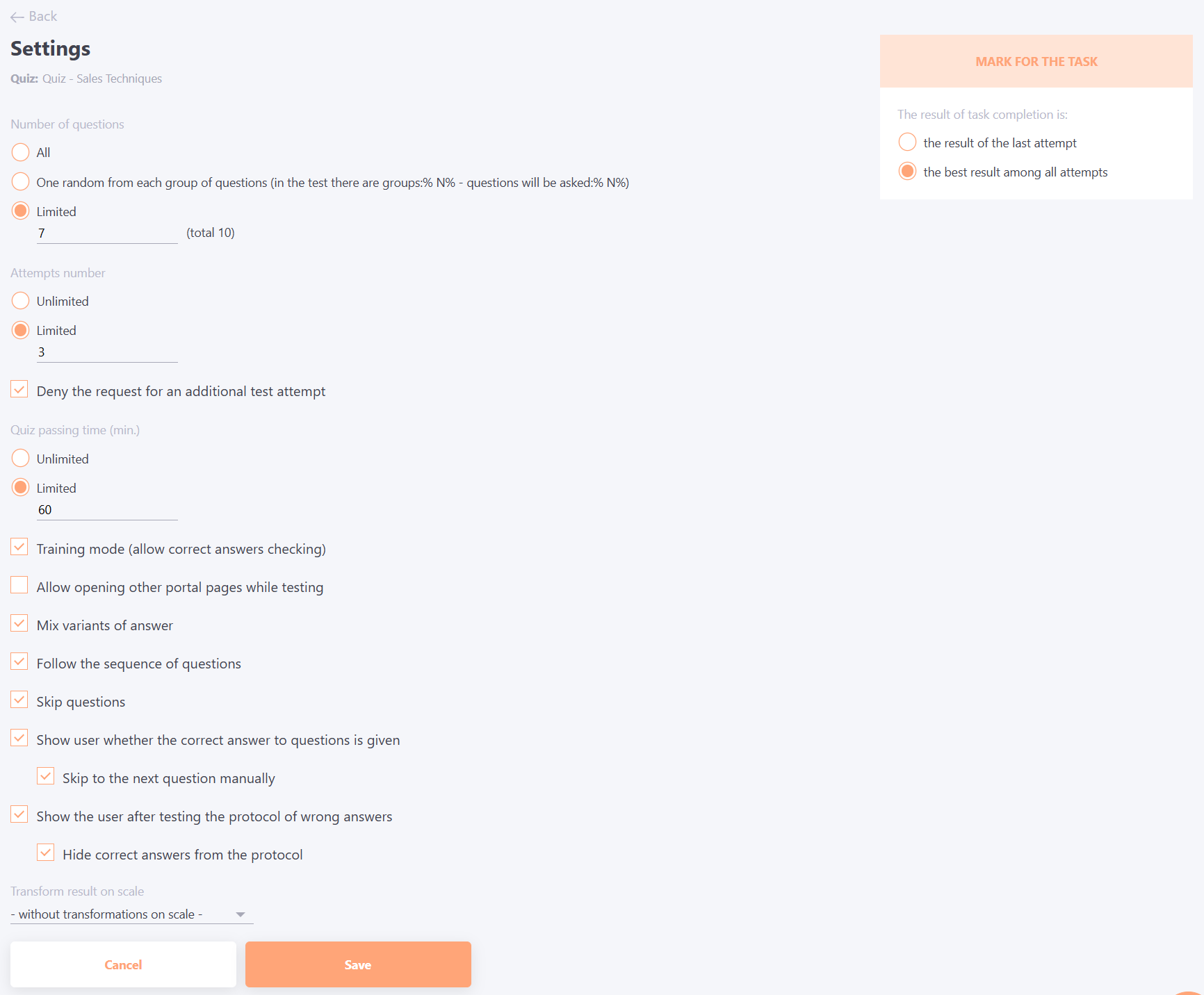
Configuring quiz parameters within a Program is the same as configuring quiz parameters within a course.
For more details: Quiz parameter settings.