Resource report
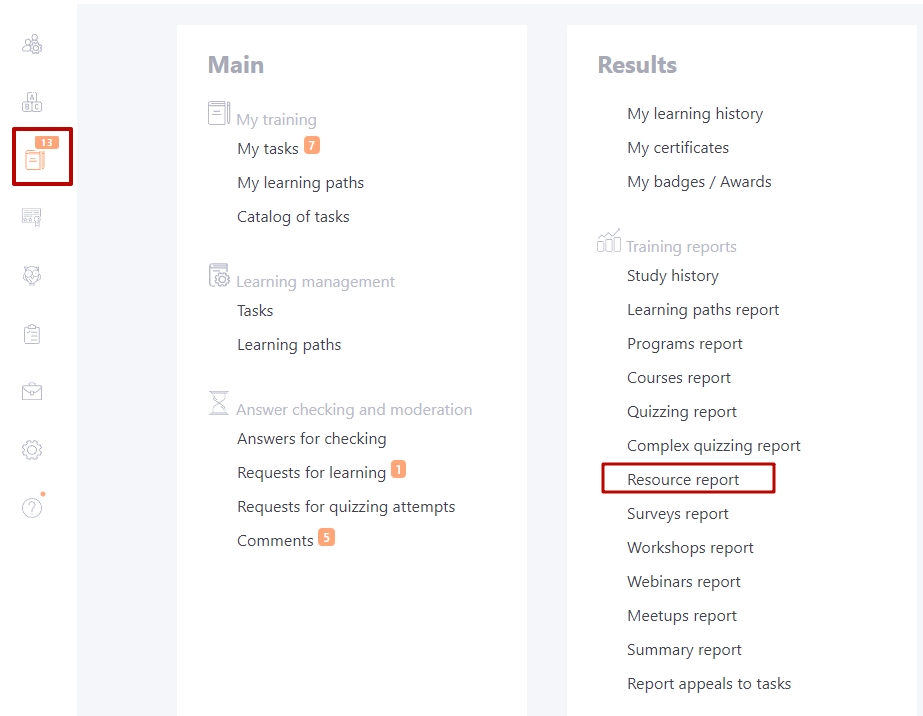
To view resource reports, go to Learning - Resource report.:
To find the desired report, you can use the following filters:
- (1) - filter with the list of Programs that include the Resource. Only Programs with which Tasks are created are displayed.
- (2) - the filter to select Courses with Resources. Only Courses that use Resources are listed;
- (3) - the filter for selecting the Resource that is used in the individual Tasks;
- (4) - filter for selecting task names. Along with the name of the task, the date/time of creation and Id number are displayed.
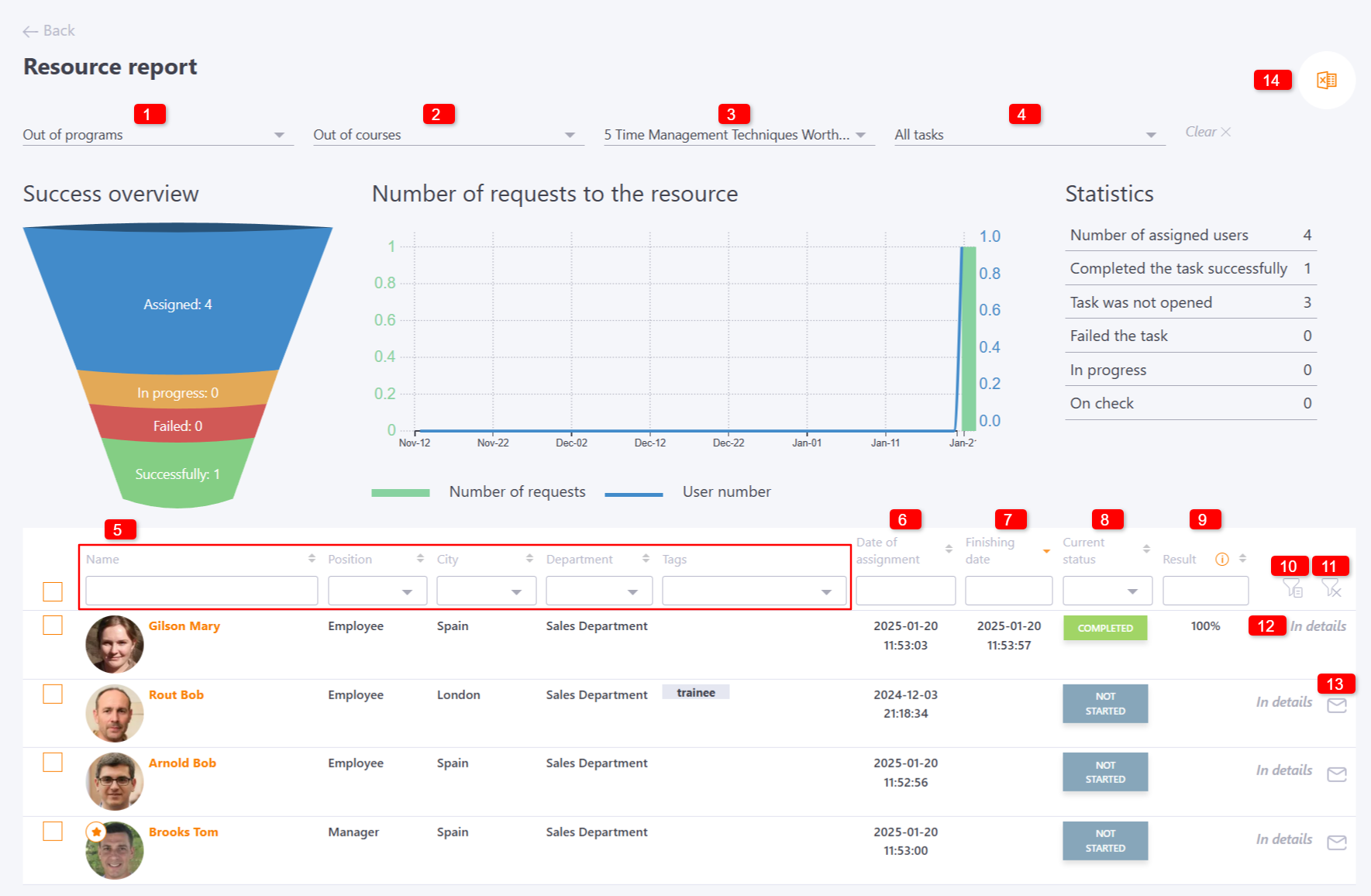
(5) - data on the User: Name, Position, City, Department, Tags. You can filter and sort data by all these parameters (in alphabetical order) to quickly find the information you need.
(6) - Date of assignment - Date and time of task assignment.
(7) - Finishing date - Date and time of completion of the task.
(8) - Current status: Not started, Started, In progress, Completed. You can also filter data in the table.
(9) - Result - % of passing the Resource.
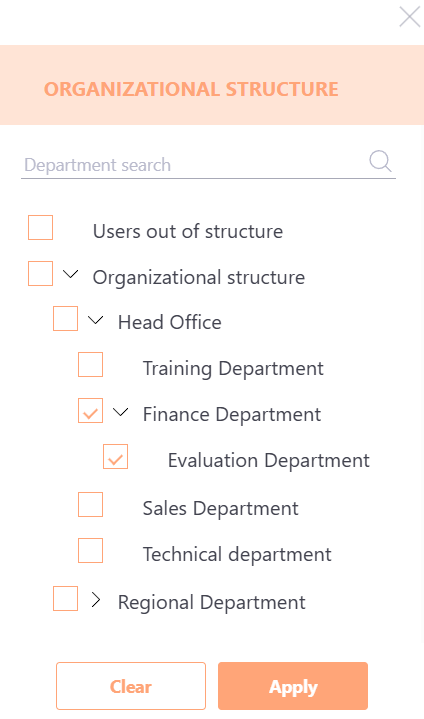
(10) - Filter by Organizational Structure - filter allows you to quickly find users from several departments at once. You can select the entire “branch” of the department or several folders of the organizational structure at the same time with one click, as well as conduct a search by organizational structure.
(11) - Reset filter - reset all filters.
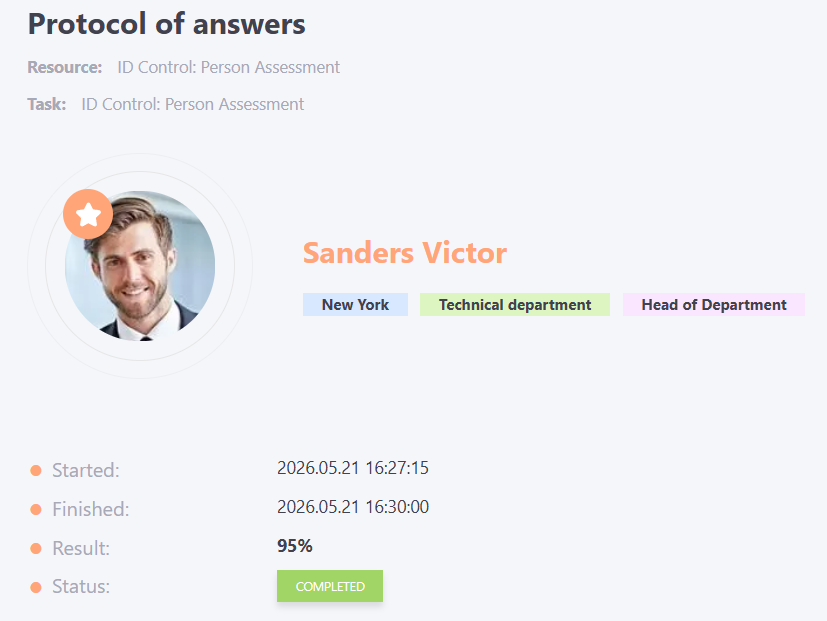
(12) - In details - after clicking the button, the Protocol of answers page will open, which displays detailed information about the user's completion of the task
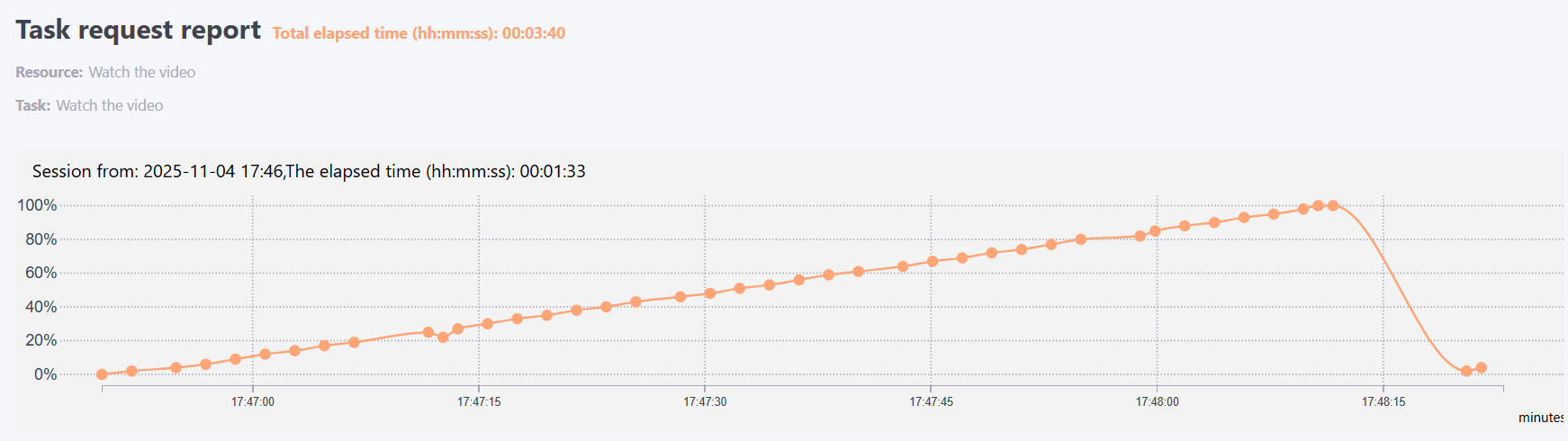
For tasks with the video-resource type, clicking the In details button opens the Task request report page. This page displays a graph with information about the time the user spent watching the video.
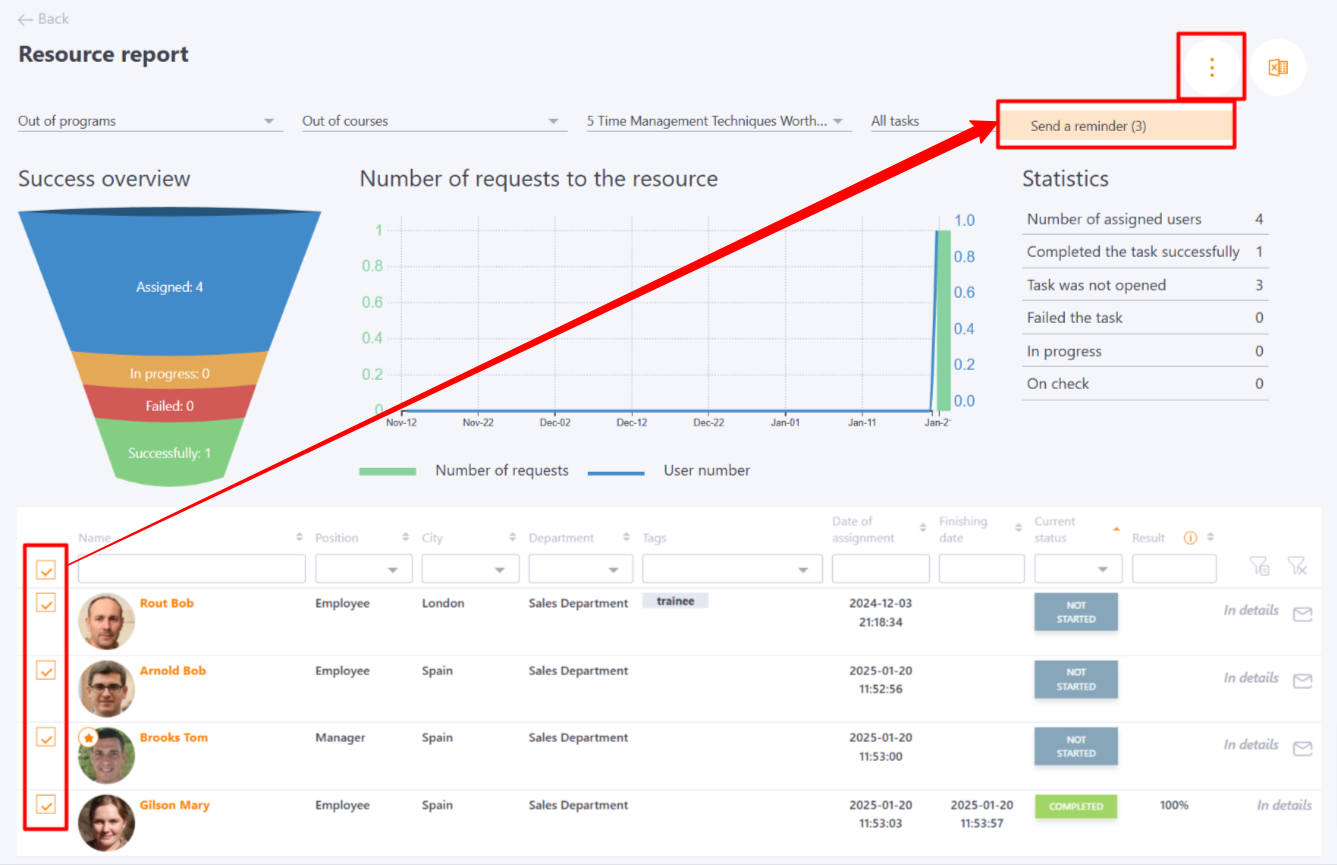
(13) - Send a reminder - users with "Not started" or "In progress" status can be sent a reminder that it is necessary to perform this task. The following template will be sent Tasks - Remind about incomplete tasks - manual sending.
A group action is available to send a reminder (the email will only be sent to users who have not yet completed the task):
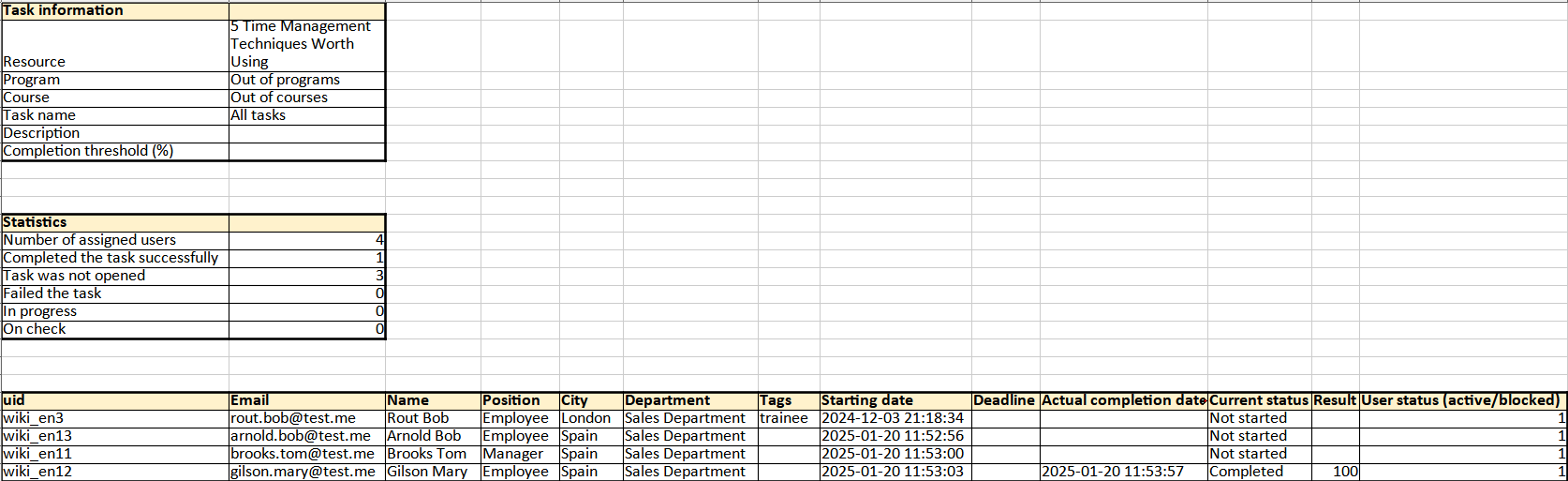
(14) - Export to Excel - exports filtered data from the Resource Report page to an Excel file. The button for uploading to Excel is displayed after selecting a resource.
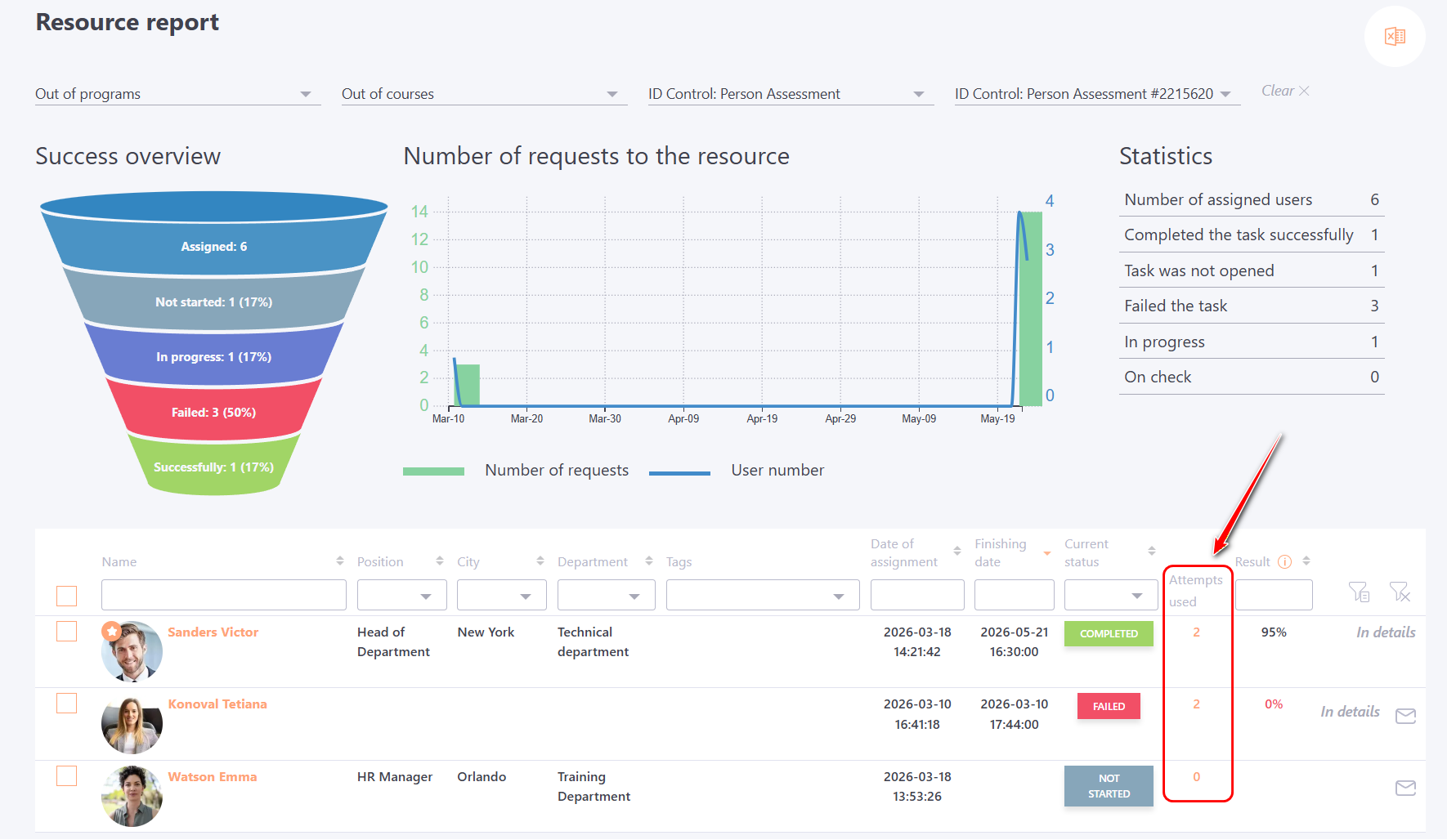
For a task with a scorm-resource, the report additionally displays the Attempts used column, which indicates the number of attempts the user made to complete the task ( more details SCORM Report).