
Creating questions with AI
To use the artificial intelligence features on the portal, integration with an AI - provider must be configured. For more details, see Integration with AI.
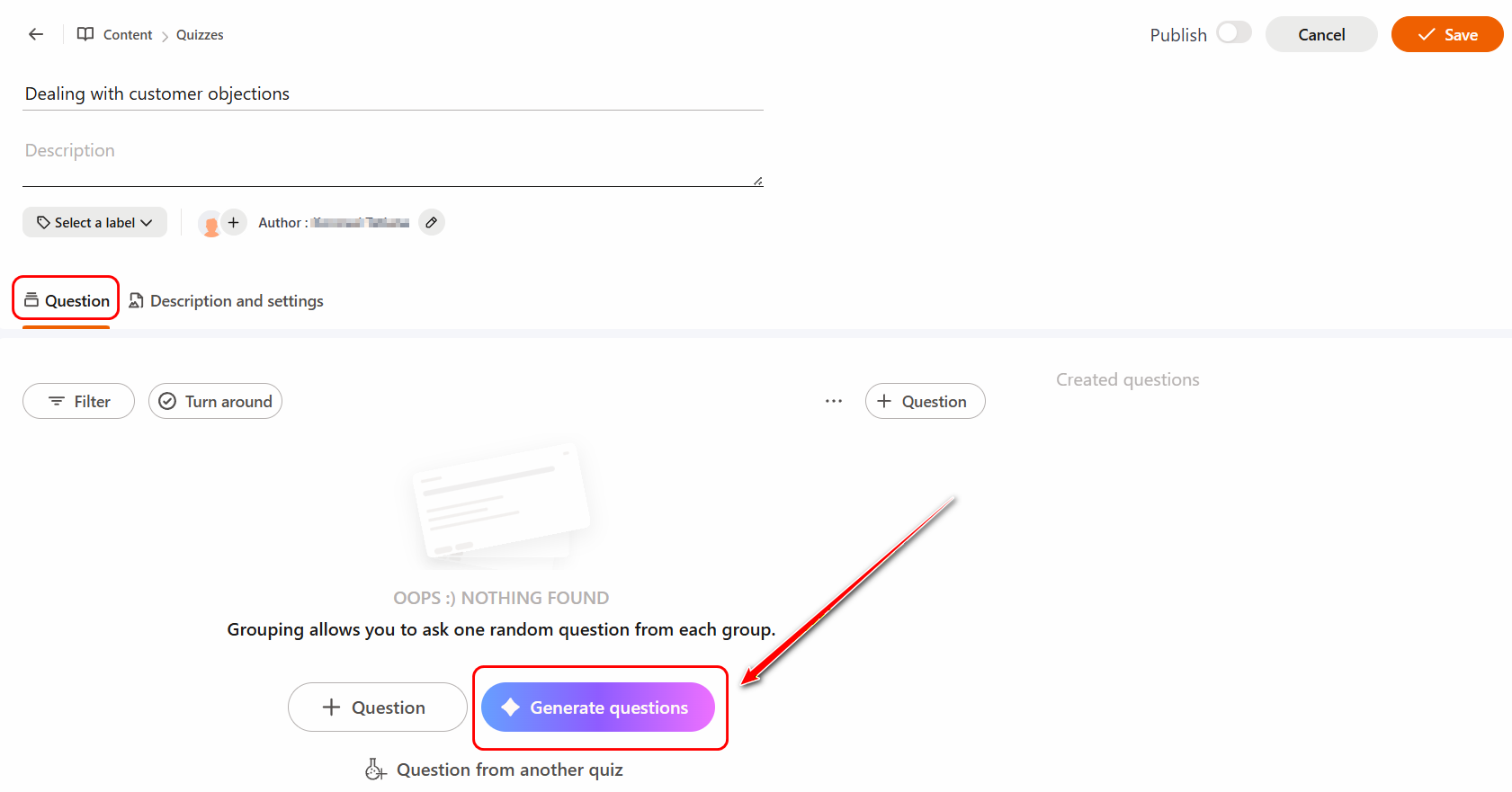
To create quiz questions using AI, go to the Questions tab on the quiz creation page and click the Generate Questions button.
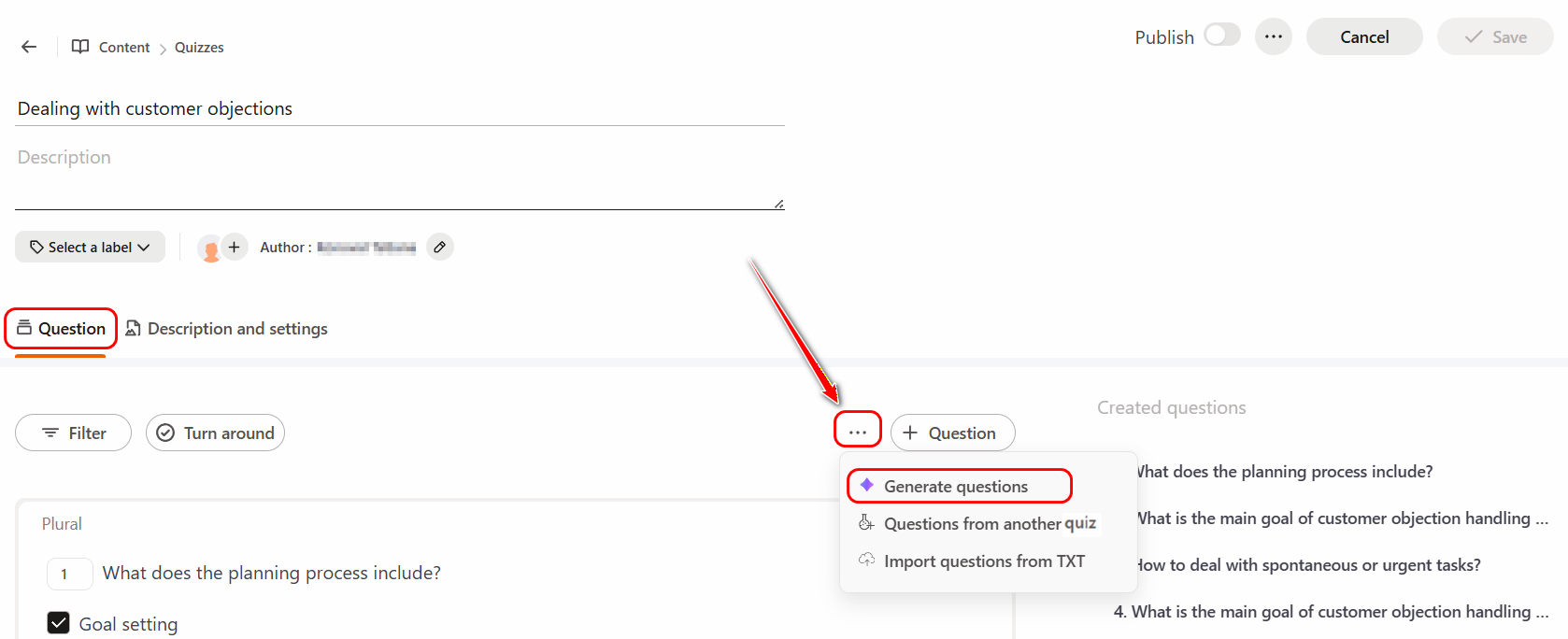
To add questions using AI to an existing quiz, go to the Questions tab, click Actions button - Generate Questions.
After clicking the button, the following fields for configuration will appear:
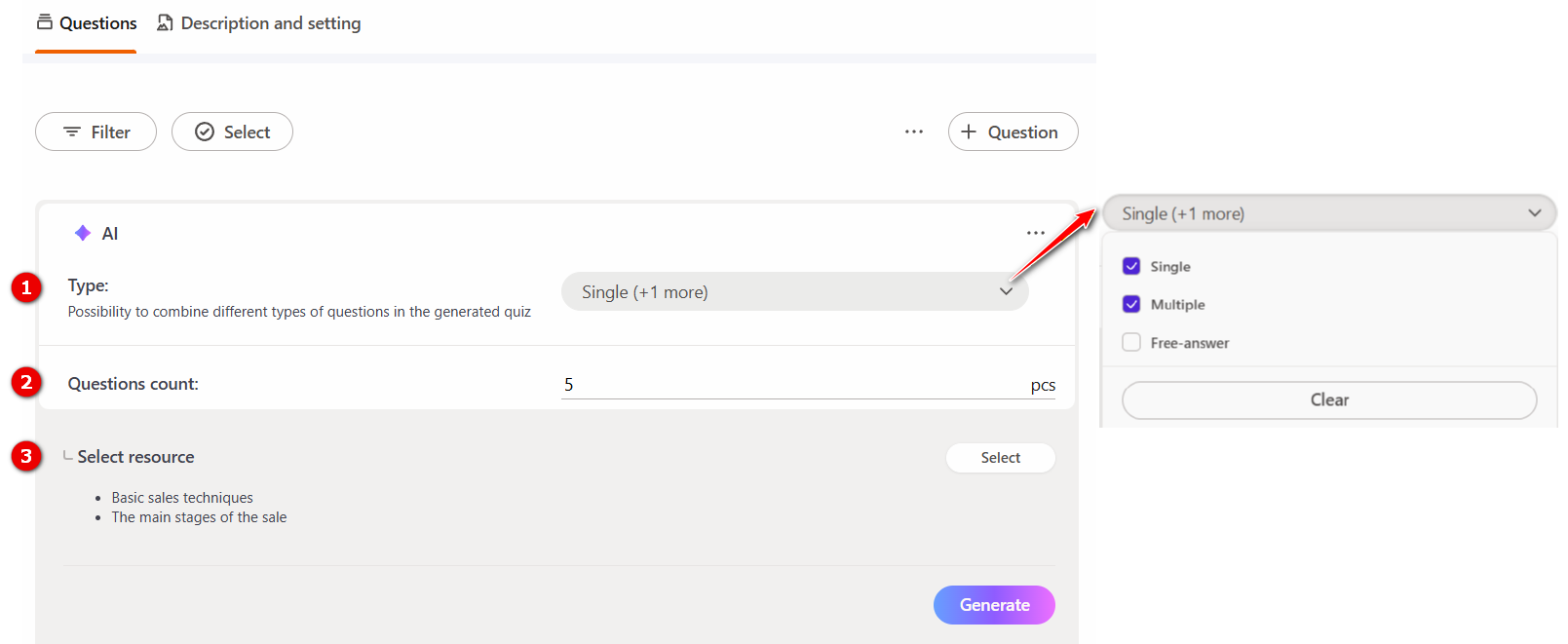
(1) – Question type – in the dropdown menu, select the types of questions to generate. Available options: single-choice questions, multiple-choice questions and free-answer questions. You can select one type or multiple types at the same time.
(2) – Questions count – specify the total number of questions to generate.
(3) – Select resource – choose one or more resources on which the questions will be based by clicking the Select button.
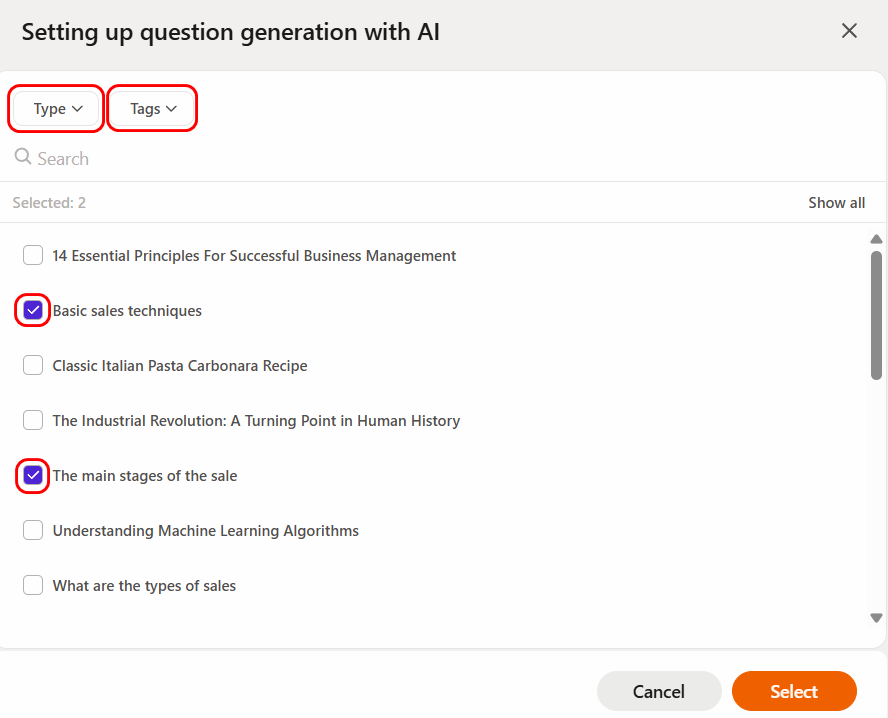
A modal window will display a list of available resources. You can filter them by type (resource - page or adaptive page) or by tags, and also use the search by resource title.
Check the boxes for the desired resources and click Select.
After completing all settings, click the Generate button.
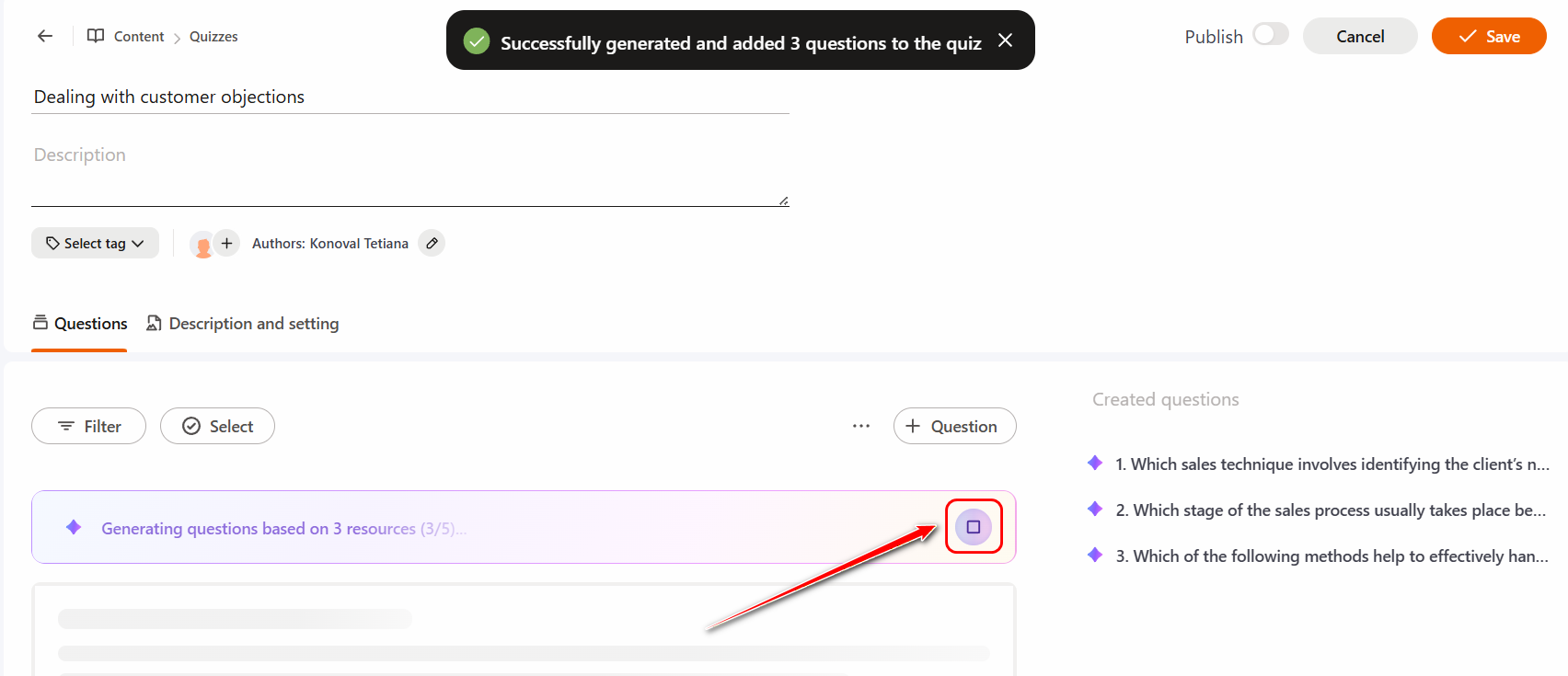
The question generation process will be displayed on the page: for each new question created, the system shows an informational message, and the questions are added to the Created Questions list with the corresponding label.
If needed, you can stop the generation process by clicking the Stop button.
Once generation is complete, the questions will be added to the quiz and will be available for editing and moving, as with other methods of creating them.