
Integration with AI
LMS Collaborator supports integration with the following AI providers:
- OpenAI;
- Azure OpenAI;
- AWS bedrock;
- Google Gemini.
Integration setup with OpenAI
To set up OpenAI integration, follow these steps:
- Select the appropriate provider from the list (1)
- Select the model (2) to be used from the available options:
- GPT-4o Mini
- GPT-4o
- GPT-5 Nano
- GPT-5 Mini
- GPT-5
- GPT-5.2
- Enter the АРІ Token (3) – must be generated in your OpenAI account. To do this, go to the link https://platform.openai.com/account/api-keys, create a new API key, and copy it.
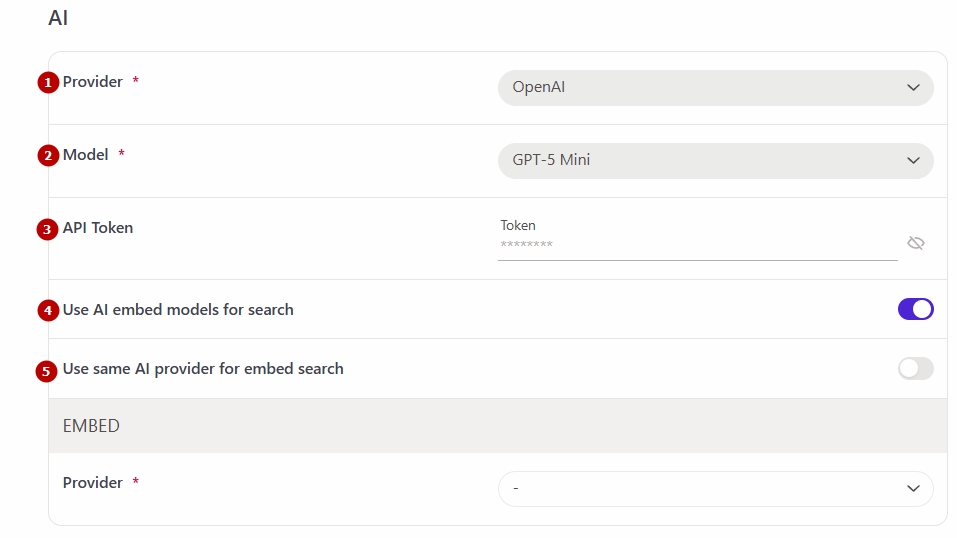
The option Use AI embed models for search (4) enables hybrid search in the knowledge base using embedding-based machine learning and a vector database.
The option Use same AI provider for embed search (5) is available only when the previous option is enabled. It allows the same provider used in the editor (see Editing a resource – page using AI for more details) or when creating tests (see Creating questions with AI for more details) to also be used for knowledge base search.
If this option is not enabled, a separate AI provider can be configured for search in the EMBED section.
Integration setup with Azure OpenAI
To set up Azure OpenAI integration, follow these steps:
- Select the appropriate provider from the list (1)
- Select the model (2) to be used from the available options:
- GPT-4o Mini
- GPT-4o
- GPT-5 Nano
- GPT-5 Mini
- GPT-5
- GPT-5.2
- Enter the API end point (3)
- Enter the АРІ Token (4)
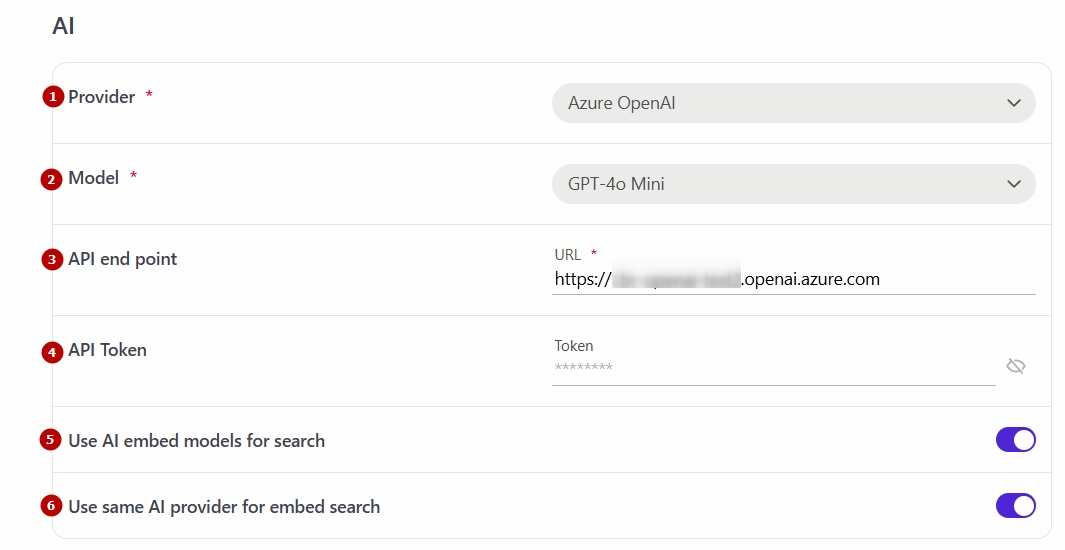
The option Use AI embed models for search (5) enables hybrid search in the knowledge base using embedding-based machine learning and a vector database.
The option Use same AI provider for embed search (6) is available only when the previous option is enabled. It allows the same provider used in the editor (see Editing a resource – page using AI for more details) or when creating tests (see Creating questions with AI for more details) to also be used for knowledge base search.
If this option is not enabled, a separate AI provider can be configured for search in the EMBED section.
Integration setup with Amazon Bedrock
To set up AWS bedrock integration, follow these steps:
- Select the appropriate provider from the list (1)
- Select the model (2) from the available list:
- Amazon Nova 2 Lite
- Amazon Pro 2
- Amazon Pro (Legacy)
- Amazon Nova 2 Sonic
- Anthropic Claude 4.5 Opus
- Anthropic Claude 4.5 Haiku
- Anthropic Claude 4 Sonnet
- Anthropic Claude 3.5 Sonnet (Legacy)
- Specify the AWS region (3)
- Enter the AWS Access key (4) and AWS Secret key (5) - key must be generated in the AWS Management Console: https://aws.amazon.com/console.
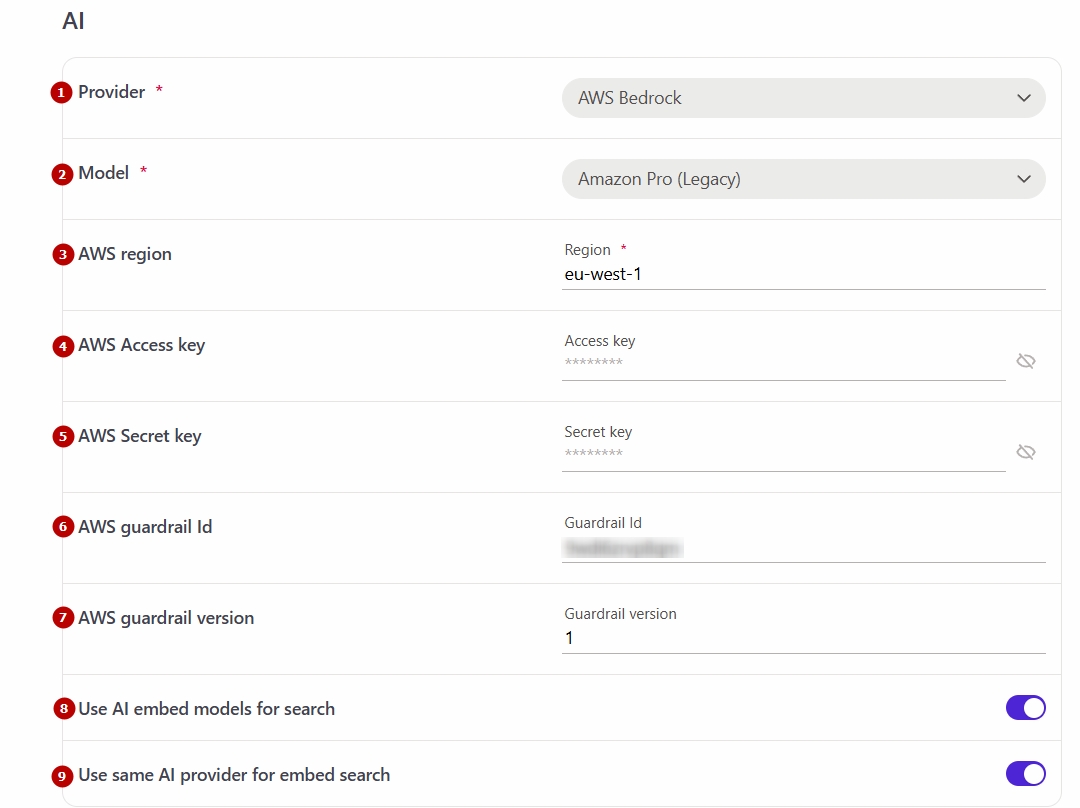
If necessary, you can specify:
- AWS Guardrail Id (6) — a unique identifier for the guardrail that defines the security and governance rules for the integration (see How Amazon Bedrock Guardrails works for more details). This value is configured in AWS Bedrock and is required to ensure proper enforcement of protection policies.
- AWS Guardrail Version (7) — the version of the guardrail used to ensure compatibility.
The option Use AI embed models for search (8) enables hybrid search in the knowledge base using embedding-based machine learning and a vector database.
The option Use same AI provider for embed search (9) is available only when the previous option is enabled. It allows the same provider used in the editor (see Editing a resource – page using AI for more details) or when creating tests (see Creating questions with AI for more details) to also be used for knowledge base search.
If this option is not enabled, a separate AI provider can be configured for search in the EMBED section.
Integration setup with Google Gemini
To set up Gemini integration, follow these steps:
- Select the appropriate provider from the list (1)
- Select the model (2) to be used from the available options:
- Gemini 3.1 Pro
- Gemini 3 Flash
- Gemini 3 Flash Lite
- Enter the АРІ Token (3) – must be generated in your Google AI Studio account. To do this, go to the link https://aistudio.google.com/app/apikey, create a new API key, and copy it.
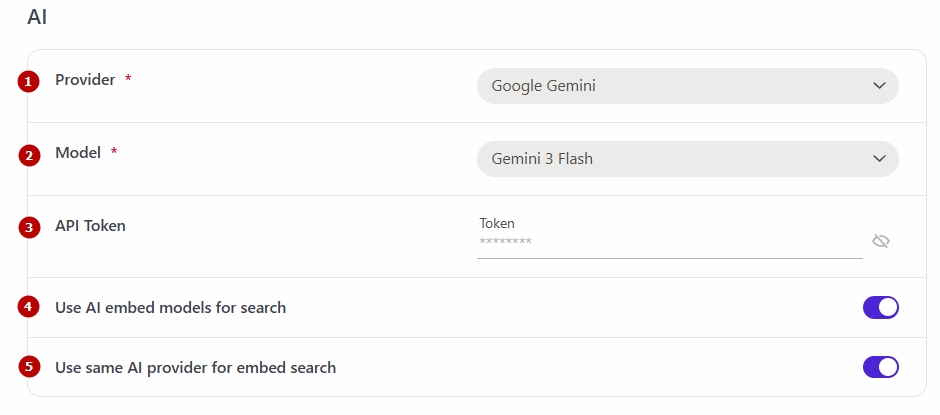
The option Use AI embed models for search (4) enables hybrid search in the knowledge base using embedding-based machine learning and a vector database.
The option Use same AI provider for embed search (5) is available only when the previous option is enabled. It allows the same provider used in the editor (see Editing a resource – page using AI for more details) or when creating tests (see Creating questions with AI for more details) to also be used for knowledge base search.
If this option is not enabled, a separate AI provider can be configured for search in the EMBED section.
Integration setup with Anthropic Claude
To set up Anthropic Claude integration, follow these steps:
-
Select the appropriate provider from the list (1)
-
Select the model (2) to be used from the available options:
- Claude Haiku 4.5
- Claude Sonnet 4.6
- Claude Opus 4.8
-
Enter the АРІ Token (3) – must be generated on the official Anthropic Console developer platform. To do this, go to the link https://platform.claude.com, create a new API key, and copy it.
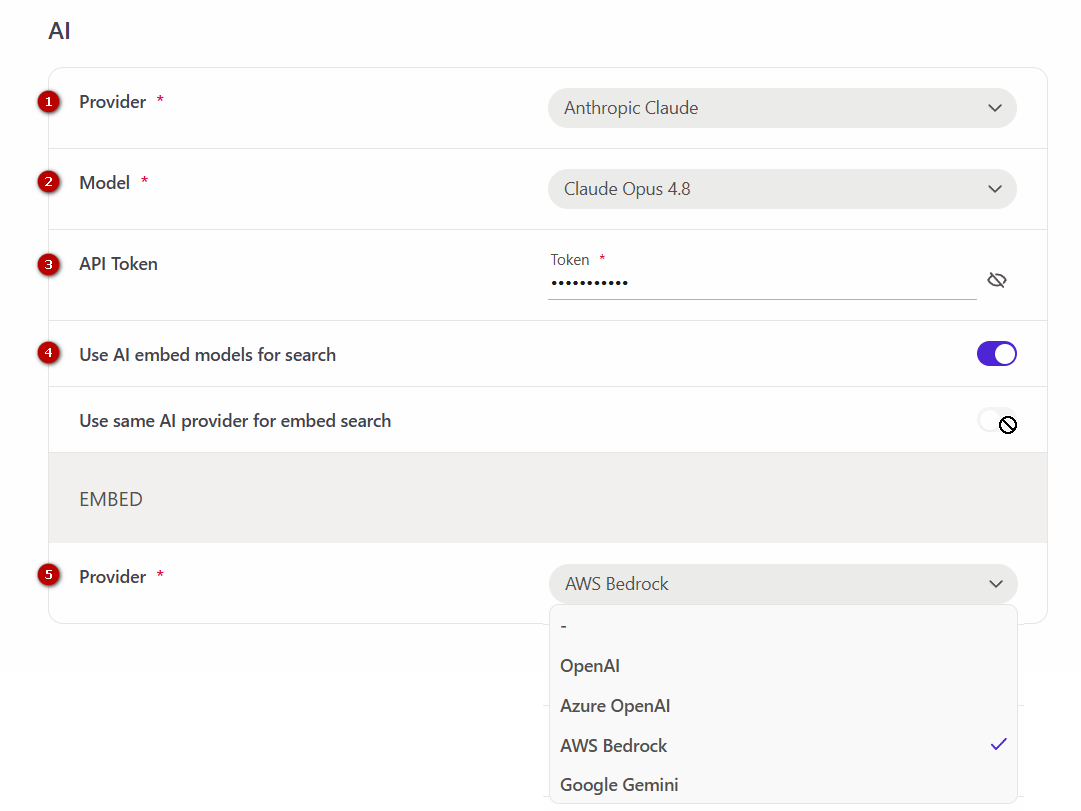
The option Use AI embed models for search (4) enables hybrid search in the knowledge base using embedding-based machine learning and a vector database.
To configure hybrid search in the Knowledge Base, select the AI Provider (5) in the EMBED block and configure the corresponding integration separately.