Google Integration
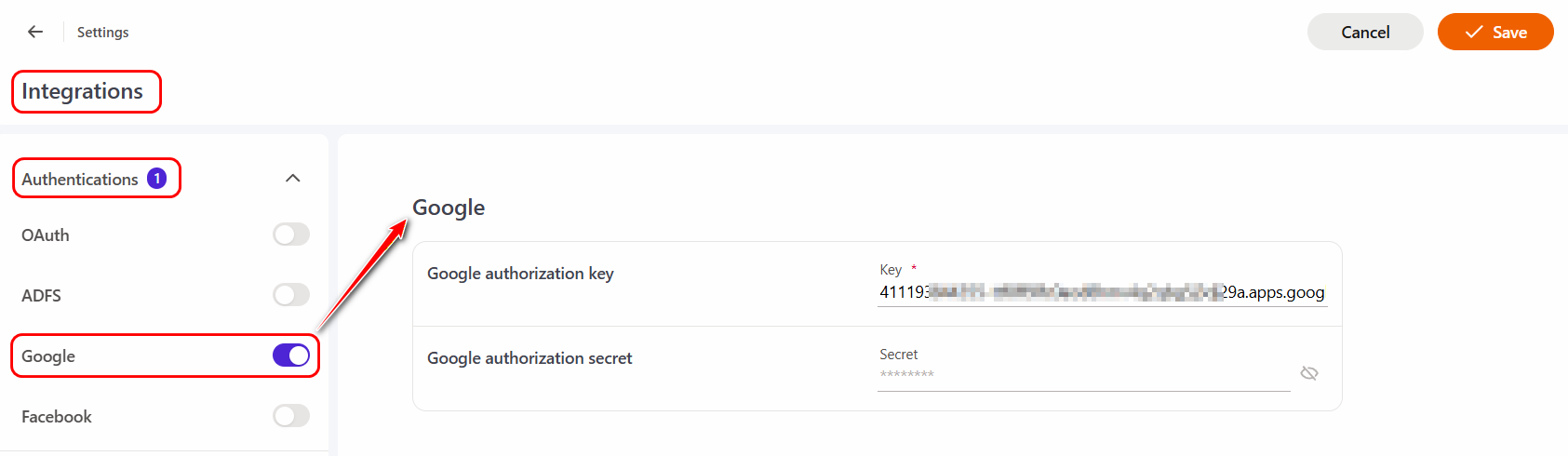
To configure integration with Google, go to the System Settings - Integrations menu on the Integrations page in the Authentications section, in the Google item, enable the slider and fill in the following parameters:
- Google authorization key
- Google authorization secret
Click the Save button.
To generate Google authorization key and Google authorization key(secret) you need to:
-
Open the console Google Cloud Platform;
-
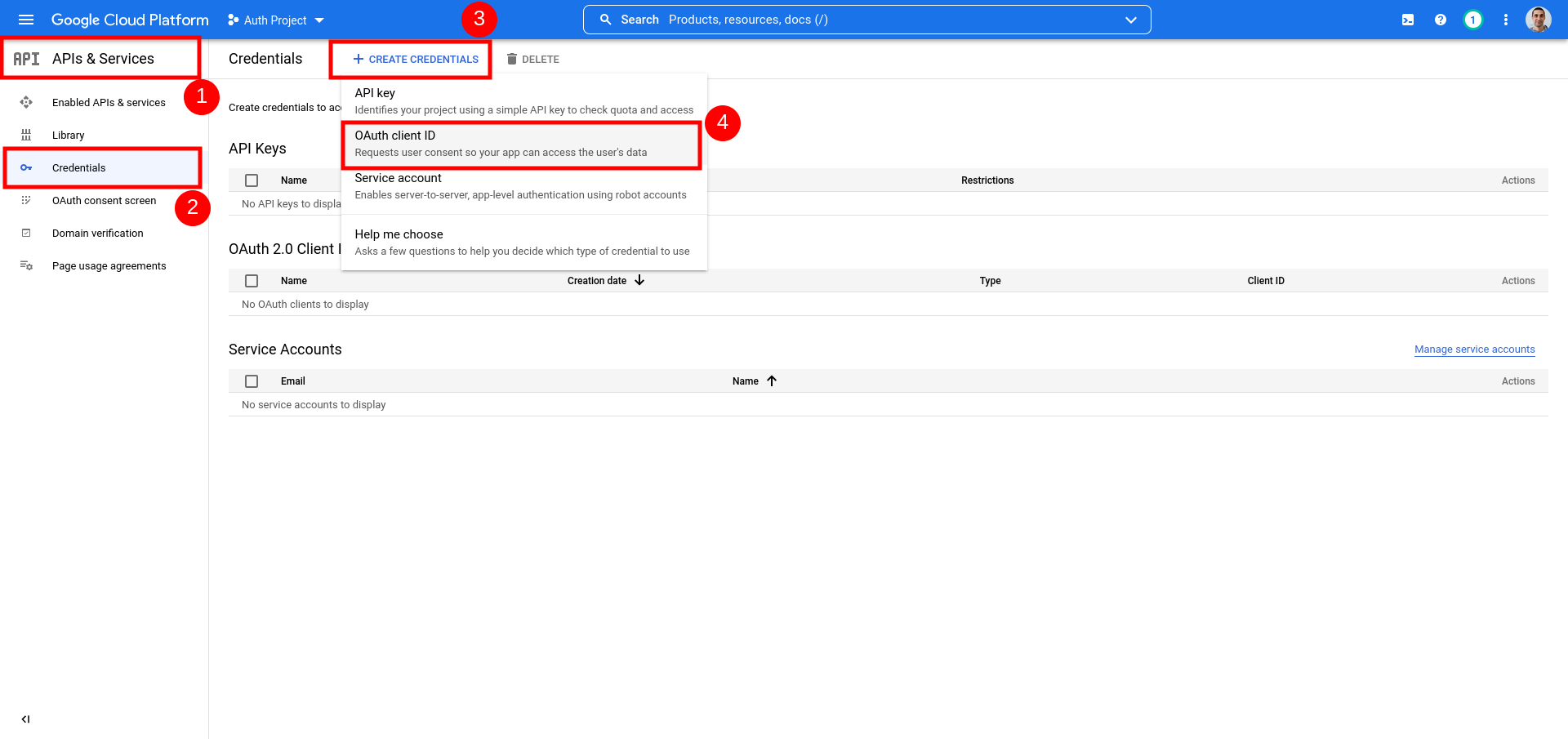
In the list of projects, select a project or create a new one. Then in the left menu of the console open the APIs&Services page and click Credentials
-
Click CREATE CREDENTIALS and select OAuth client ID
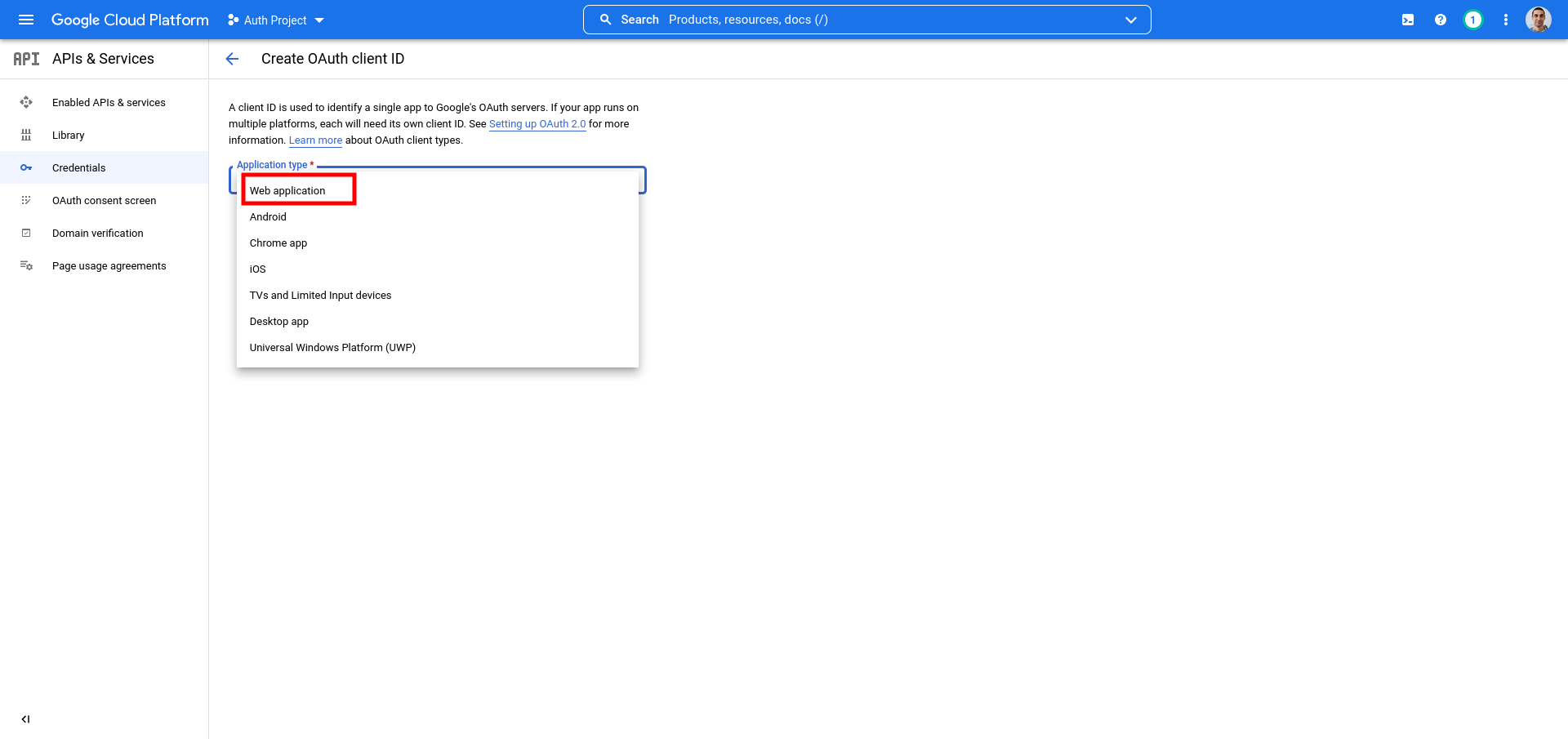
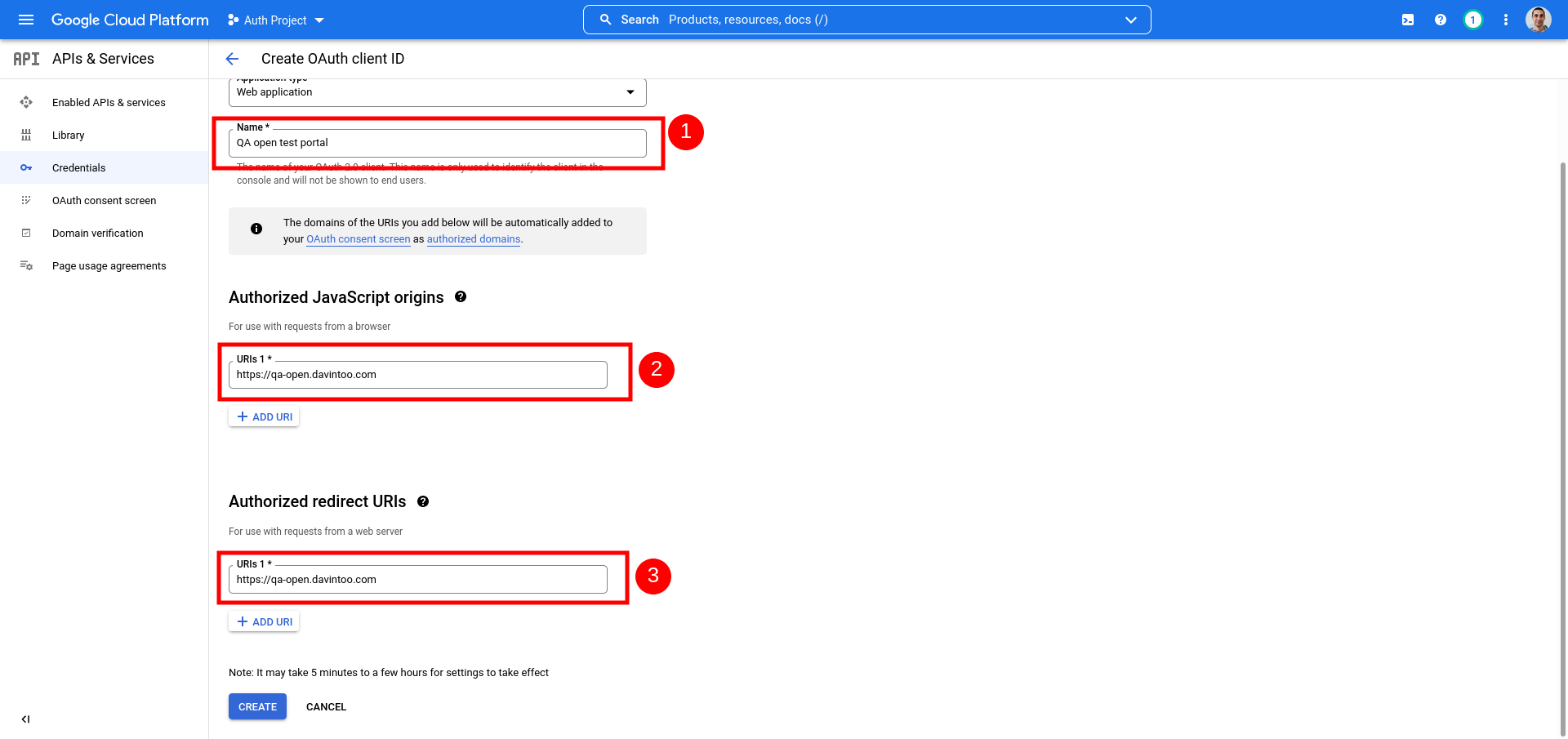
- Select Application type > Web application
- In the Name field, enter a name for the credentials. This name is displayed only in Cloud Console.
In Authorized JavaScript origins and Authorized redirect URIs you must specify the portal domain - https://your-domain-address and press the Create button
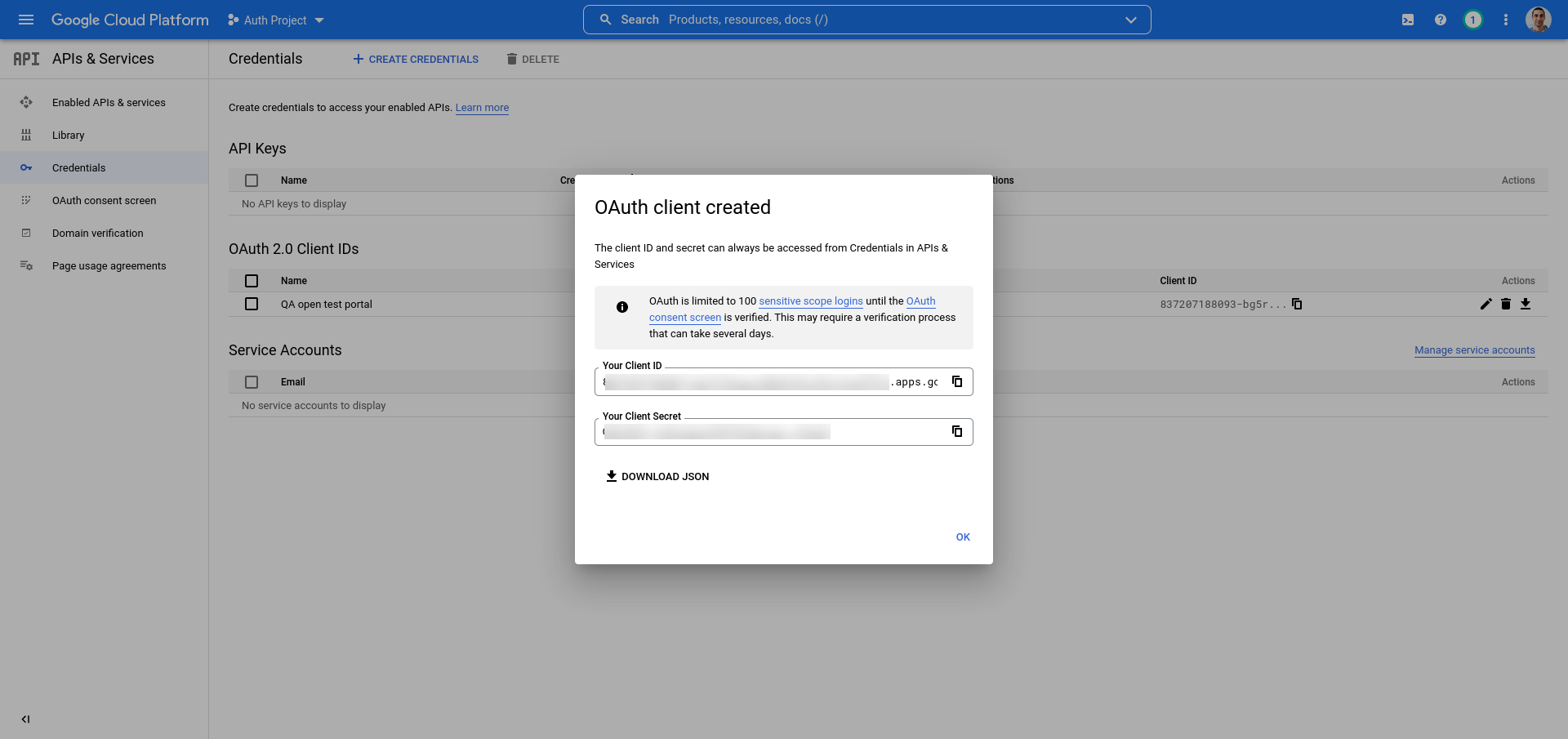
- The OAuth client creation screen will appear, showing your Client ID and Client secret. Copy them to add to the Integration settings in the Collaborator learning portal.