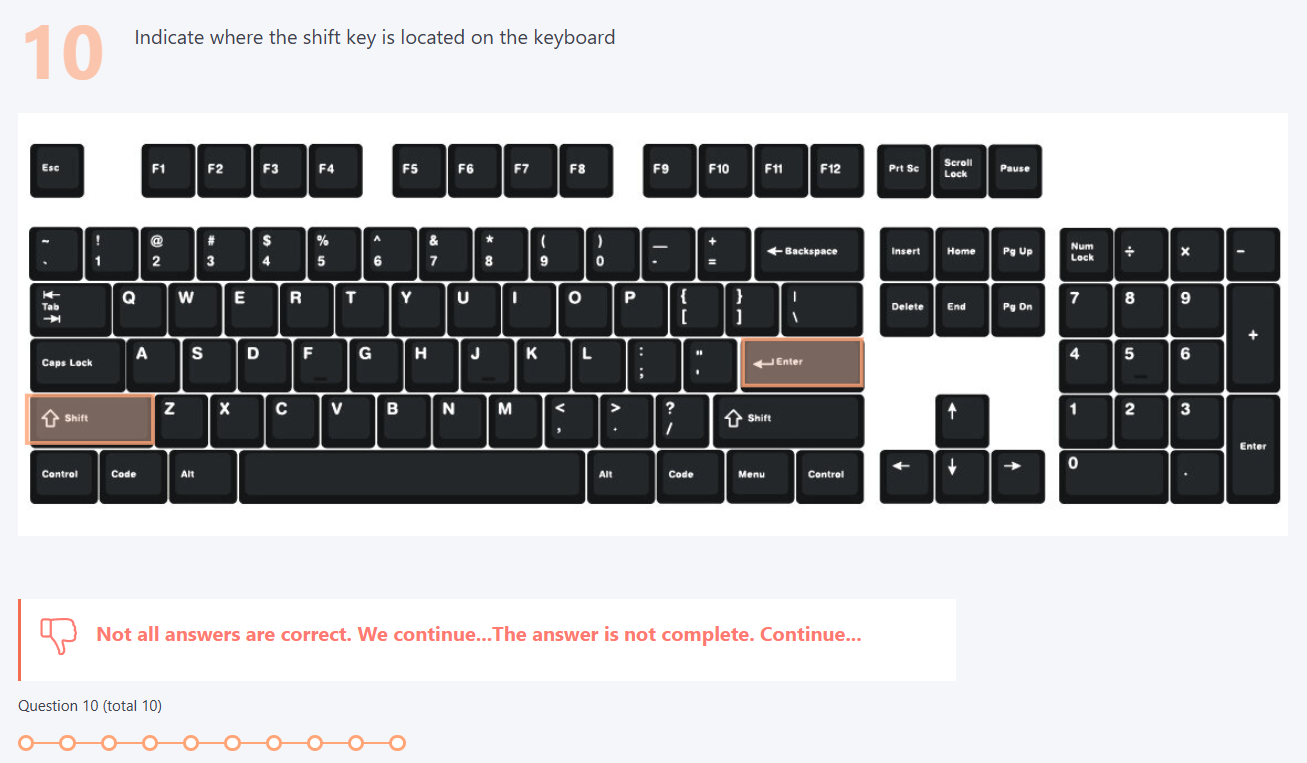
Types of questions in quiz
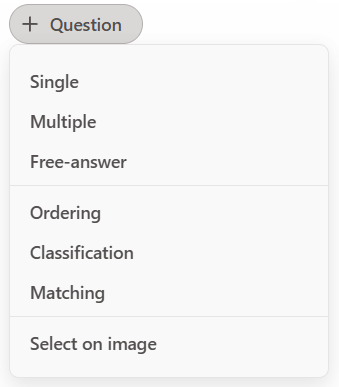
There are 7 types of questions that can be used in the quiz:
- single,
- multiple,
- free-answer,
- ordering,
- classification,
- matching,
- select on image.
It is also possible to upload files in xls or xlsx format in the question text.
Single question type
Single question - a closed-type question that contains an unlimited number of answer variants and only one answer variant is correct. While testing, the user can select only one answer variant as the correct answer.
If the user chooses the correct answer, he earns the number of points specified in the «Question Weight» parameter. Otherwise the user gets 0 points for the answer to the question.
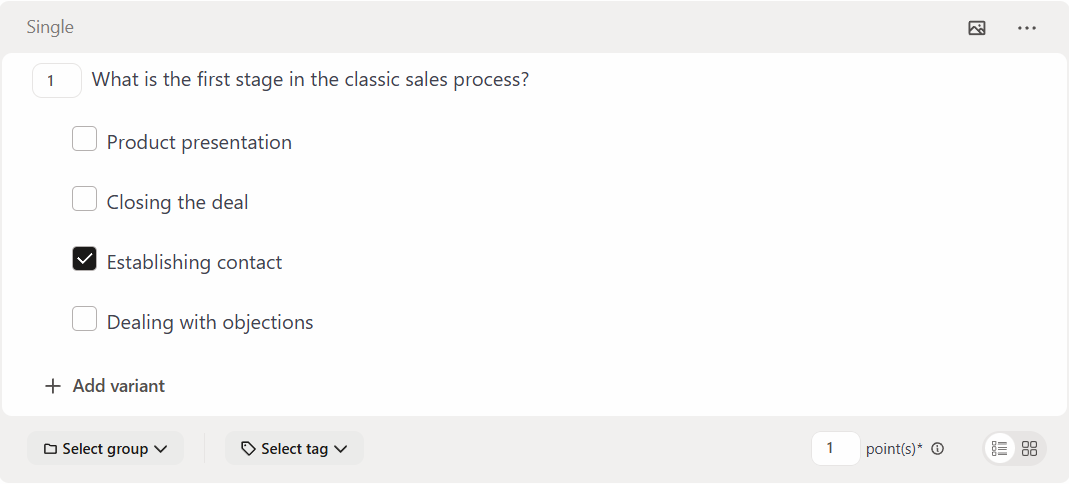
Example of creating a Single question type:
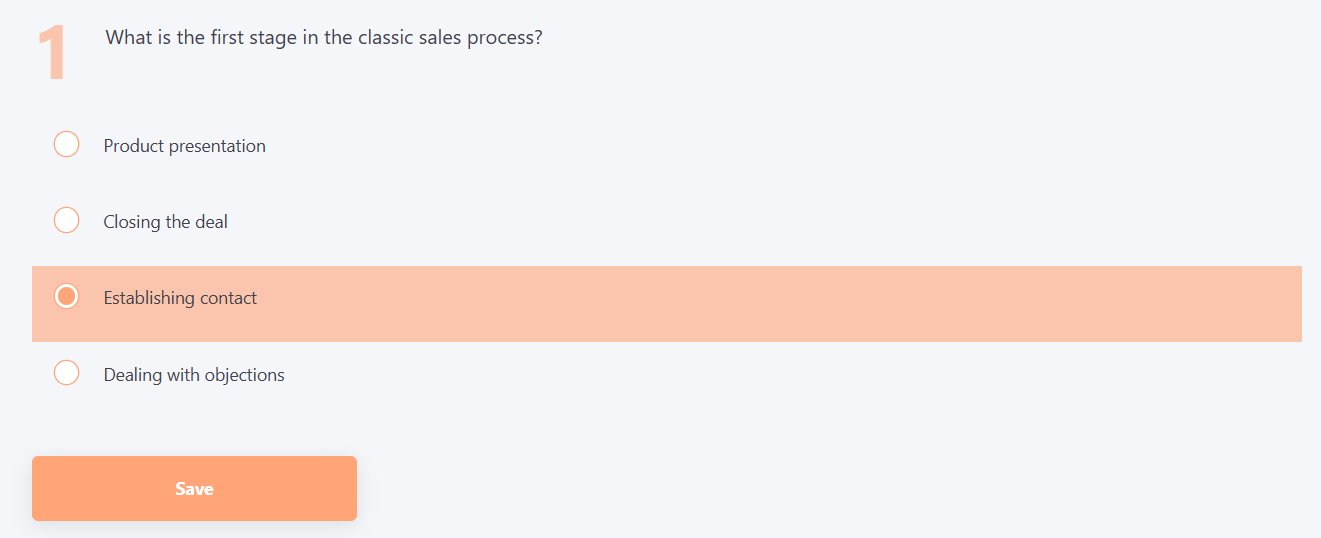
Example of answering a Single question type:
Multiple question type
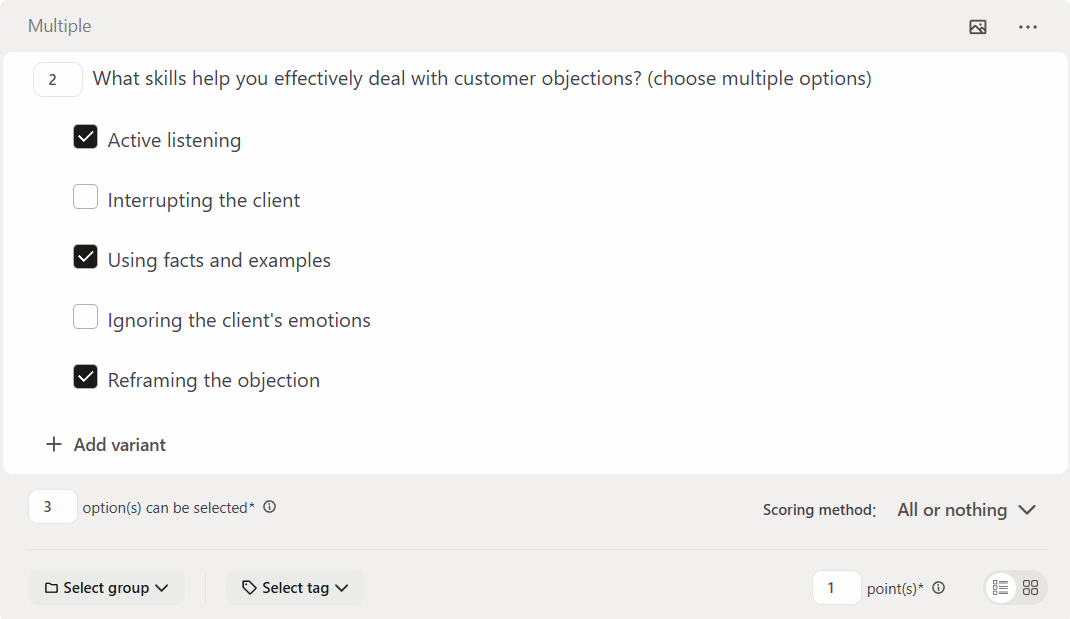
Multiple question is the duestion of the closed type that contain an unlimited number of answer options and several answer options are correct.
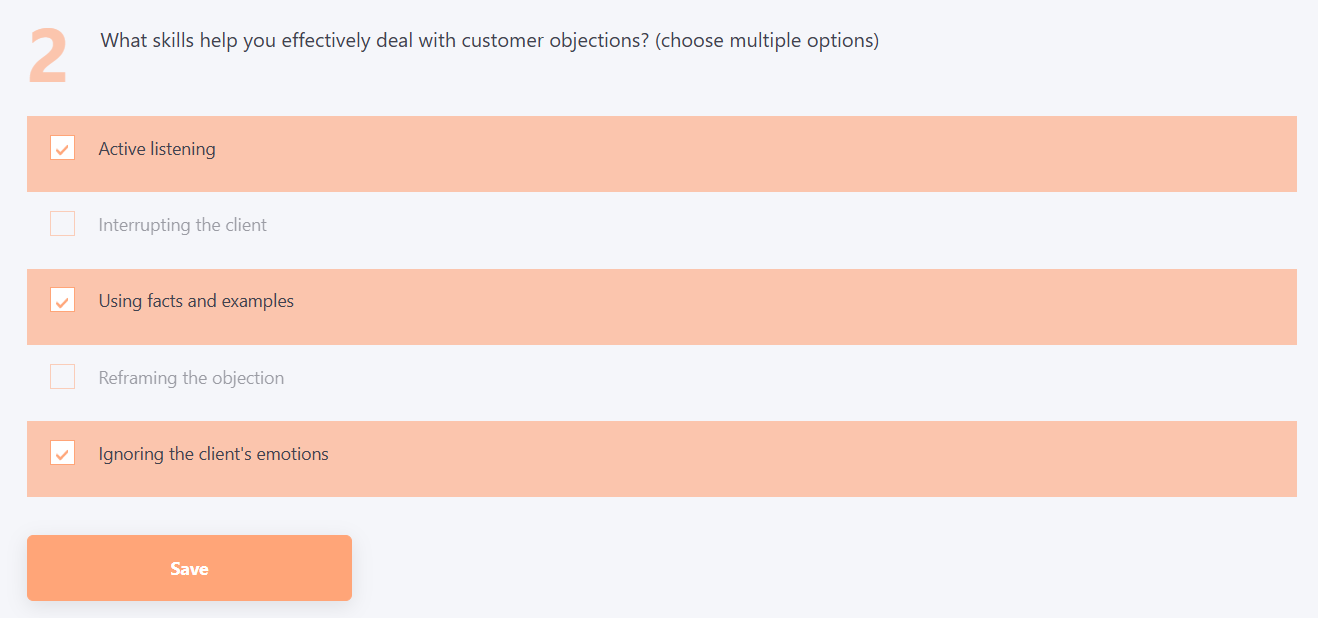
While testing, the user can select either one or more answer variants as correct answers.
Scoring for an answer can be done in two ways:
- By formula - the result is calculated based on a formula (more details in calculation of results for a multiple-choice question);
- All or nothing - the result is unsatisfactory if at least one mistake was made.
When using the Formula scoring method, points may be awarded in part, depending on the number of correctly selected options. When choosing the All or Nothing method - the user receives the maximum score specified in the question parameter Question Weight, only if all correct answer options and no incorrect ones are selected.
In the Answers number that could be selected field, a number is automatically set equal to the number of correct answers. But this number can be changed: it cannot be less than the number of correct answers and greater than the number of all answers to the question.
Example of creating Multiple question type:
Example of answering a Multiple question type:
Free - answer questions type
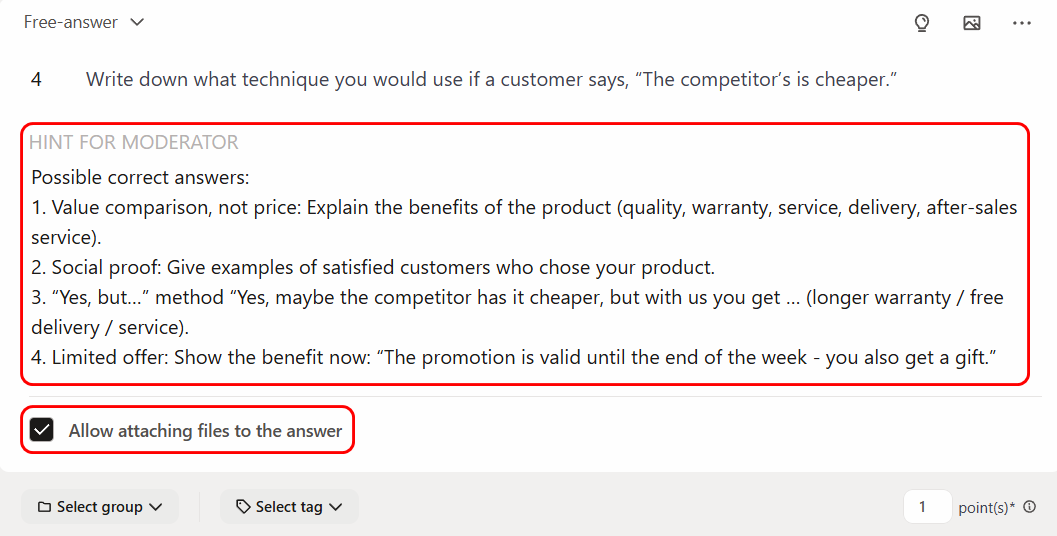
The "Free-answer" type of question assumes that the user writes their own answer. The user also has the ability to attach a file to the answer. To do this, when creating/editing a question, you need to check the checkbox "Allow attaching files to the answer"
The maximum size of the file that can be attached to the Free-answer question is 200 Mb.
You can also add a comment in the "Hint for moderator" field. This hint helps the responsible reviewer assess the correctness of the user's answer during the evaluation process. More details: Answers for checking
Example of creating a free-answer question type:
Example of answering a free-answer question type:
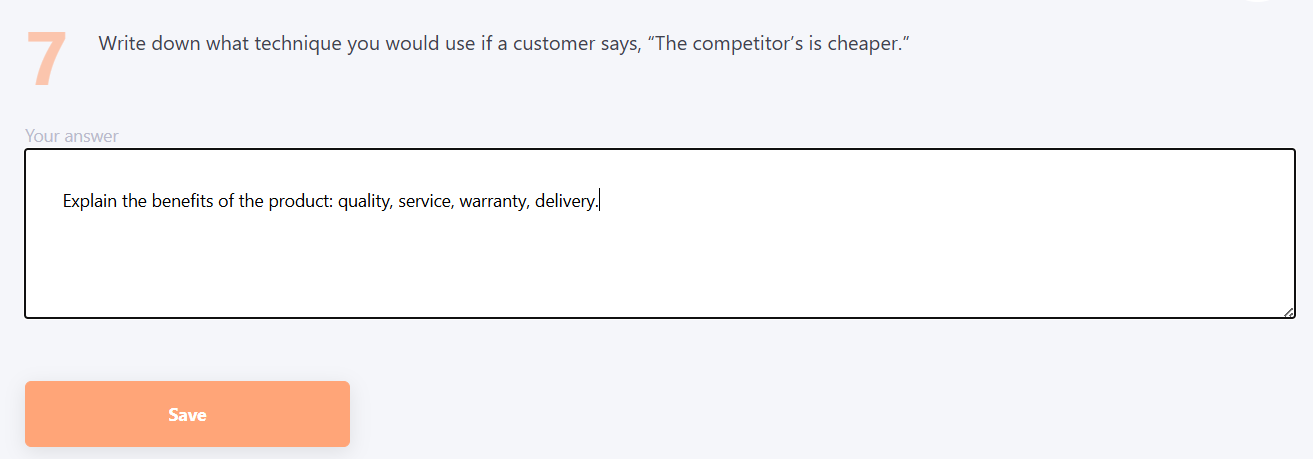
After the answer is given, this type of question requires a check by the Tutor.
A list of the free-answer questions received will be provided in the Moderation - Check Answers section (find more on - Answers for checking).
If you set the question weight to 1 point, then when checking such a question, you can choose two options: "Correct" or " Wrong".
If you set the weight of the question more than 1 point (for example, 5) when testing will need to evaluate the answer a certain number of points from a specified range (for example, from 0 to 5).
Ordering questions type
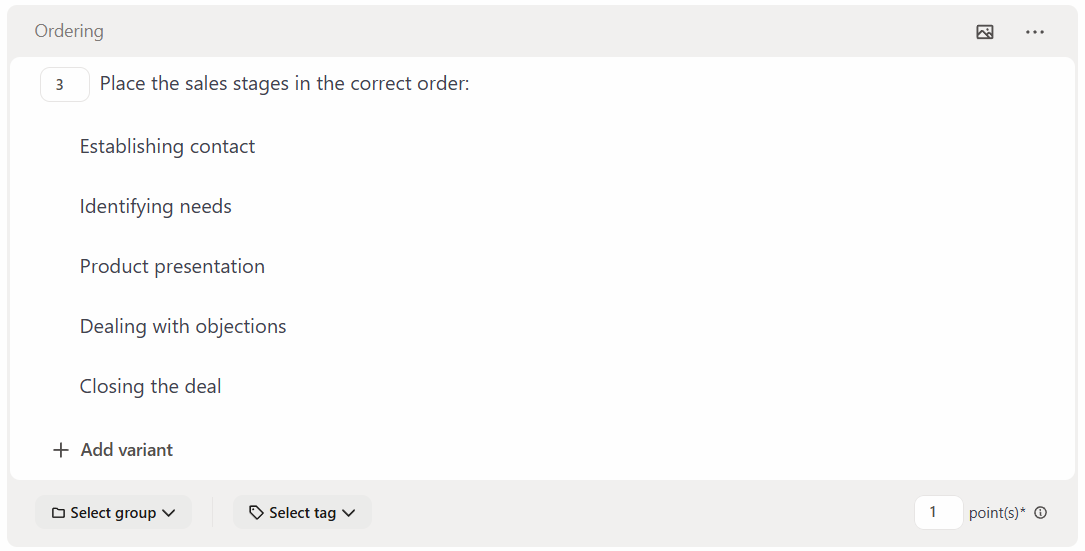
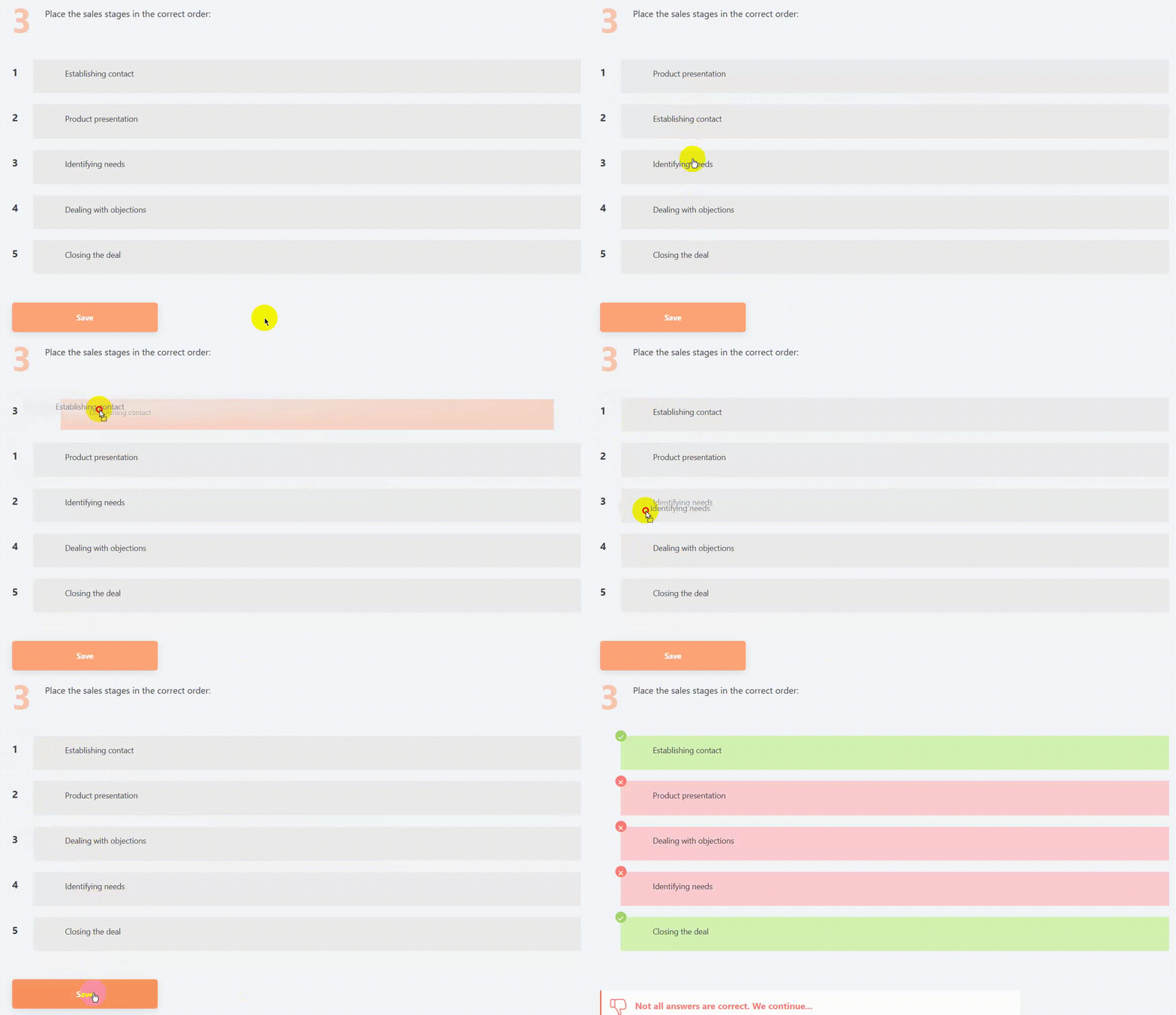
The “Ordering question” type requires arranging the answer options in the correct order.
During the quiz, the user must place the answer options in the same order as defined when the question was created.
Example of creating Ordering question type :
Example of answering Ordering question type :
Classification questions type
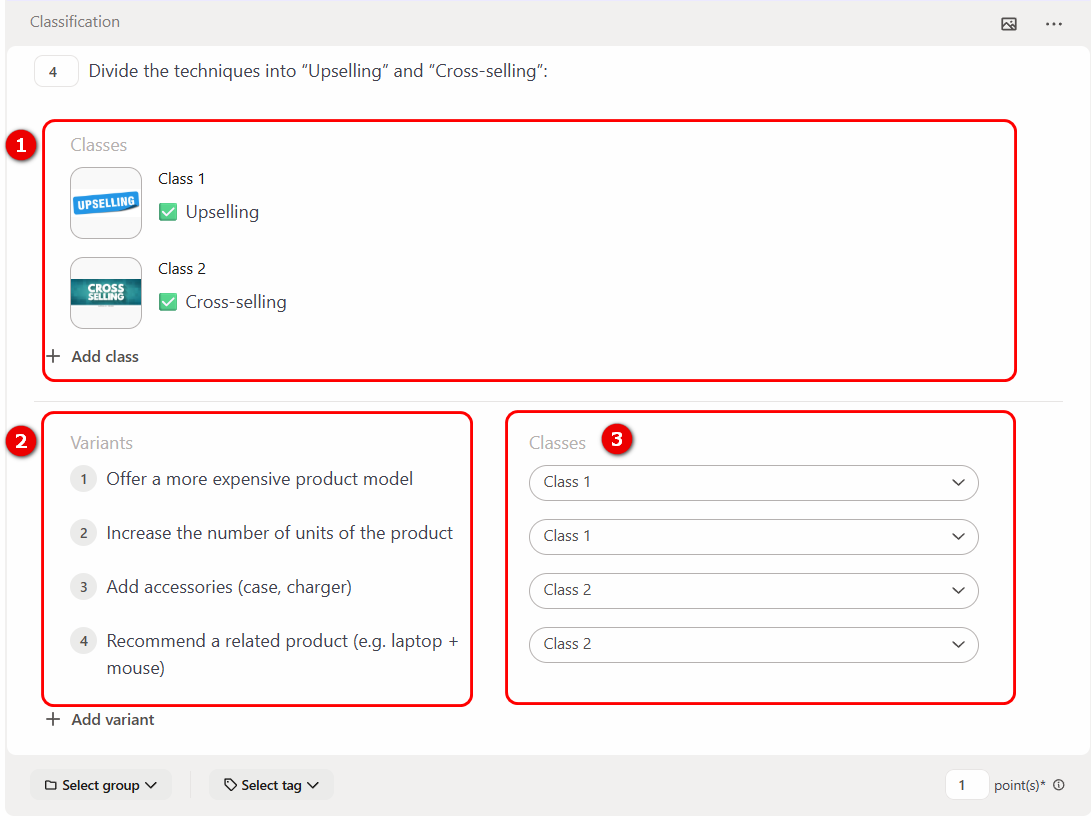
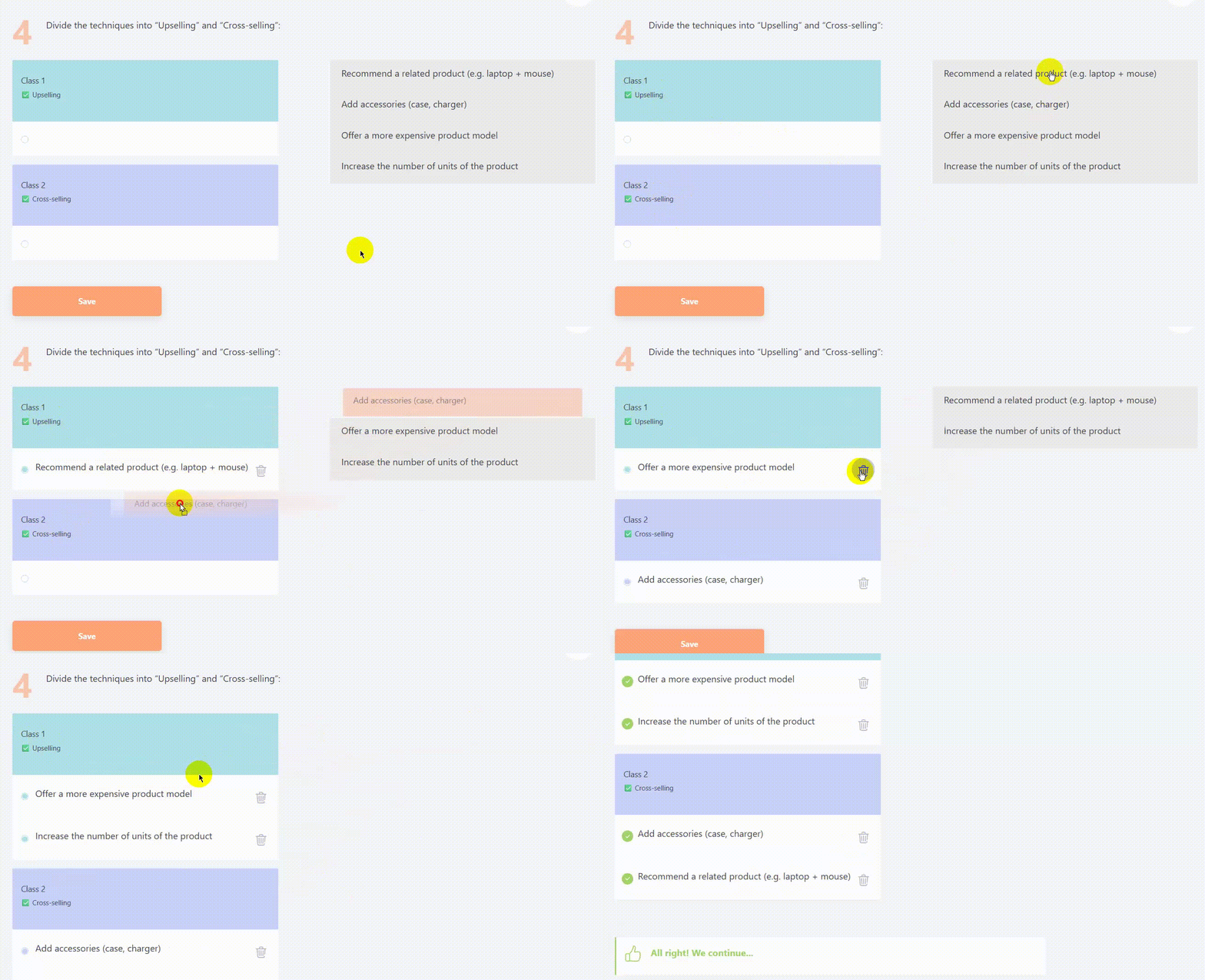
In this type of question, the user needs to assign answer variants to the suggested categories. Drag and drop the answer variants into the selected categories, similar to the ordering question.
When creating this type of question, you first need to enter the class options (1), then the answer variants (2), and select from the dropdown list which class (3) they belong to.
Example of creating Classification questions type:
Example of answering Classification questions type:
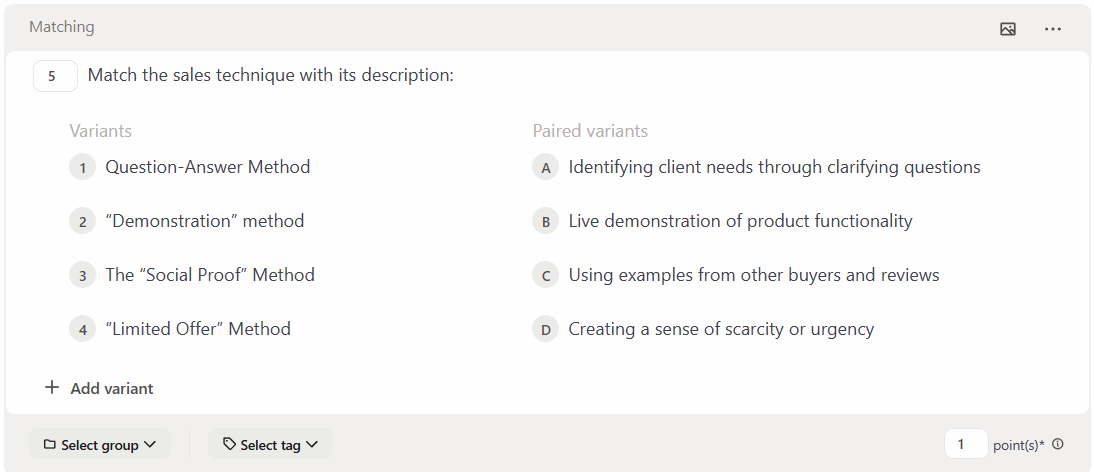
Matching questions type
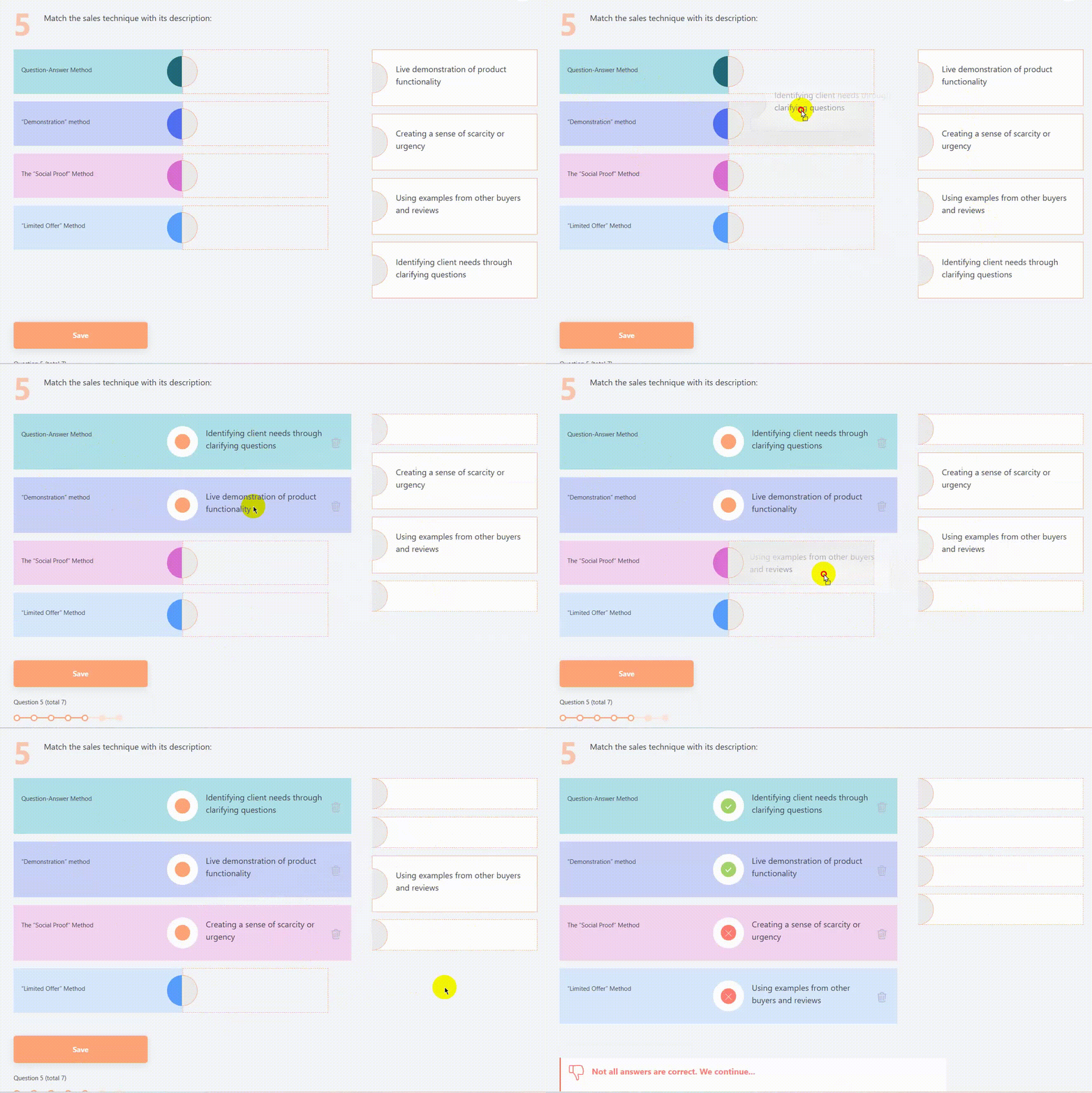
In the matching questions you need to connect the answer variants with the paired variants.
Example of creating Matching questions type:
Example of answering Matching questions type:
Select on image questions type
Question type “Select on image” involves selecting the correct fragment on an image.
When creating a question, the following fields must be completed:
(1) - Question text;
(2) - Upload an Image for answer selection;
(3) - Specify the correct answer variant in the answer choices. If necessary, multiple correct answers can be selected. In this case, the question result will be calculated By formula (more details: Calculation of results for quizzes).
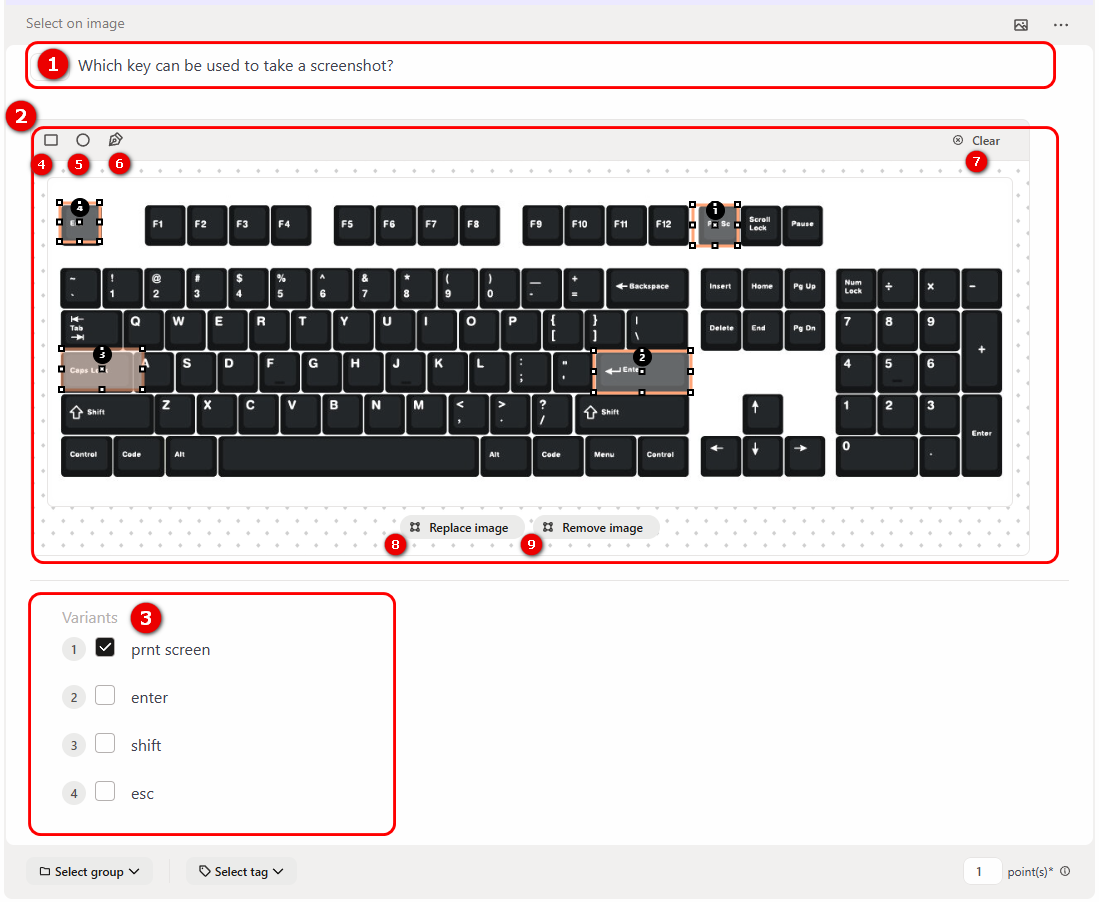
After uploading an image using the editor, you need to select areas of the image for the answer options.
The editor provides the following buttons:
(4) - Rectangle selection tool;
(5) - Circle selection tool;
(6) - Polygon selection tool.
To change the size or position of the selected shapes, hover the cursor over them. When the icon is highlighted, the shape becomes available for editing.
(7) - Clear – deletes all drawn shapes. After clearing, all created areas will be removed permanently and cannot be restored.
(8) - Replace image – upload a different image.
(9) - Remove image.
Each fragment on the image is marked with a number. These numbers correspond to the answer variants. You need select the correct option in the answer choices.
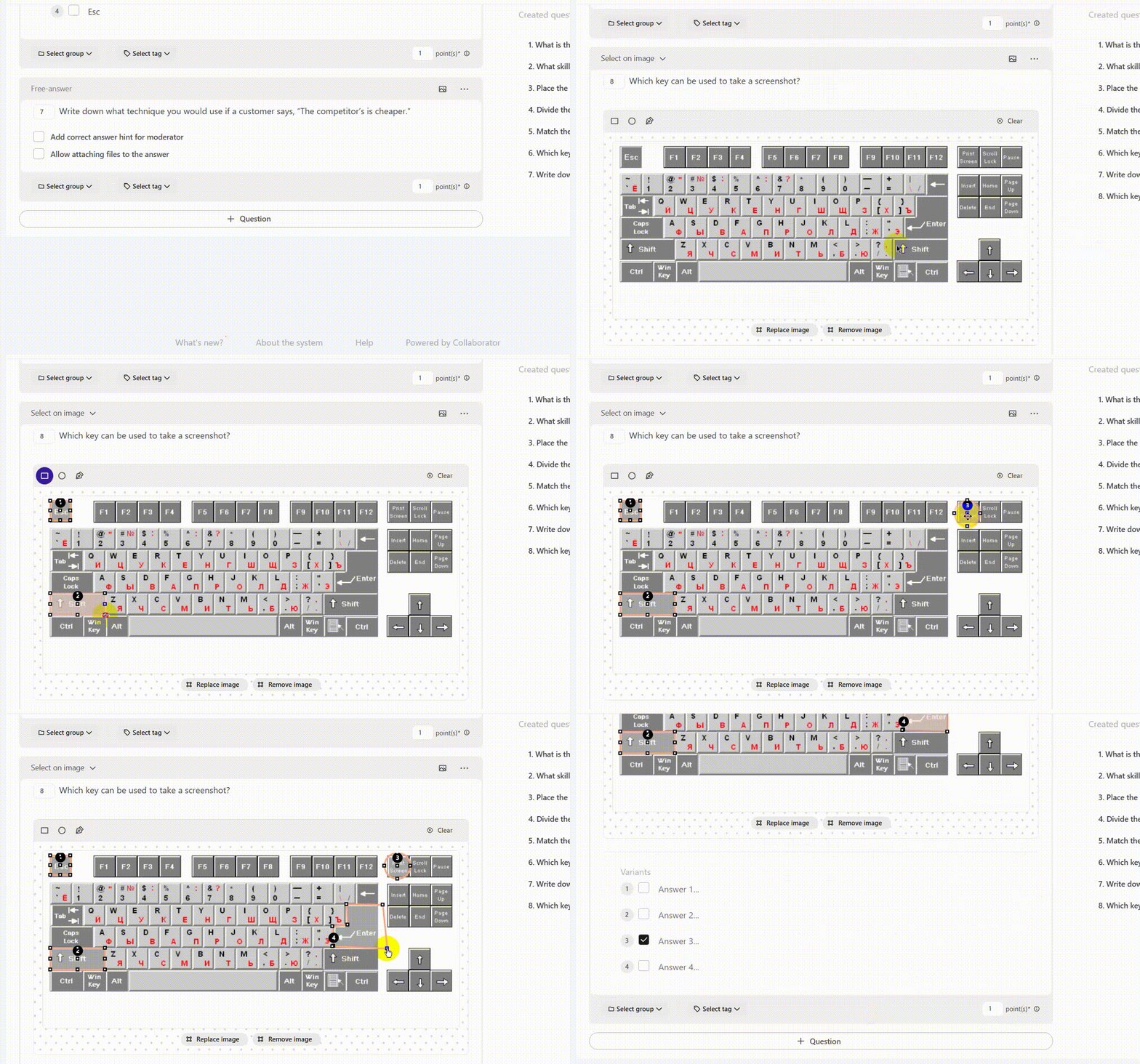
Example of creating "Select on image" questions type
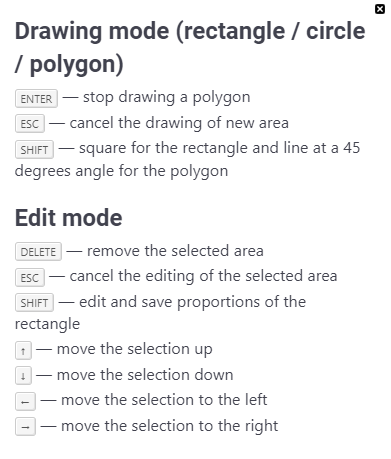
Information about additional features for drawing and editing shapes.
Example of answering an Select on image question type:
When you pass a question, only the image is available to the user. When hovering the cursor the fragments are highlighted. The user can select one of these fragments and save the answer.
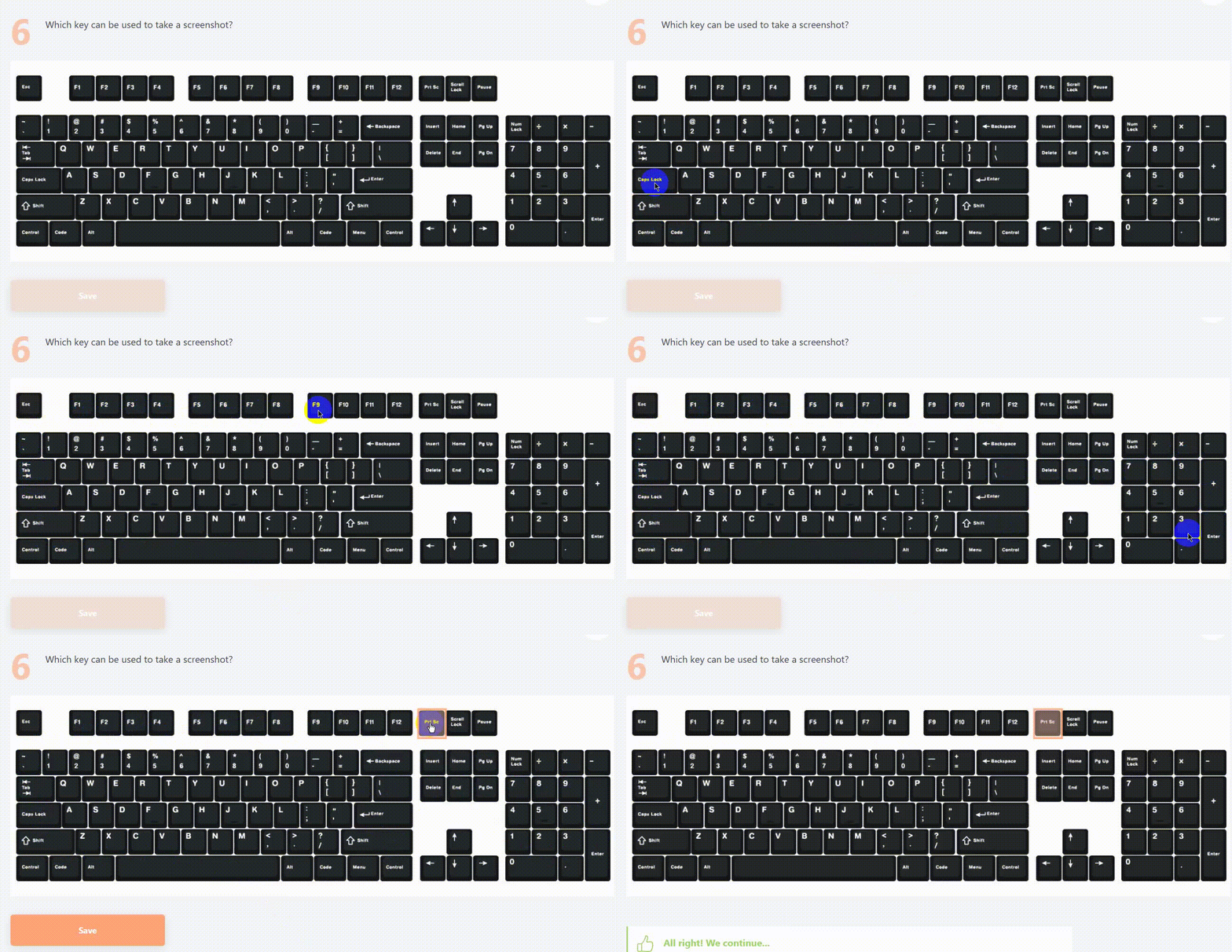
If there are multiple correct answers, the user can select no more fragments than the specified number of correct answers. If they try to select more options, the selection will be blocked. To change their choice, the user needs to deselect one of the already chosen fragments and select a new one.