
User groups
User groups - are dynamic groups, the composition of which is automatically formed by the system based on the specified user attributes.
For each group, you can configure Rules by which the system determines which users should belong to it. For example, you can create a group "Territorial Sales Managers" and set the rule Position - Sales Manager, City - Kyiv. In this case, all users with the corresponding position and city will automatically be included in the group. The system automatically tracks changes in user attributes. If a user begins or ceases to meet the specified Rules, his membership in the group is automatically updated.
In addition to automatic addition according to rules, users can be added to the group manually.
User Groups Table
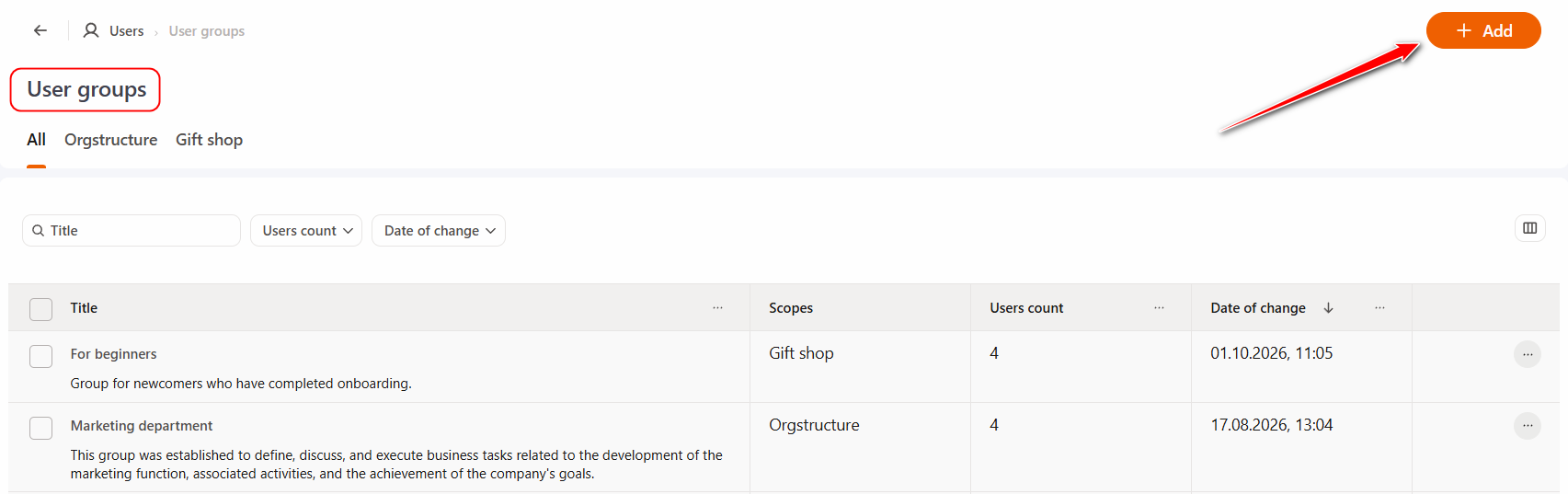
To view the list of created User Groups, go to the Users - User Groups menu.
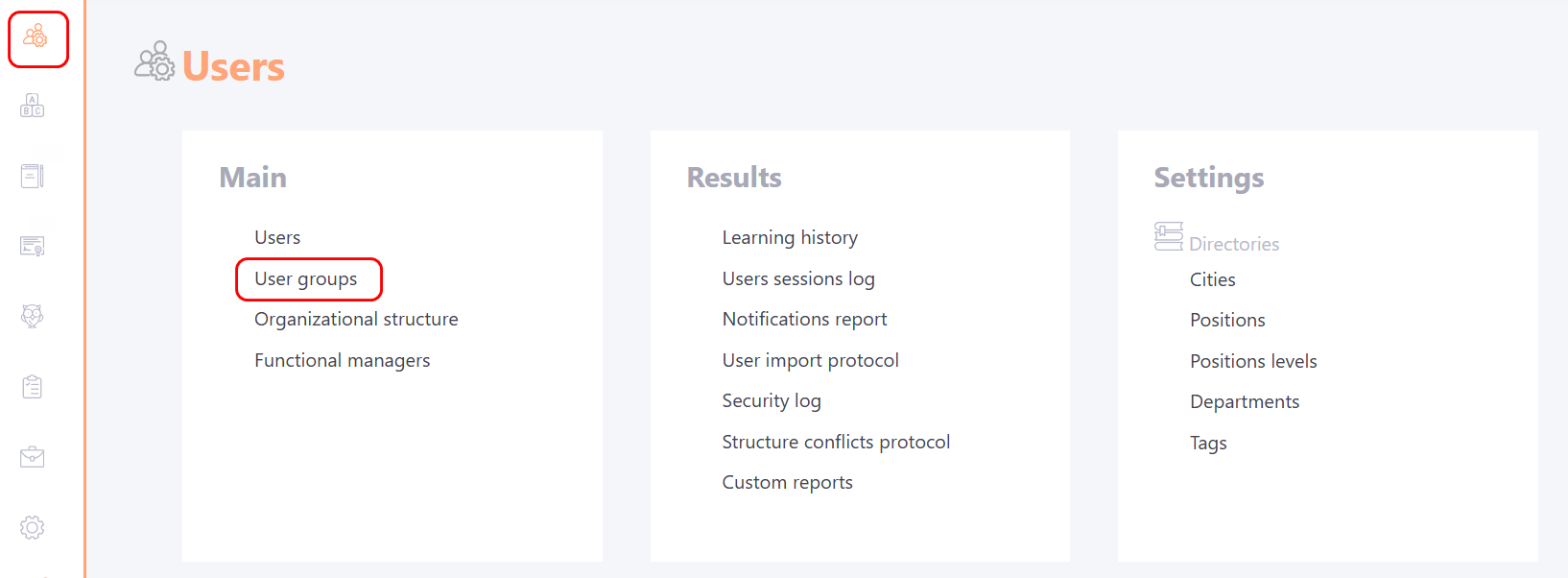
The User Groups page displays a list of all created Groups and basic information about them.
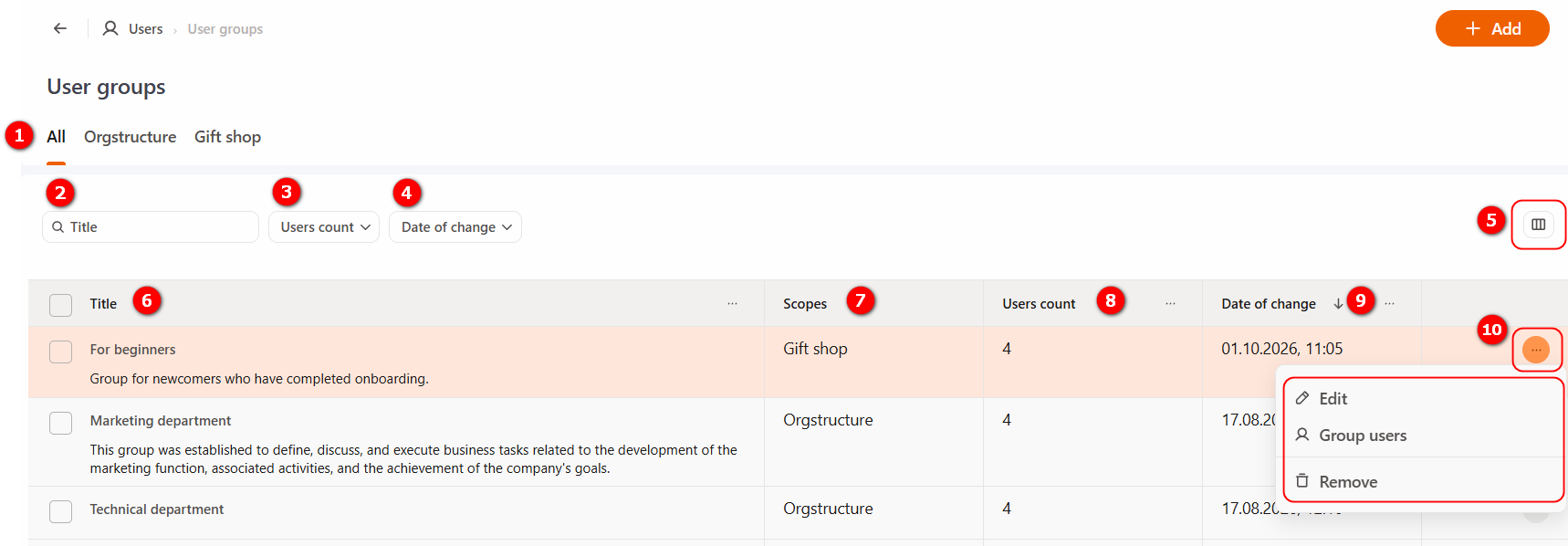
(1) - Filtering by scope. Ability to quickly switch between tabs with User Groups used in a specific area of the system.
(2) - Search - ability to find a group by its title.
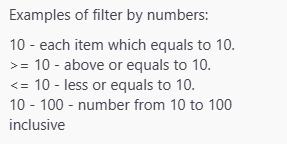
(3) - Users count - ability to filter groups by the number of users.
The following conditions apply to filtering:
(4) - Date of change - allows you to select the date or period during which the group was modified.
(5) - Table settings - allows you to configure the columns displayed in the table.
(6) - Title of the user group. You can sort alphabetically by this column.
(7) - Scopes - displays the system sections in which the Group is used.
(8) - Users count - displays the total number of users belonging to the group.
(9) - Date of change - displays the date and time of the last change to the group. You can filter and sort by this column.
(10) - Actions button - for each group, you can perform the following actions:
- Edit - go to edit group settings.
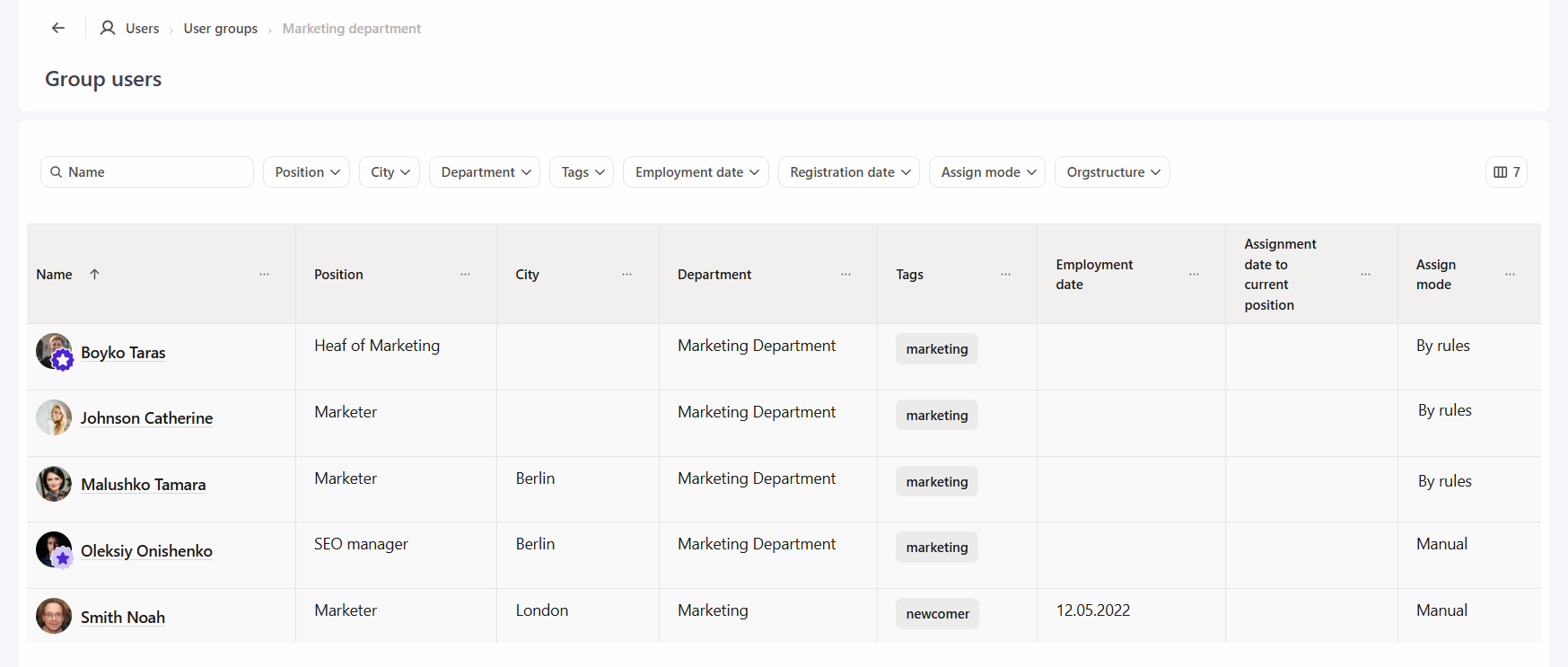
- Group users - the ability to view a table of users belonging to the group. For each user, the following is displayed: Full name; position; city; department; tags; position level; employment date; assignment date to current position; registration date; Assign mode - by rule or manual.
- Remove - remove a user group.
Creating a User Group
To create a new Group, on the User Groups page click the Add button.
The User Group creation page displays the following fields for filling in and configuring:
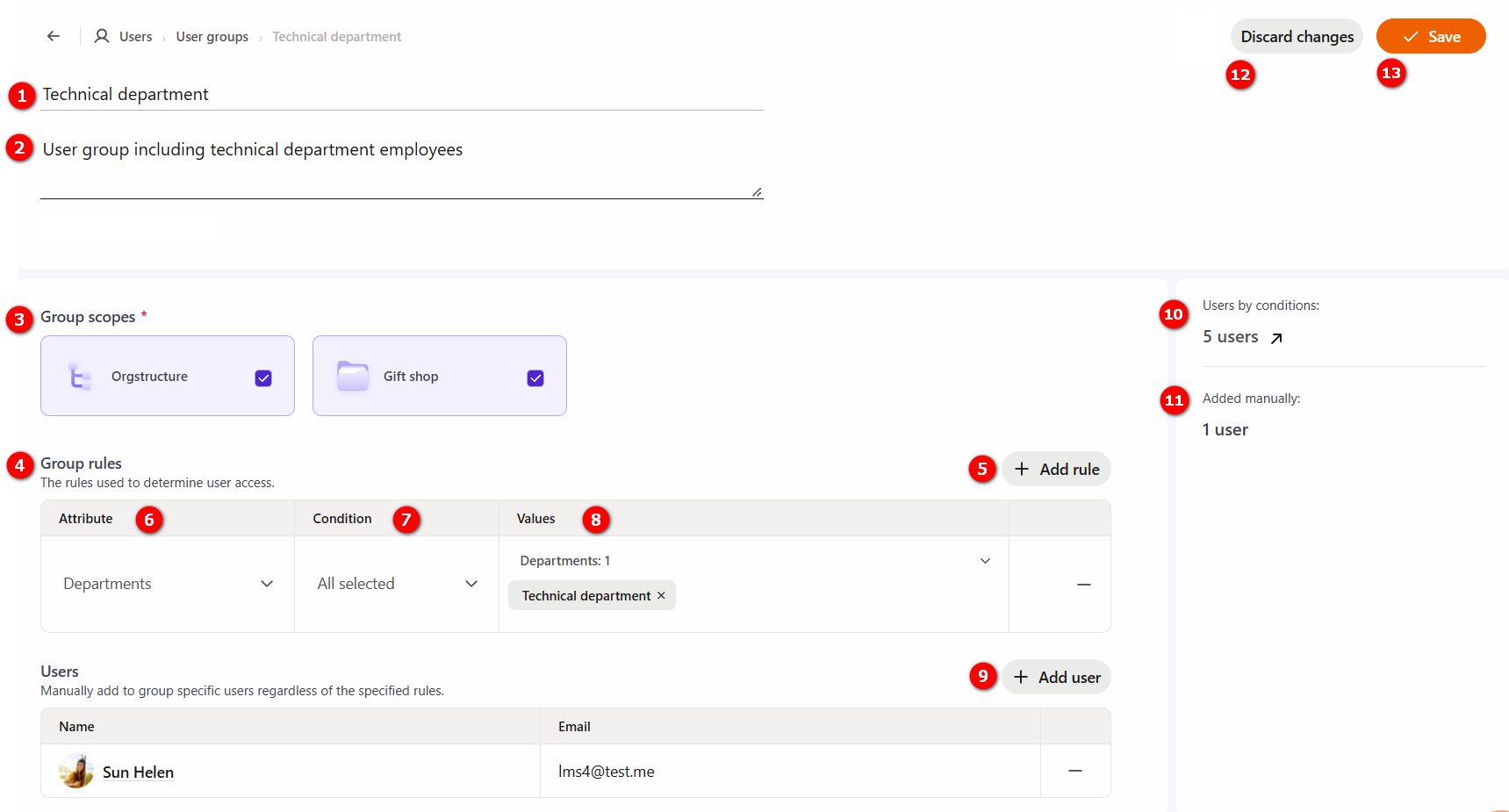
(1) - Title of User group, required field.
(2) - Group description - if necessary, you can add a description that is displayed in the User Group Table.
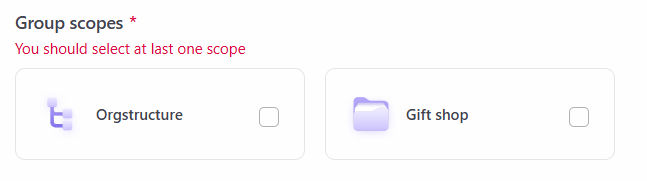
(3) - Group scope - you need check the checkboxes for the system sections in which the group will be used. If no scope is selected, then when you click the Save button, the system will display an information notification about the need to make a selection.
(4) - Group rules - you need to create Rules that will be used to determine user access.
(5) - Add rule - a button to add a new rule.
(6) - Attribute - you need to select one user attribute by which the selection will be made: positions; cityes; departments or tags.
(7) - Condition - the option determines whether the selected value should include the user in the group or exclude him from the group.
If the "All selected" option is selected, then users marked by the attribute will be added to the Group.
If the "All except selected" option is selected, then all users except those marked by the attribute will be added to the Group.
(8) - Values - you need to check the checkboxes for one or more attribute values by which the system will determine the user's belonging to the group.
For one User Group you can create 11 rules.
To delete a Rule, click the Remove from Group button next to it.
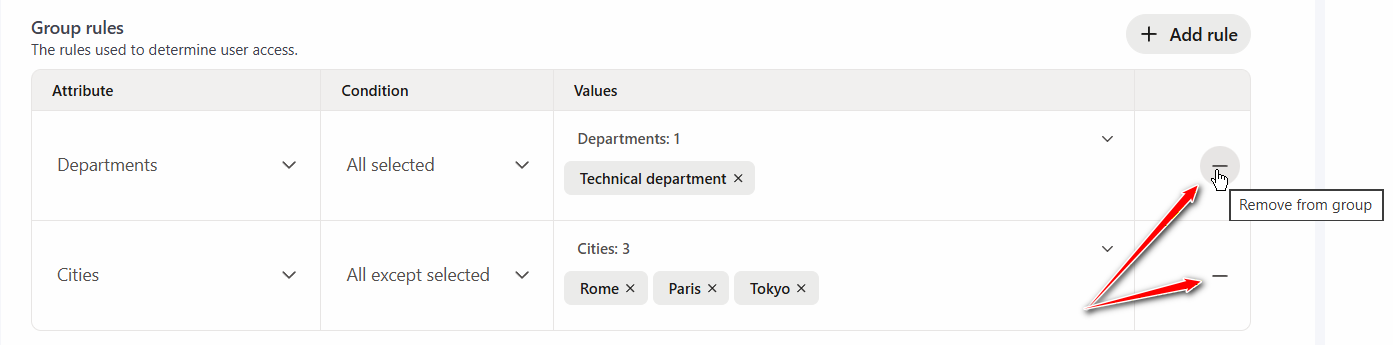
If multiple rules are defined for a User Group, a user must meet all of the defined rules at the same time to be included in the group.
For example, if the rules are defined:
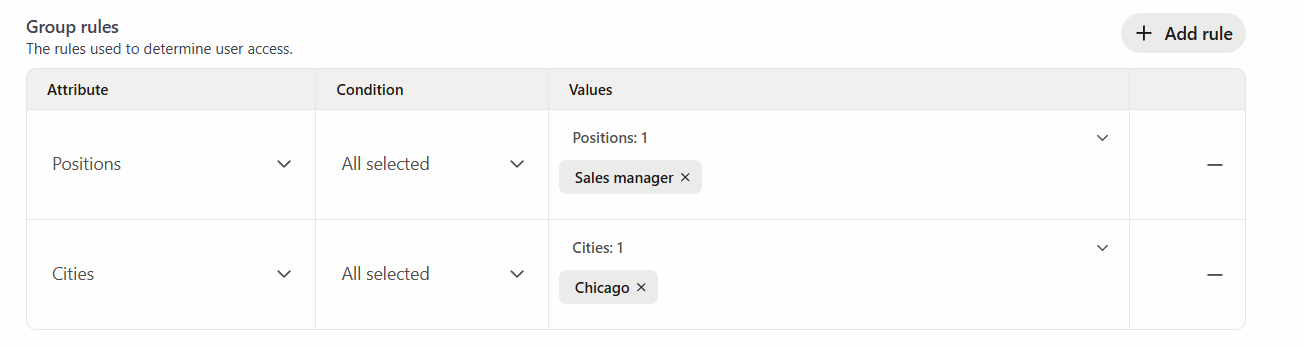
- Position - Sales Manager;
- City - Chicago.
Only users who are also sales managers and work in Chicago will be included in the group.
(9) - Add user - the ability to add a user to the Group manually regardless of the set rules.
To do this, click the Add user button, select one or more users in the modal window and click the Save button.
If necessary, you can use the search by full name or filters by city, department, position or tags.
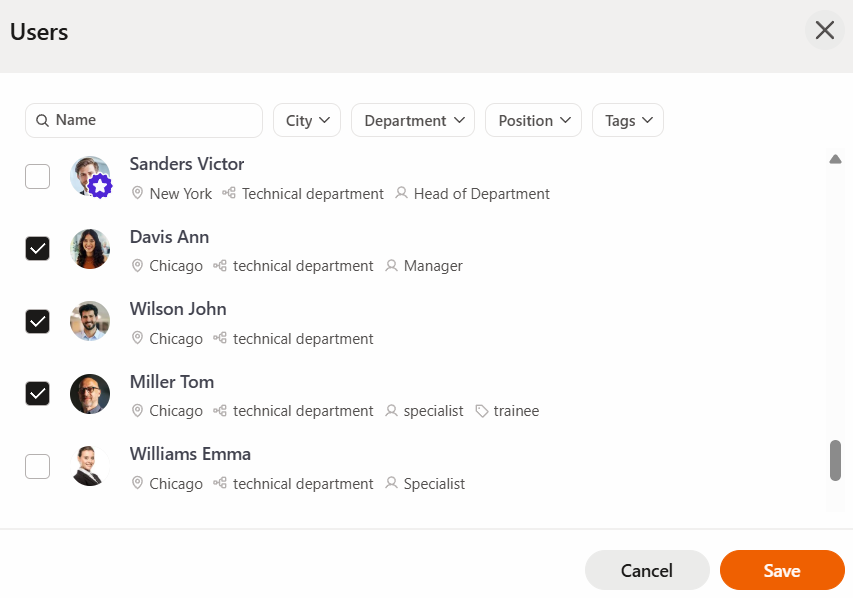
A user added manually will remain in the group regardless of whether he meets the group rules.
(10) - Users by conditions - displays the number of users who got into the Group according to the established Rules.
(11) - Added manually - displays the number of users who were added to the group manually.
If a user is simultaneously added to the group manually and meets the Group Rules, he is counted only once in the total number of users and is displayed in the "Added manually" field.
- if you remove a user from the Added manually field, but the user meets the created Group Rules, he will remain in this Group and will be displayed in the "Users by conditions" field;
- if the user's attribute values have changed and he no longer meets the Rules, but is still Added manually, he will remain in the Group;
- if you remove a user from the Added manually field who no longer meets the Rules, he will be removed from the Group.
(12) - Discard changes - cancels changes that have not yet been saved. After clicking the "Save" button, it is not possible to cancel changes using this button.
(13) - Save - saves changes.