How to change the import file
The import file should be generated automatically by the personnel accounting system installed in the company. This is the best way to avoid errors and subsequent troubles that can occur if a data error is made.
But sometimes it is necessary to make a "manual" change in the data to import employees.
Here's how to do it.
Working with a cp1251 encoded file
cp1251 is a standard Windows encoding for Russian, Ukrainian, Belarusian languages. Therefore, cp1251 encoding file is correctly opened by any version of MS Excel and is displayed as a table, the data of which can be changed.
You can also open a file with a list of users in a text editor, such as Notepad++.
Working with a UTF-8 w/o BOM encoding in MS Excel
A UTF-8 encoded file cannot be opened directly in MS Excel without issues. To view and edit it correctly, you need to import the file into MS Excel.
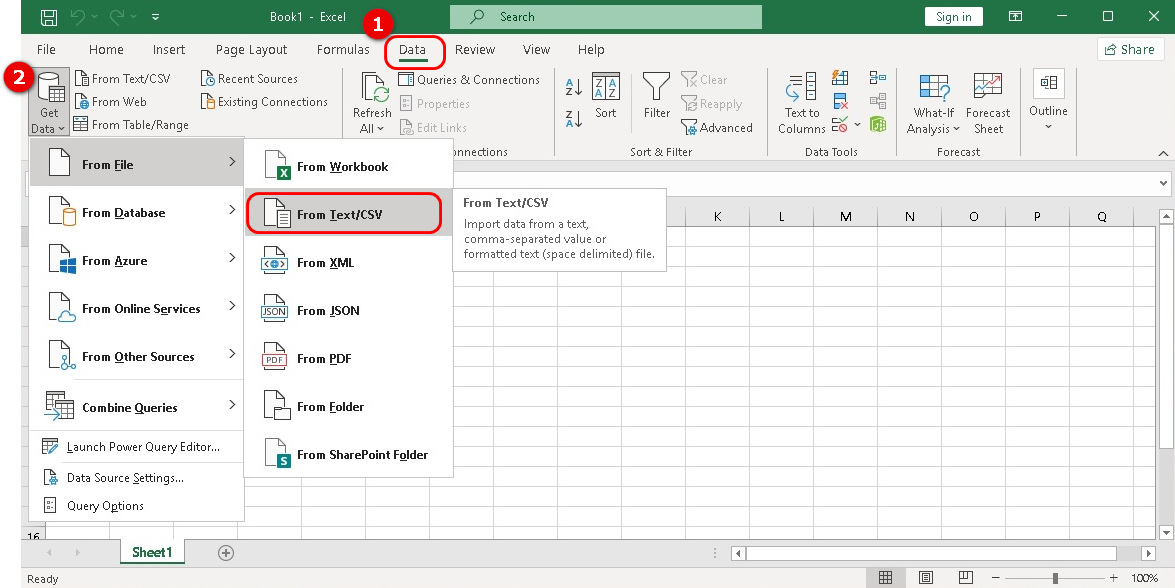
To do this, in MS Excel, open the Data tab (1), then select Get Data - From File - From Text/CSV (2):
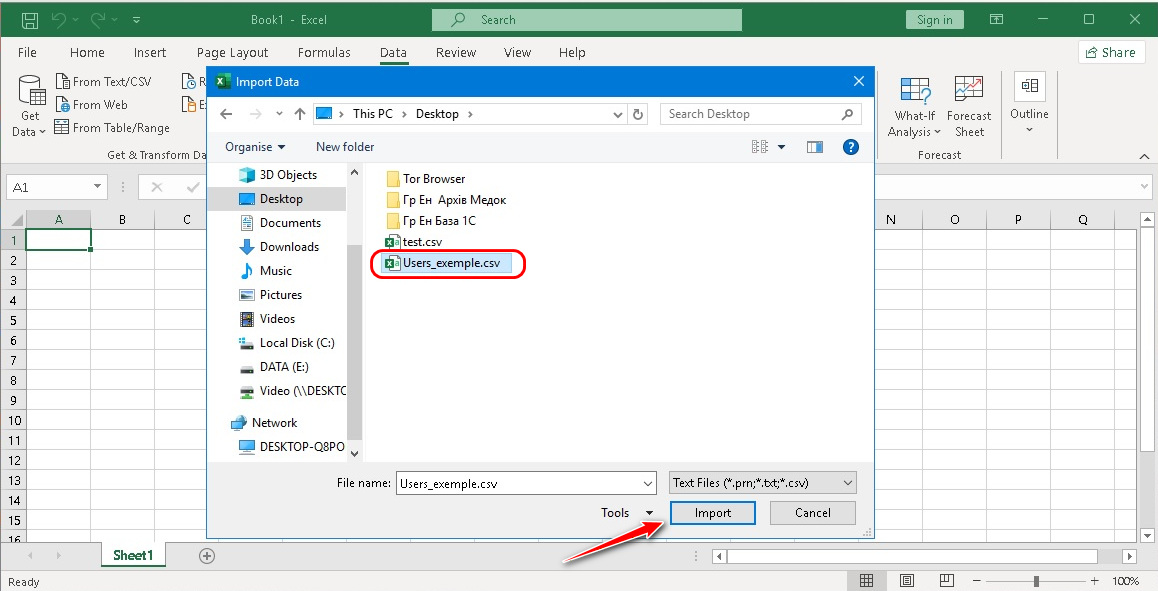
On your PC, select the file in csv format you need to upload and click the Import button:
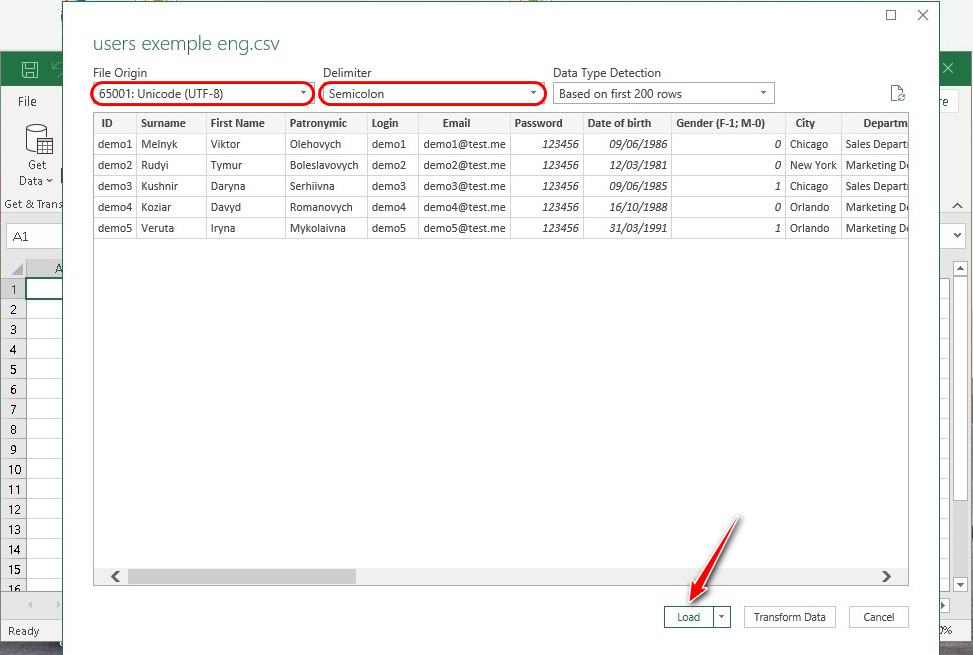
In the dialog window that opens, select:
- File Origin: 65001: Unicode (UTF-8);
- Delimiter: Semicolon.
Then click the “Load” button.
The file will open in MS Excel and is available for viewing and editing.
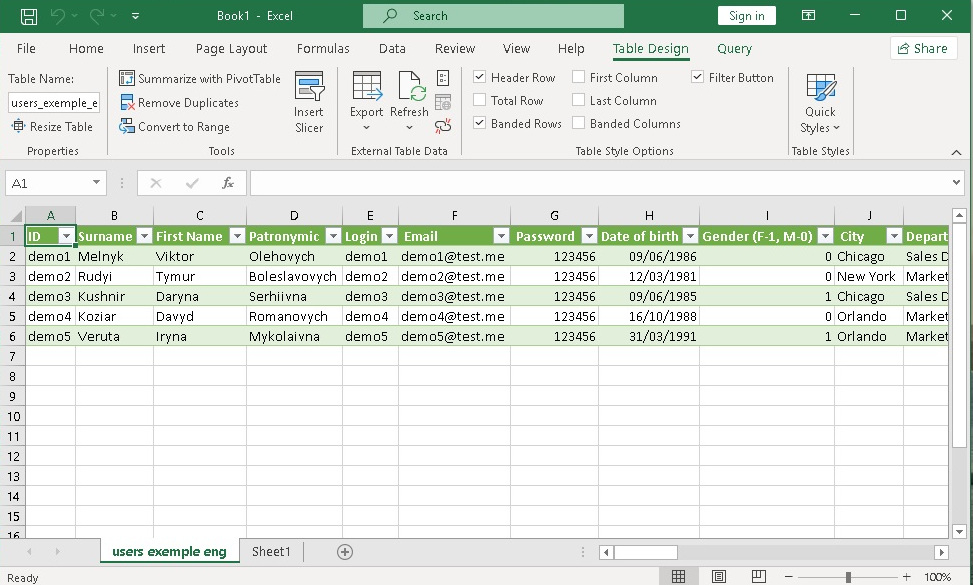
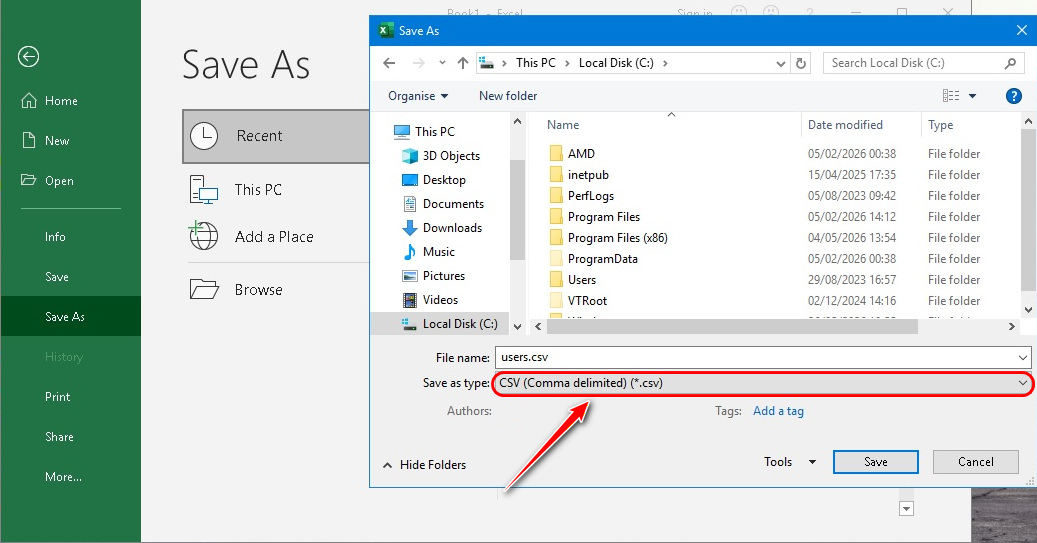
To save the changes made to the file, select the "Save As" option. When saving the file, make sure to choose File type: *CSV(Comma delimited) (.csv)**.