Passing workshops
Passage task-workshop
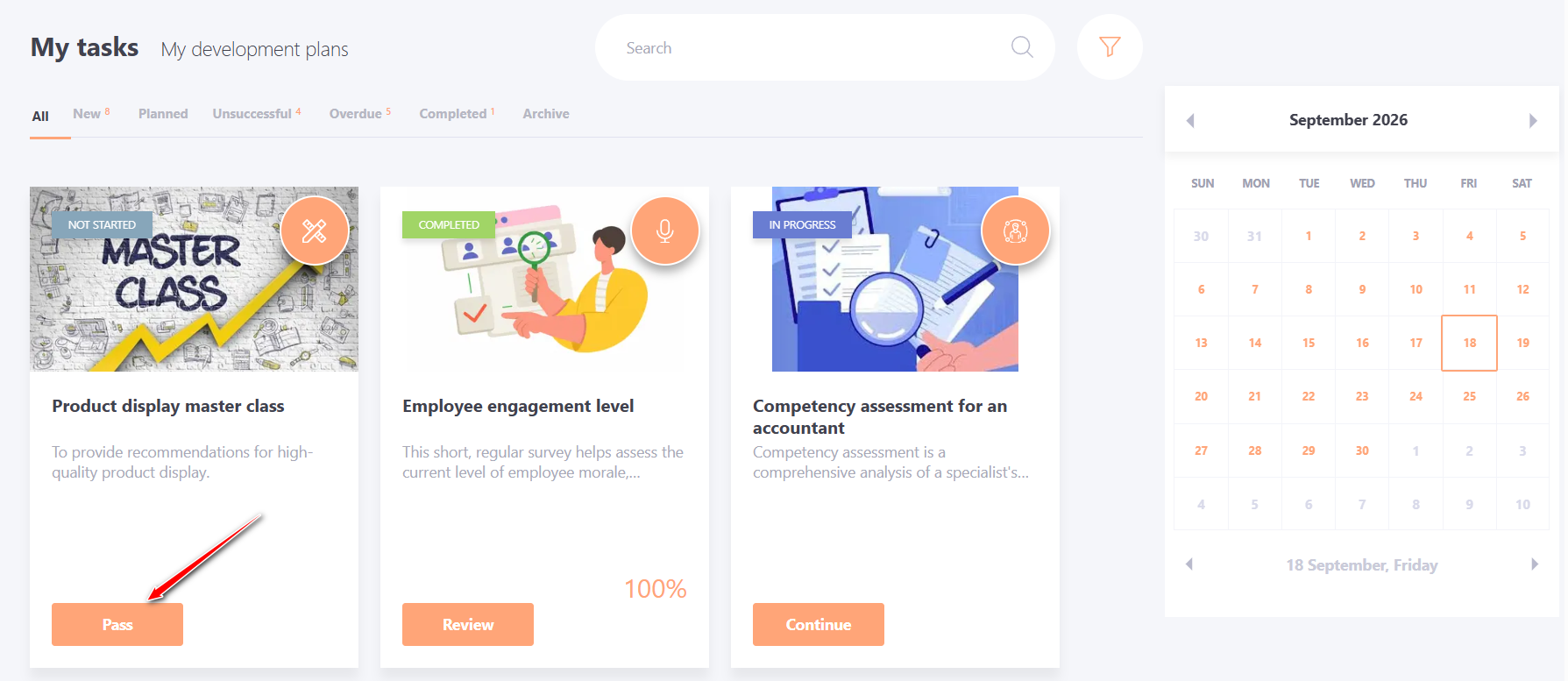
All workshop tasks go to the My tasks list for each assigned user. To open and start the task, click on the Pass button.
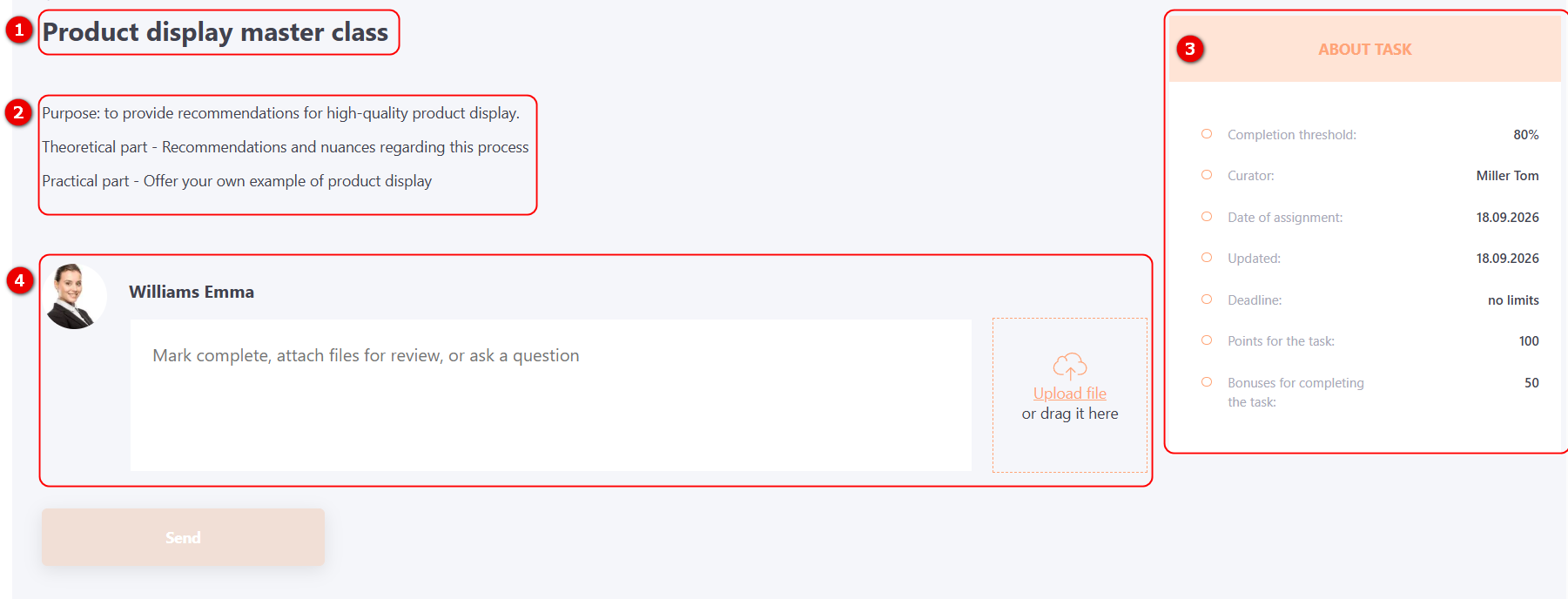
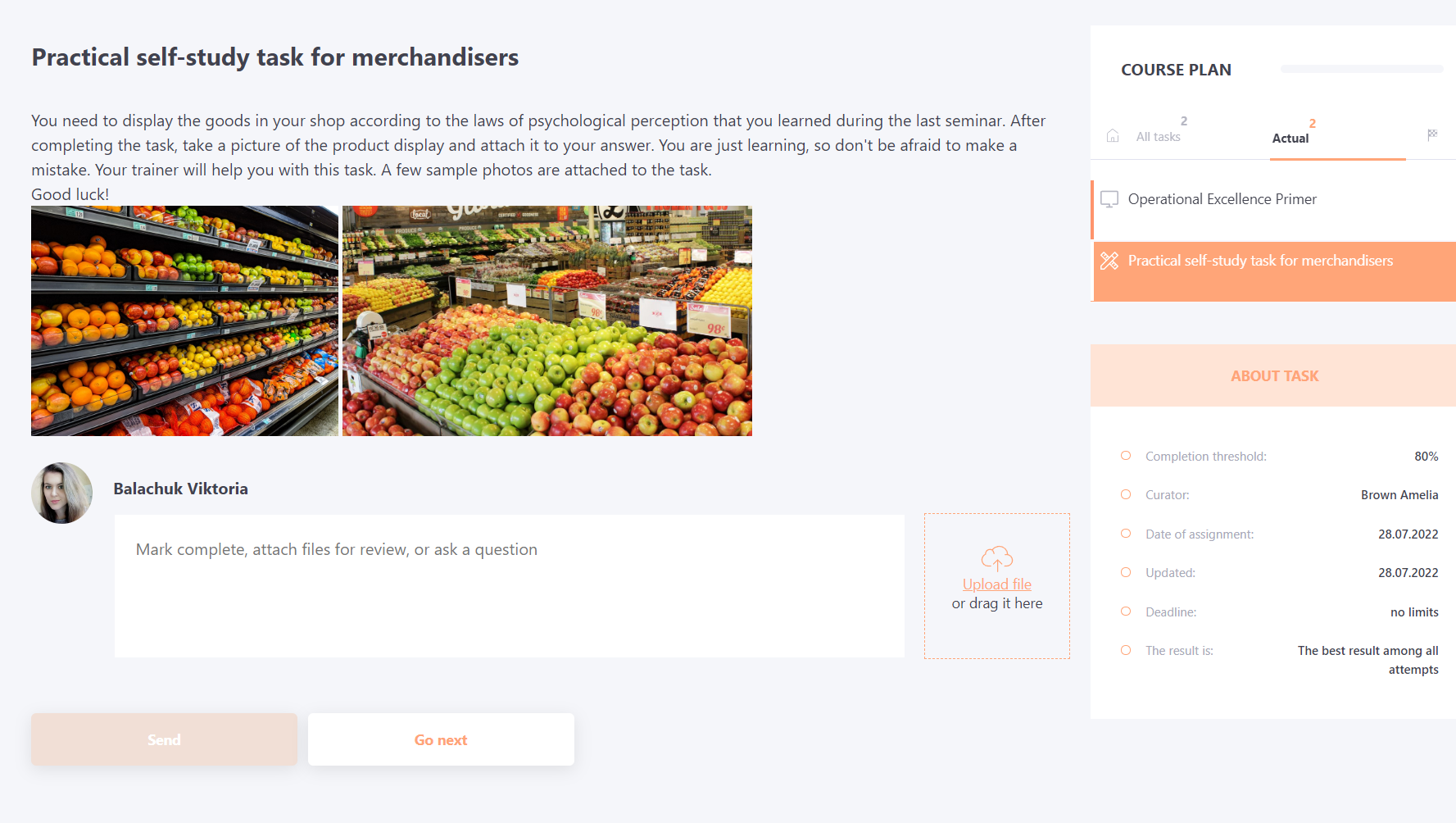
The following information is available in the workshop task:
(1) - Workshop title;
(2) - Description of the workshop task: text, pictures, links to attached files;
(3) - Box About the task : task information, completion threshold, curator;
(4) - Field for submitting comments, files, and videos.
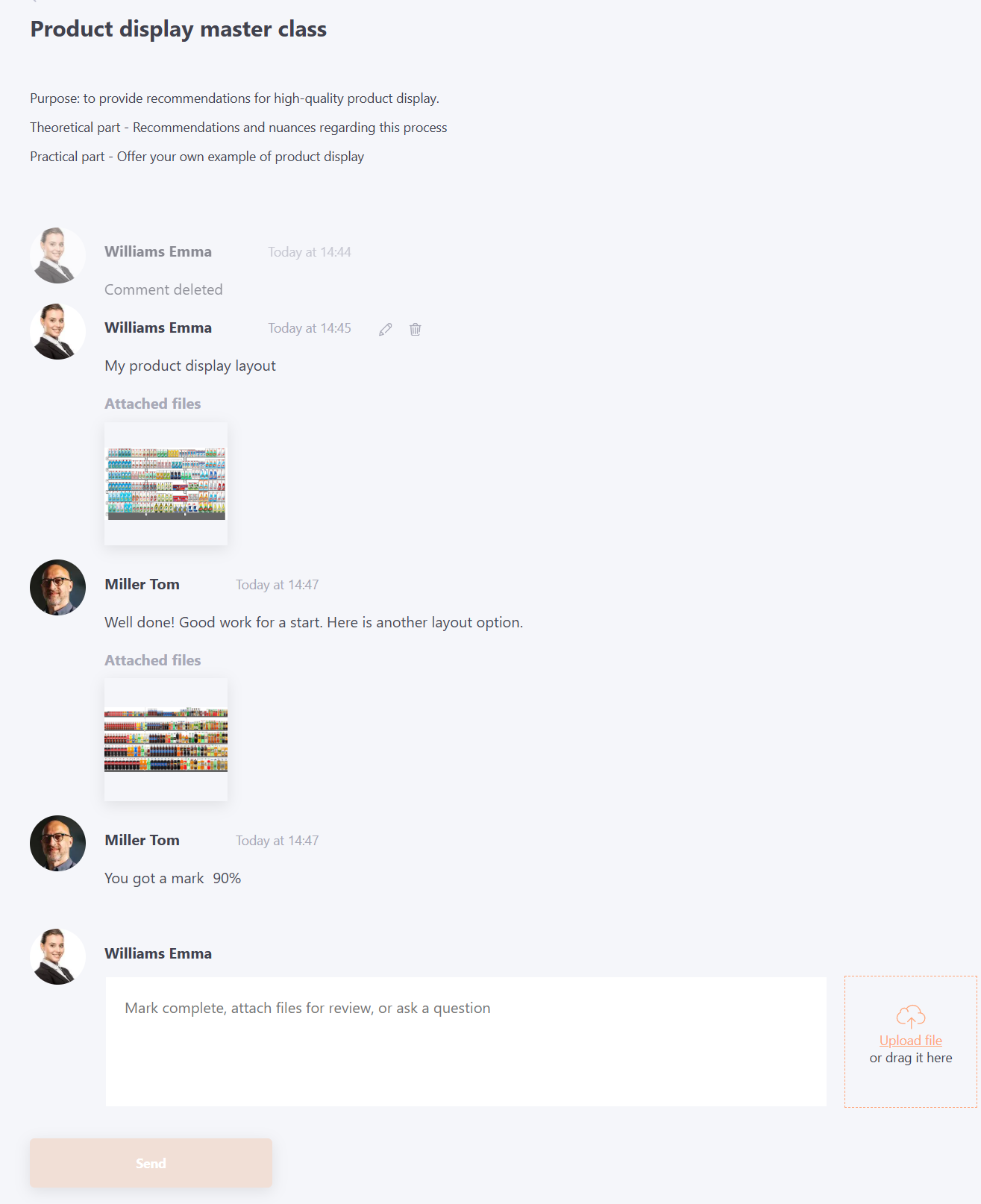
Users can post an unlimited number of comments and questions. All comments and attached files are stored within the task and remain accessible for viewing at any time.
After a comment is submitted, the task status changes from Started to On check. If the user deletes their comment, the task status reverts to Started, and an informational message "Comment deleted" appears, helping to explain the reason for the status change. More details: Workshop statuses.
A task may have one or more curators. Once a curator assigns a grade, it is immediately displayed to the user in the comments section.
Comments and additional questions may be submitted at any time prior to the task deadline.
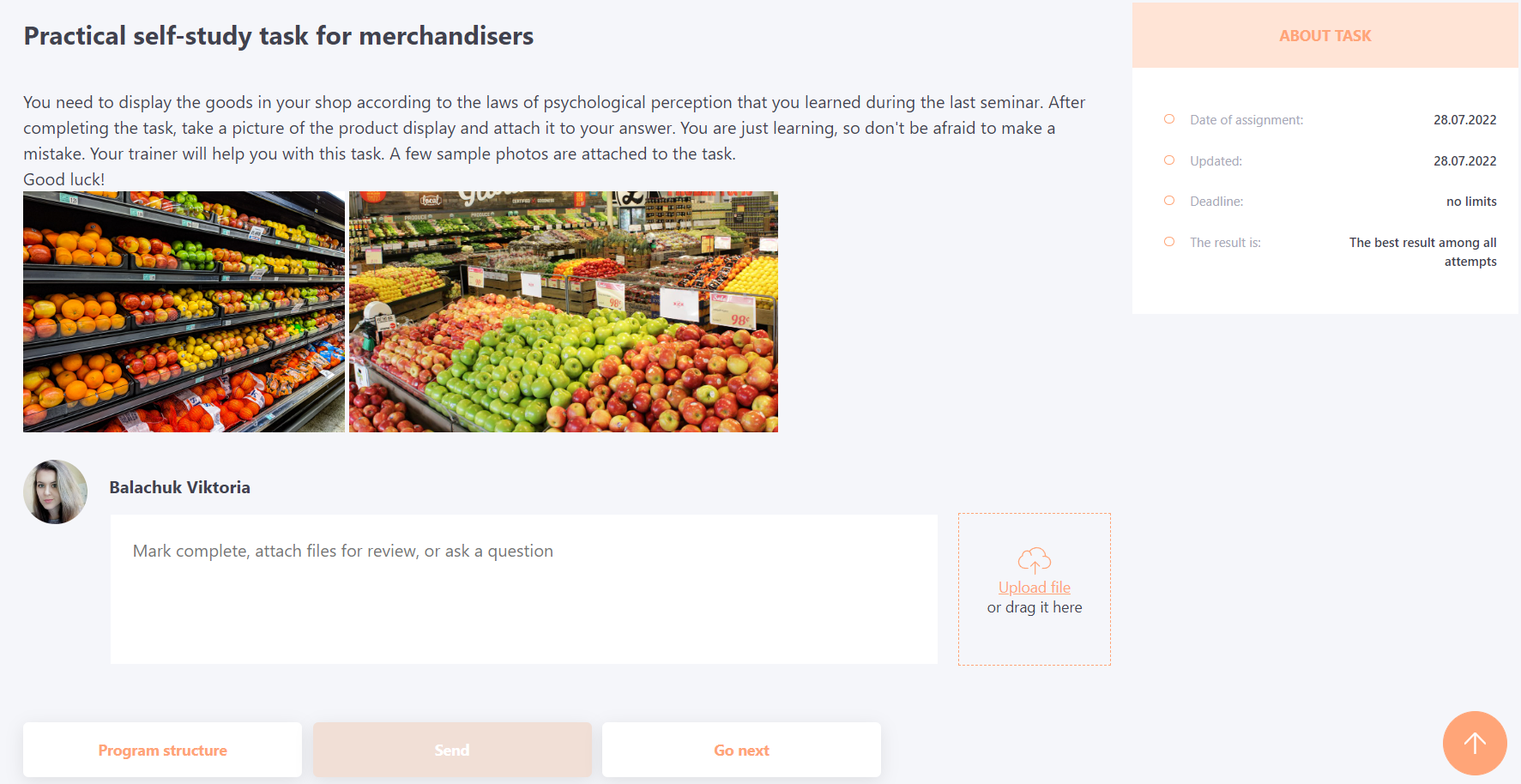
Passage workshop in the course
If the user takes a workshop as part of the course, then in addition to the button for sending an answer, there is an additional button Go next. By clicking on this button, the system takes the user to the next element in the course plan.
Passage workshop in the program
If the user is passing a workshop as part of the program, then the following buttons are available for him:
- Program structure - return to the page with the program structure
- Send - button to send a response
- Go Next - on click, the system redirects to the next available element of the program. If, according to the established access conditions, the program does not have an element open for passage, the user will be redirected to the program structure.