Checking workshops
Only users who have been assigned as a Curator on the task assignment page, as well as the Administrator, can review the workshops and assign grades.
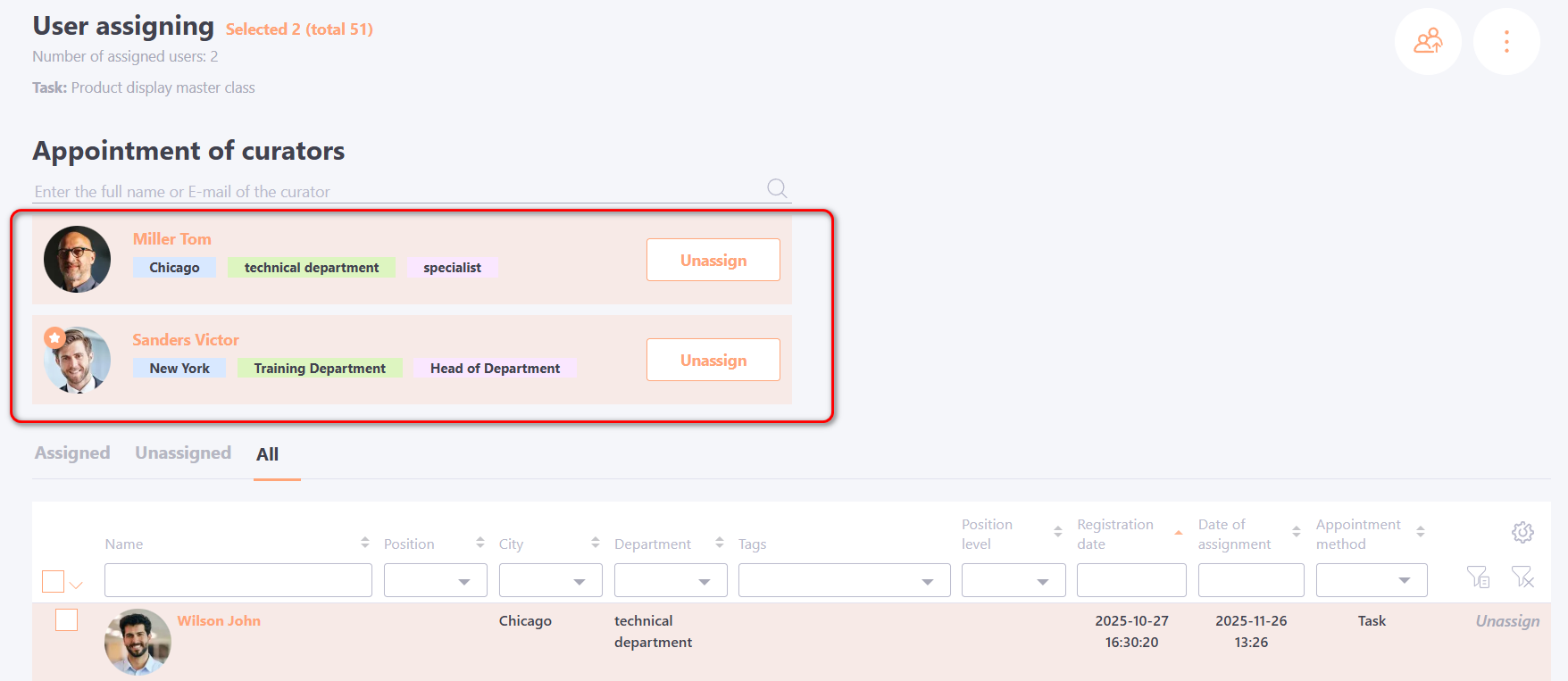
A curator without administrative privileges has access only to reports for the workshops where they are assigned as a curator. They do not have access to any other workshops.
Navigate to check from the report
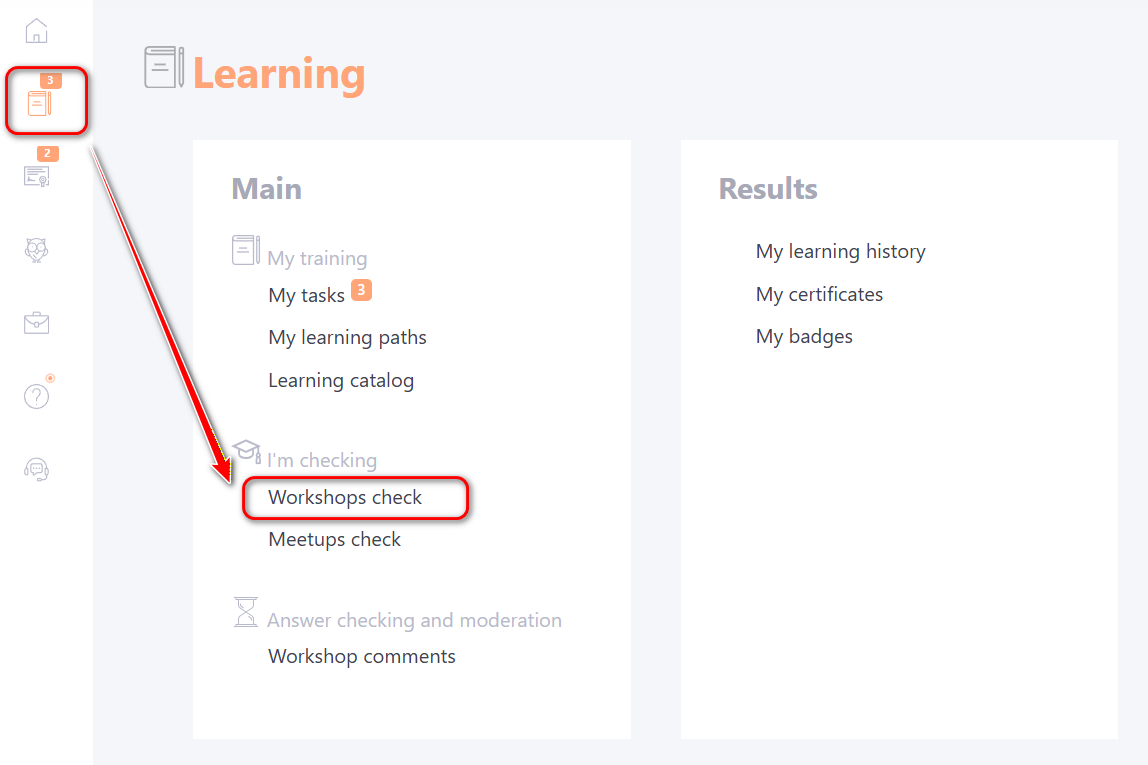
To check a workshop from the report, go to Learning - I'm checking - Workshops check.
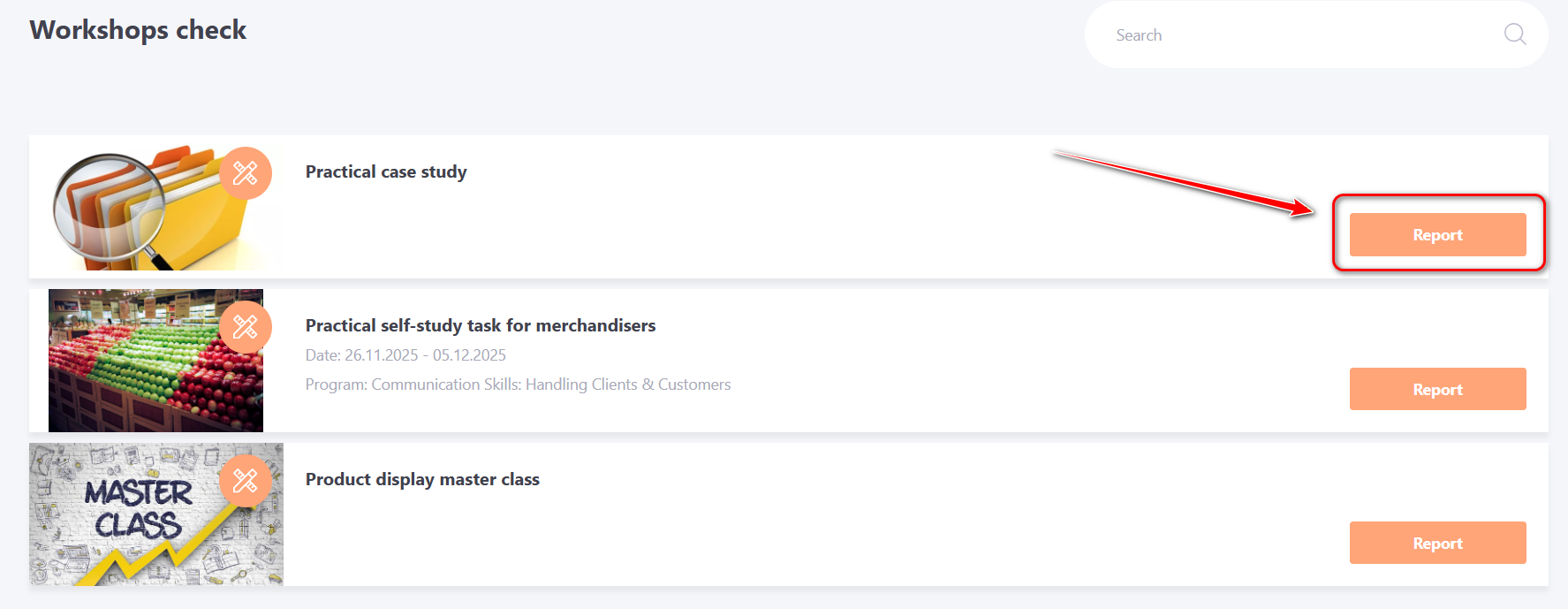
On the Workshop Check page, all workshops for which the user is assigned as a curator are displayed. Workshops that are part of a Course or Training Program are also shown on this page.
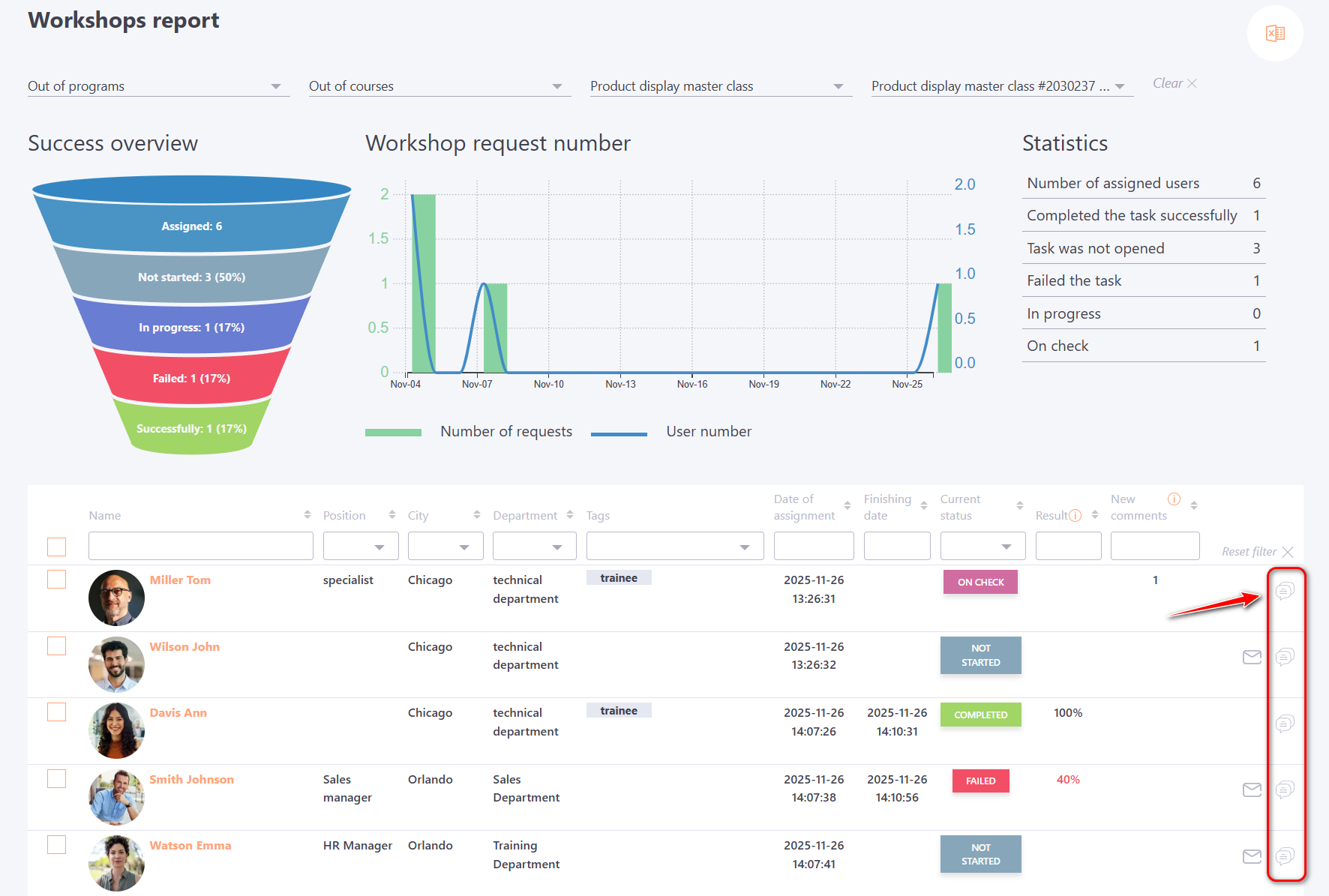
To check and view the report of a specific workshop, click the Report button.
Selecting a User for Checking
By clicking the Report button, the curator is taken to the report containing all assigned users. To view the comments and responses of a specific user, click the Add a comment button next to that user:
Navigating to Workshop Check from an E-mail Notification
When a user adds a comment in a workshop template notifications about the new comment are automatically sent to all curators assigned to that task via email (and via messengers, if connected).
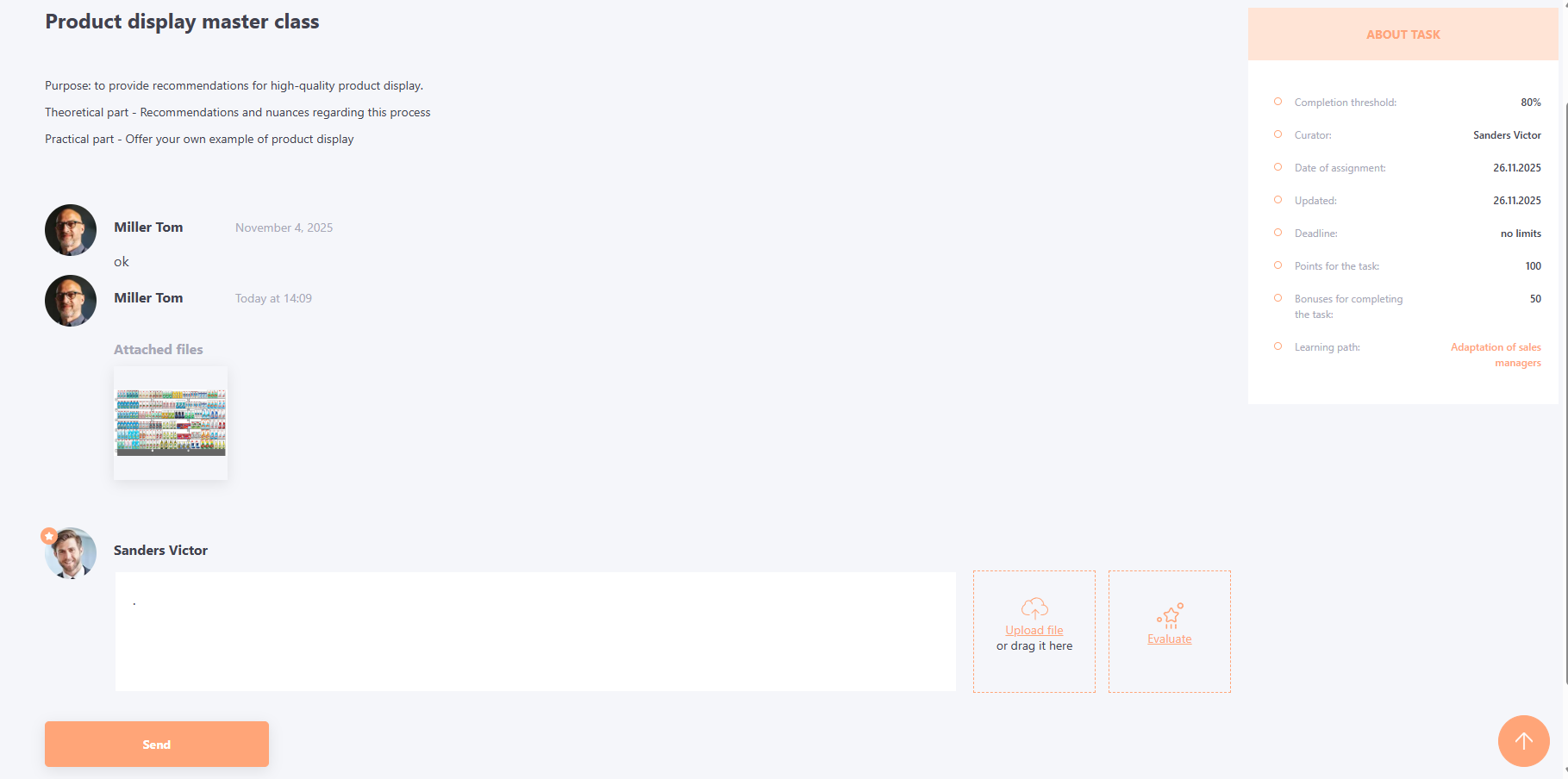
The received notification contains a direct link to navigate to the check page for the specific user’s task.
Navigating to Workshop Check via Workshop Comments
When a user adds a comment in a workshop, all curators of the corresponding task see a notification about the new comment in Learning - Answer checking and moderation.
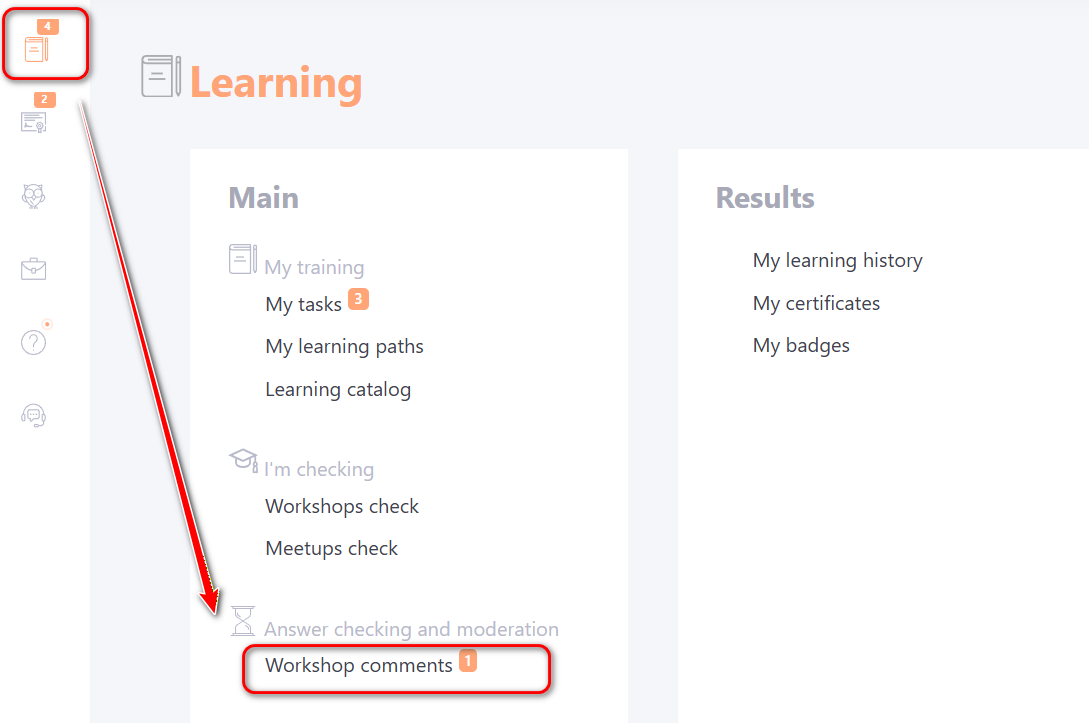
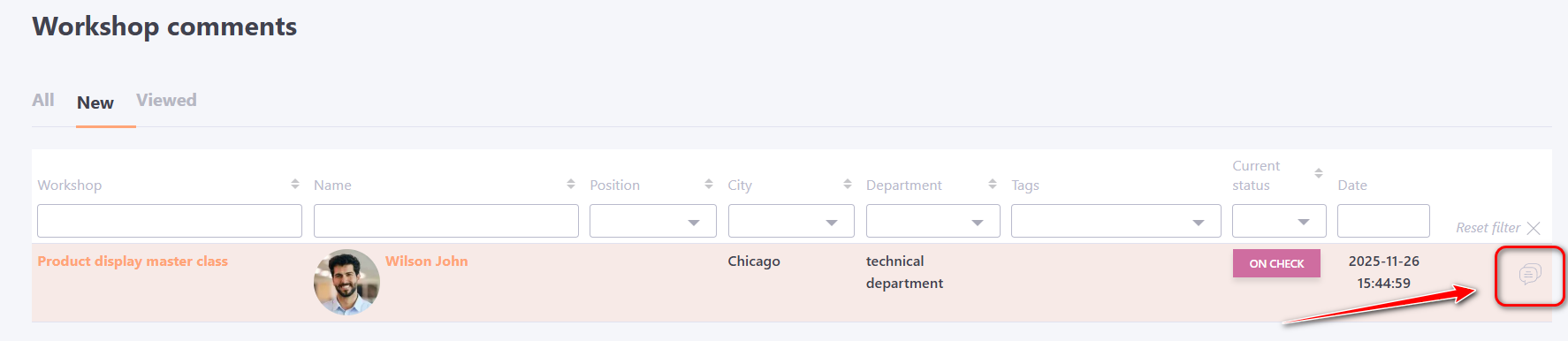
When selecting this section, you are redirected to the “Workshop Comments” page, where users who have left new comments for checking are displayed. Viewing previous comments is available in the “All” tab.
By clicking the Add a comment button, the curator is taken to the user’s workshop check page, identical to the access methods described earlier.
If a grade has already been assigned for the workshop (task status «Completed» or «Failed») and the user leaves comments afterward, these comments will not appear in the moderation section. However, a notification will still be sent to the curator’s email and messenger (if integration is enabled).
More details Workshop statuses.
Adding a New Comment or Evaluate a Task
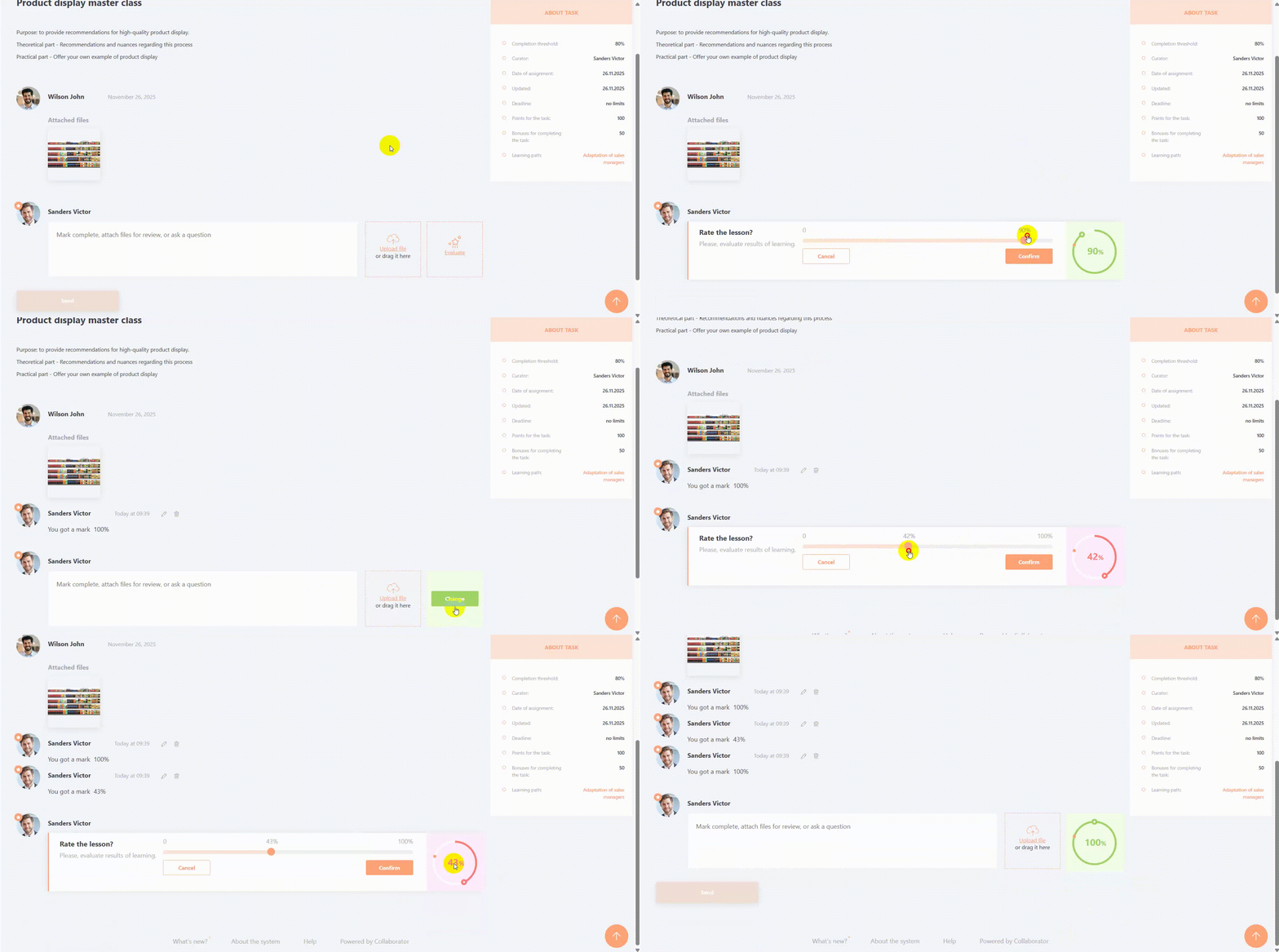
On the Workshop Check page, the curator can send a new comment (1), upload a file (2), and/or evaluate(3) the task.
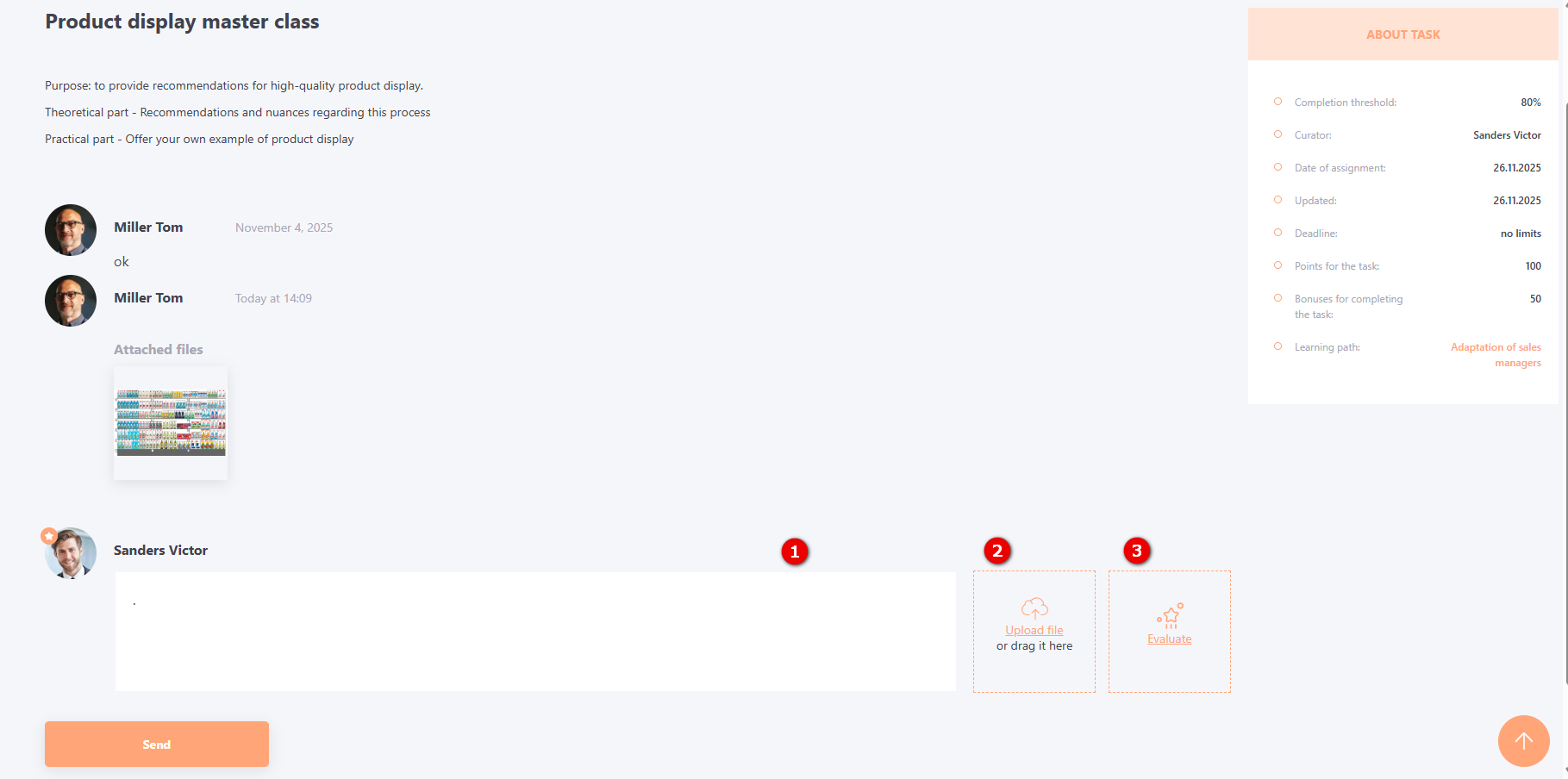
To evaluate a workshop, the curator must click the Evaluate button. Using the slider on the displayed 0–100% scale, indicate the percentage achieved by the user.
Depending on the set passing threshold for the workshop, the result will automatically change from “Failed” to “Completed”.
To save the evaluation, click the Confirm button; to cancel the evaluation, click Cancel.