
- Ways to assign Users to a task with an Assessment
- Assigning Users to a Task with an Assessment manually
- Creating questionnaires for the assessment task using a file
- Assignment of assessment tasks by functional managers
- Assignment of Task with an Assessment by organizational structure
- Connections in the Organizational Structure
Assigning an assessment task
Ways to assign Users to a task with an Assessment
After you have created an Assessment (by criteria or by competencies) and added an assessment-task, you can move on to the next step: selecting the employees who will participate in the survey (who is being evaluated and who is evaluating).
The Collaborator system has four Ways to assign Users to an assessment task:
- Manually:
- 1 method - the Administrator manually adds each Questionnaire: chooses who evaluates whom and in which role (self-evaluation, manager, subordinate, colleague, employee);
- method 2 - the administrator prepares a CSV file in which he notes who evaluates whom and in what role, based on which questionnaires are created in the system;
- Functional managers - The administrator marks users in the list, for the evaluation of which questionnaires will be automatically created for their functional managers;
- By organizational structure - The administrator manually selects the User to be evaluated, and the User who will give an evaluation (fill out the Questionnaire) is determined automatically by the links in Organizational structure.
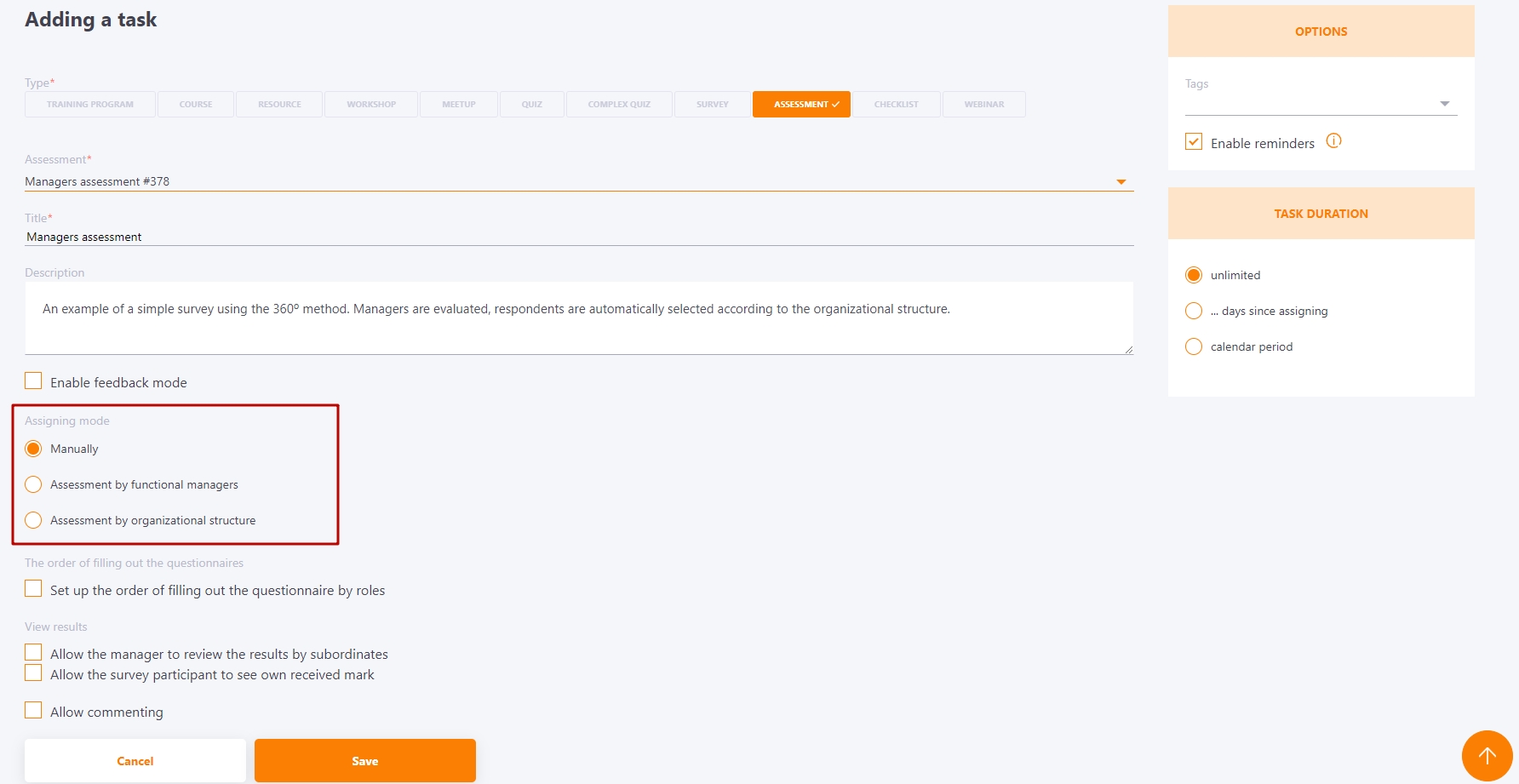
The assignment method depends on which The questionnaire assignment mode was selected when creating an assessment task: manually, by functional managers or by organizational structure.
Assigning Users to a Task with an Assessment manually
To manually assign Users to a Task with an Assessment you need to:
-
On the Task creating page, select the Manual questionnaire assignment mode setting and save the task.(Find more in Creating an assessment task )
-
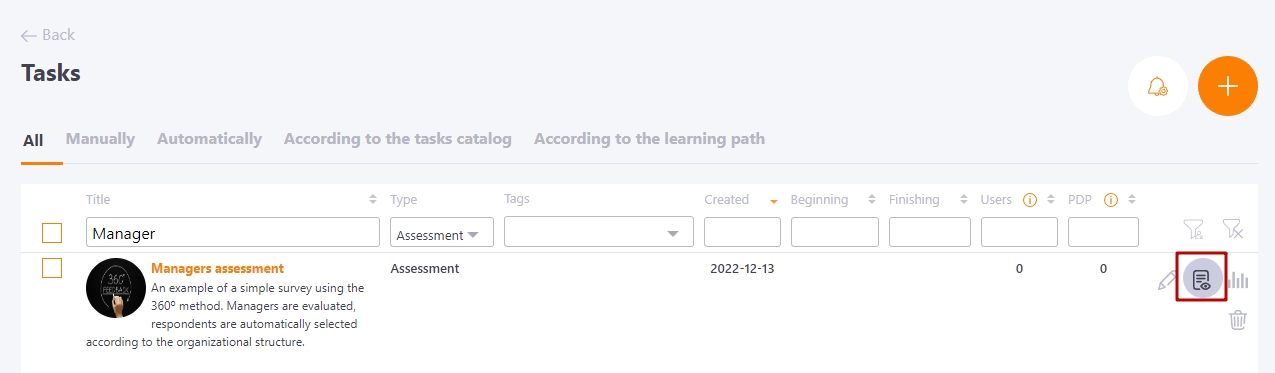
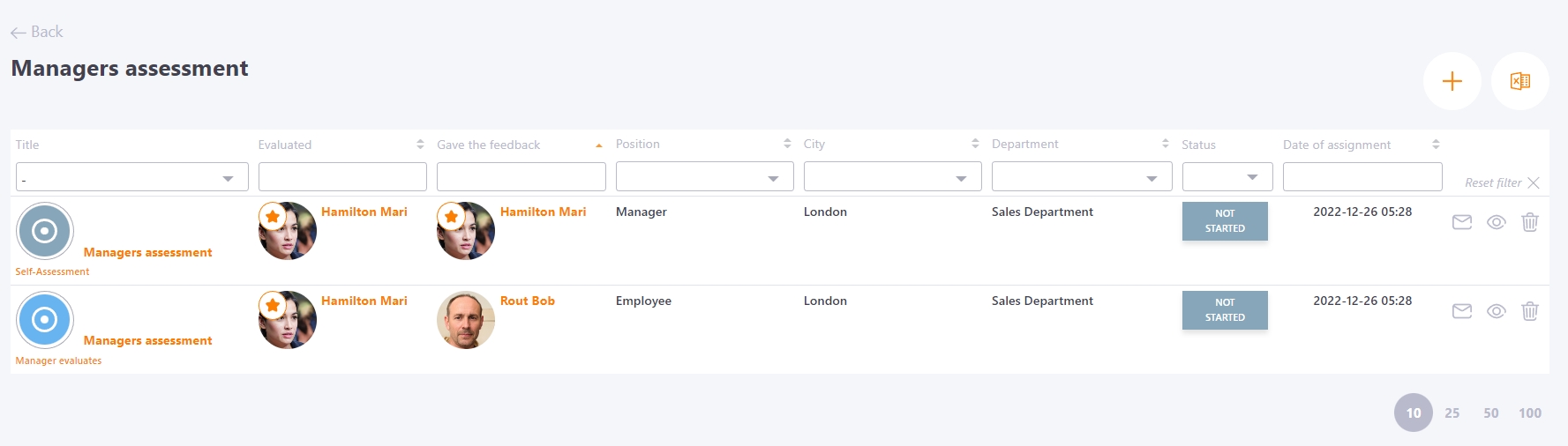
In the Learning management - Tasks menu, click the View all subtasks on completing questionnaires button next to the desired task.
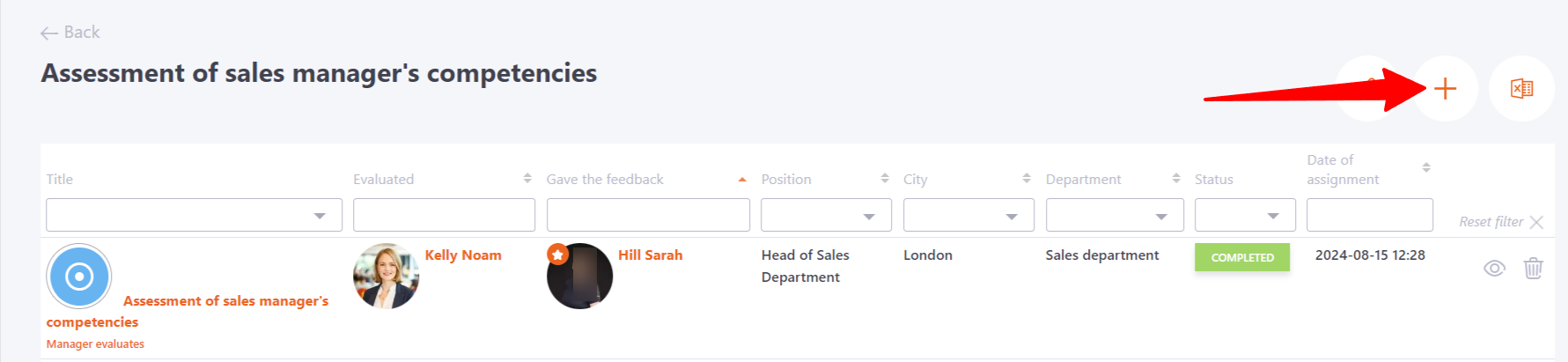
- Then click Add questionnaire.
- In the Adding a questionnaire to an assessment window specify:
- (1) Who to evaluate - search for Users by Name;
- (2) Who will evaluate - search for Users by Name;
- (3) In what role - who is the User who is being interviewed (fills out the Questionnaire) for the one who is being evaluated: self-esteem, colleague, supervisor, subordinate, employee. To select a role from the drop-down list, click on the triangle (5).
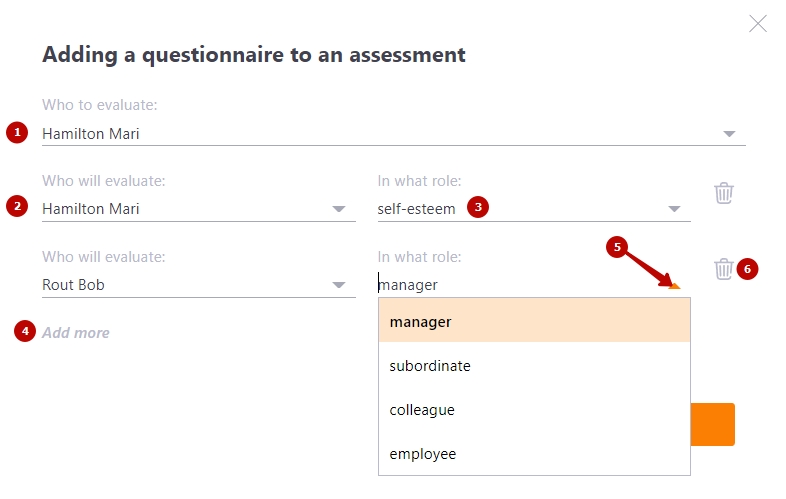
To add more Users who will evaluate (fill out the Questionnaire) - press (4) button. To remove a User from the Questionnaire - click (6).
After clicking Save, the questionnaire will appear for:
- Users who will evaluate (fill out the Questionnaire) in the My tasks menu;
- Administrator in the Learning - Tasks - View all subtasks on completing questionnaires.
Creating questionnaires for the assessment task using a file
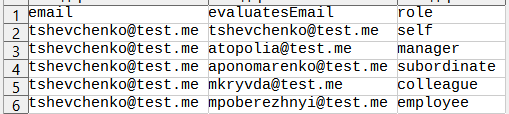
- To automatically create questionnaires based on a file, the Administrator must first prepare a file in CSV format.
The file has 3 fields on each line:
- Email of the user who will be evaluated;
- Email of the user who will evaluate;
- The role in which the user fills out the questionnaire.
| Role | Value |
|---|---|
| self | self-esteem |
| manager | manager |
| subordinate | subordinate |
| colleague | colleague |
| employee | employee |
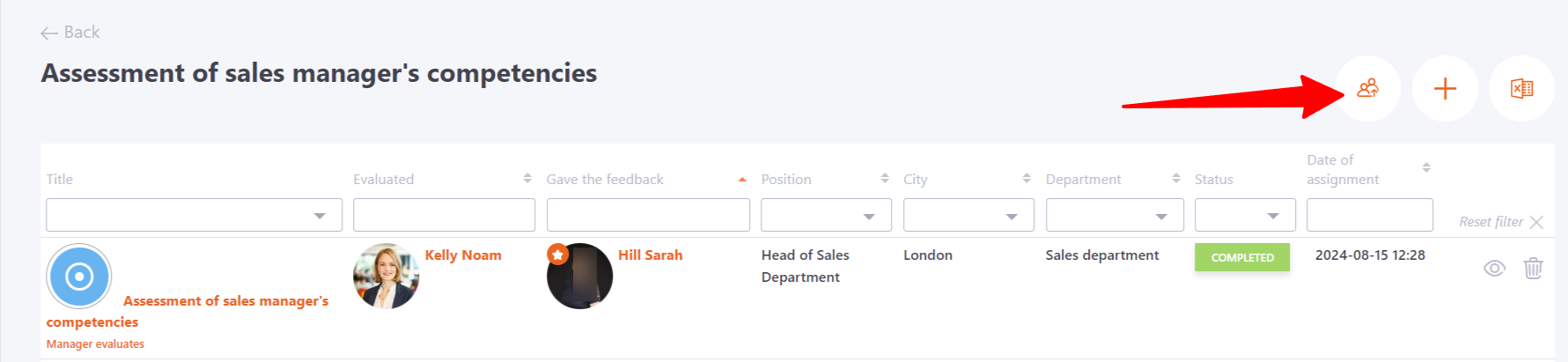
- On the View all sub-tasks for completing questionnaires page (from the menu => Learning Management => Tasks), you need to click on the "Assign as a list from a file" button.
After that, a window for selecting a file on the computer will open, select the desired file. As soon as the import is complete, the questionnaire will be created.
Assignment of assessment tasks by functional managers
To assign Users to tasks with evaluation by functional managers, you need:
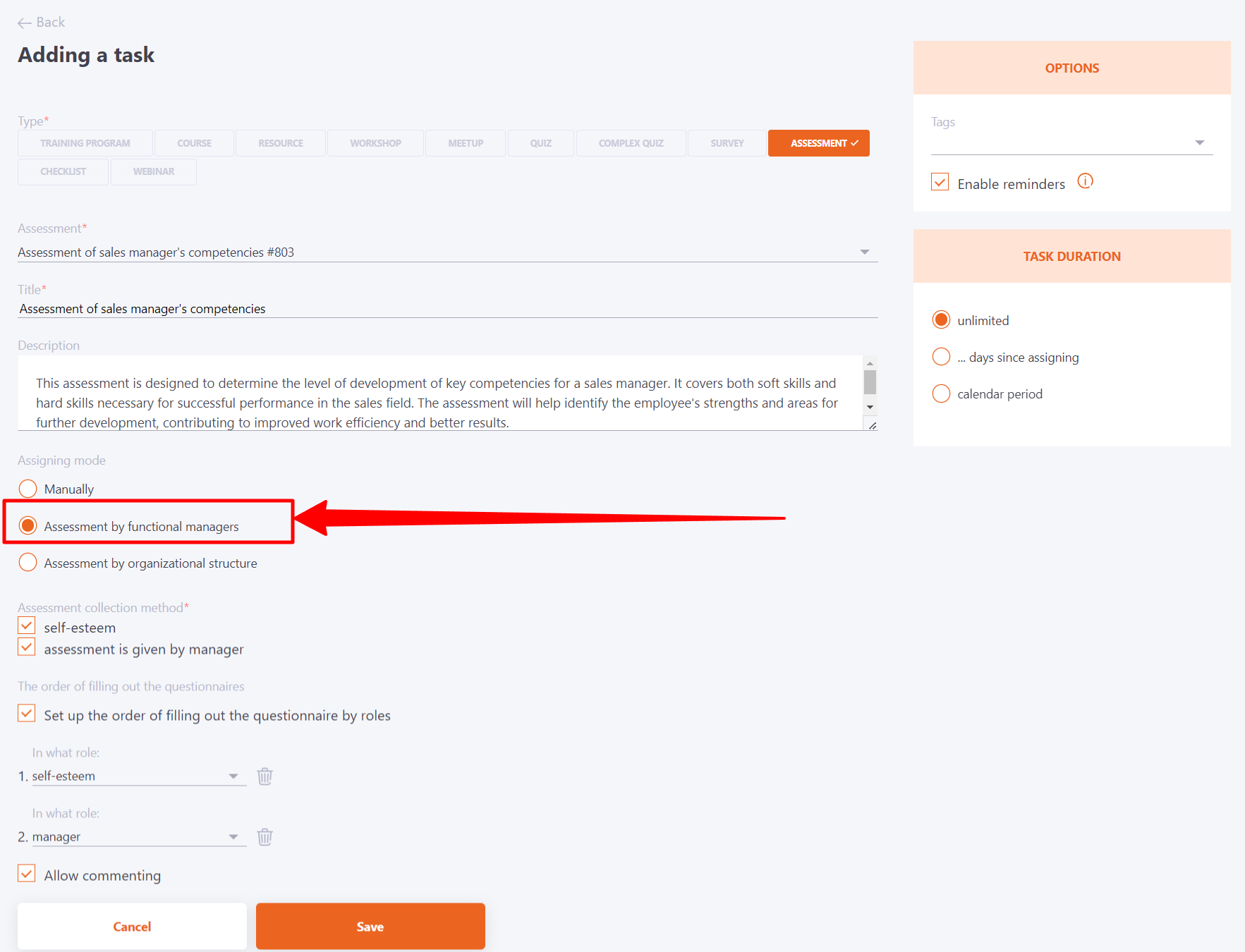
- On the Adding a task page, select the Assigning mode - Assessment by functional managers setting and save the task. Also, for the functional managers mode, additional settings for the Assessment collection method are available: self-assessment, the assessment is given by the manager.
- In the Tasks list (Learning - Tasks menu) click the Select users to be evaluated button.
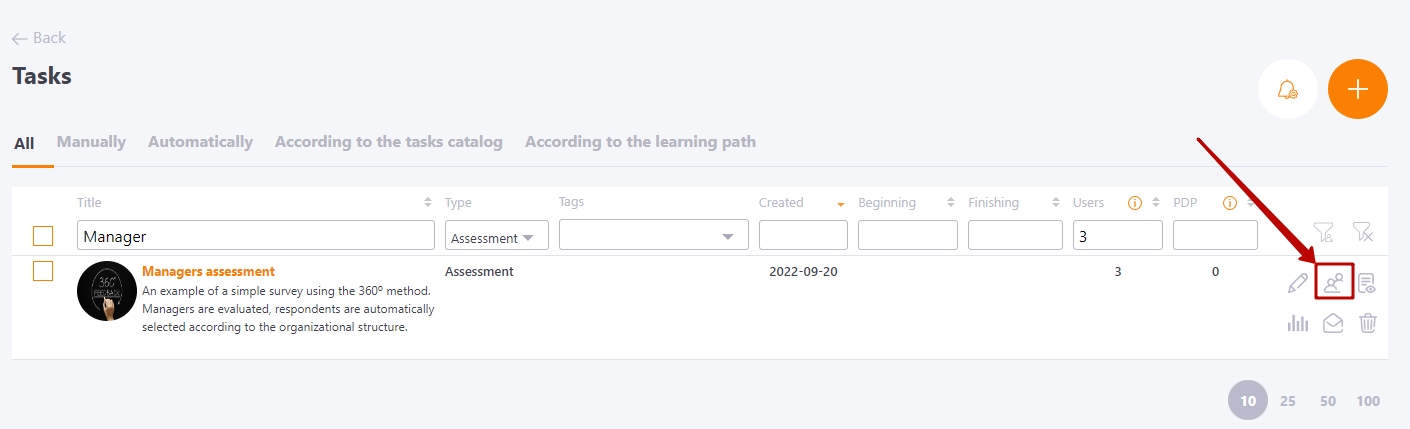
- Select the User that needs to be evaluated, and press the Assign button. You can use different filters and sorting in the table to quickly find Users. When assigning users, evaluation questionnaires are created in accordance with the relevant connections with functional managers.
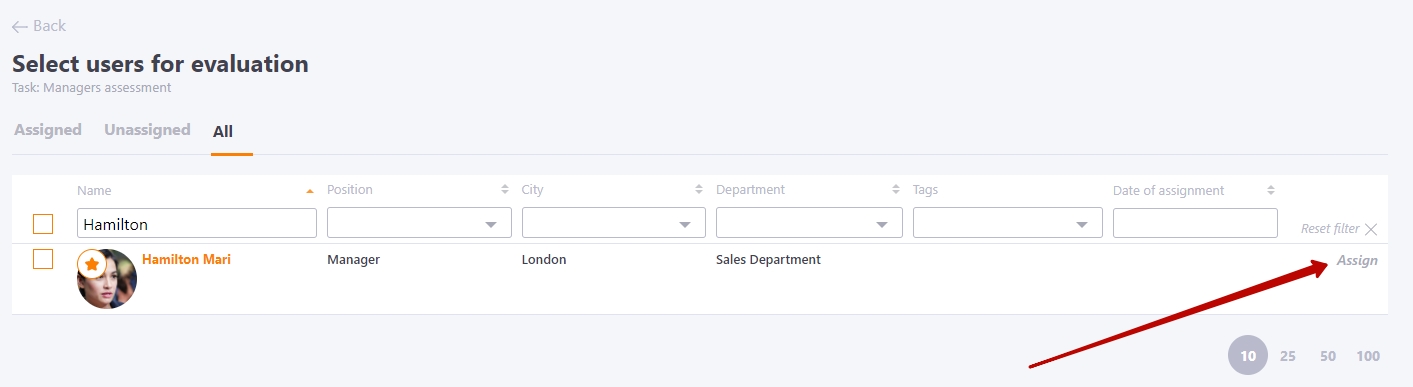
Assignment of Task with an Assessment by organizational structure
In order to assign Users to a Task with an Assessment by organizational structure you need to:
- On the Adding a task page, select the Assigning mode - Assessment by organizational structure setting and save the task.
Also for the by organizational structure mode, additional settings of the Assessment collection method are available (Find more in Creating and editing an assessment task ):
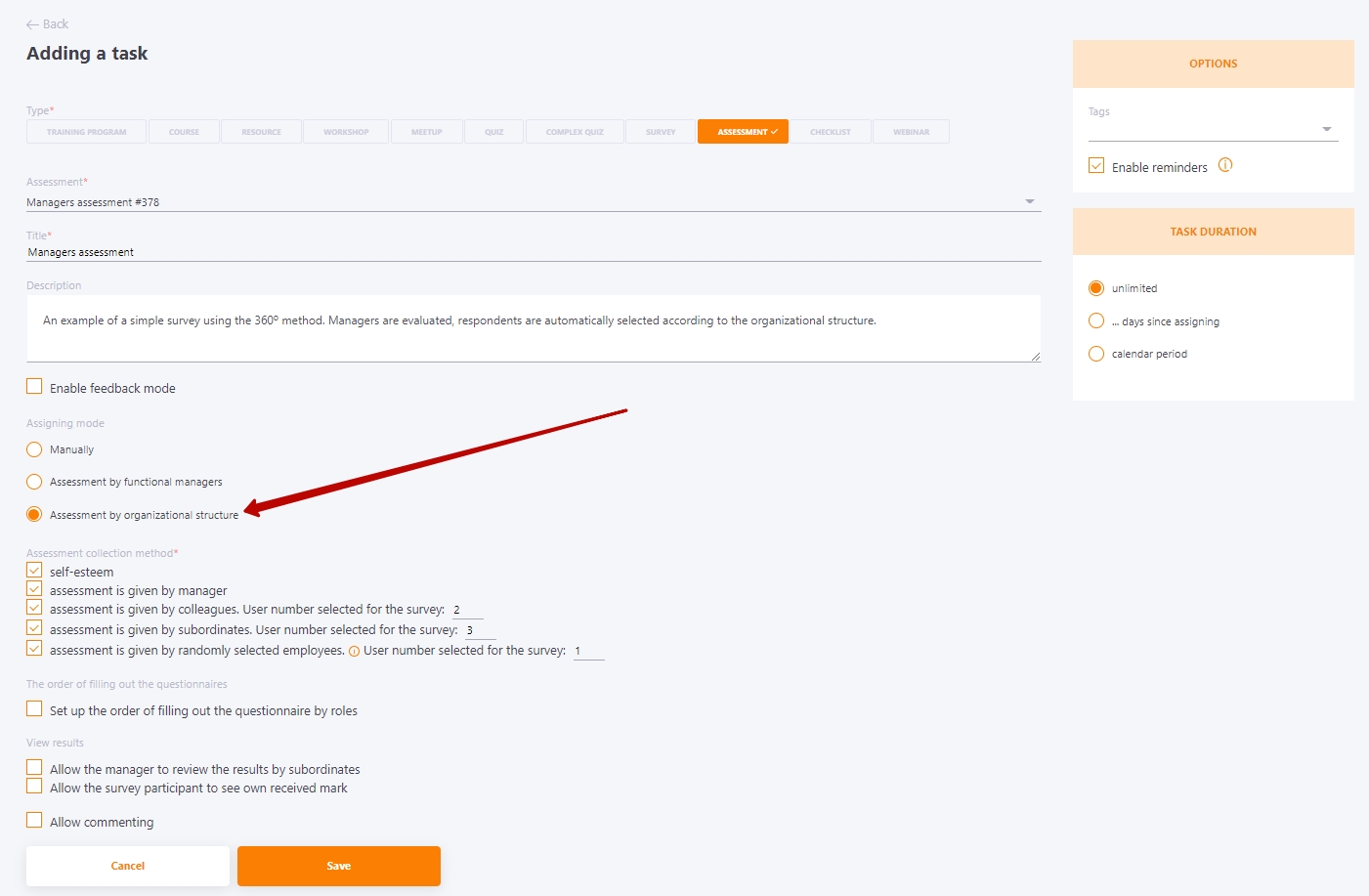
Steps 2 and 3 are similar to those in assigning an assessment by functional managers.
Users who will evaluate (fill out the Questionnaire) are assigned automatically by connections in the organizational structure.
Connections in the Organizational Structure
The selection and assignment of respondents, i.e., those who will fill out the survey questionnaire, depends on the choice of the employee being evaluated and the assigned relationship of supervisor-colleague-subordinate in Organizational structure.
Accordingly, after selecting who will be evaluated, the Collaborator will automatically create tasks to fill out the questionnaire for the manager, colleagues, subordinates and self-assessment for the employee themselves.
How the Organizational structure in Collaborator defines connections between employees and departments is shown on this example.
-
Market Group Trading Company
John Smith
Emily Johnson-
Sales Department
Michael Brown
Sarah Davis
Daniel Wilson- Logistics Sector
David Miller
Jessica Taylor
Ryan Anderson
- Logistics Sector
-
Procurement Department
Olivia Thompson
Christopher Moore
Sophia White -
Marketing Department
Emma Harris
Matthew Clark
Ava Lewis -
Finance Department
Jennifer Walker
Megan Hall
-
The company's organizational structure is displayed as a hierarchical tree of departments, where each organizational unit is represented by a separate folder. Folders can have multiple levels of nesting, allowing the company's hierarchy to be visualized clearly.
For example, the "Market Group Trading Company" folder is the root unit of the organizational structure. It contains department folders, and within departments, folders for sectors and other subordinate units can be created.
Each folder represents a separate organizational unit in which users work.
Users holding managerial positions are displayed in italic and underlined text.
For user Michael Brown:
- Manager — John Smith;
- Colleagues — Olivia Thompson, Emma Harris. Employee Emily Johnson cannot be considered a colleague because she does not hold a managerial position;
- Subordinates — Sarah Davis, Daniel Wilson, David Miller.
For user Emily Johnson:
- Manager — John Smith;
- No colleagues, as there are no other employees in this department besides the manager and this employee;
- No subordinates.
For user John Smith:
- No manager;
- No colleagues;
- Subordinates — Emily Johnson, Michael Brown, Olivia Thompson, Emma Harris, Jennifer Walker, Megan Hall.
For user Jennifer Walker:
- Manager — John Smith;
- Colleague — Megan Hall. Employees in managerial positions (Michael Brown, Olivia Thompson, Emma Harris) cannot be considered colleagues. Employee Emily Johnson also cannot be considered a colleague because she works in a different department;
- No subordinates.
Please note! If you automatically identify Supervisors, the search is performed "up through the folders" of the structure tree and goes to the first person with a supervisory position. If there are several employees at this level in the position labeled "supervisor", they will all be considered as Supervisors. In this case, the first encountered Supervisor will participate in the assessment.
When you specify Subordinates, the search by folder goes deep into the Organizational structure tree. The subordinates are all employees in the Positions without the label "supervisor", which are located in the same folder as the supervisor, as well as all users in the subordinate units, if these units do not have their own supervisor.
You can view and check the Questionnaire in the menu: Learning - Tasks - View all subtasks on completing questionnaires. Find more in Observing assessment process.