
Task Authors and Co-authors
The user who creates a task is automatically assigned as its Author. The Author has full access to manage the task: they can edit it, configure settings, assign users, view reports, and delete the task.
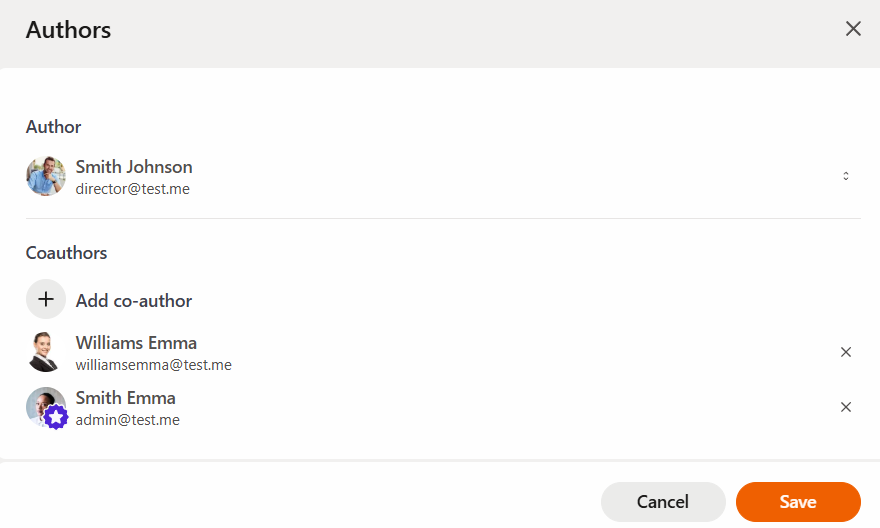
If needed, you can change the Author or add one or more Co-authors. Co-authors can also edit the task, configure its settings, assign users, and view reports, but they do not have permission to delete it
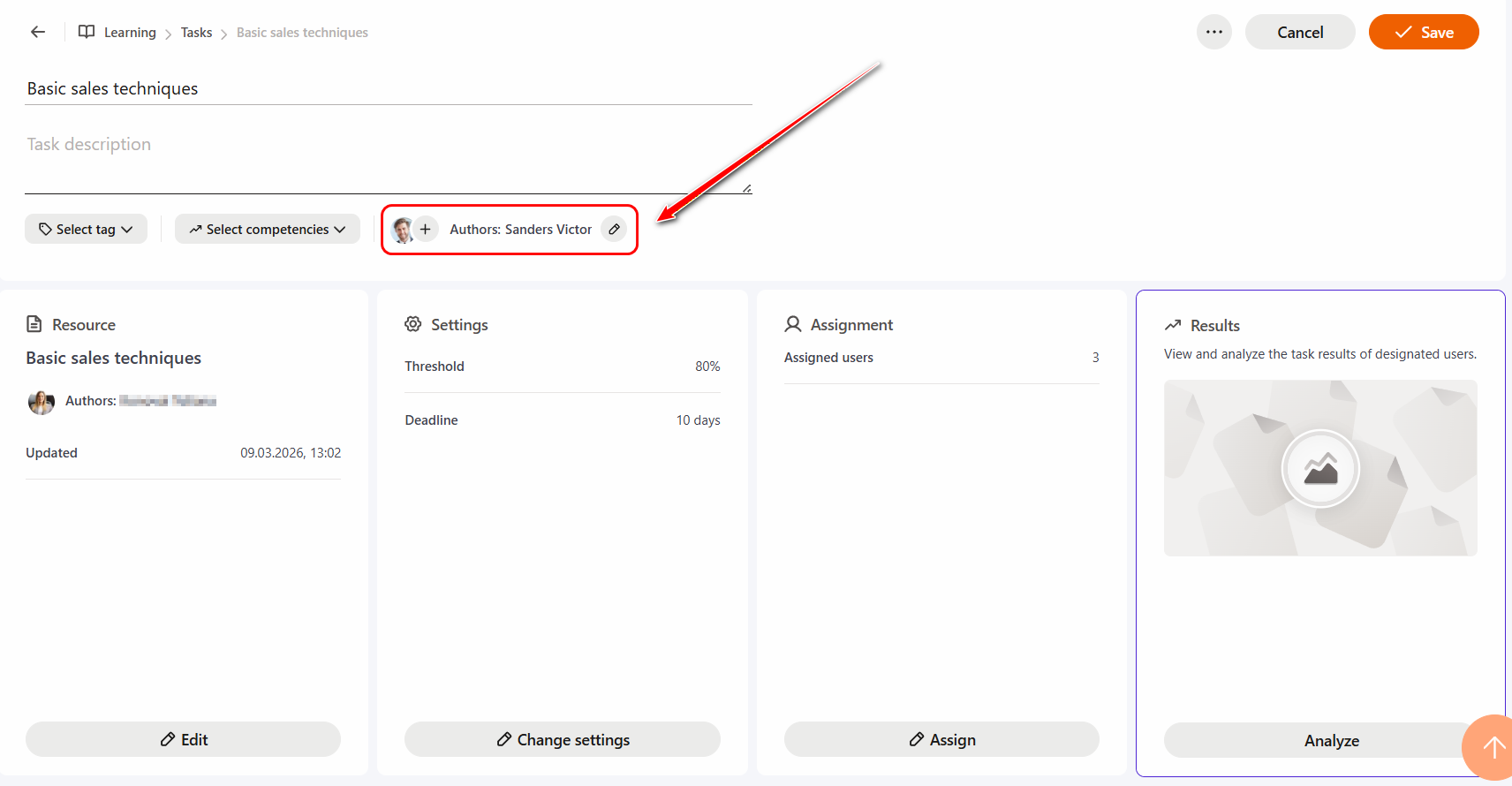
To change the Author or add a Co-author, click the "plus" or "pencil" icon, after which a modal window for the corresponding actions will open.
To change the Author you need to:
- Сlick the corresponding button on the right:
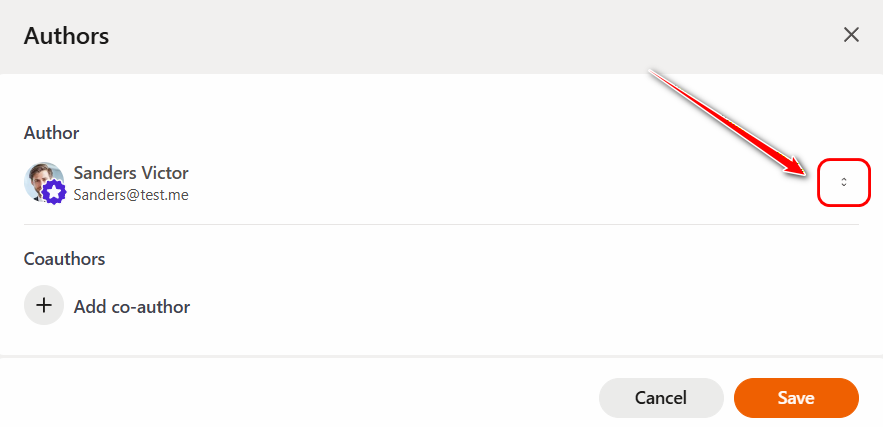
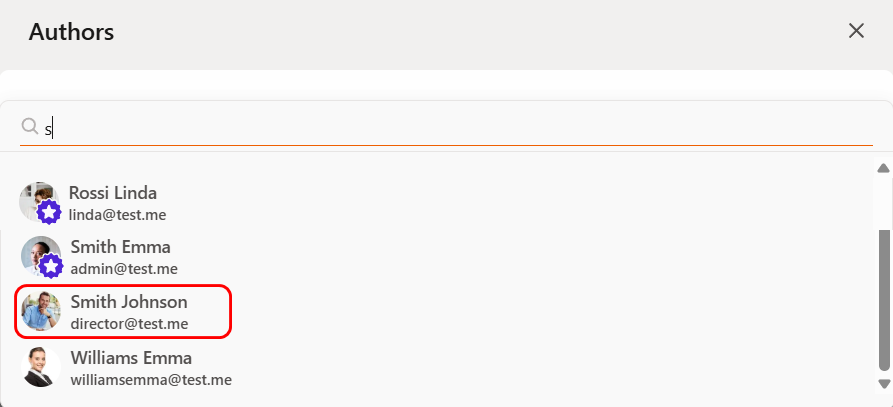
- Select a user from the dropdown list or use the search by full name or email address:
- Click the Save button:
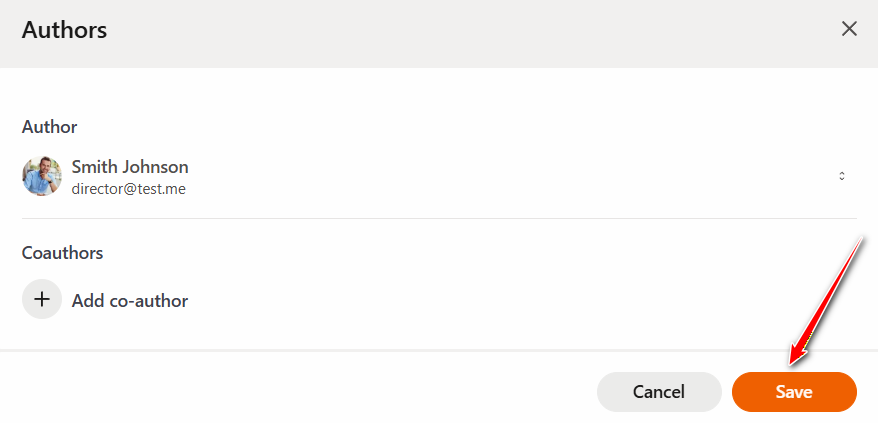
To add a Co-author, click the "Add Co-author" button, select a user from the dropdown list or use the search, and then click "Save".
Multiple co-authors can be added to a task.
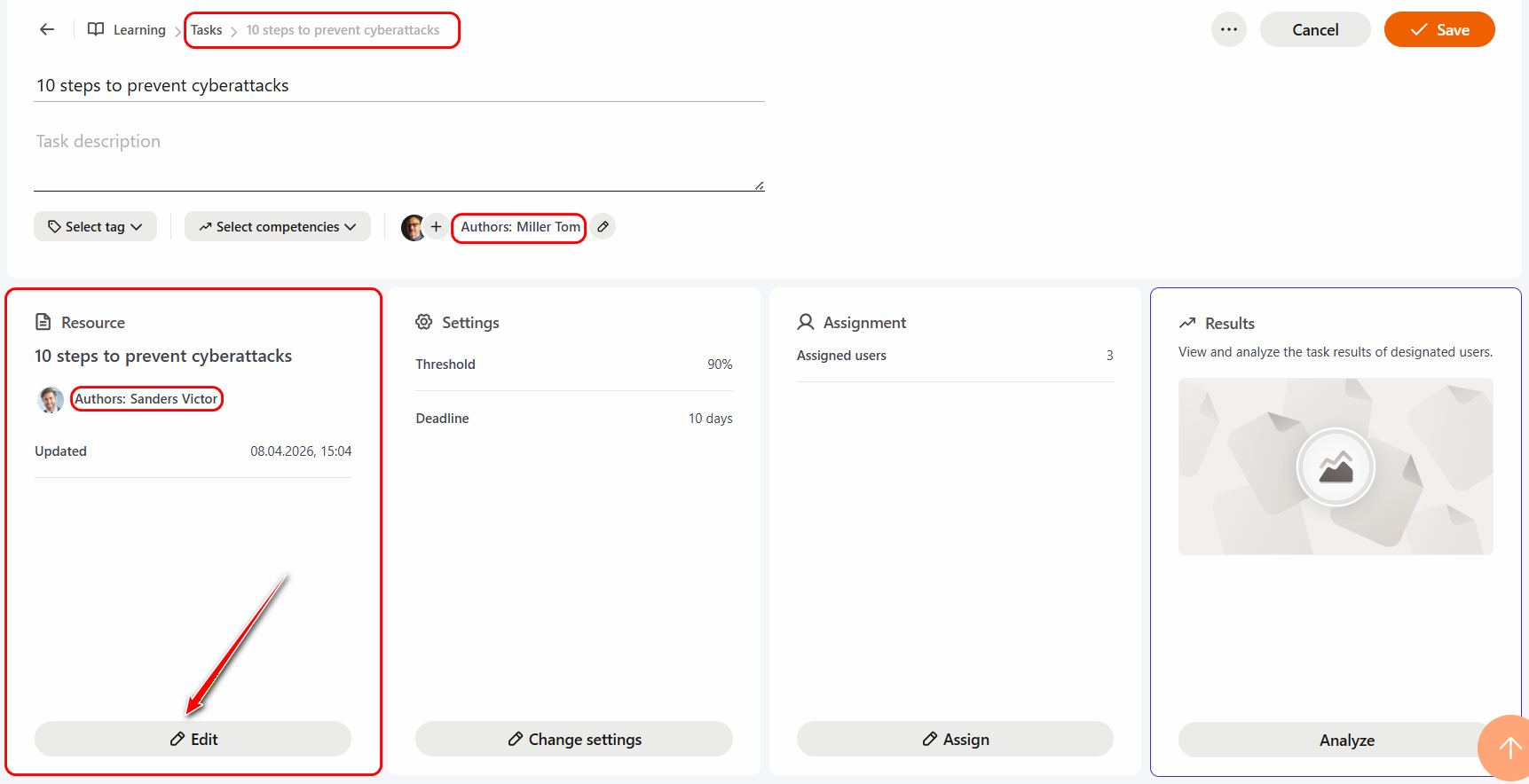
A user assigned as a Co-author of a task can edit the corresponding learning content (resource, test, course, etc.) only if they are the Author or Co-author of that content and have management permissions. If they do not have such permissions, editing will be blocked, and the system will display a corresponding notification.
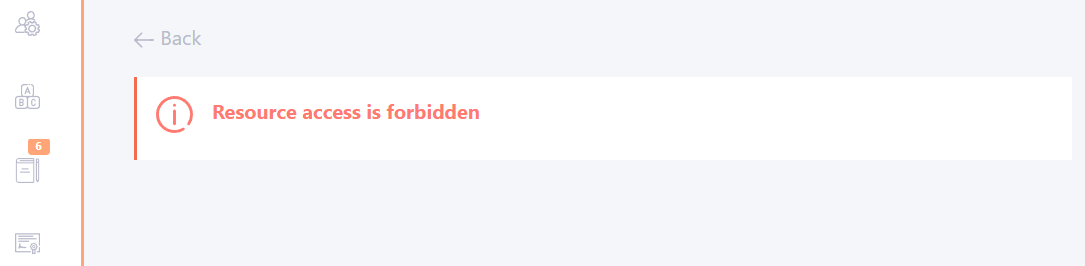
Example of a notification about restricted resource editing