
Custom successful and unsuccessful completion task messages
For tasks of the following types: SCORM resource, course, training program, quiz, complex quiz, and survey, there is an option to create Custom successful and unsuccessful completion task messages that will be displayed to the user after completing the task.
To configure these messages, open the required task, go to the Settings - General section, and enable the "Custom successful and unsuccessful completion task messages" option.
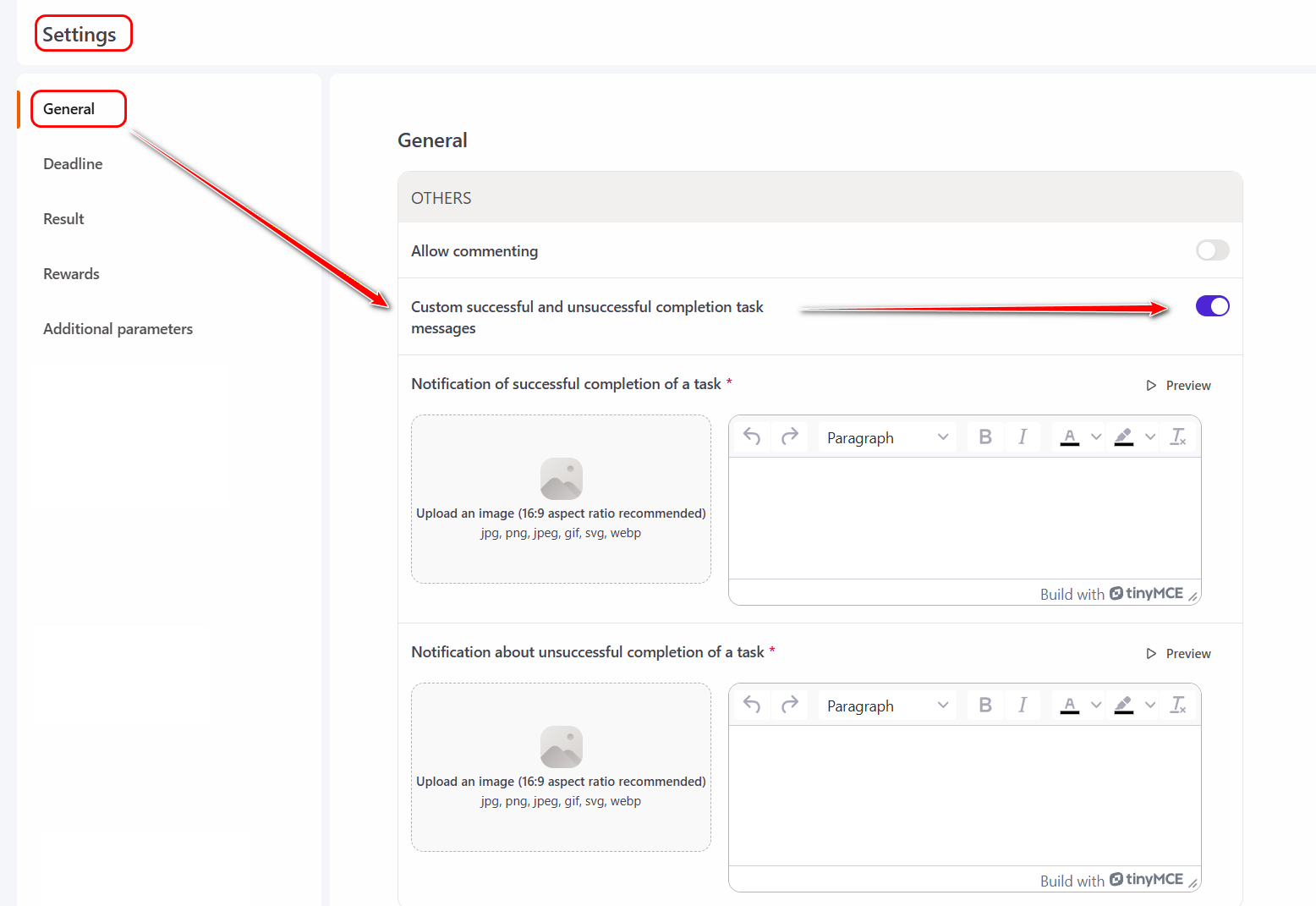
Next, you need to fill in the corresponding fields for the two notification types: "Notification of successful completion of a task" and "Notification about unsuccessful completion of a task":
- upload an image;
- add text that reflects the company’s corporate style. The text can be formatted by changing the font size, style (bold, italic, etc.), or highlighting key words with color.
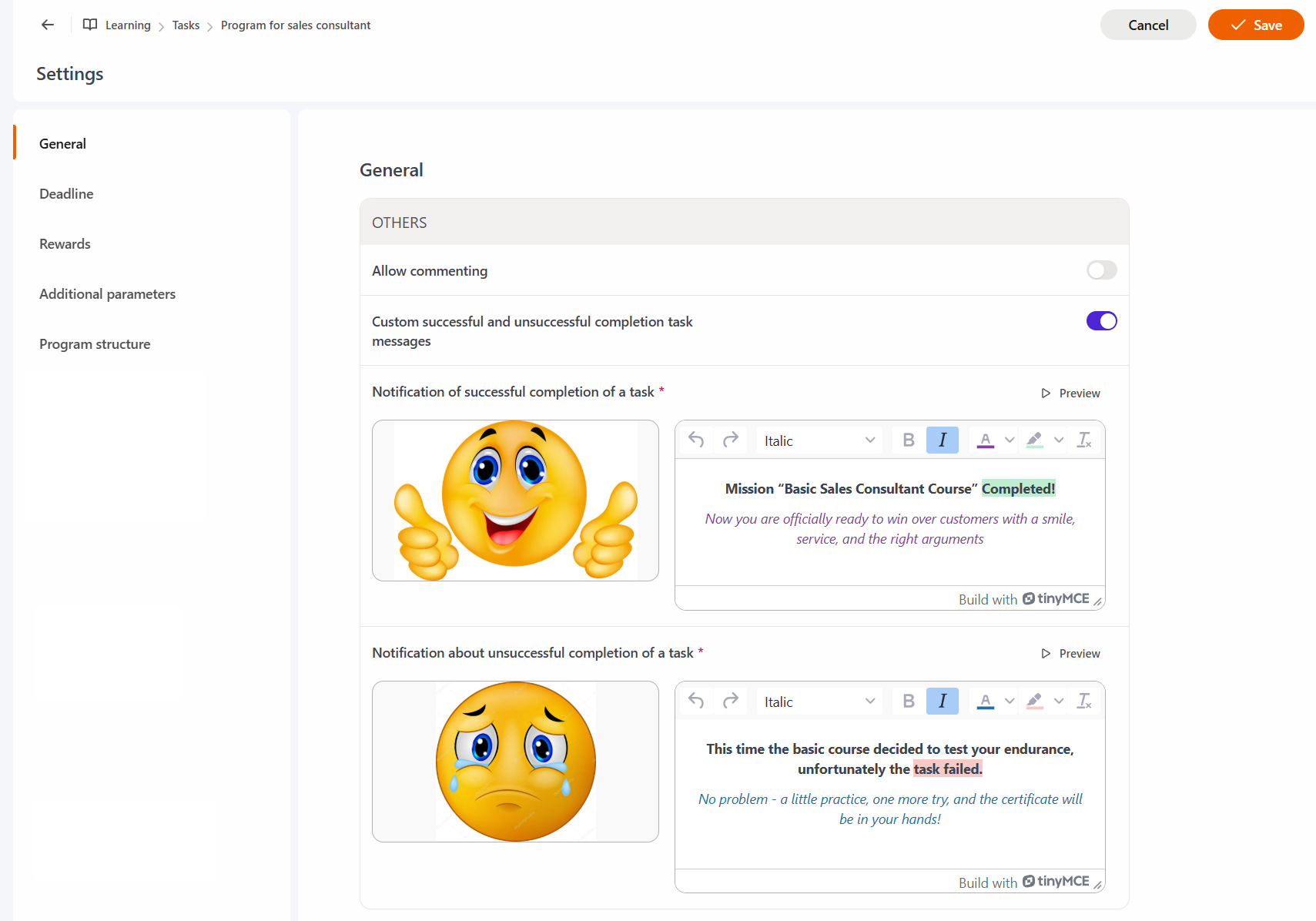
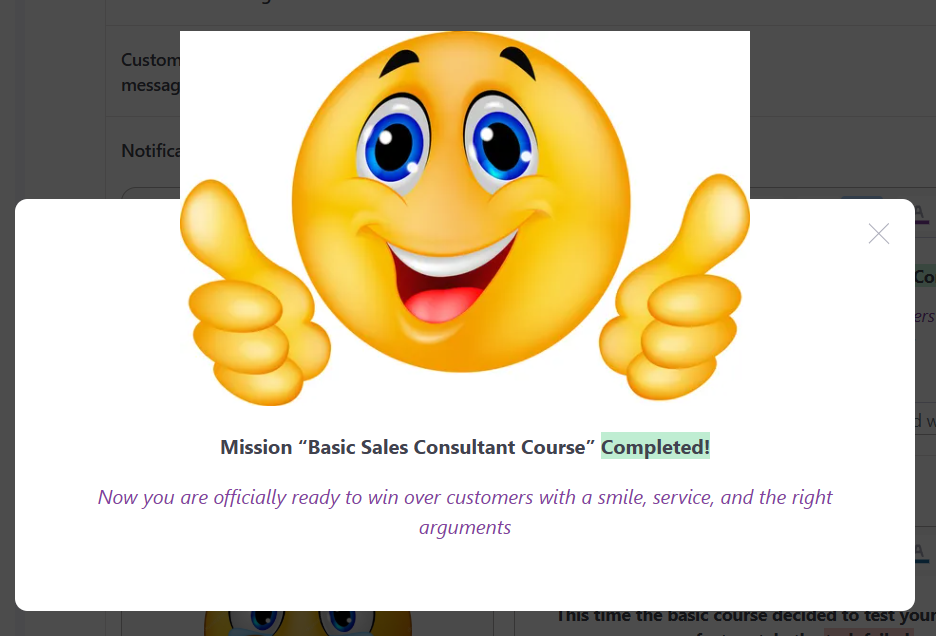
To check how the notification will appear to the user, click the "Preview" button.
After making the changes, click the Save button.
Now, after completing the task, the user will see the configured message according to their completion result.