Configuring Additional parameters for tasks
On the task table page, you can configure Additional parameters for tasks. These are used when the standard fields are not sufficient and you need to specify specific information (for example, training type, cost, etc.).
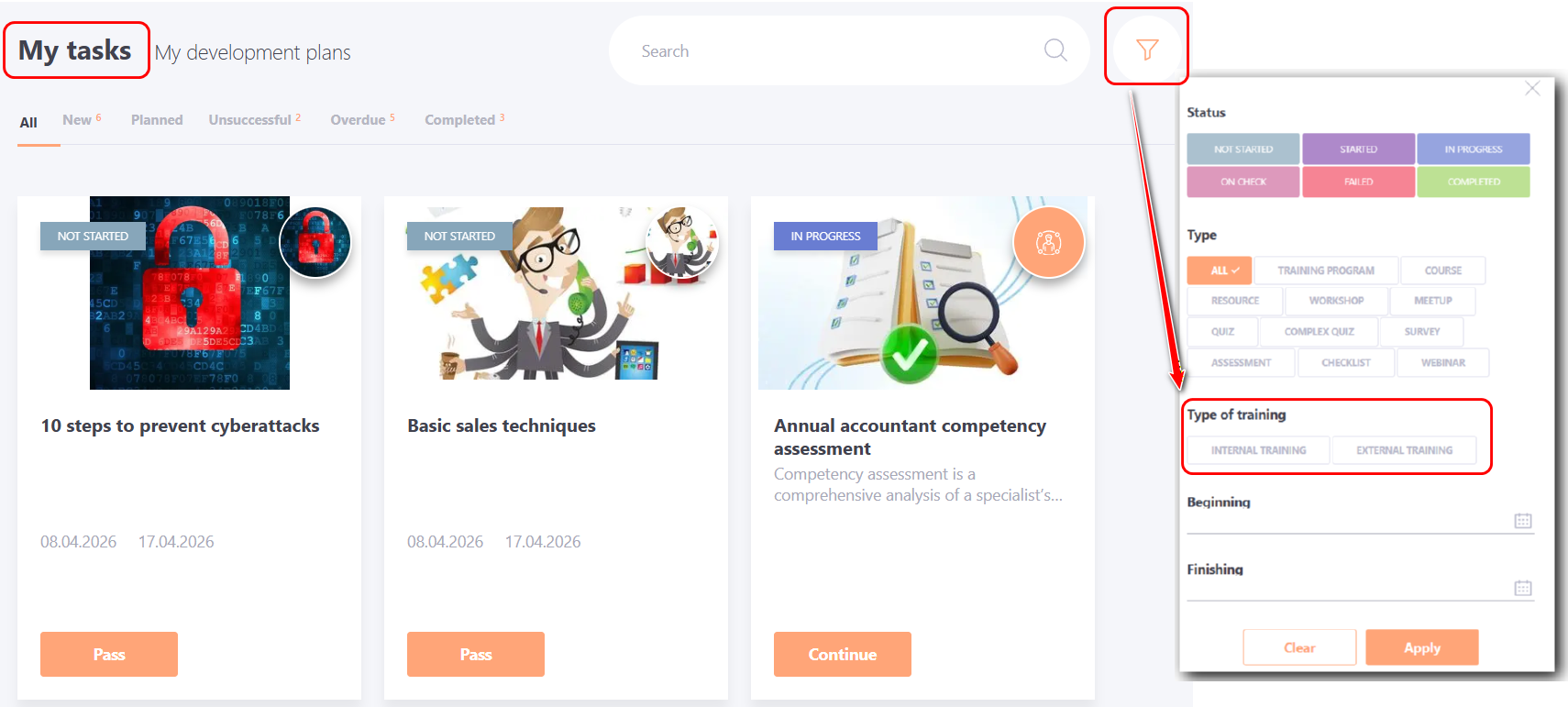
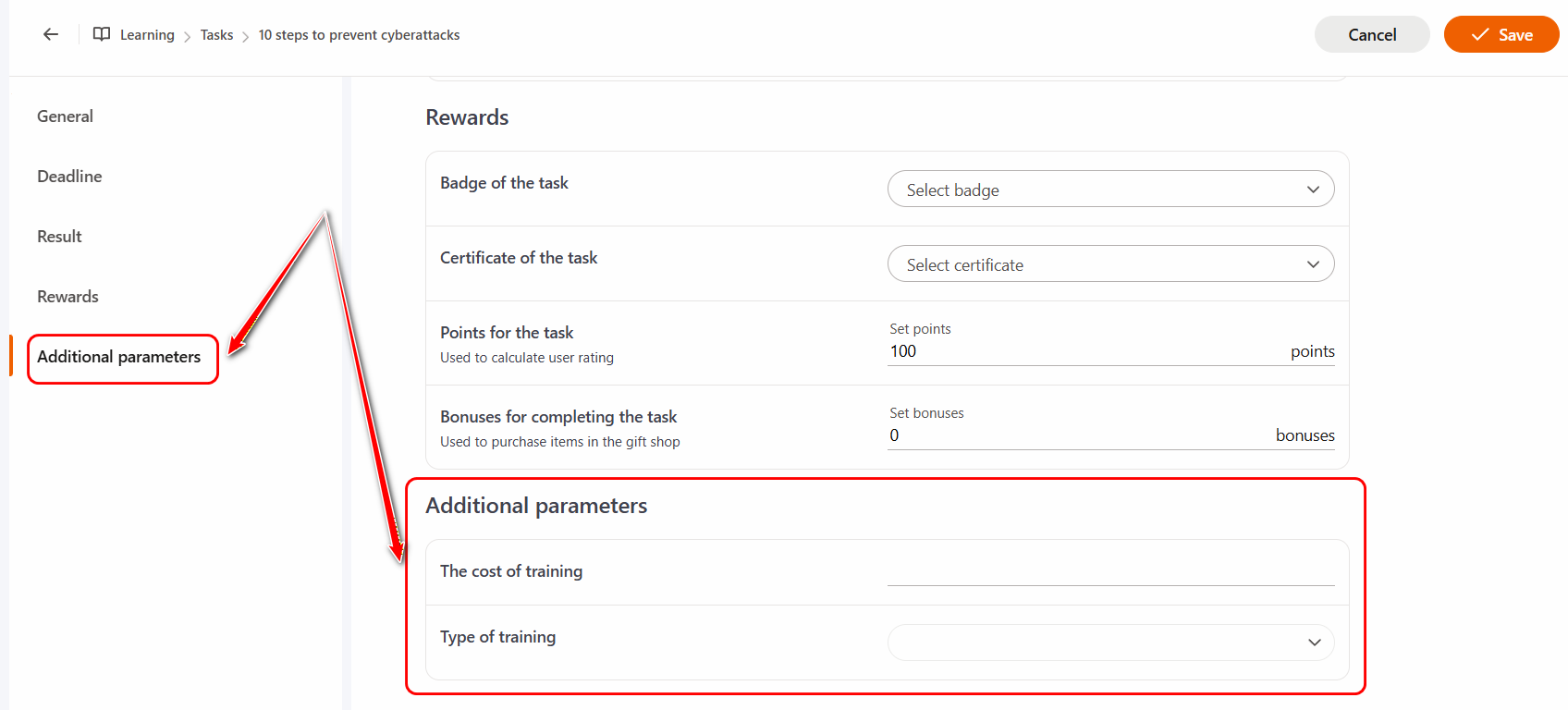
After creating such parameters, an Additional Parameters section with the corresponding fields for completion will automatically appear in the Settings block.
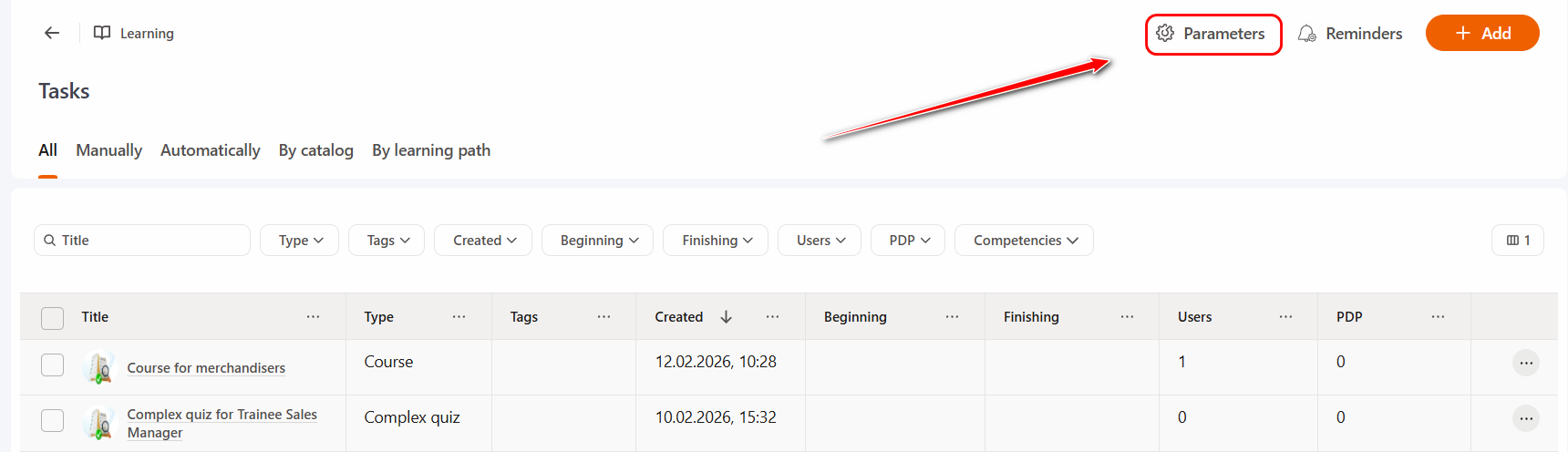
To create an additional parameter, click the Parameters button on the Tasks page:
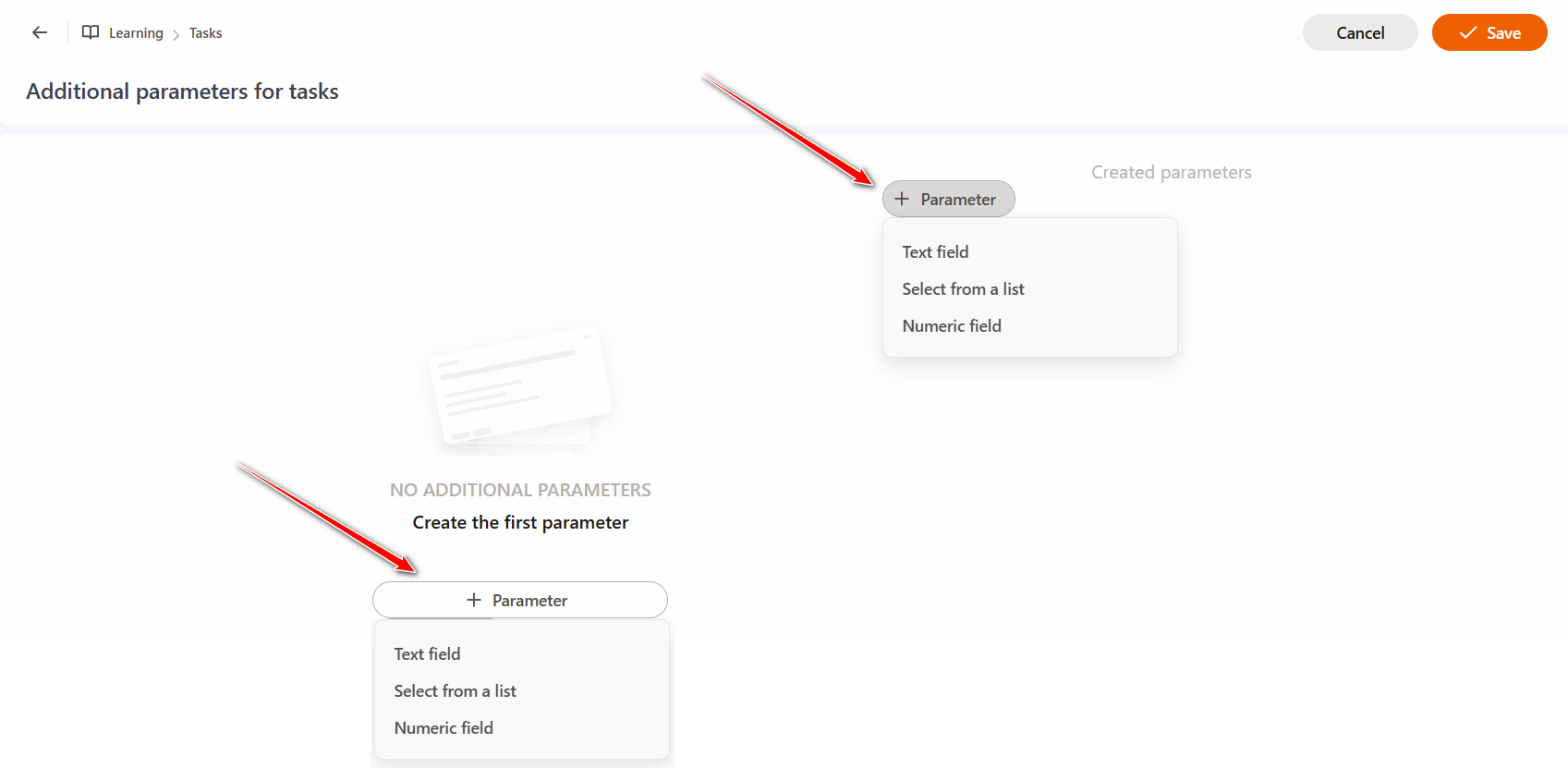
On the "Additional parameters for tasks" page click the Parameter button and select the required type from the dropdown list:
- Text field — allows you to enter any text.
- Select from a list — allows you to select one of the predefined options without the ability to enter your own value.
- Numeric field — used to enter only numeric values.
The following management tools are available for each parameter:
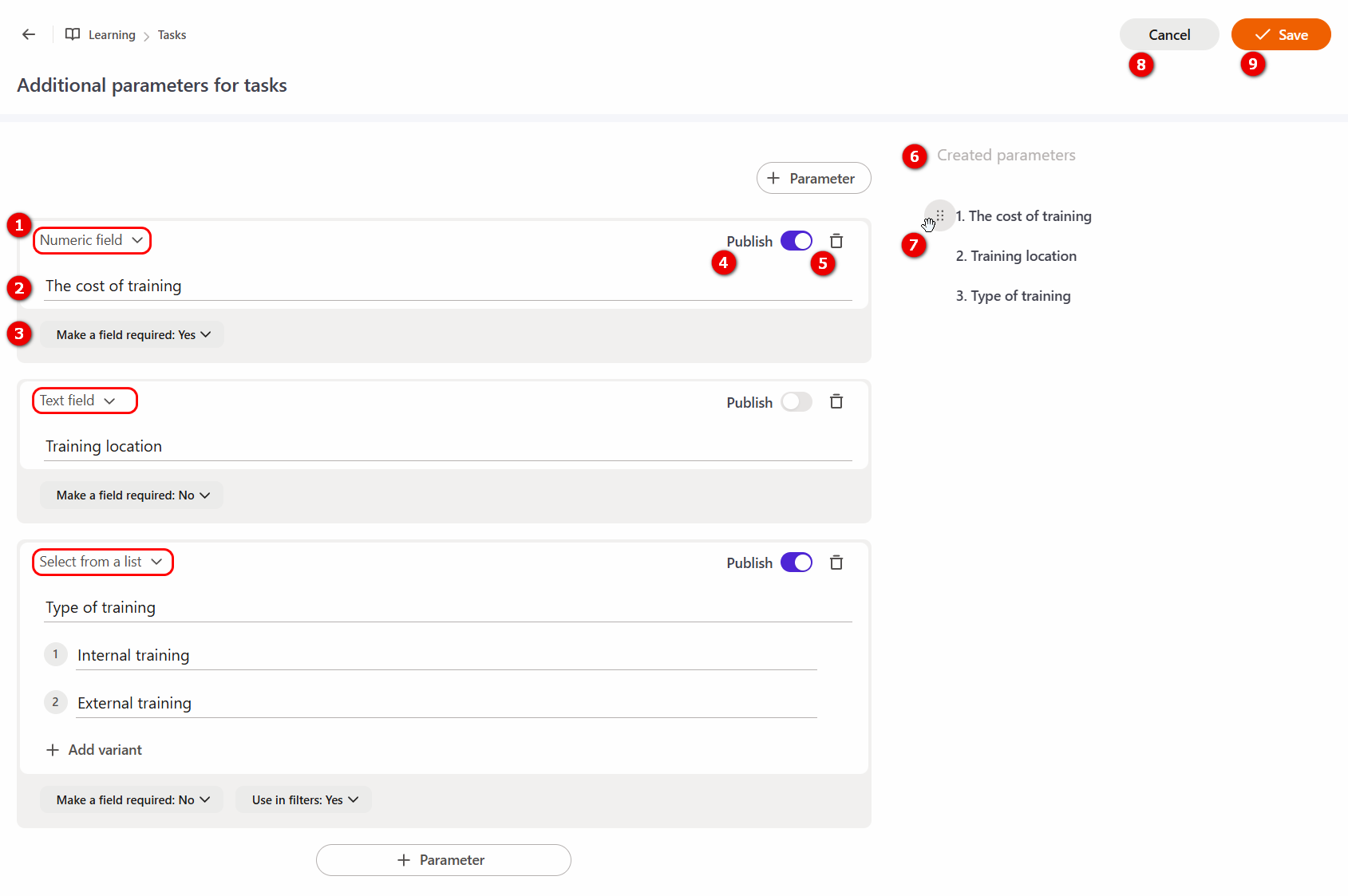
(1) - parameter Type – displays the selected field format. It can be changed at any time by selecting a different option from the dropdown list.
(2) - parameter Title – the name that will be displayed in the task settings.
(3) - Make a field required – an option that determines whether the parameter must be filled in. Required parameters are marked with an asterisk in the task settings.
(4) - Publish – enables or disables the parameter. When switched on, the parameter appears in the task settings. Additionally, corresponding columns for active parameters are displayed in the Learning History report. See more: Learning history.
(5) - Remove parameter – a button to remove the parameter.
(6) - Created parameters – a list of all created parameters.
(7) - Drag handle – allows you to change the order of parameters in the list.
(8) - Cancel – discards all unsaved changes.
(9) - Save – saves the changes made.
For "Select from a list" type parameters, additional settings are available:
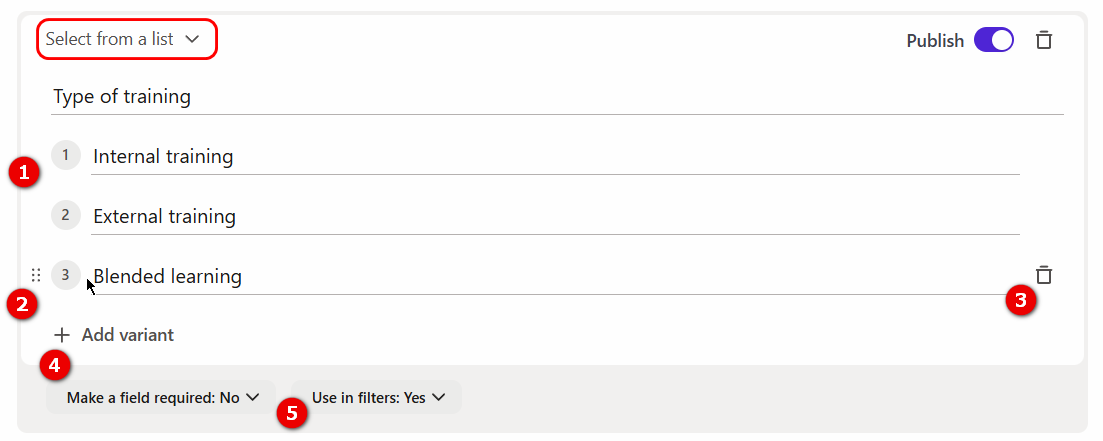
(1) - Item title - the text of the option that will be displayed in the drop-down list in the task settings.
(2) - Drag and drop button - allows you to change the order of the items,
(3) - Remove item - deletes a specific answer option,
(4) - Add variant - a button to create an additional item in the list.
(5) - Use in filters - if the option is enabled, this parameter will appear in the Filter on the "My tasks" page so that the user can filter the task by its value.