HTML Site
HTML-site type resource
A resource of the HTML site type allows you to use electronic courses, textbooks, reference books and other educational materials, designed as separate sites. For example, it can be a course in HTML format with its own structure, table of contents, navigation menu, sections and other interface elements.
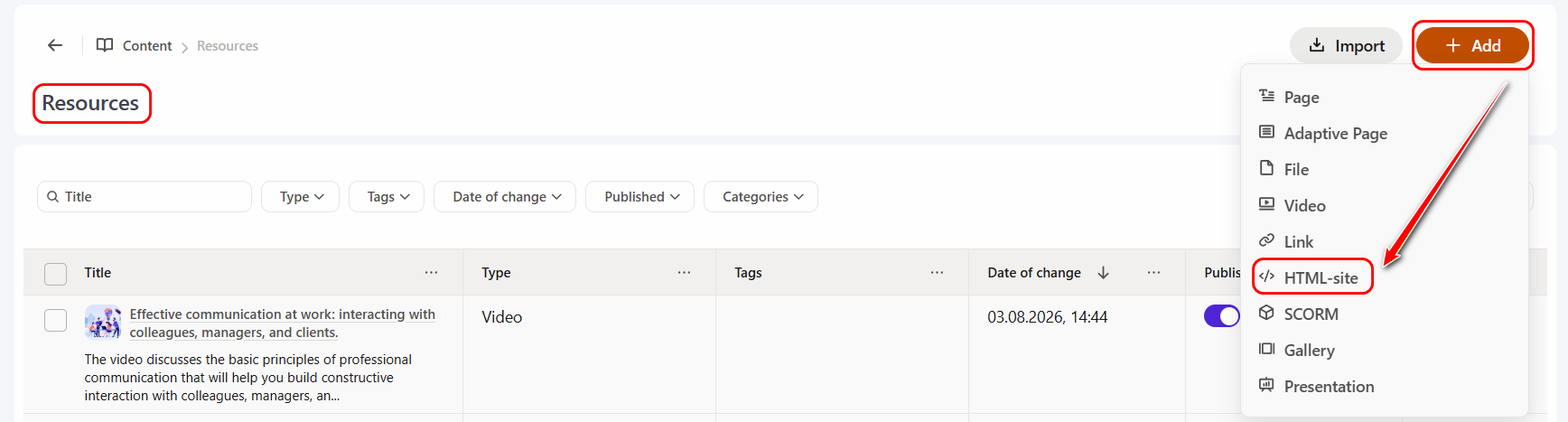
To create a resource HTML site, on the Resources page, click the Add button and select the resource type - HTML-site:
Next, you need to fill in the basic resource parameters:
- specify the resource title;
- if necessary, add a description;
- select the Categories to which the resource belongs. More details: Resource Categories;
- configure Access to the resource for users in the Knowledge Base. More details: Knowledge Base Management;
- if necessary, select a taq.
Also, as for other types of resources, you can add a Resource Cover and Image for task card instead of the standard one.
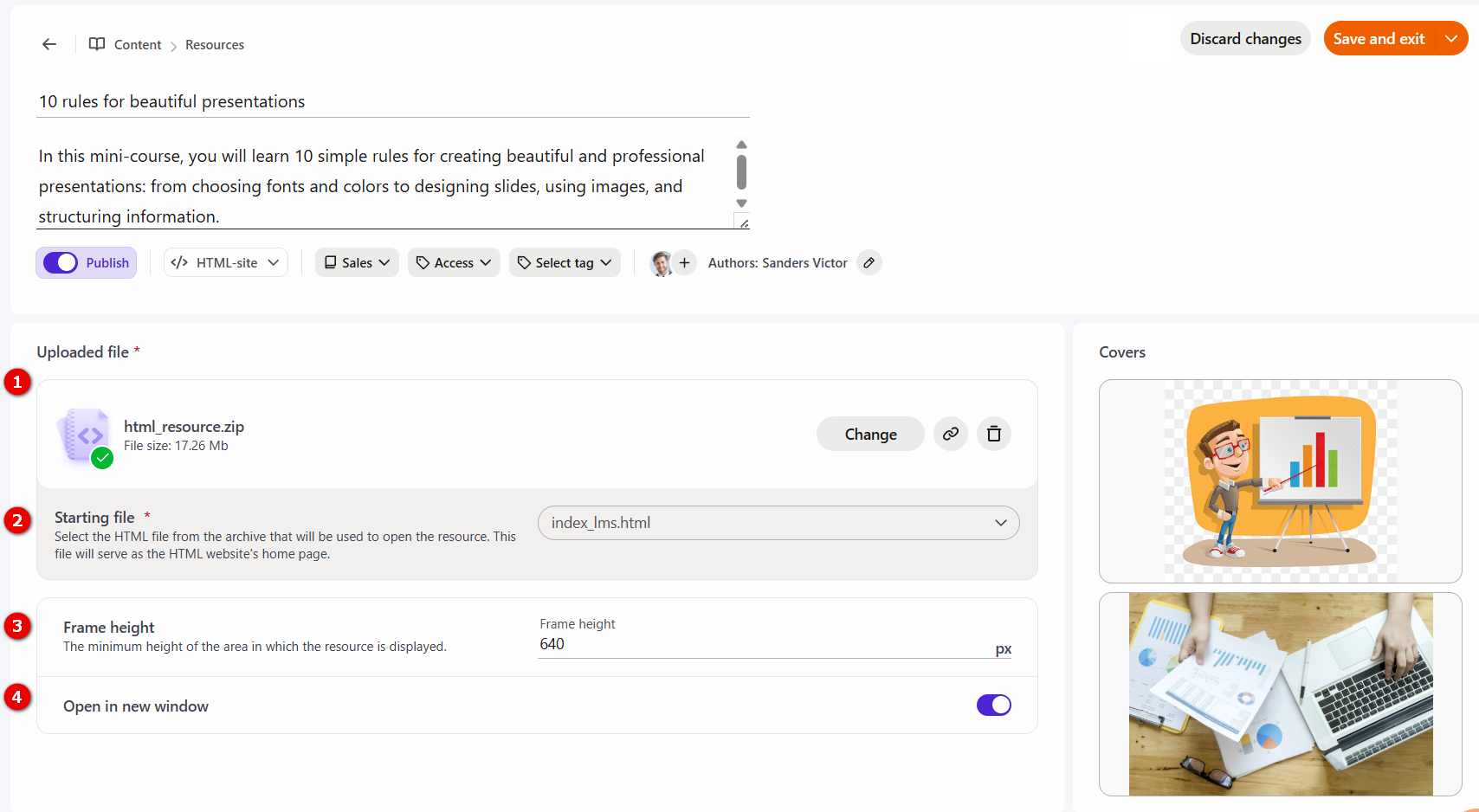
In the Uploaded file (1) field, you need to upload a ZIP-archive with HTML-site files. The name of the start file in the archive must be written in Latin letters. For example, "name.html".
After downloading the archive, in the Starting file (2) field, select the HTML-file that will be opened first. It will be used as the main page of the HTML-site.
In the Frame height (3) field, you need to specify the minimum height of the area in which the resource will be displayed. The value should be selected depending on the features of the HTML-site. The default is 640 px.
If necessary, you can enable the Open in new window (4) setting - in this case, the resource will be played in a new window after being opened by the user. The setting is disabled by default.
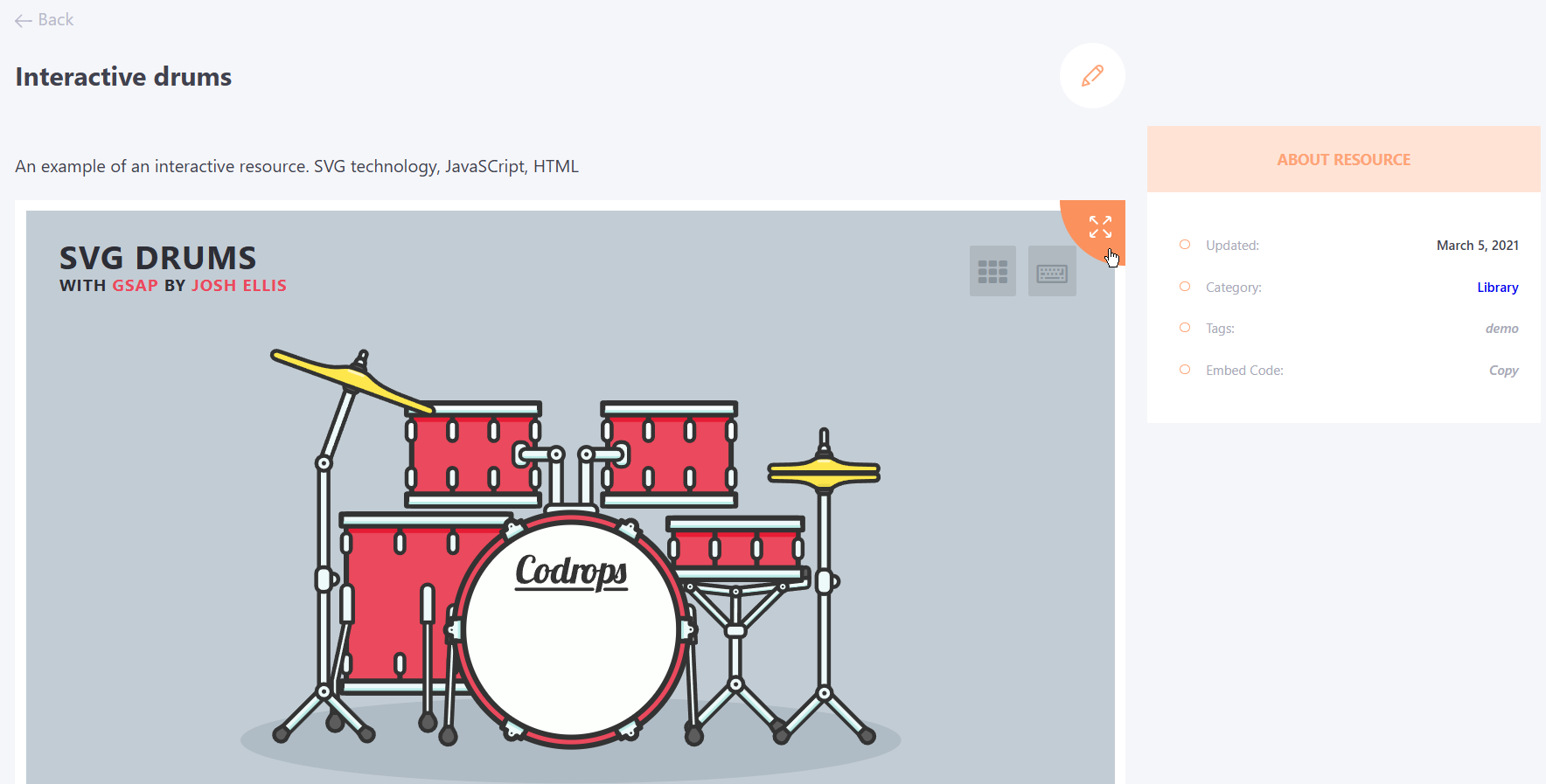
As a result, a user opening such a resource in the System will be able to work with its content: