
Notifications report
Notification Log is a system report that stores information about all messages sent to users via email, sms or connected messengers.
The portal supports the following methods of user notifications:
-
Email — notifications are automatically sent to the email address specified in the user’s profile.
-
SMS — if SMS integration is configured (for more details SMS integration) and the user has a phone number in their profile, notifications are sent as SMS messages.
Please note: One SMS segment (credit) can contain up to 70 Cyrillic characters or 160 Latin characters. If the message exceeds this limit, it will be split into two or more segments and will cost more accordingly. For more details SMS size. -
Messengers — if a messenger integration is configured on the portal and the user has connected the corresponding chatbot, notifications will be delivered via that messenger.
Available integrations include: Telegram, Viber, MS Teams, Slack.
Certain types of notifications can be enabled or disabled by users in their profile under the Notifications section. More details: Notifications Menu
The administrator can configure all types of notifications for users in the System Settings - Notifications Templates menu. More details: Notification templates setting.
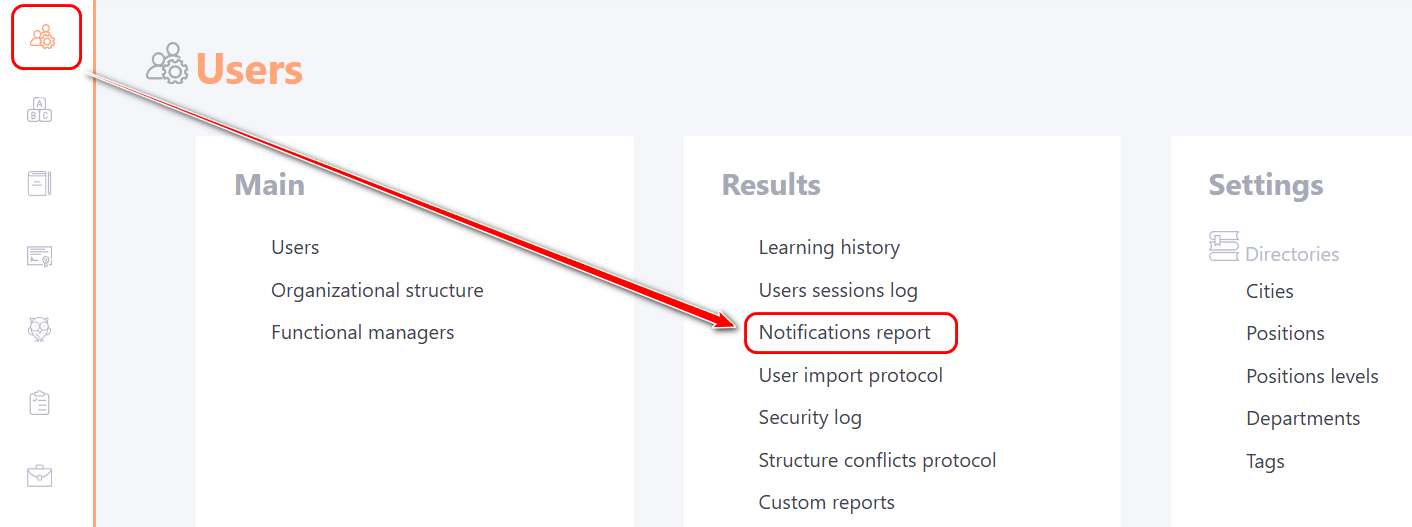
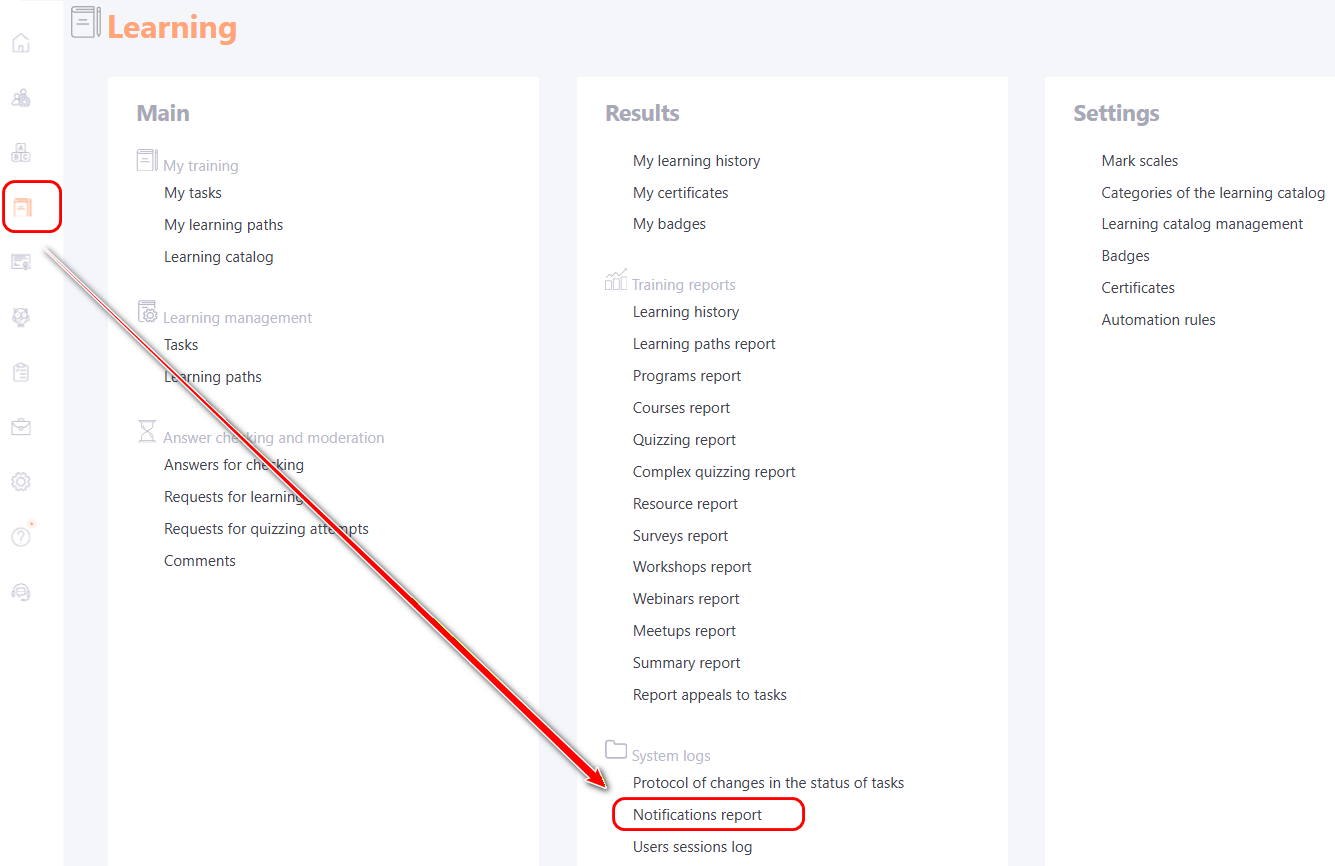
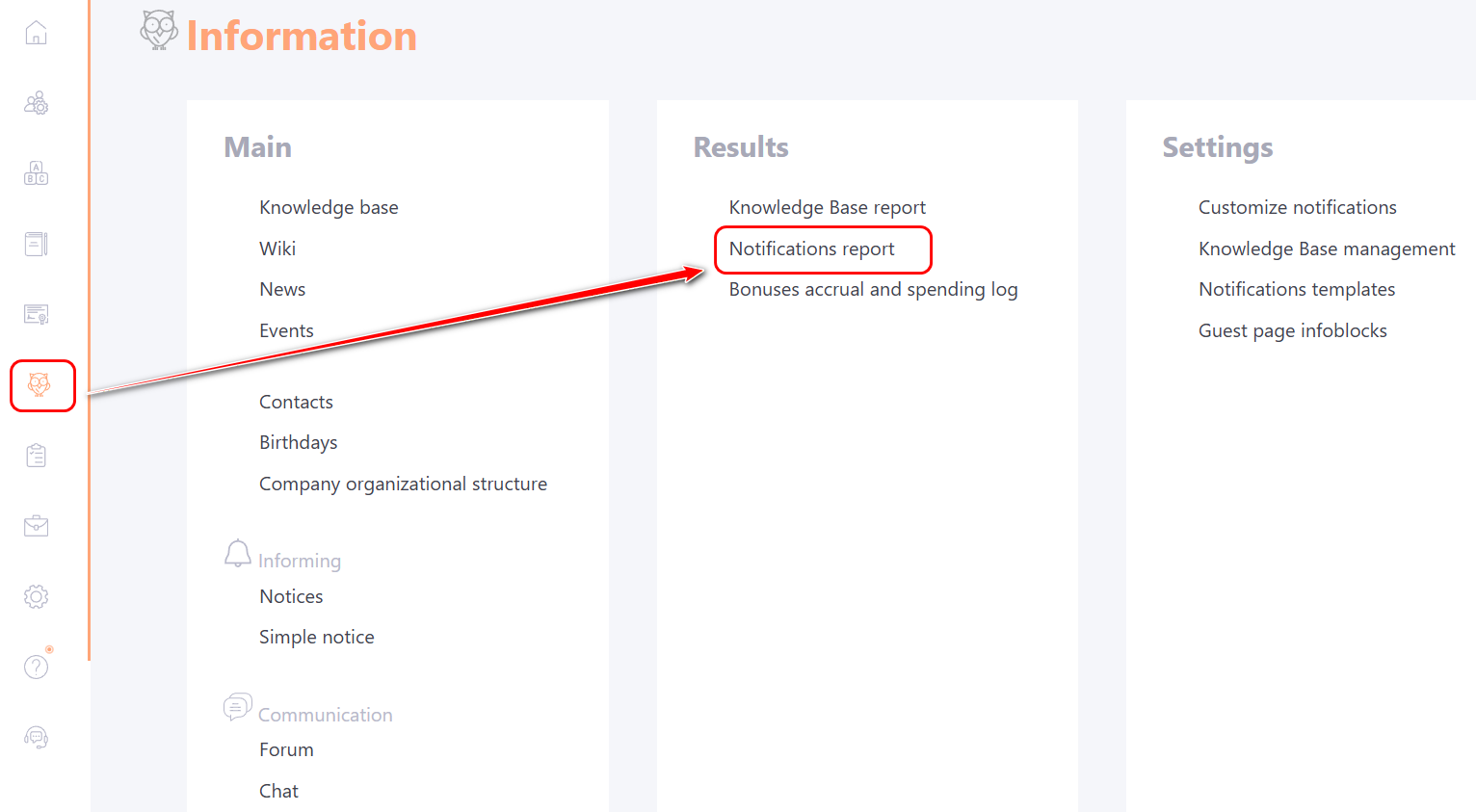
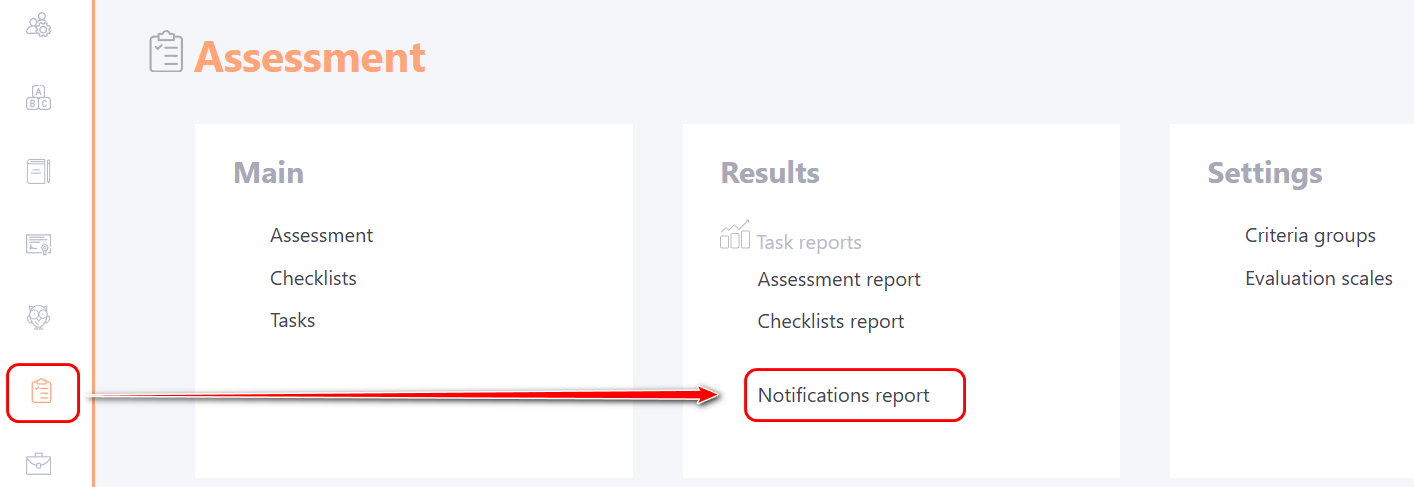
You can go to the Notification Log through the following menus:
- menu Users - Notifications report:
- menu Learning - Notifications report:
- menu Information - Notifications report:
- menu Assessment - Notifications report:
The Notification Log page displays the following information in a table format:
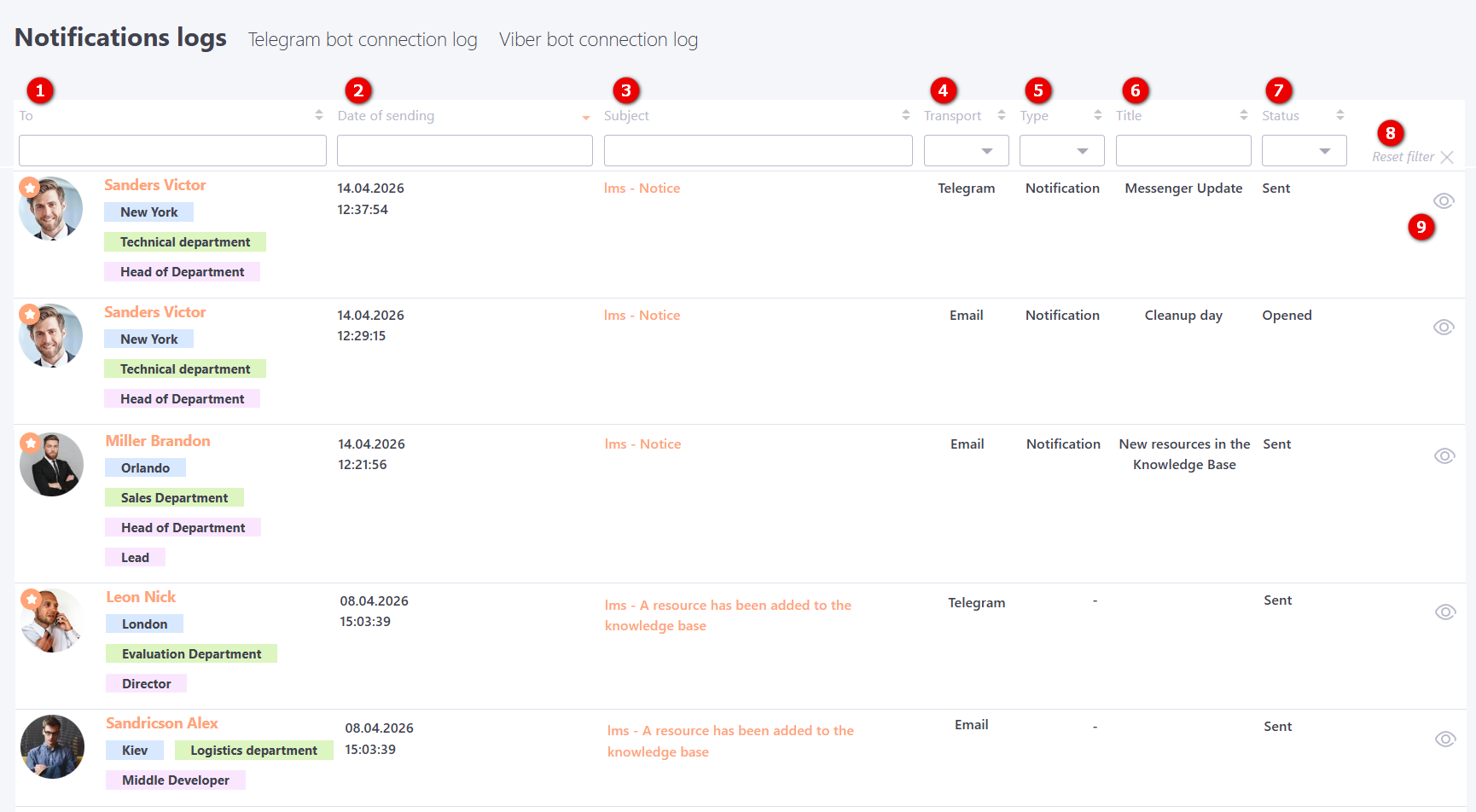
(1) - To - Full name of the user to whom the notification was sent;
(2) - Date of sending - date and time the message was sent;
(3) - Subject - title of the notification template;
(4) - Transport - method of sending the notification (e-mail, sms or messenger name);
(5) - Type - category of the notification. Possible values: Reminder, News, Notification, Task, Work Task, Account, Chat;
(6) - Title of the element (task, news, notices, etc.) about which the notification was sent;
(7) — Status — displays the current state of notifications sent to users, depending on the delivery method:
-
For email:
- Sent — the notification was successfully sent;
- Opened — the user opened the email;
- Clickthrough — the user followed a link from the notification;
- Error — an error occurred during sending.
-
For SMS:
- Sent — the SMS request was successfully transmitted via API to the sending service;
- Delivered — the message was successfully delivered to the user;
- Error — the SMS could not be sent.
-
For messengers:
- Sent — the notification was successfully sent;
- Error — an error occurred during sending.
Filtering and sorting are available by columns (1)-(7).
(8) - Reset filter - button to cancel all filters at once.
(9) - Review - opens detailed information for each sent message.
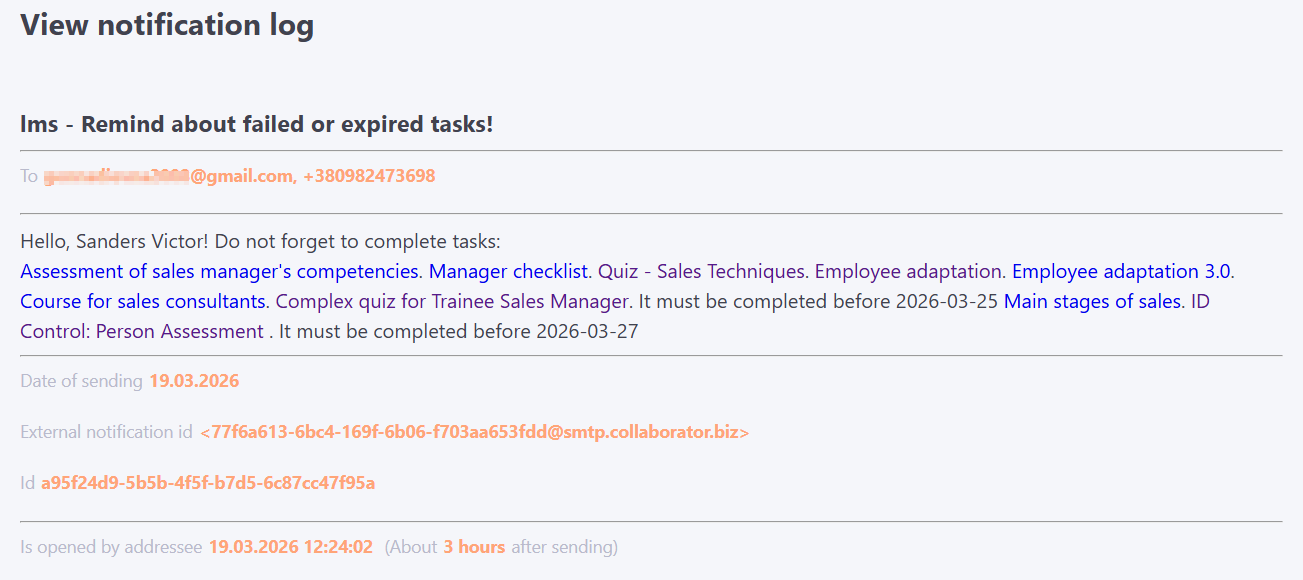
The View notification log page for an email shows the date and time the email was opened.
Chatbot Connection Log
The portal records all chatbot connections made by users. All such users are displayed in the Connection Log. A separate log is created for each messenger, which contains a list of users who connected the corresponding chatbot.
You can go to the Chatbot Connection Log by clicking on the corresponding tab:
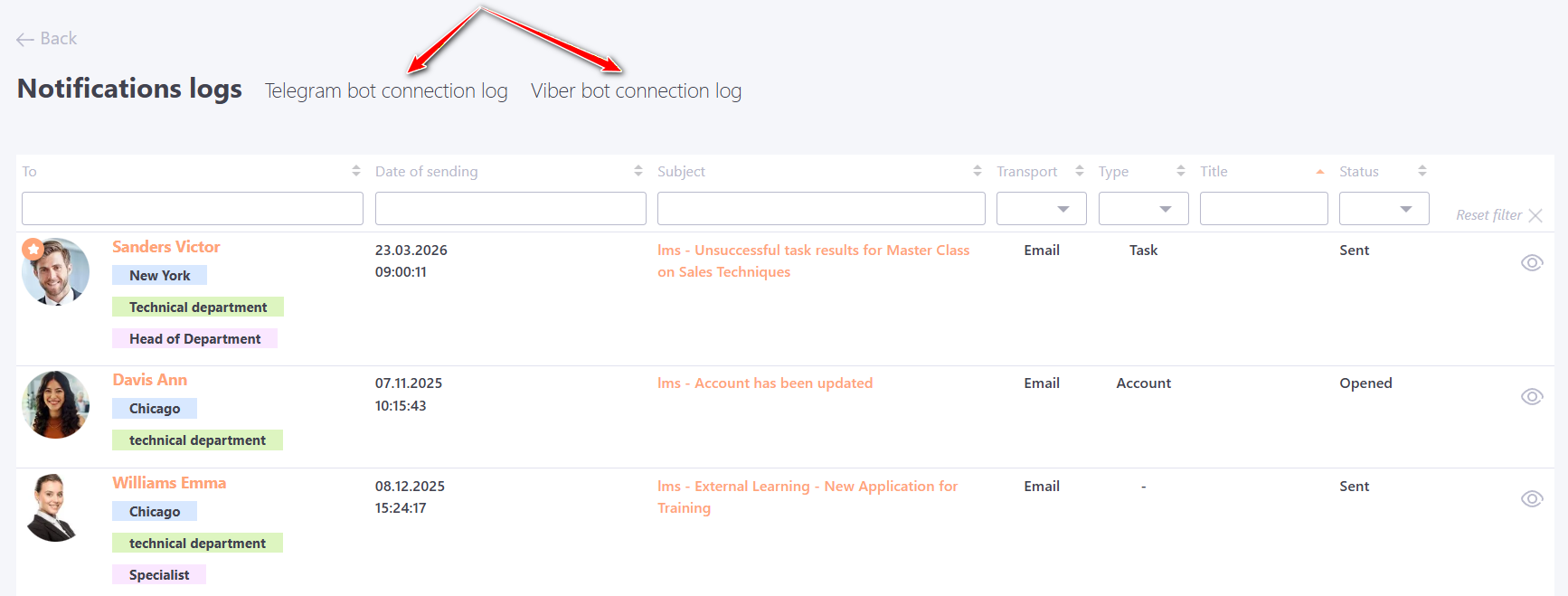
For more information about setting up integrations: Menu integrations.
The Chatbot Connection Log page displays the following information in a table format:
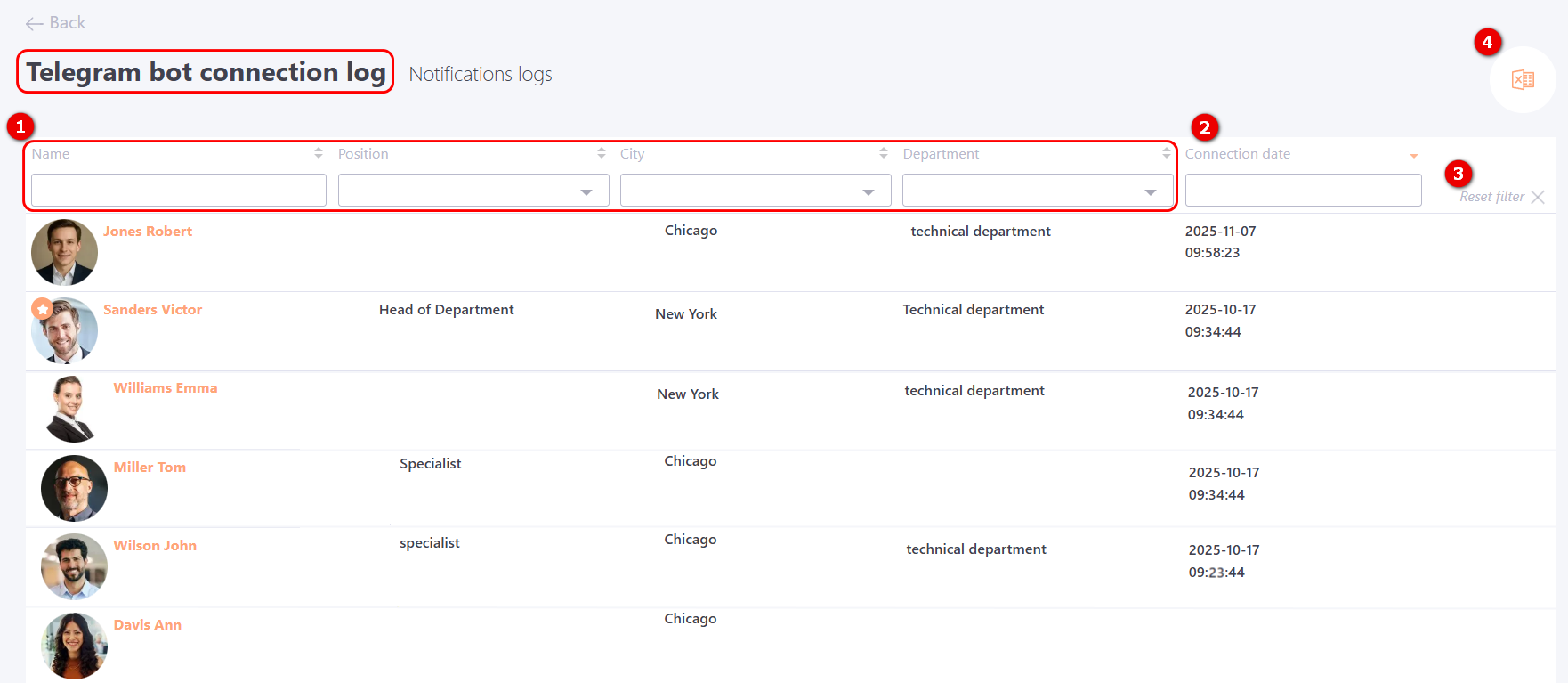
(1) - Data of users who connected the chatbot: full name, position, city, department.
(2) - Connection date - the chatbot was connected by the user;
Filtering and sorting are available for all columns.
(3) - Reset filter - button to cancel all filters at once.
(4) - Export to Excel - upload the list of users to Excel.
