Task archive
Task Archive is a feature that allows you to hide outdated tasks from the Tasks table that are no longer in use but must remain in the system for reporting purposes and to preserve users' learning history.
Archiving does not delete a task from the system. All data associated with the task, including completion results, reports, and users' learning history, remains available and stored in the system.
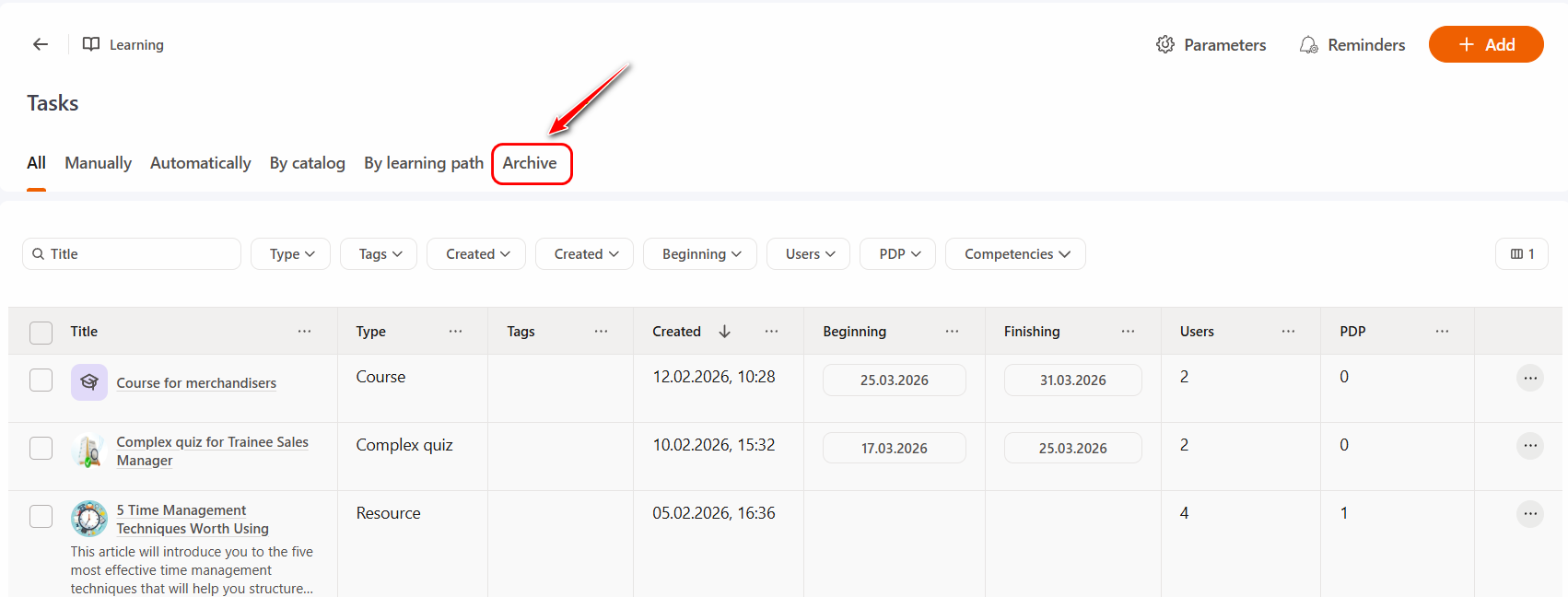
To view archived tasks, go to the Tasks page and open the Archive tab.
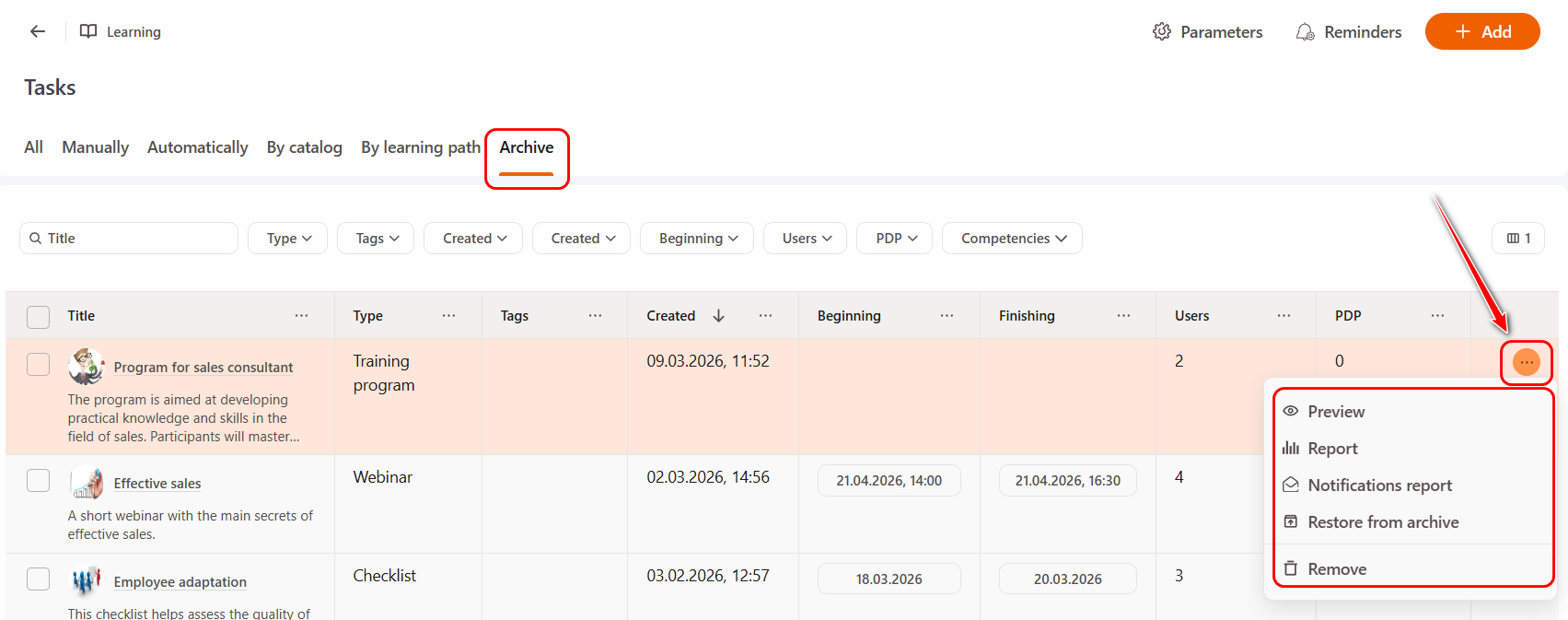
For each archived task, clicking the Actions button provides the following options:
- Preview — allows you to see how the task appears to users. For more details, see Task preview.
- Report — opens the task reporting page, where you can review users' completion results.
- Notification report — opens the notification log page, where you can view all messages sent within the scope of this task.
- Restore from Archive — returns the task to the list of active tasks (the All tab). Once restored, all standard actions and settings become available for the task again.
- Remove — permanently removes the task from the system.
The following restrictions apply to tasks that have been moved to the Archive:
- The task cannot be edited.
- The task cannot be assigned to or unassigned from users (either manually, through group actions, or via a CSV-file).
- The task is no longer available for selection or use in automation rules and PDP task sets (it is also removed from the corresponding item lists).
- The task is not displayed in the Learning Catalog (neither in the general list nor via a direct link).
- The task’s due date is no longer displayed to users in the calendar on the My Tasks page.
- No notifications related to the task are sent (assignment notifications, reminders, or any other task-related notifications).
- The task is no longer displayed in the Personal Development Plan and is not included in its overall statistics.
Adding a task to the Archive
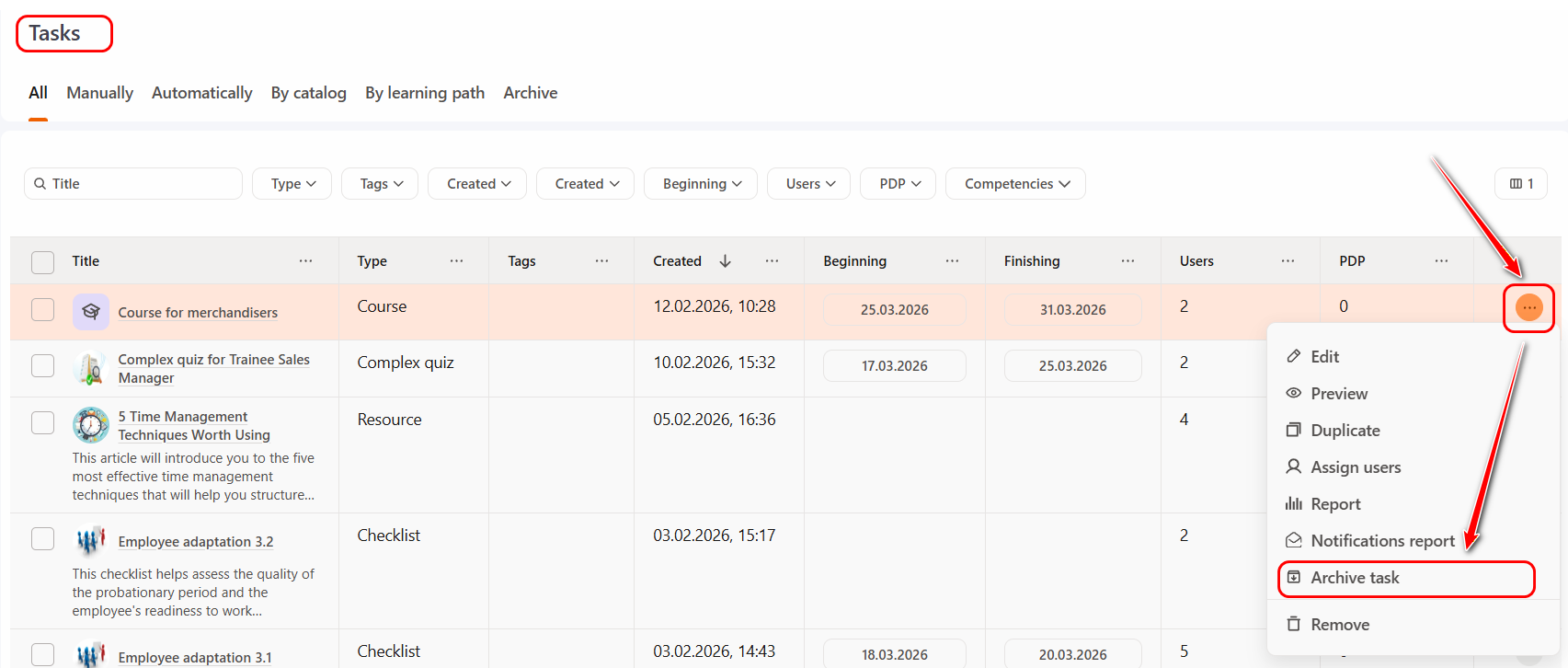
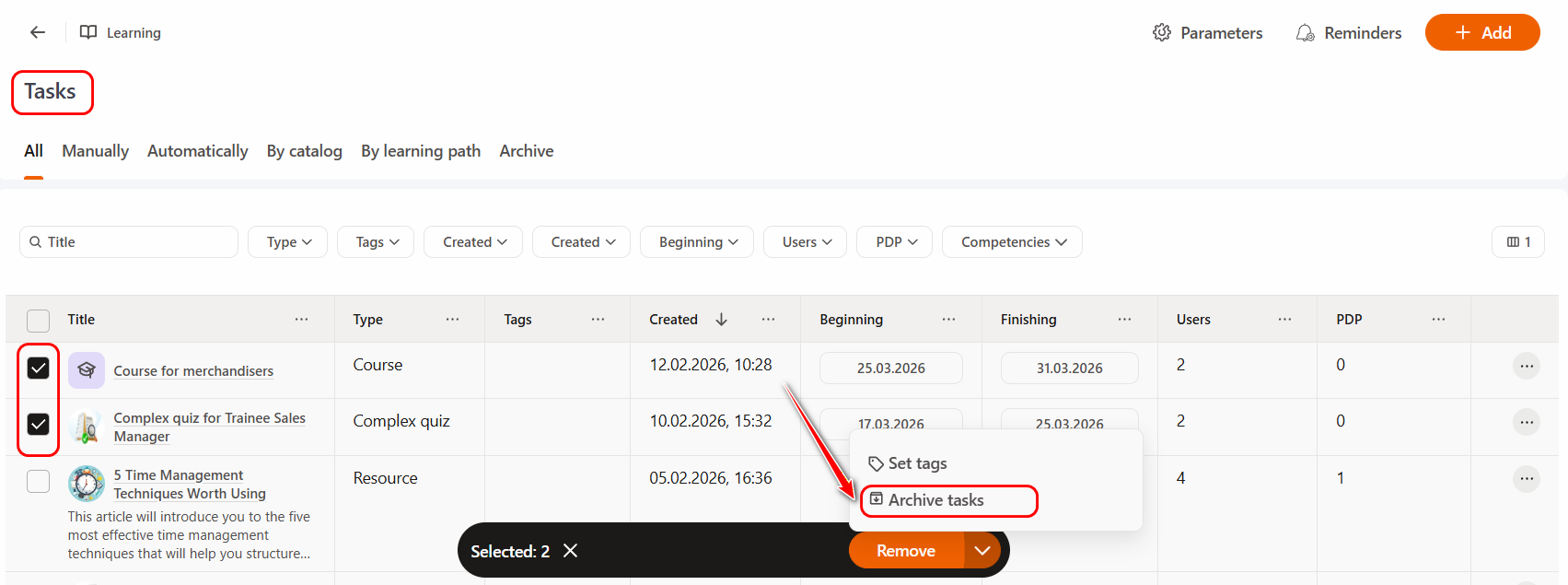
To move a task to the Archive, go to the Tasks page, click the Actions button next to the desired task, and select "Archive task".
For convenience, a group action option is available. To use it, select the required tasks using the checkboxes. A panel with available actions will then appear at the bottom of the screen.
Click the arrow and select the "Archive tasks" option.
Restoring a task from the Archive
If you need to continue working with a task, it must first be restored.
To do this, go to the Tasks page, open the Archive tab, click the Actions button next to the required task, and select "Restore from archive".
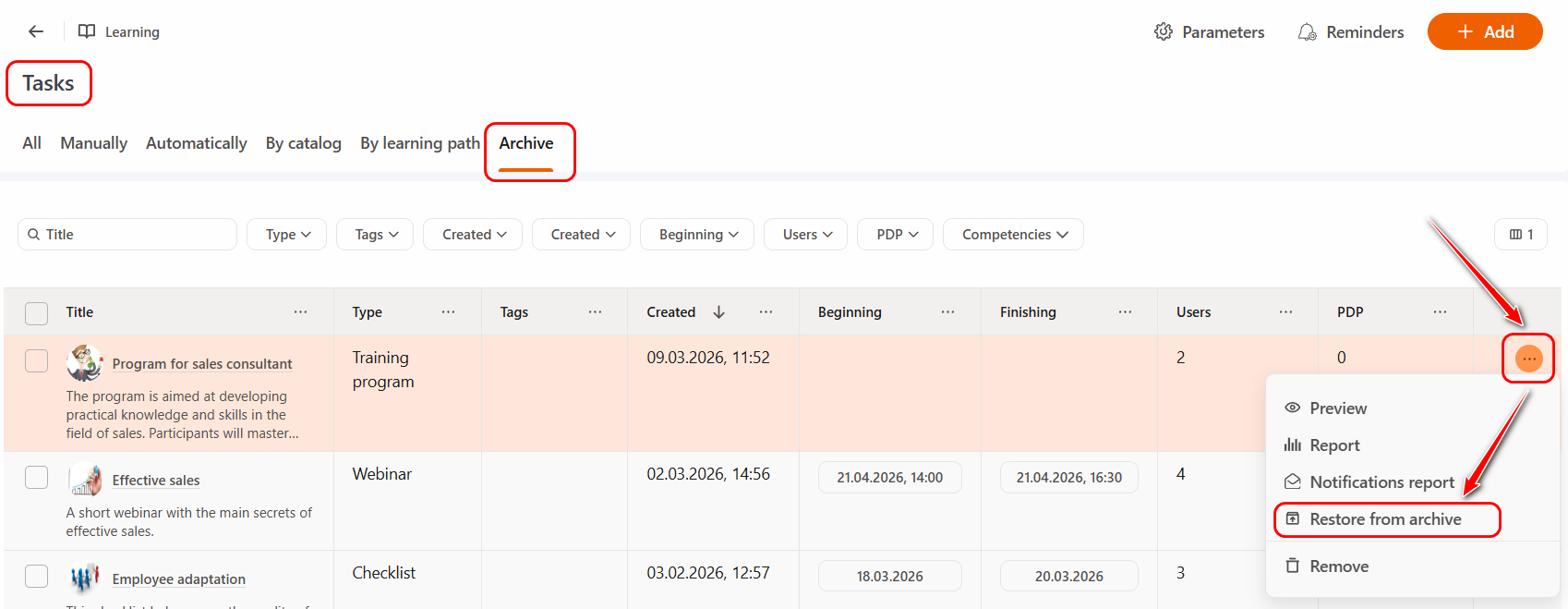
After restoration, the task is returned to the list of active tasks (the All tab), and all standard actions become available again.
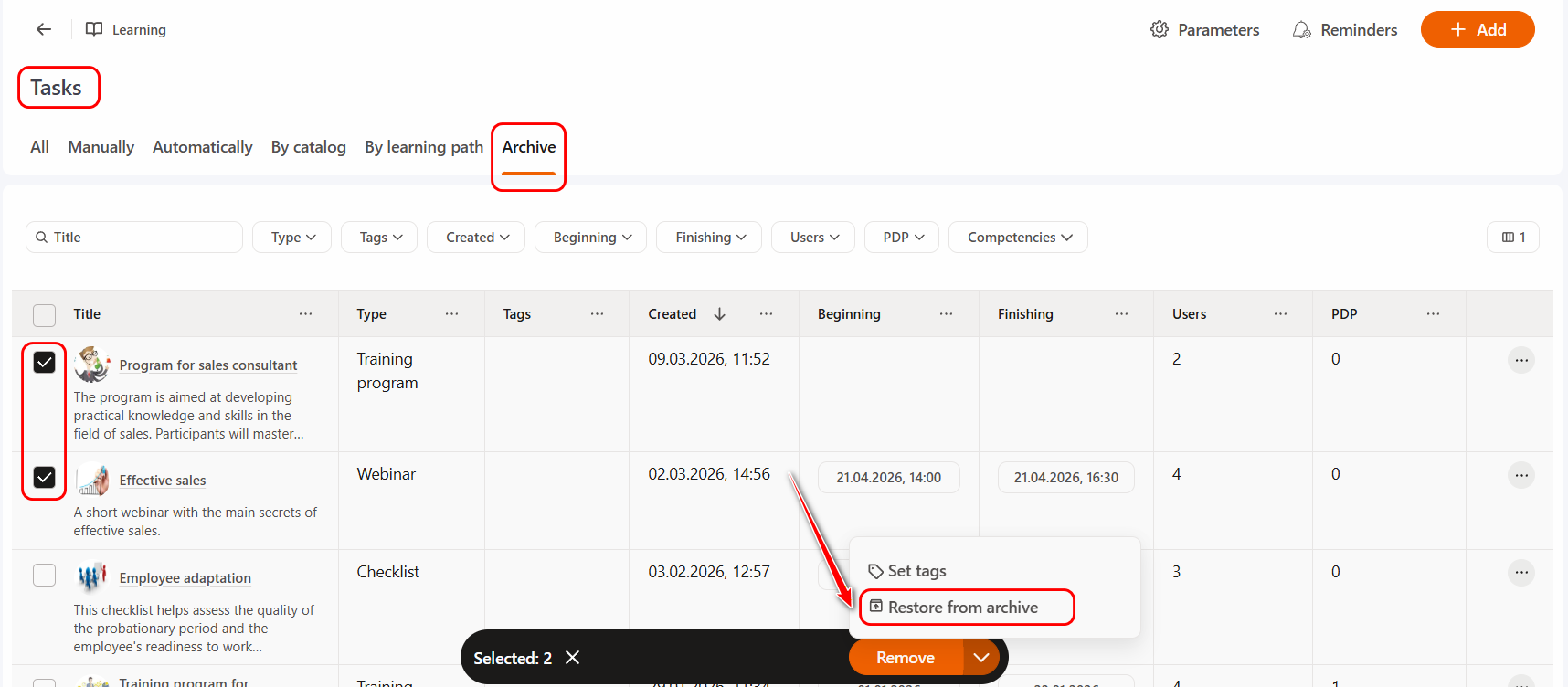
For convenience, a group action option is also available. To use it, select the required tasks using the checkboxes. A panel with available actions will then appear at the bottom of the screen. Click the arrow and select the "Restore from archive" option.
Displaying archived tasks to users
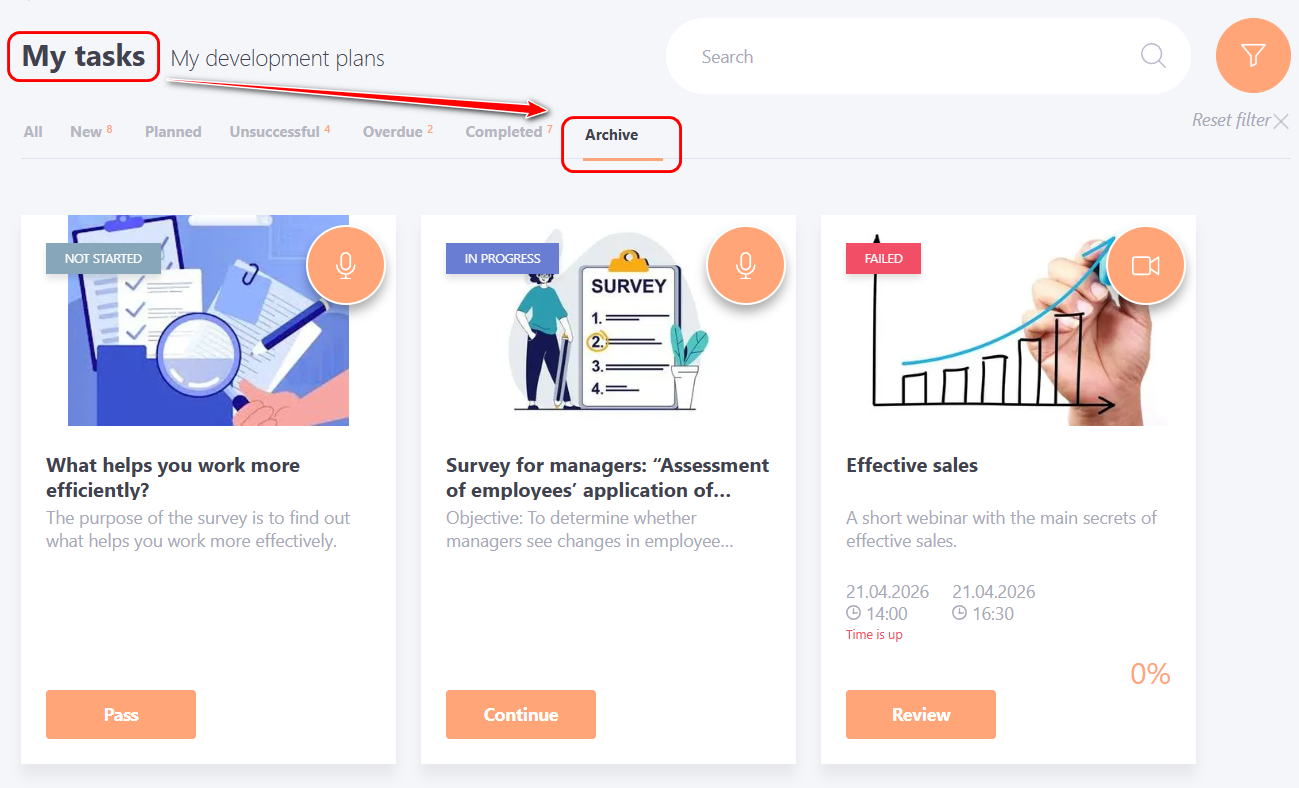
By default, tasks moved to the Archive are not displayed to users on the My tasks page and users cannot complete them.
At the same time, in the User profile, in the Learning history block, all assigned tasks are displayed, including archived ones. This allows users to view the status and completion results of those tasks.
If necessary, an administrator can enable the display of archived tasks on the My Tasks page.
To do this, go to System Settings - Policies - Tasks and enable the "Show the user tasks that have been moved to the archive" option (for more details: Tasks policy).