Assignment to the workshop
Users can be assigned to the Workshop task in two ways:
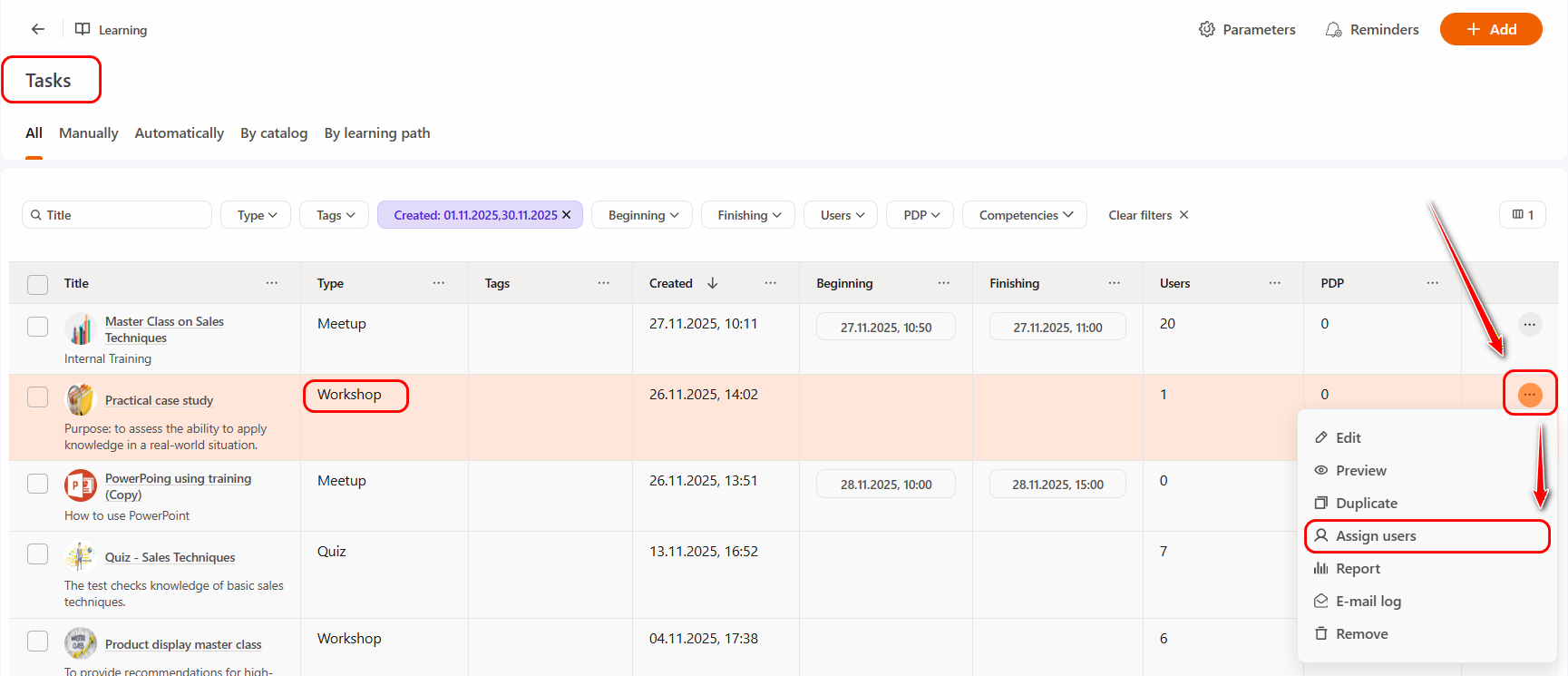
- On the Tasks page, in the table with the list of tasks, click the Actions button next to the required the workshop and select Assign users.
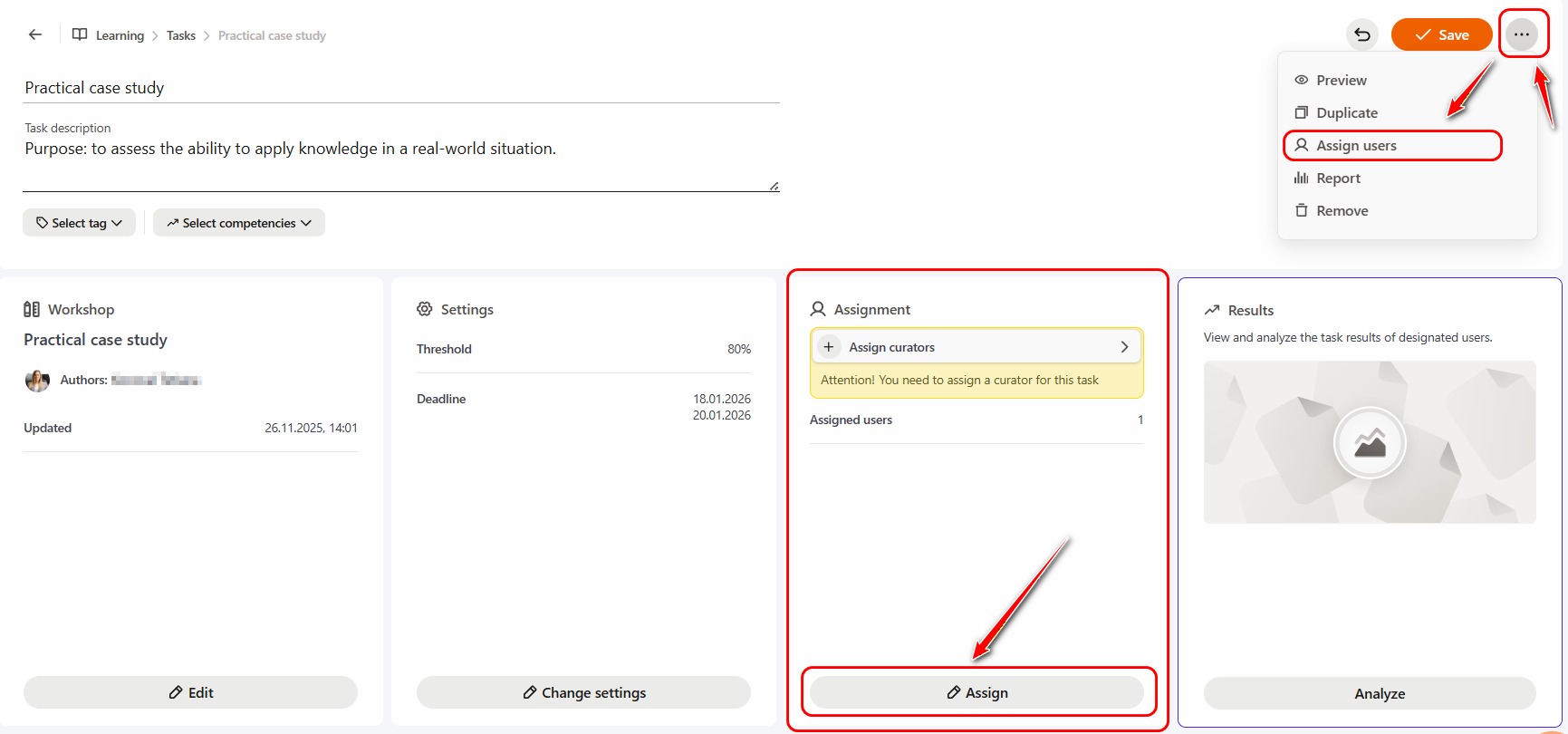
- On the selected the Workshop page, in the Assignment block click the Assign button. Alternatively, in the upper-right corner, click the Actions button and select Assign users.
After that, the User assigning page will open, displaying all active users in the system.
Users can be assigned to the Workshop in the following ways:
- Via Tasks, on the User assigning page:
- Manually – using the Assign button (1), you can add a task to users one by one. Users assigned to the workshop are highlighted in the table and moved to the top of the list. By clicking the Actions button (2) you can Unassign a user from the task assignment or Notify about updates the task - user will receive a notification that the task has been updated. This notification can only be sent to users assigned to the task. The message is sent using the Tasks - Updates in a tasks template.
- Group assignment - to assign a workshop-task to multiple users at once, select their checkboxes (3) on the left. A modal window (4) with available bulk actions will appear at the bottom of the page. By default, the Assign button is shown; clicking the arrow also provides the options Unassign from task and Notify about updates. If the checkboxes are deselected, the bulk actions modal window is automatically hidden.
- From a file list - by clicking the Assign by CSV (5) button, you will be able to select a file for upload. (More details: Assign as a list from a file)
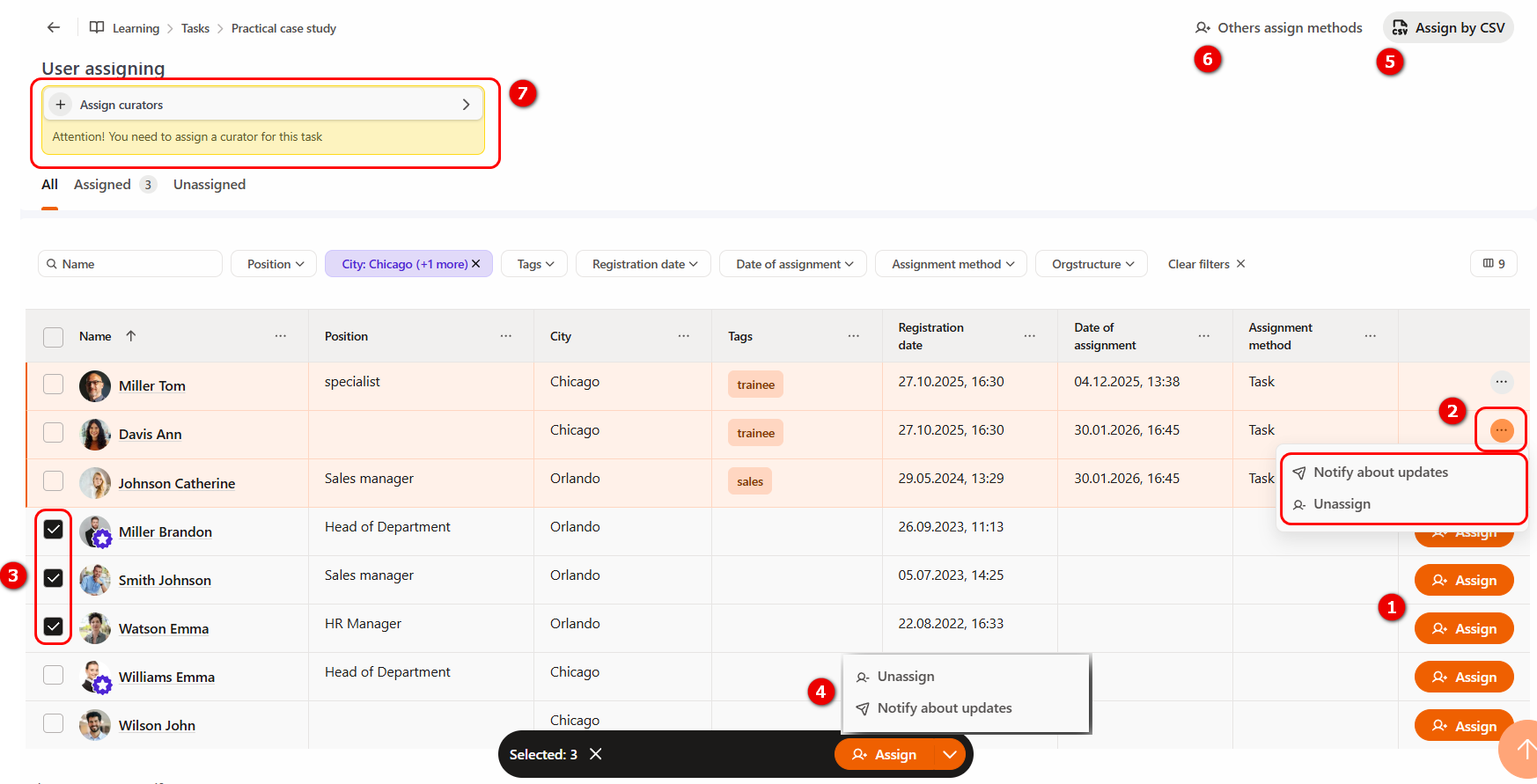
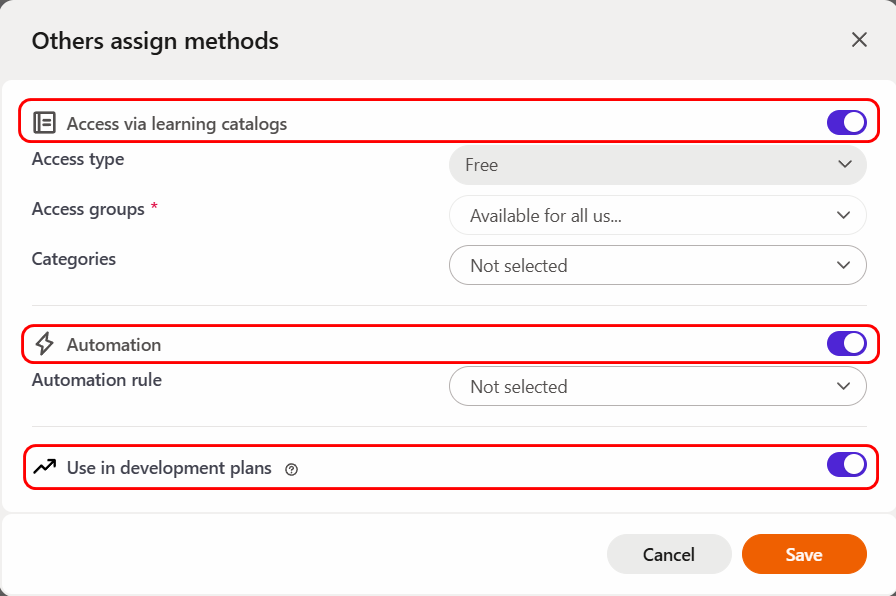
- Others assign methods (6) – provide additional settings for assigning users to a workshop-task:
-
Access via learning catalogs – if the setting is enabled when creating or editing a task, the user can independently select and assign the task from the Learning Catalog menu, which is available to them. More details: Catalog of tasks.
-
Automation – users are assigned to a task automatically according to a previously created automation rule. More details: Automation rules.
-
Use in development plans - if the setting is enabled, such tasks can be assigned in Personal Development Plans (PDP). More details: Adding training tasks for Personal plans.
For workshop tasks, a Curator (7) must be assigned.
A Curator (trainer, tutor, instructor) - is a user responsible for conducting and evaluating the task. They have access to the report of the corresponding workshop, can view the responses of assigned users, communicate with them and assign grades.
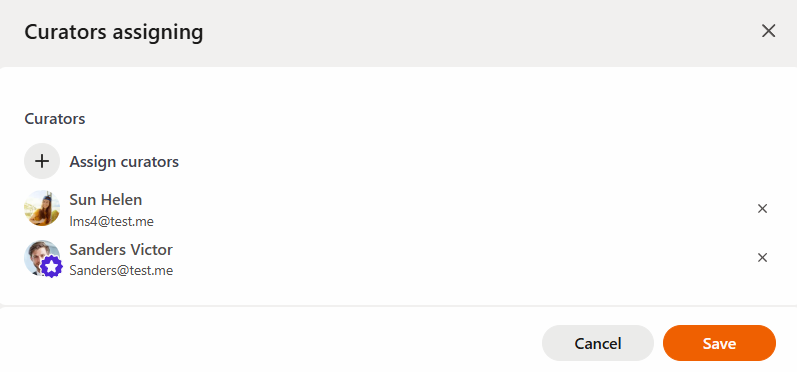
To assign a Curator, click the corresponding field in the modal window and use the Assign curators button. You can find users by Full Name or e-mail, or select them from the drop-down list. The system allows you to assign one or multiple сurators at the same time. After making your selection click Save.