Editing a resource – page using AI
To use the artificial intelligence features on the portal, integration with an AI - provider must be configured. For more details, see Integration with AI.
Creating and editing text on a resource - page using AI
AI tools can be used to improve the page structure and edit text on any resource page.
To do this, highlight the portion of text you want to modify in the Resource content (1) field and click the AI - Assistant (2) button.
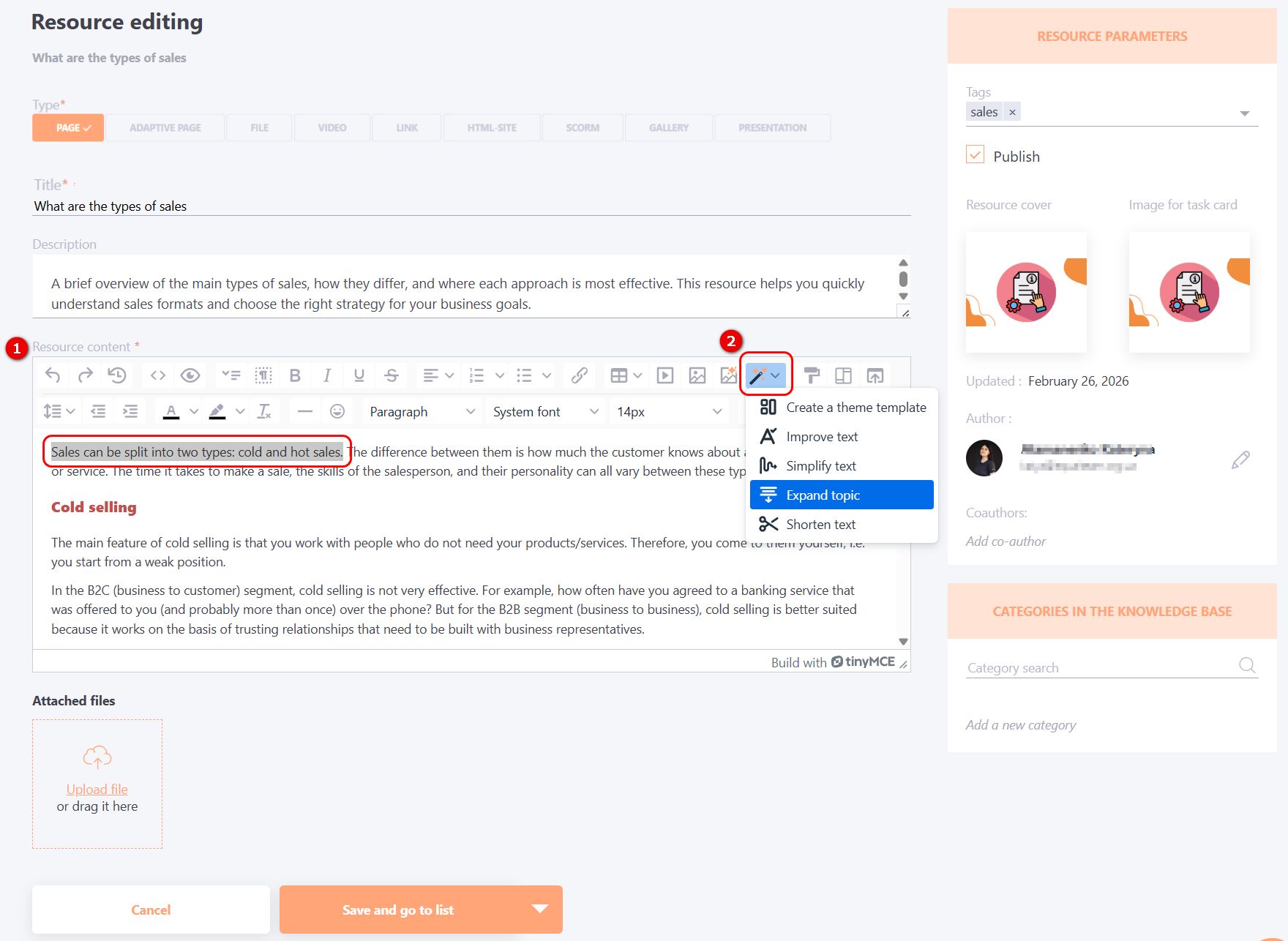
With the AI Assistant, the following actions are available:
- Create a theme template – generates a logical page structure and a step-by-step plan for covering the selected topic.
- Improve text – edits the highlighted text to make it more coherent, clear, and stylistically consistent.
- Simplify text – makes the text easier to understand by replacing complex terms and cumbersome constructions with simpler alternatives.
- Expand topic – enriches the text with additional details, explanations, examples, and context.
- Shorten text – reduces the volume while preserving the main content and key ideas.
After selecting the desired action, the AI will generate the result, which will open in a separate modal window.
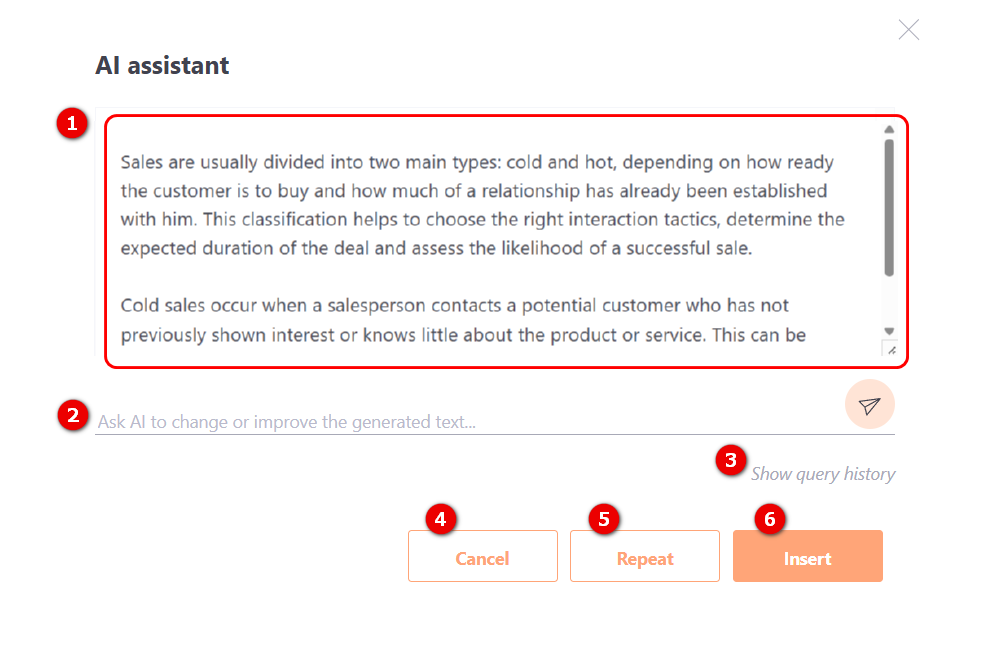
(1) – Generated text – in this field, you can view and edit the text generated by AI.
(2) – Ask AI to change or improve the generated text – allows you to edit or enhance the AI-generated text. To do this, specify the desired action ("improve" or "modify") in the field, highlight the text to which the action will be applied, and click the corresponding button.
(3) – Show query history – click the button to view a list of all requests with their dates. The request titles are clickable, allowing you to access previously generated text.
(4) – Cancel – Return to the resource page without saving.
(5) – Repeat – Click the button to have the AI execute the request again.
(6) – Insert – The text will be added to the resource page.
Adding images with AI
AI can be used to select an image for a resource page.
To do this, highlight a text fragment (at least 50 characters) for which you want to find an image, and click the Select Image button.
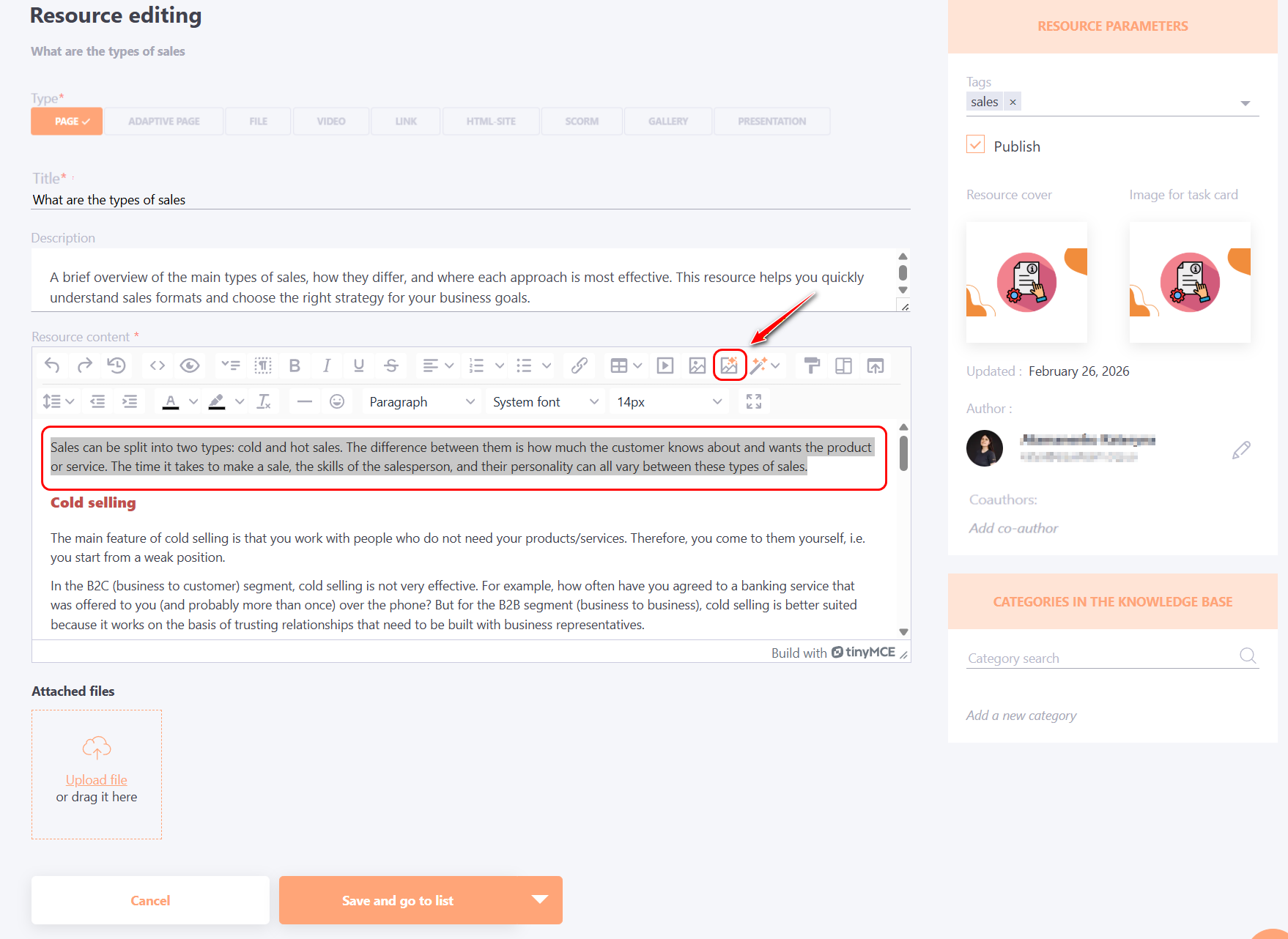
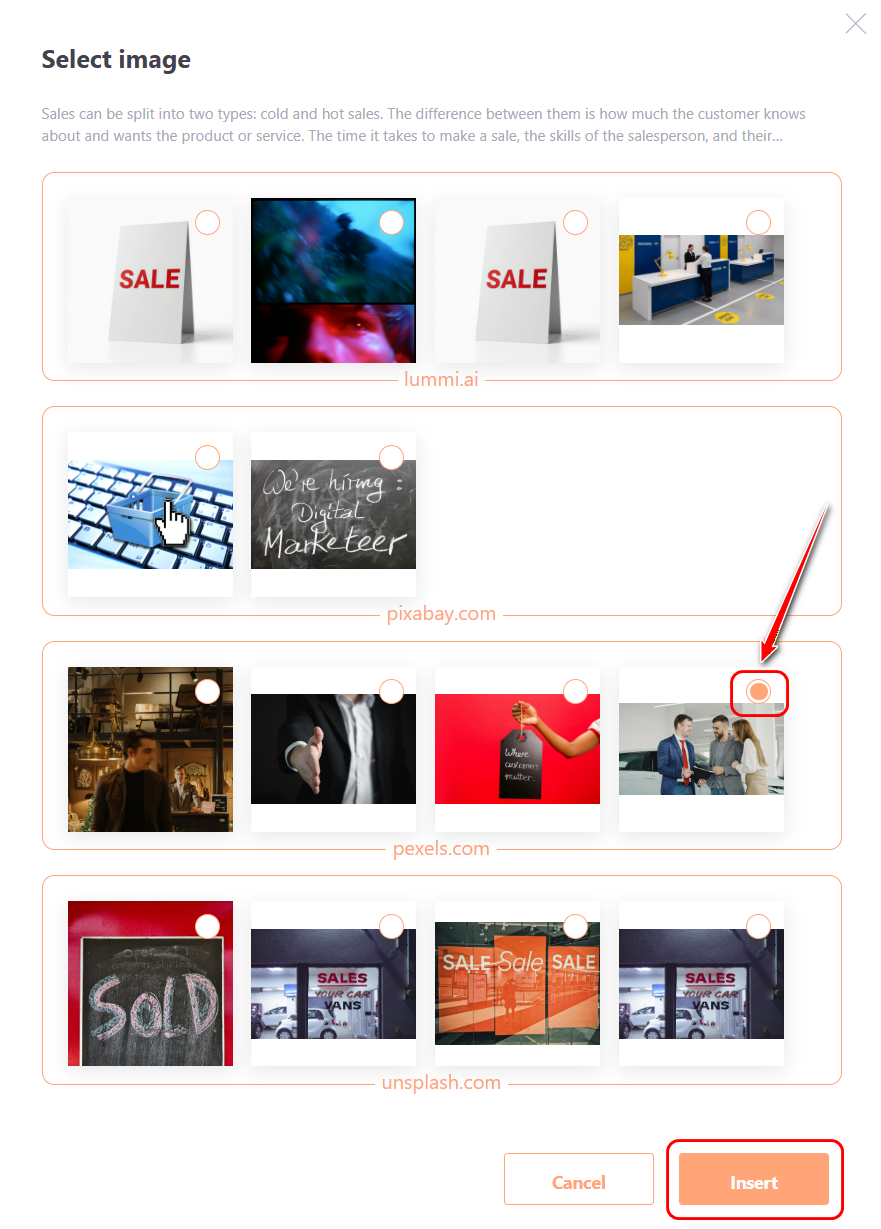
The AI will select images, which will open in a separate modal window. From the suggested options, choose the desired image and click the Insert button to add it to the resource page.
After inserting you can resize the image and change its alignment.