User assigning
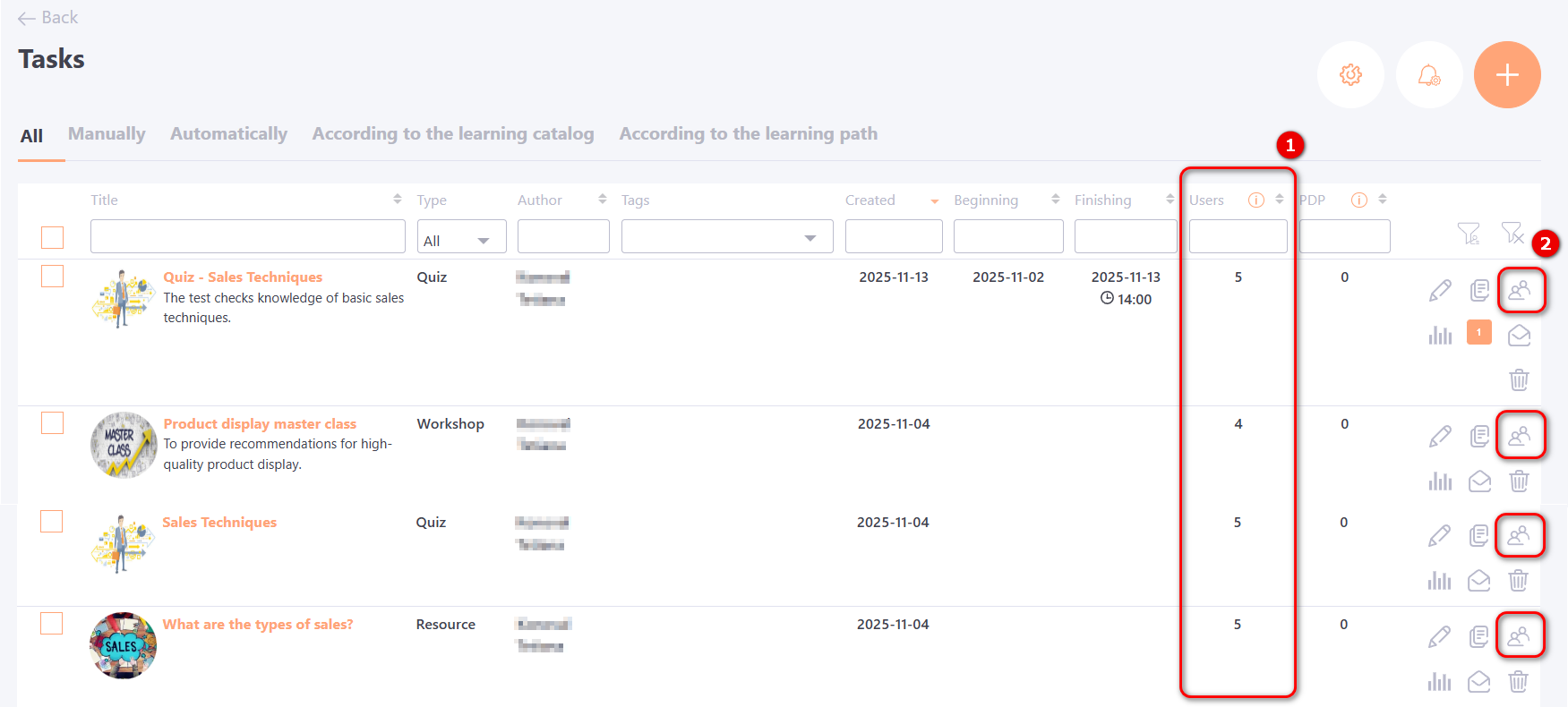
Assigning users to a task is done the same way for all task types, except for checklists and evaluations. You can assign either one user or a group of users to a task. The number of users already assigned to the task is displayed in the Users (1) field.
After clicking the Assign (2) button next to the required task in the Tasks table, the system navigates to the User assigning page.
On the User assigning page, the following information is displayed:
(1) - Number of users already assigned to the task.
(2) - User filter: Assigned, Unassigned, All.
(3) - User data: Full Name, Position, City, Department, Tags, Registration Date. Filtering and sorting are available for all parameters.
(4) - Date of assignment - the date the user was assigned to the task.
(5) - Appointment method - shows how the user was assigned to the learning task. Possible assignment methods include:
- Task – via the menu: Learning → Tasks → User Assignment.
- PDP - via Personal Development Plans, menu: Development → Development plans. More details: Adding training tasks for Personal plans.
- Learning catalog - via the Catalog of tasks, the user independently selects a task. More details: Catalog of tasks.
- Task by Automation Rule – users are assigned automatically according to a previously created automation rule. More details: Assignment according to automation rules.
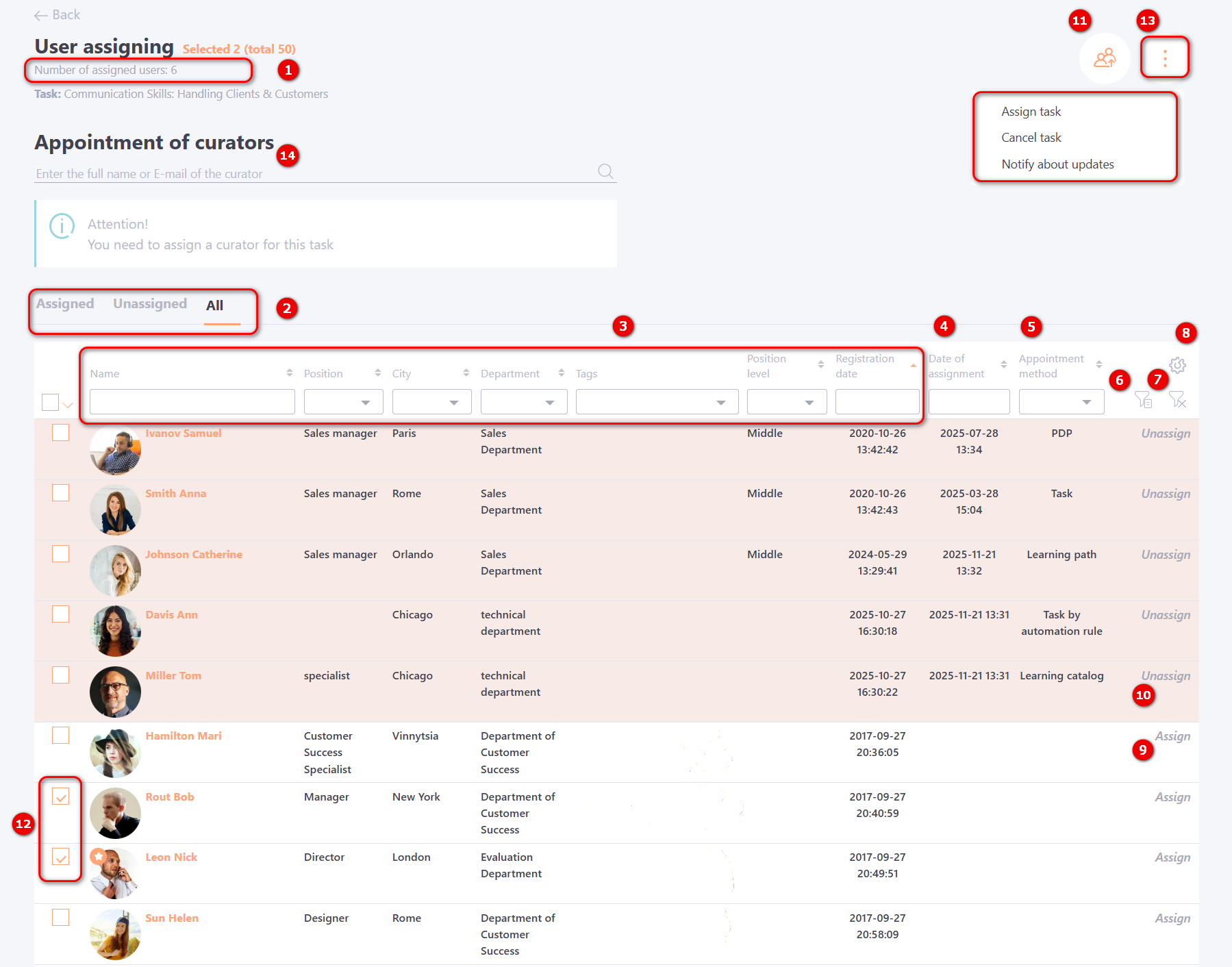
(6) - Organizational Structure Filter – displays the tree of department structures. You can select an entire “branch” of departments with one click to display users from multiple departments at once, and also perform a search within the organizational structure..
(7) - Reset Filters.
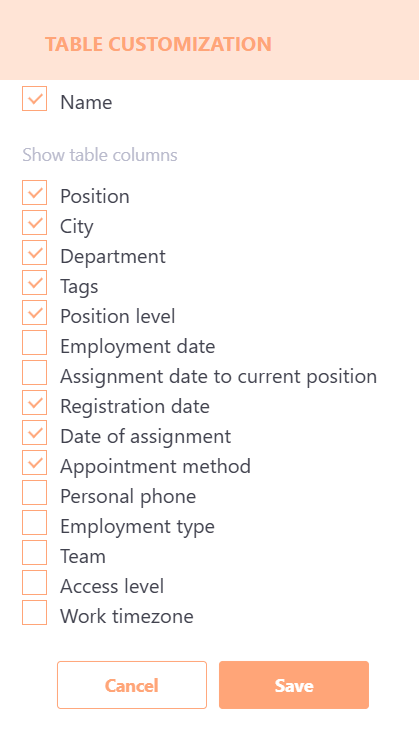
(8) - Table customization - allows configuring and displaying additional columns in the table. After saving the settings, all selected columns will appear in the table.
If the “Pin Columns” option is enabled, the selected columns will remain fixed, while the table can be scrolled horizontally using the slider.
Users can be assigned to a task using the following methods:
-
Via Tasks, on the User assigning page::
- Manually
Using the Assign (9) button, you can add a task to users one by one. Users assigned to the task are highlighted in the table and move to the top of the list. To remove a user from a task, use the Unassign (10) button. - From a file list
Clicking the Assign as a list from a file (11) button allows you to select a file to upload. (More details: Assign as a list from a file) - Group assignment
For group assignment, select the required users using the checkboxes on the left (12) and click the Actions(13) button - Assign Task. To remove task assignment for a group of users, click Actions (13) - Cancel Task.
The Actions(13) button only appears after selecting users with the checkboxes (12). The number of selected users is displayed in the first row. For example: Selected 2 (total 50) means 2 users are selected via checkboxes, and 50 is the total number of users.
- Manually
-
By automation rule – users are assigned to a task automatically according to a previously created automation rule. More details: Automation rules.
-
Through the Catalog of tasks – if, when creating or editing a task, the Assign mode is set to Free access through learning catalog or Applying through the learning catalog, the user can independently select and assign a task that is available to them. More details: Catalog of tasks.
-
Through Personal Development Plans. More details: Adding training tasks for Personal plans.
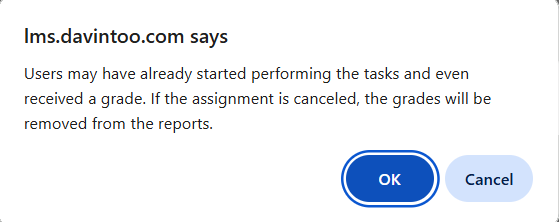
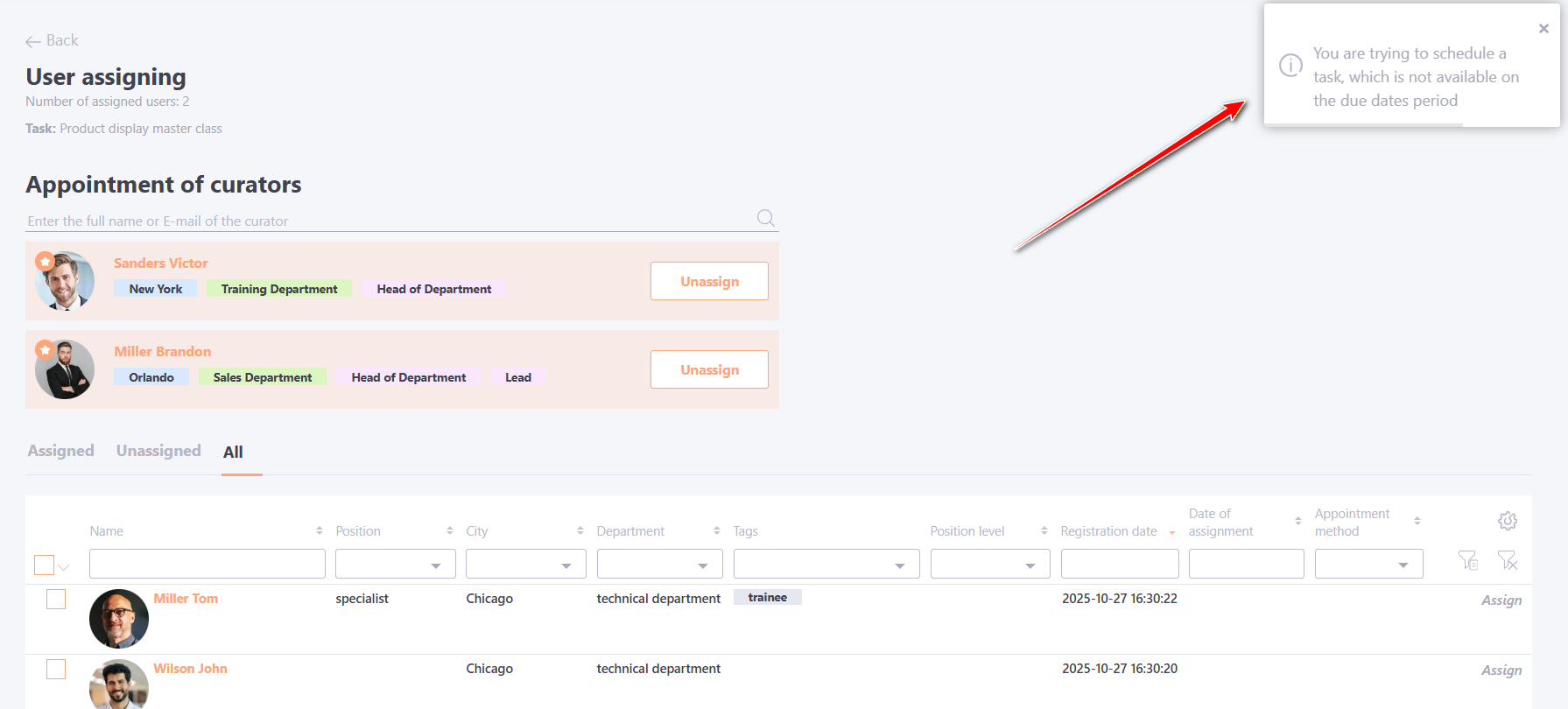
For tasks with limited completion deadlines, if the "Do not block access after expiration date" setting is disabled, assigning users to overdue tasks is not possible. In this case, the system will display a corresponding notification.
If the setting is enabled, assigning users to such tasks is allowed.
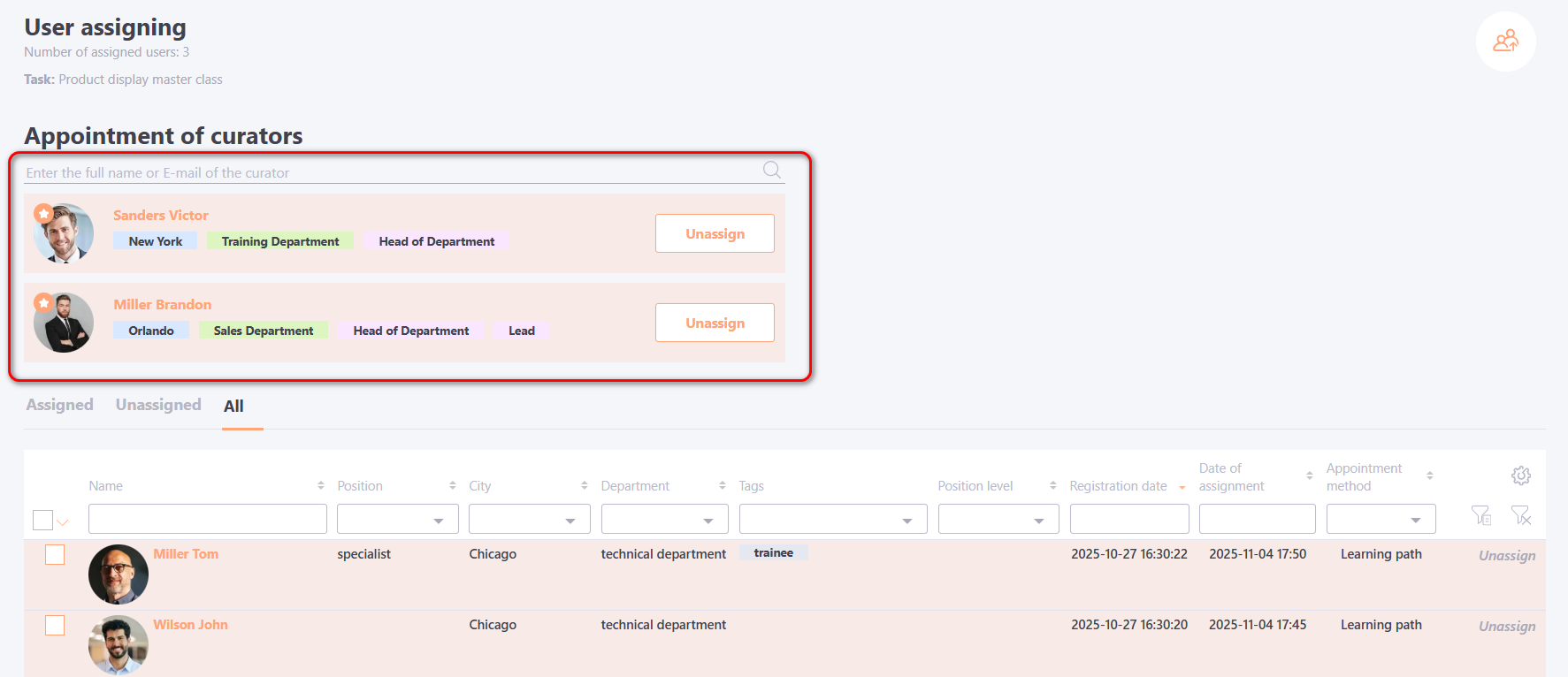
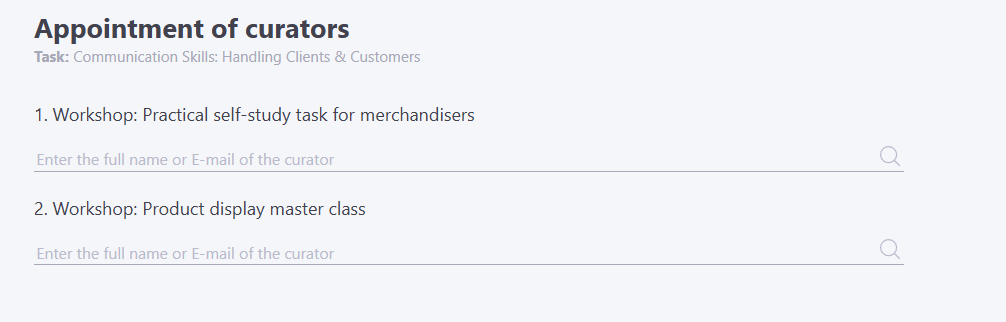
For tasks that include Workshops, Meetups, Checklists, Webinars it is necessary to assign a Curator (14).
To assign a curator to a task, enter the user’s full name or email in field (14), select them from the list that appears, and click Assign.
If needed, several users can be appointed as curators.
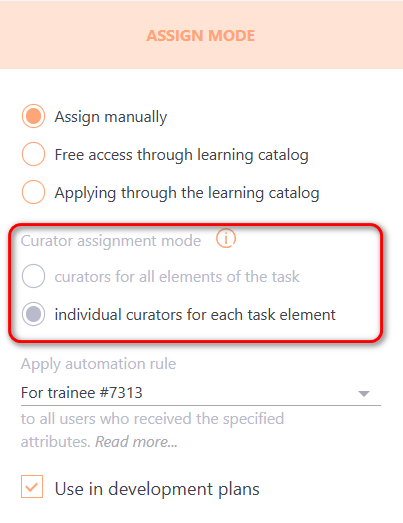
If a Quiz or Training Program contains several tasks that require curators, you can select a separate curator for each of these tasks.
To do this, when creating or editing the task, in the Curator assignment mode, you need to choose one of the configuration options:
- curators for all elements of the task;
- individual curators for each task element.
If the Individual curators for each task element option is enabled, curators are assigned in the same way on the User Assignment page using the Add Curators button.
In the opened modal window, curators must be specified separately for each task.
Assign as a list from a file
To quickly assign a group of users who do not have common attributes, you can do the assignment using a csv file.
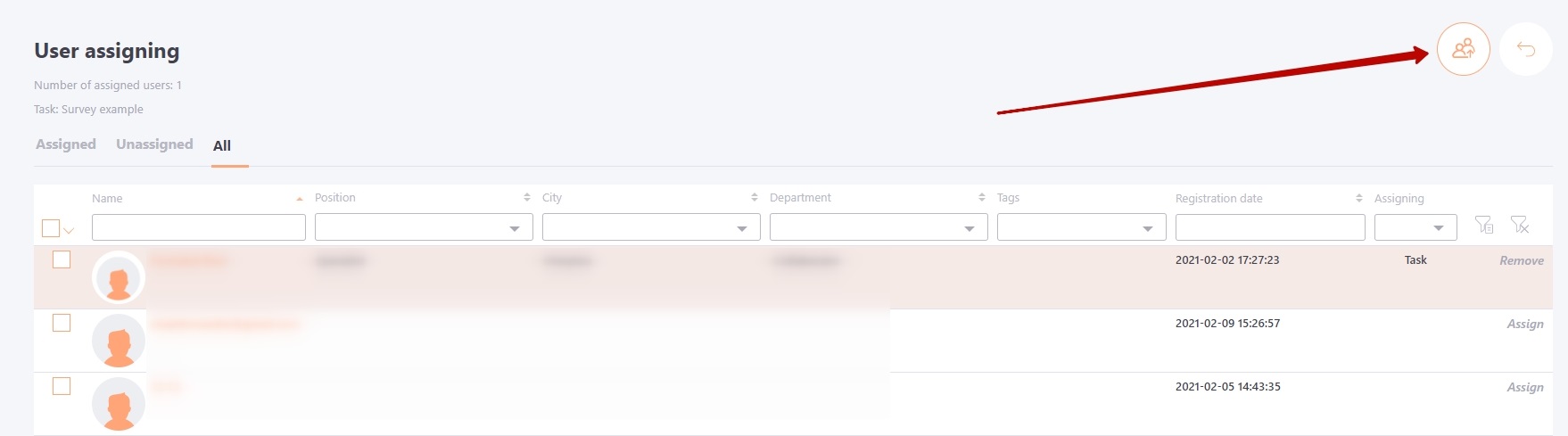
To do this you need to create a csv-file (or upload from the HR system a list in the format described below):
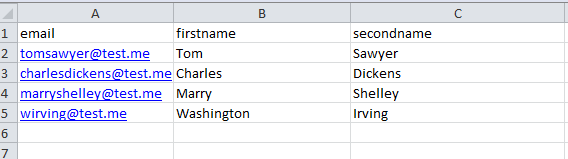
- In Excel, create a table with user data (email, first name, second name), as shown in the example below:
- When the list of users is ready, save the file in csv format.
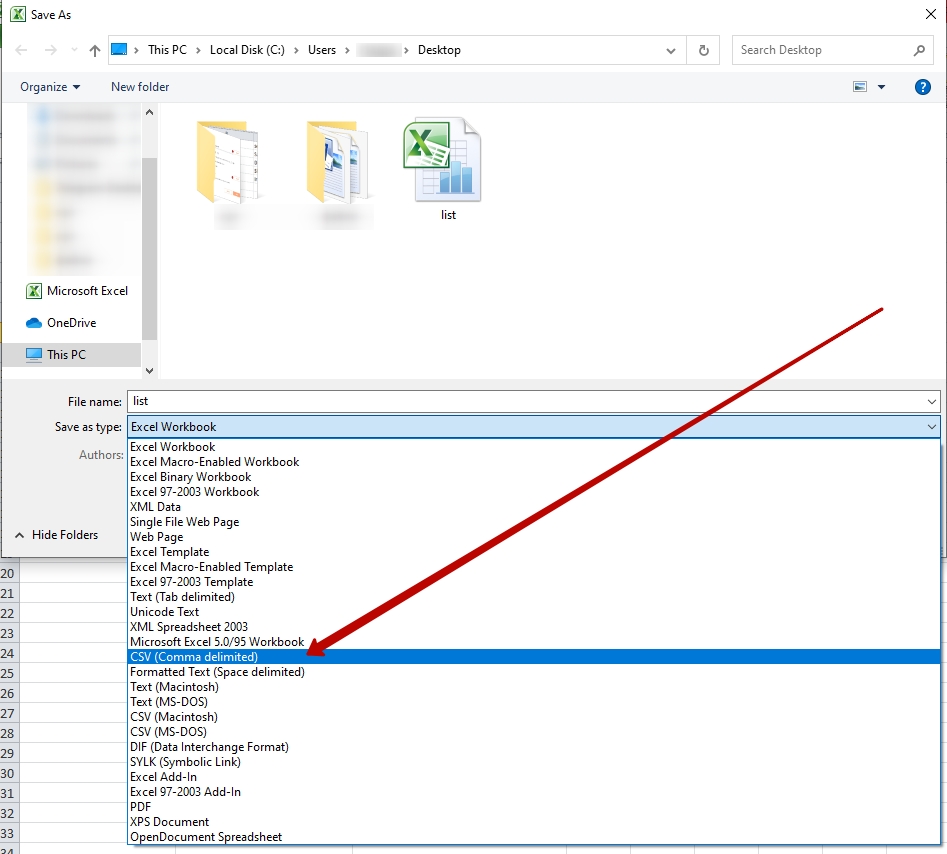
The csv file must be created in UTF-8 encoding
- The file is ready. Now you can assign tasks to users. By pressing the button "Assign as a list from a file " we select the created csv file.
When the file is loaded, the system checks the data from the file and the data of existing users, if the parameters match - the task is assigned.
If not, such users are ignored.
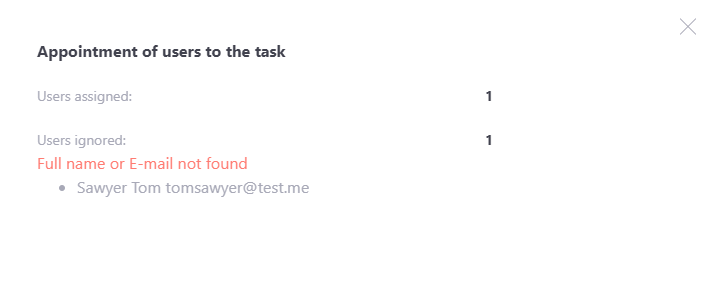
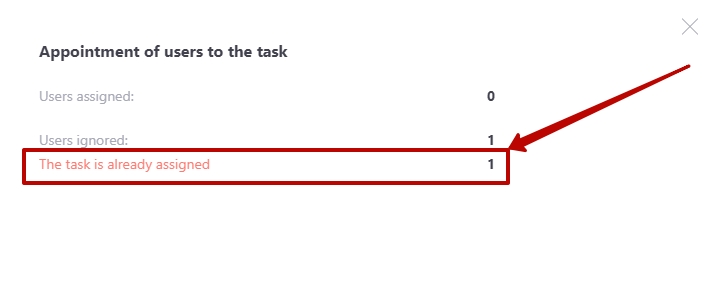
When assigning a task, the program also checks the users who have already been assigned, and if there are users in the list who have already been assigned a task, the notification about assigning the task is not sent to them. The modal window displays the number of ignored users with a message that they have already been assigned the task.
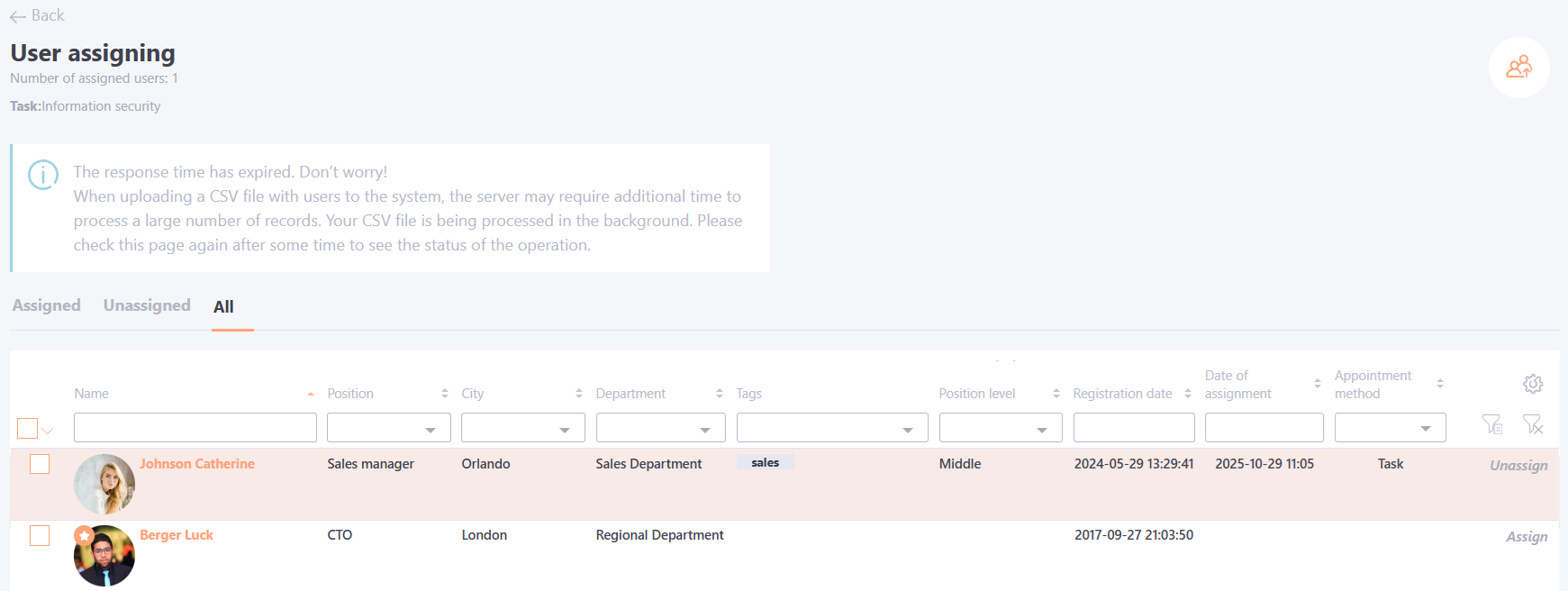
If the imported file contains more than 1,000 users, the upload may take some time. In this case, the CSV file will be processed automatically in the background, and you can continue working in the system. A corresponding notification will appear on the screen.