
Creating tasks-workshops
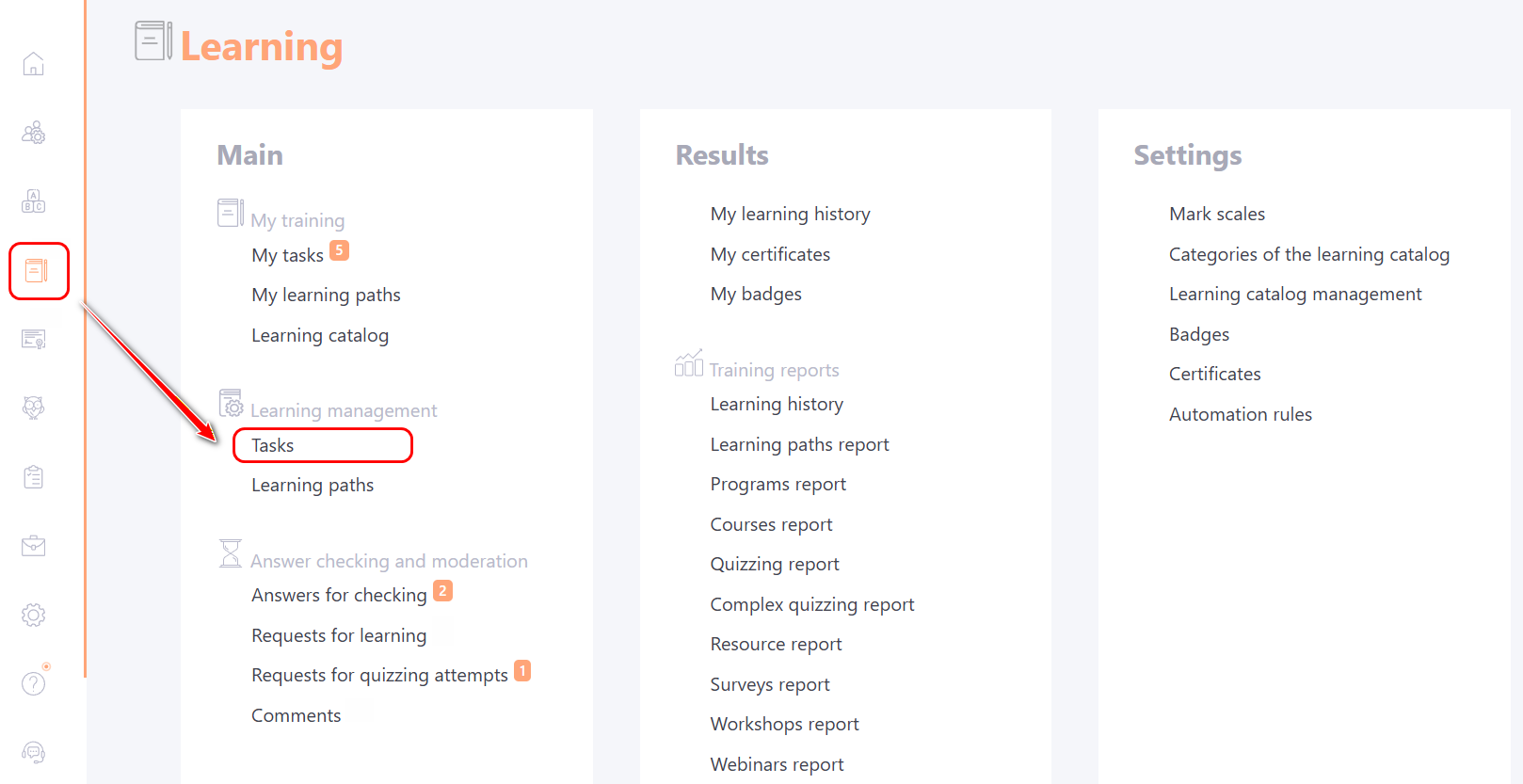
To create a new task-workshop go to Learning - Learning Management - Tasks menu:
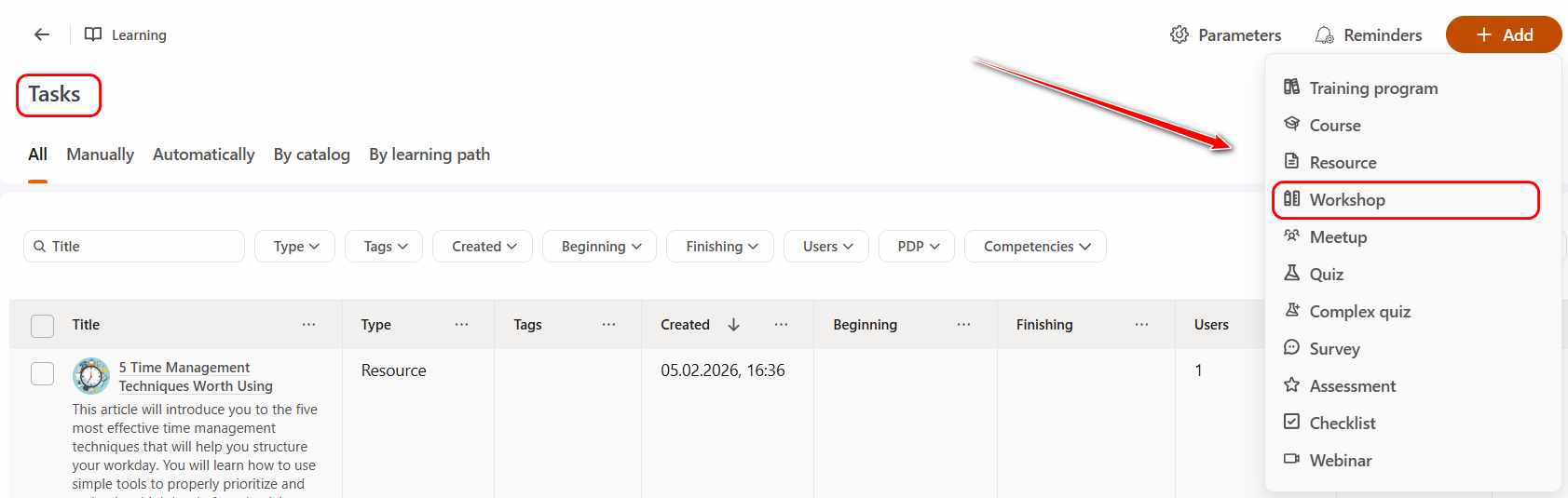
On the Tasks page click the Add button and select the Workshop task type from the drop-down list:
On the Task page the following fields and blocks are available for completion and configuration:
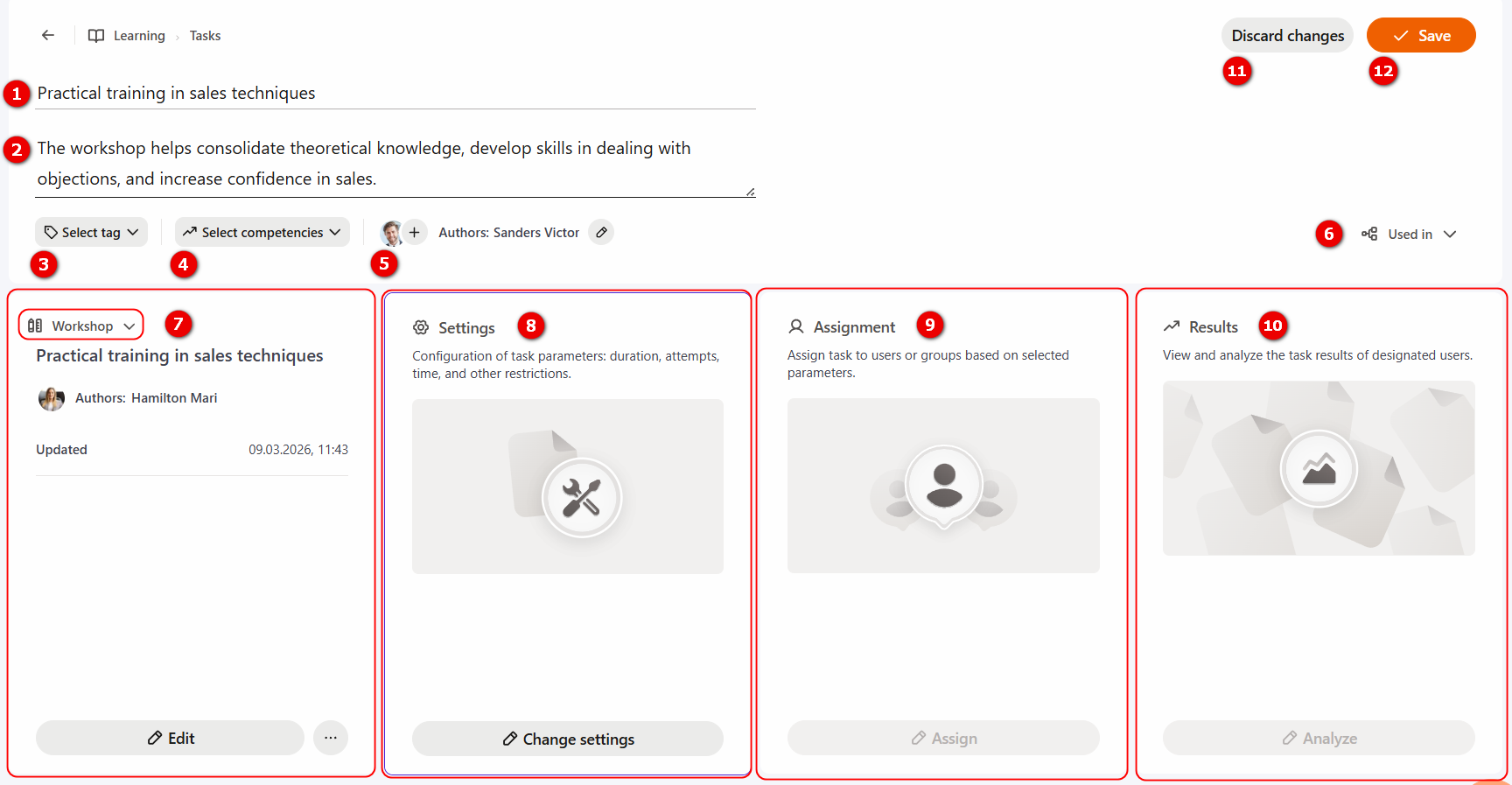
(1) - Task title – a required field;
(2) - Task description – brief information for the user about the workshop, which is displayed in the task table, on the task card in the My Tasks list and the Catalog of tasks;
(3) - Select tag – optionally assign a tag to the task. You can select a tag from the existing ones in the drop-down list, search for it, or create a new one. More details: Tag Management;
(4) - Select competencies – optionally specify the competencies that the task-workshop helps develop. More details: Competencies for the tasks.
(5) - Authors - by default, the user who created the task is displayed. If necessary, you can change the author or add co-authors. More details: Task Authors and Co-authors
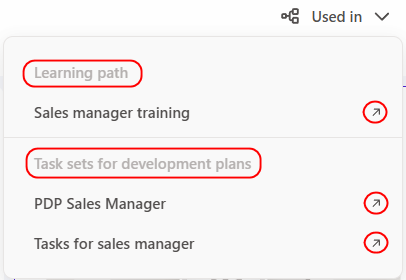
(6) - Used in - when you click on the button, a list of Learning paths and Task sets for development plans in which this task is used is displayed. If you click on the arrow next to the title of the Paths or Task Set, their editing page will open in a new window.
If the task is NOT used in Learning Paths or Task Sets for Development Plans, the "Used in" button is NOT displayed.
Below on the page Blocks corresponding to the task configuration stages are displayed:
- Task Type - Workshop (7),
- Settings (8),
- Assignment (9),
- Results (10).
(11) - Discard changes – cancels changes that have not yet been saved. After clicking the "Save" button, it is not possible to cancel changes using this button;
(12) - Save – save the created task.
Task Type block
The Task Type block is the same for all task types. More details:Task Type block
Settings Block
Clicking the "Change Settings" button opens a menu with configuration options for the Workshop Task.
Deadline
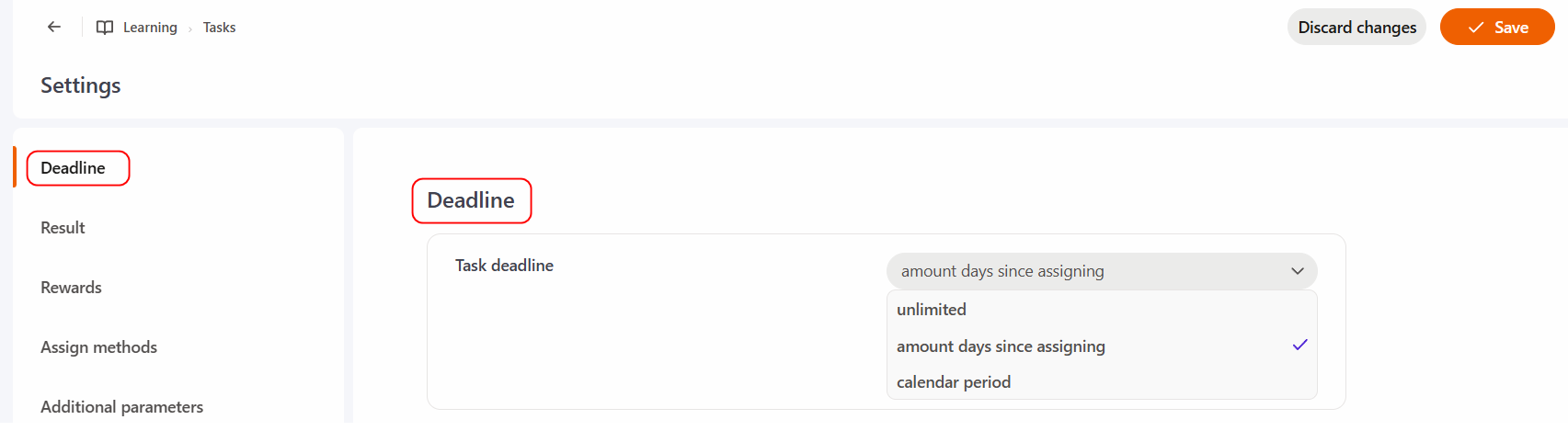
Task deadline - a setting that limits task completion by time (more details Task deadline). By default, Unlimited Completion Time is set.
Results
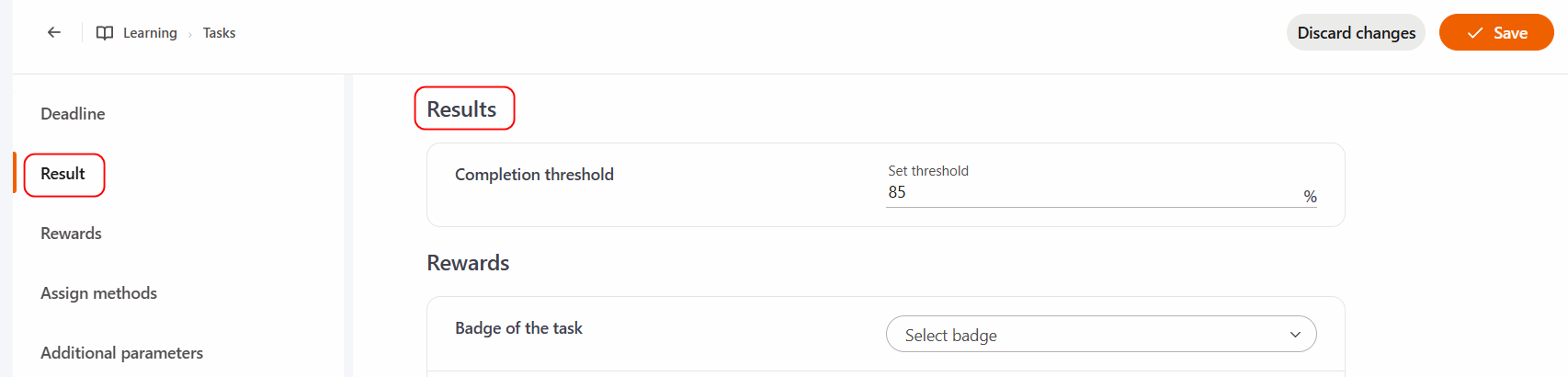
Completion threshold – specifies the percentage of Workshop completion required for the task to be considered successfully completed..
Rewards
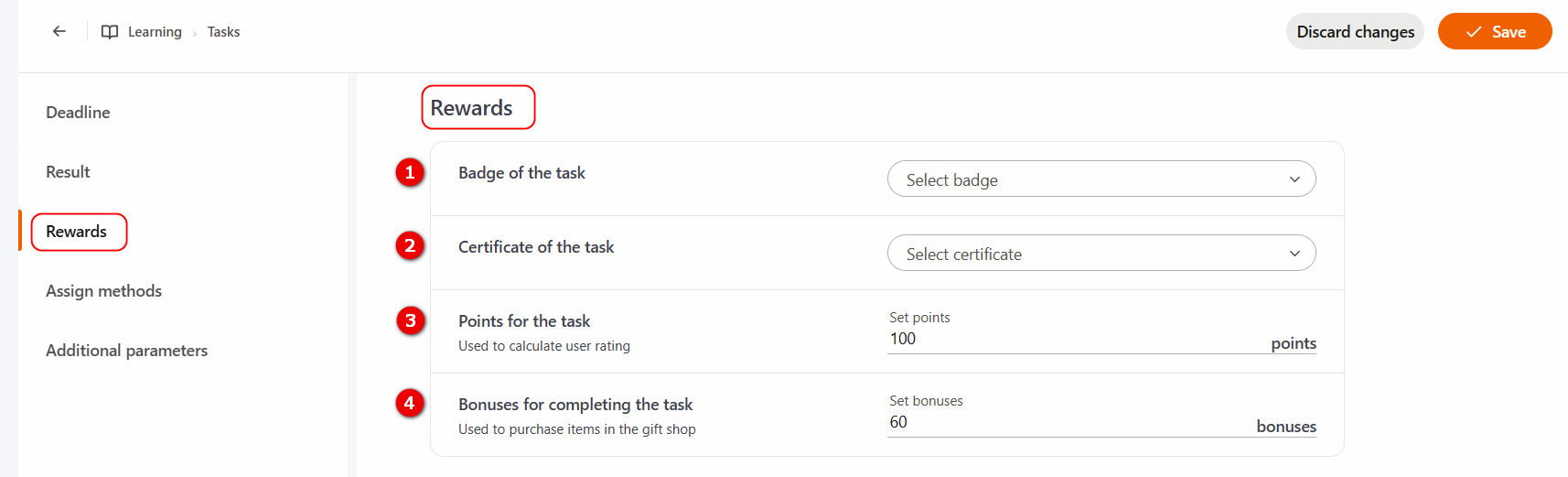
(1) - Badge of the task - add a badge for successful task completion. A badge is an element in the form of an icon that includes a name and an image, allowing identification of the task that has been completed. (more details: Badges);
(2) - Certificate of the task - add a certificate for successful task completion. (more details: Certifications);
(3) - Points for the task - settings for the points awarded for completing the task, which are used to calculate the user rating (more details: Points for the task);
(4) - Bonuses for completing the task - specify the number of bonuses awarded for successful task completion, which can be used to purchase items in the gift shop. More details: Internal currency.
Assign methods
Ability to configure additional ways to assign tasks to users.
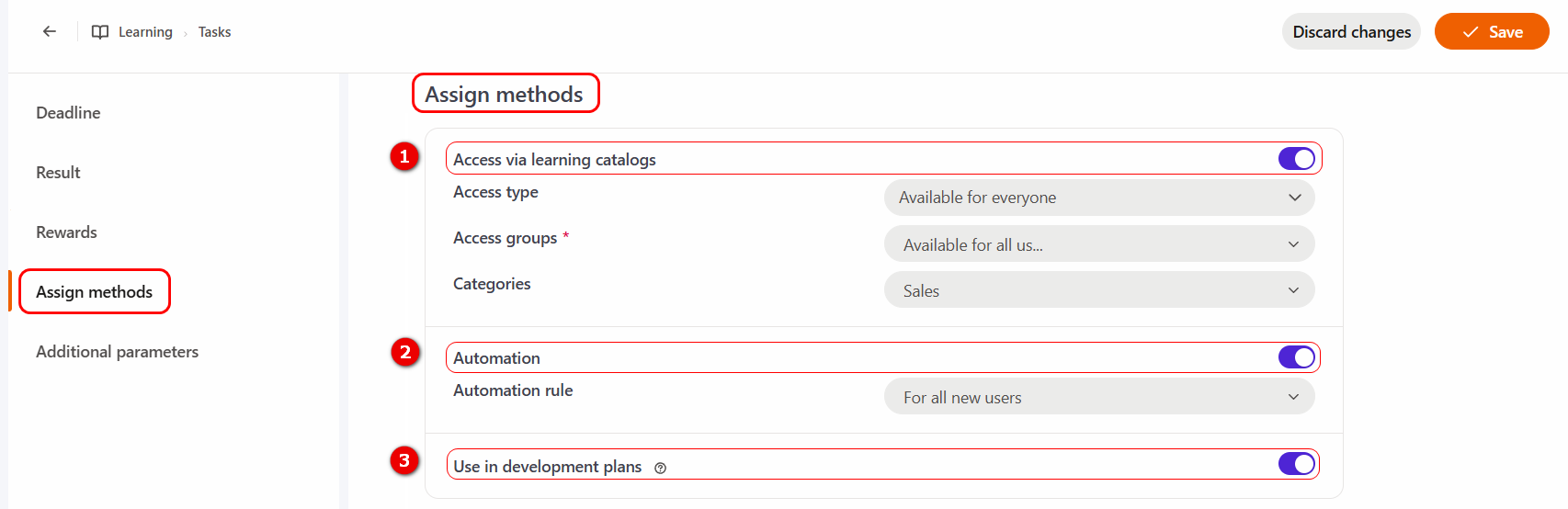
(1) - Access via learning catalogs – if the setting is enabled the user can independently select and assign the task from the Learning Catalog menu, which is available to them. More details: Catalog of tasks.
When this option is enabled, configure the following settings:
Access Type — determines how users can access the task:
- Available for everyone — any user can assign the task to themselves from the Learning Catalog.
- By Request — the user submits an application for completion, and the administrator confirms or rejects it.
For more information see Registration for tasks in the catalog

Access groups (required field) — determines which users can access the task through the Learning Catalog: all users or only specific user groups. More details: Catalog access groups
Categories — allows you to select the Learning Catalog category to which the task belongs. For more information see Catalog categories
(2) - Automation – users are assigned to tasks automatically according to the created automation rule, which must be selected from the drop-down list.
If the required rule is not in the list, you can create it by clicking the Create a new automation rule button. More details: Automation rules.
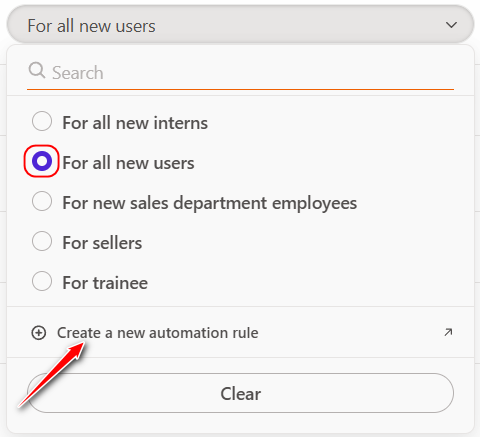
(3) - Use in development plans - if the setting is enabled, such tasks can be assigned in Personal Development Plans (PDP). More details: Adding training tasks for Personal plans.
Additional parameters
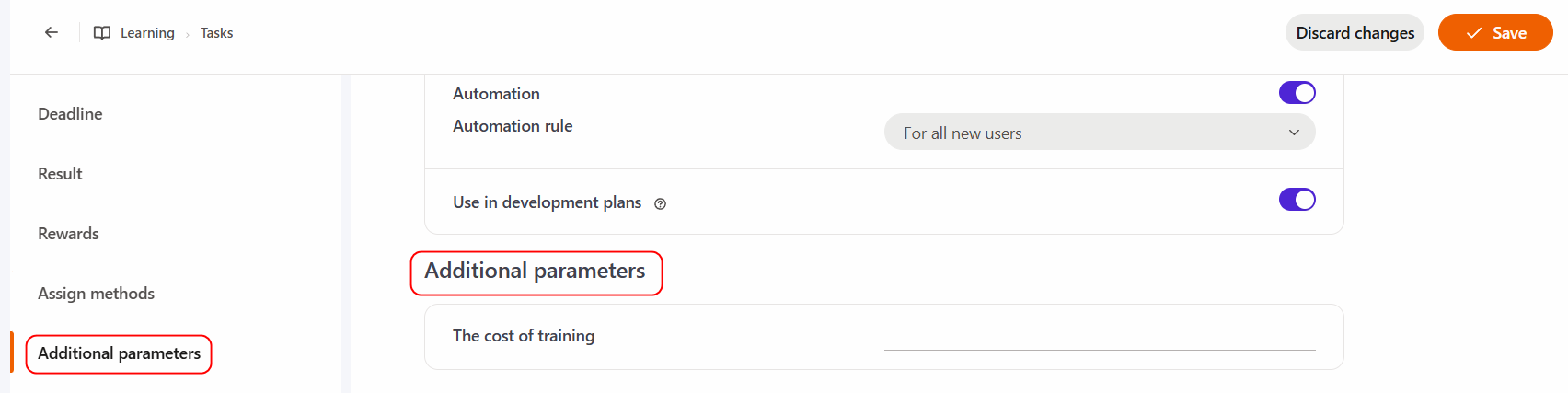
In addition to the standard task fields, advanced settings can be created.
If they are created, a Additional Parameters section will appear in the Settings block, where the corresponding fields are available for completion.
For example, in the screenshot, "The cost of training" field has been added, which can be filled in if needed.
User Assignment Block
This block is used to assign users to a task. A Curator must also be assigned for a Workshop Task. Detailed information is provided in the article Assignment to the workshop
Results Block
This block allows you to view and analyze users’ Workshop completion results in detail.
Clicking the Analyze button provides quick access to the reporting page for the corresponding Workshop Task. More details: Workshop report.