Integration with webinars
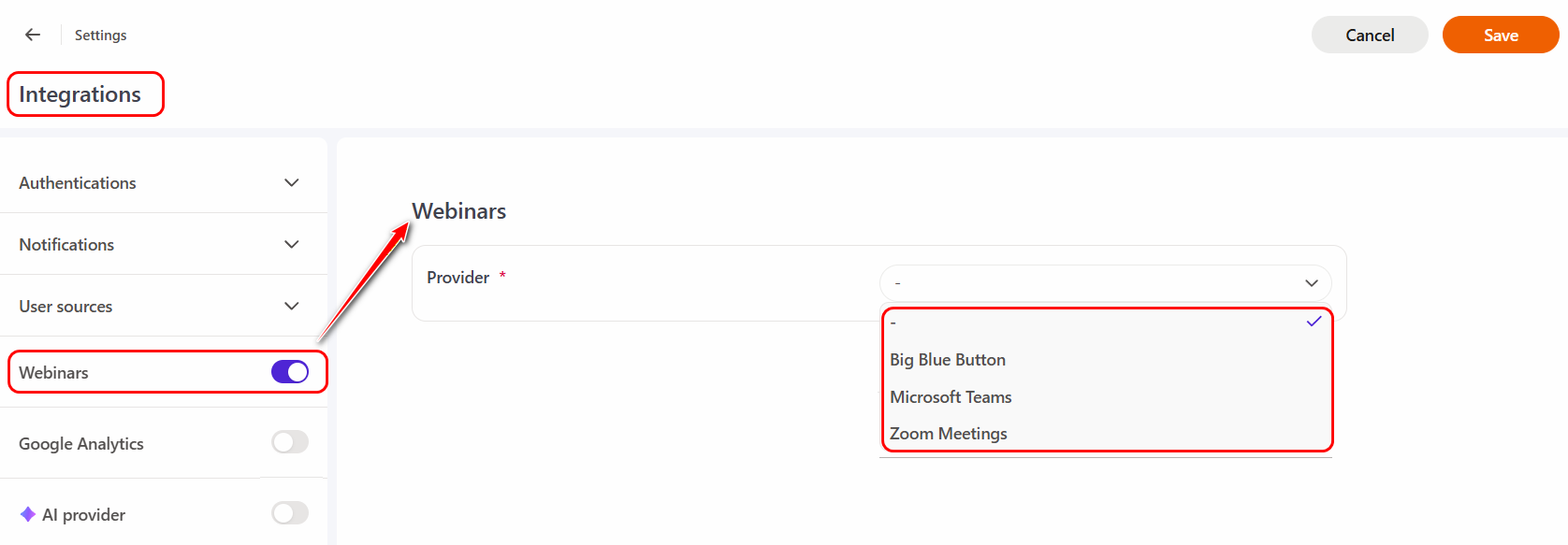
To configure integration with webinars, go to the System Settings - Integrations menu on the Integrations List page in the Webinars section, enable the slider and select the desired service from the drop-down list.
LMS Collaborator allows you to set up integration with the following services:
- Big Blue Button;
- MS Teams;
- Zoom Meetings.
Setting up the integration with BigBlueButton
To set up the integration of the portal with BigBlueButton webinars, you need to:
(1) - Choose a suitable provider from the list.
(2) - Provide a Server url (link to the server), where the BigBlueButton webinars are installed.
(3) - Specify АРІ Token.
Click the "Save" button.
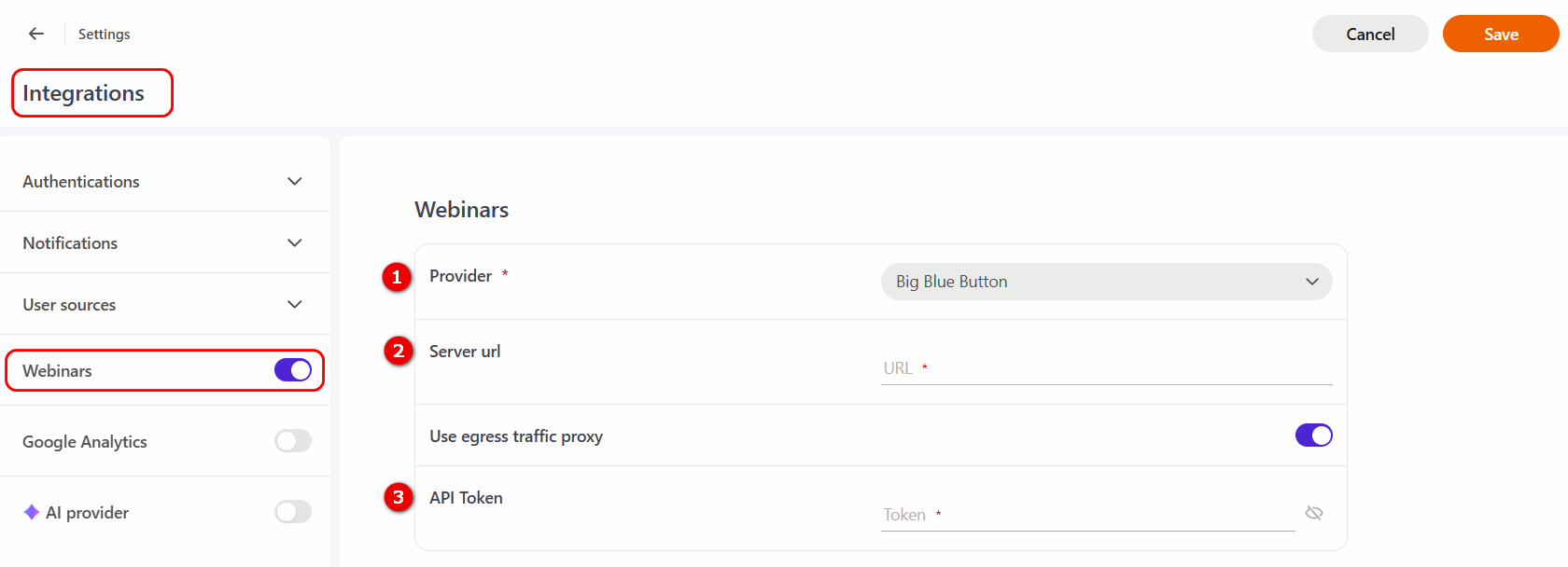
If you want to limit access to your network, you must enable the option Use egress traffic proxy. Detailed information about this option is described in the article - Egress proxy
Setting up the integration with MS Teams
To configure portal integration with Microsoft Teams webinars, you need:
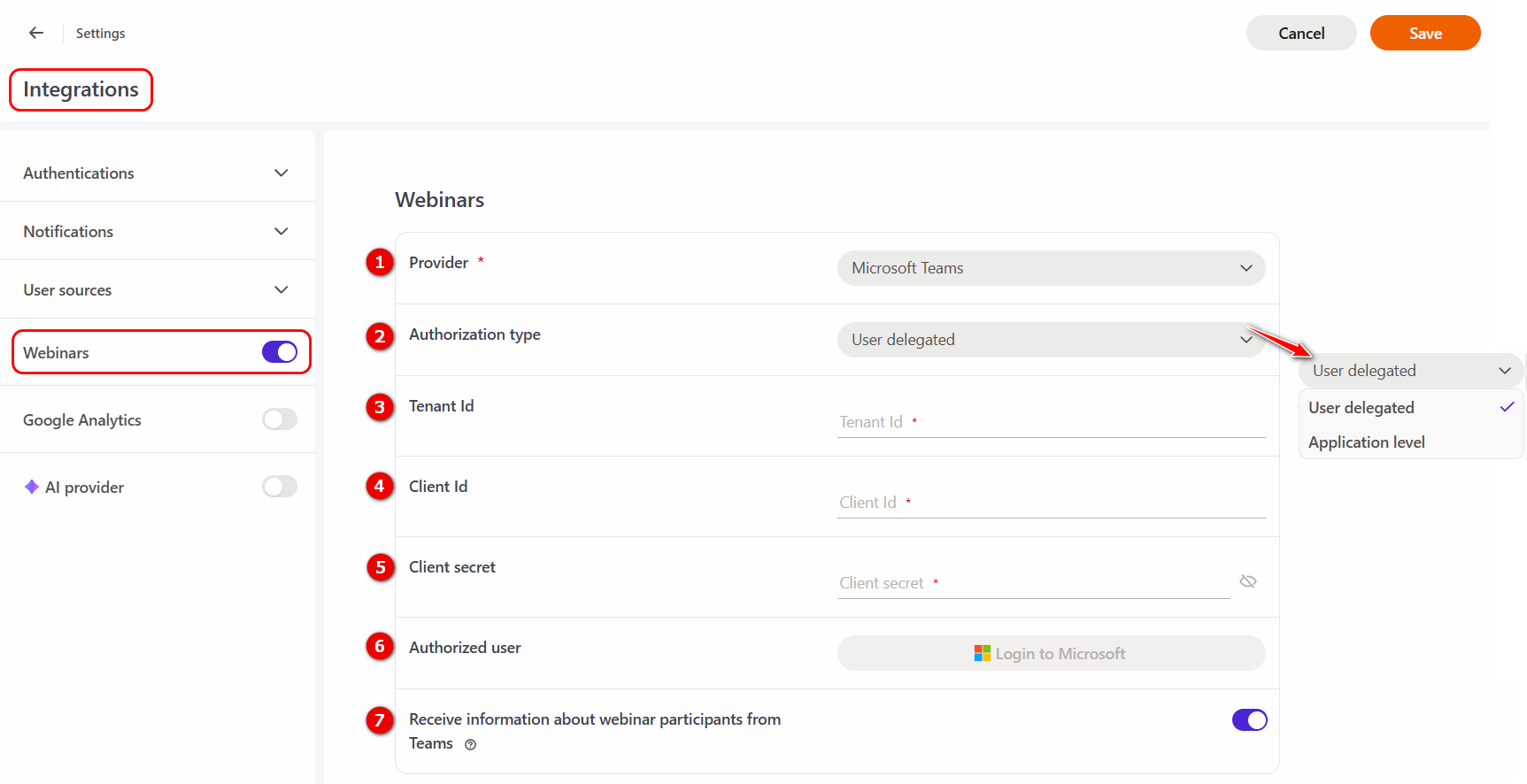
(1) - Select the appropriate provider from the list.
(2) - Choose the Authorization type in MS Teams: User delegated or Application level.
| User delegated | Application level |
|---|---|
| The only user selected to authorize in Teams must have a Microsoft license | All users assigned as a webinar curator must have a Microsoft license |
| All webinars are created in the Teams calendar of the user selected for authorization | The webinar is created in the Teams Calendar of each webinar curator |
(3) - Tenant Id - copy from MS Teams account.
(4) - Client id - copy from MS Teams account.
(5) - Client secret - copy from MS Teams account.
Click the "Save" button.
(6) - If you choose Authorization type - User delegated, after saving the integration settings, click on the "Login to Microsoft" button and log in using the data of a user who has a Microsoft license - a "super user". During authorization, the "super user" is checked for the necessary permissions and data from the saved integration settings is used. After successful authorization, the data of the authorized user are displayed under the button "Log in to Microsoft".
The alert "The superuser is not authorized. Click the button "Sign in to Microsoft" is displayed in one of two cases:
1) the user is not authorize;
2) the integration settings have changed (the text Config was changed is present in the alert).
(7) - Receive information about webinar participants from Teams - an option for automatic synchronization of LMS with MS Teams data to credit the performance of the webinar to everyone who attended.
- During one hour with an interval of 5 minutes the system requests Teams to get a list of users (their emails). If the list is received, the statuses completed are displayed for those who attended the webinar, and failed for those who did not attend it. The list appears when all users have left the room. If no user has started the webinar, then the system will also wait an hour to receive the list and if it does not appear, then the webinar will end.
- If authorization occurs at the application level, then you need to configure Application Access Policy to read the entries of other users. If the level of authorization is user-delegated, then you can read webinar recordings without Policy settings. Also in both cases you need to configure the appropriate permissions to interact with the application.
Details about setting up a Microsoft license for integration with MS Teams are described in the article MS Teams settings.
Details about features of working with MS Teams in the article Features of working with MS Teams.
Setting up integration with Zoom Meetings
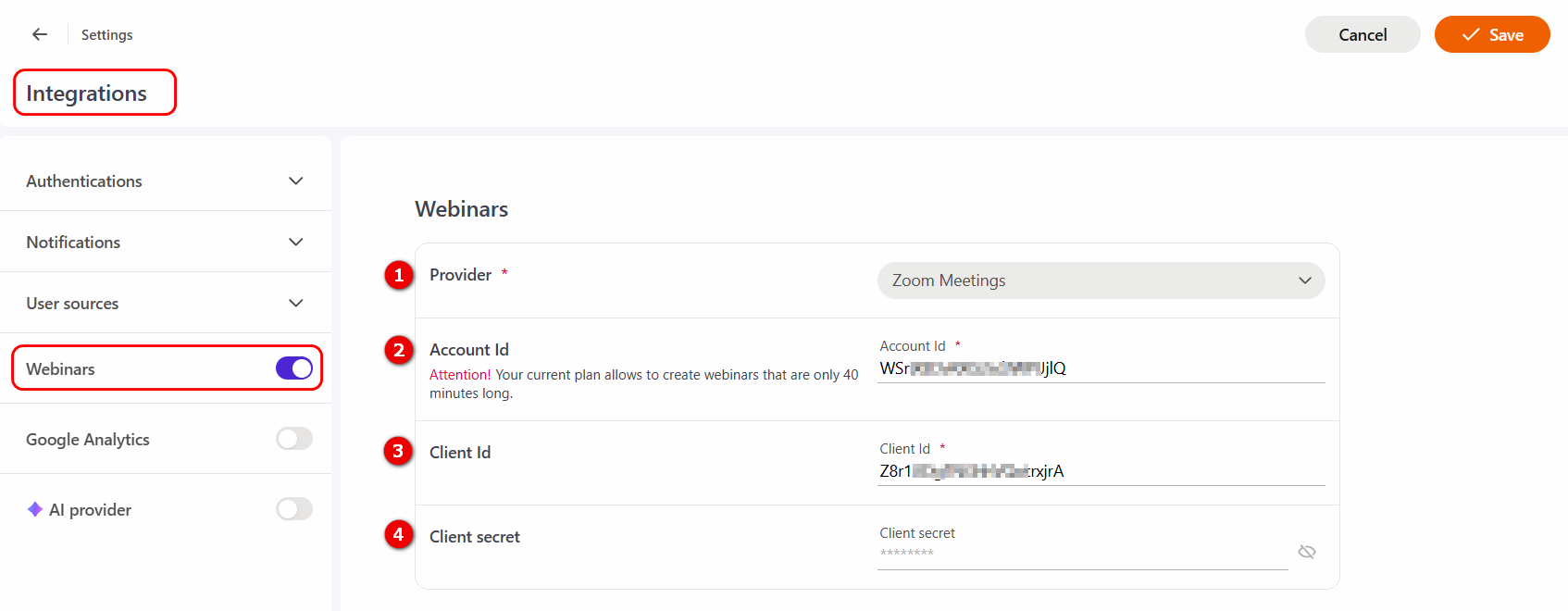
To set up the integration of the portal with Zoom Meetings webinars, you need to:
(1) - Select a suitable provider from the list;
(2) - Account ID - copy from your Zoom account;
(3) - Client Id - copy from your Zoom account;
(4) - Client secret - copy from your Zoom account.
Click the "Save" button.
Learn more about creating an application for integration with Zoom in the article Zoom settings.